How to Enable or Disable Link Preview in Outlook on Windows 11


You can enable or disable the link preview feature in Outlook on Windows 11 to control whether clickable links in your emails display a thumbnail, title, and description.
Link preview, also known as link unfurling, automatically fetches information about a URL when you hover over it, offering a quick glance at its content. This feature can be particularly useful for quickly assessing the context of shared links without needing to open them.
In the new Outlook for Windows, this setting allows you to tailor your email experience, whether you prefer immediate content previews or a cleaner, less visually cluttered interface. You control whether Outlook fetches this preview data for links you receive.
Open Outlook, click the gear icon for Settings, then go to Mail > Compose and reply. Check or uncheck “Preview links in email” to enable or disable the feature.
Why use Link Preview?
Outlook’s Link Preview shows a title, image, and description for website links you add to emails, helping you quickly see what a link is about before clicking.
What happens when you are done?
Once you finish these steps, your emails will either show these rich previews or just display the simple text links, depending on your choice.
How to change Link Preview settings
You can turn Link Preview on or off in Outlook on Windows 11 by going to the settings menu.
- First, open the new Outlook app on your computer. You can find it by clicking Start, then All apps, then selecting Outlook.

Open the new Outlook app in Windows 11 - Click the Settings button. It looks like a gear icon in the top right corner.

Add Gmail to Outlook app in Windows 11 - Click the Mail tab on the left side of the window.
- Click Compose and reply.
- Look for the Link preview section. Uncheck the box that says Preview links in email to turn it off. Check the box to turn it back on.
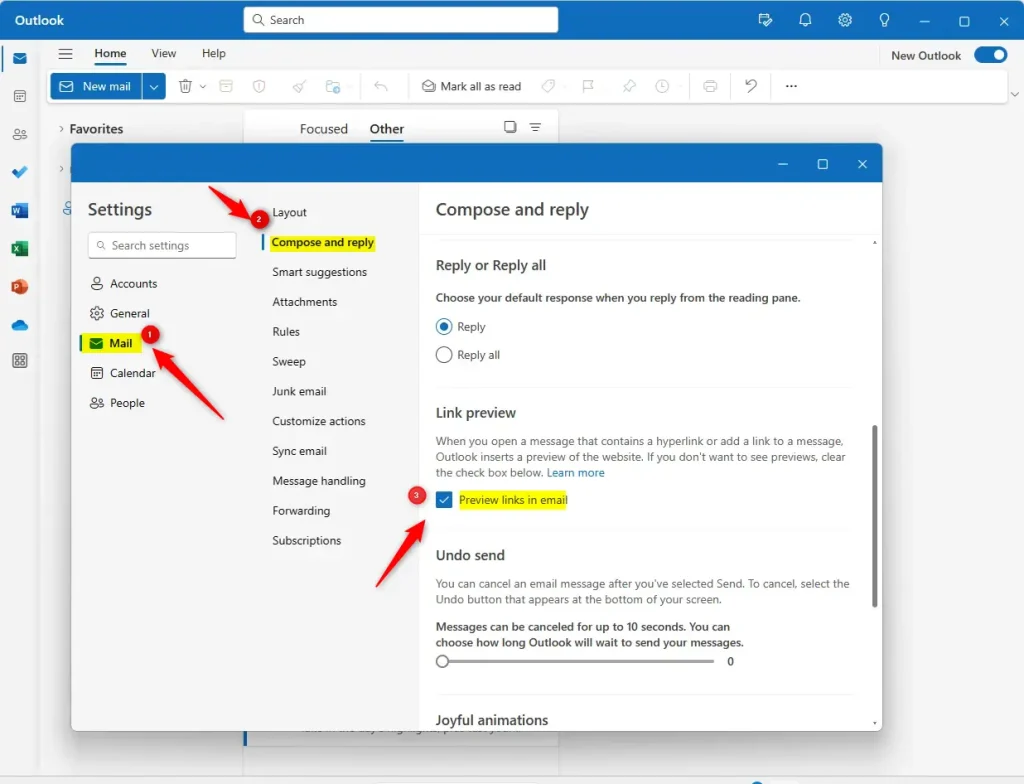
enable or disable link preview in Outlook Windows 11
Note: No administrator privileges are required to change these settings.
Summary
Link Preview is a feature in the new Outlook that shows a thumbnail and description for website links. You can easily enable or disable this feature in the Compose and reply settings menu to keep your inbox looking exactly how you want it.
Reference: Microsoft help
How do I turn on Link preview in Outlook?
Instructions for the Outlook.com and Outlook on the web At the top of the page, select Settings > Mail > Compose and reply. Scroll down to Link preview.
Why isn't my Link preview working?
If a link preview isn't appearing when sharing a URL on LinkedIn, Facebook, Discord, Telegram, or Threads, the issue is likely related to Open Graph meta tags. These platforms rely on Open Graph data from the website to generate link previews, including the title, description, and image.
Why disable Link preview?
If you turn on Disable link previews, the links you send to others won't generate a link preview. This is an optional layer of security to protect your IP address, which may contain information that some of our most privacy-conscious users are mindful of.
Was this guide helpful?

About the Author
Richard
Tech Writer, IT Professional
Richard, a writer for Geek Rewind, is a tech enthusiast who loves breaking down complex IT topics into simple, easy-to-understand ideas. With years of hands-on experience in system administration and enterprise IT operations, he’s developed a knack for offering practical tips and solutions. Richard aims to make technology more accessible and actionable. He's deeply committed to the Geek Rewind community, always ready to answer questions and engage in discussions.



[…] search history, adding or removing events from emails to your Calendar, switching to dark mode, link preview, sound alerts for notifications, turn on or off notifications when Outlook is closed, turning on […]
[…] search history, adding or removing events from emails to your Calendar, switching to dark mode, link preview, sound alerts for notifications, turn on or off notifications when Outlook is closed, turn on or […]