How to Delete Files in Windows 11


You delete files in Windows 11 by moving them to the Recycle Bin or by permanently removing them.
A file is a distinct piece of data, such as a document, photo, or application, stored on your computer.
Removing unnecessary files is essential for freeing up valuable storage space on your hard drive, especially when your system nears capacity. It also streamlines your digital environment and enhances privacy by eliminating sensitive data.
When you typically delete a file in File Explorer, Windows 11 redirects it to the Recycle Bin, where you can recover it for up to 30 days. However, files deleted directly from removable media, like USB drives, are usually permanently erased without going through the Recycle Bin.
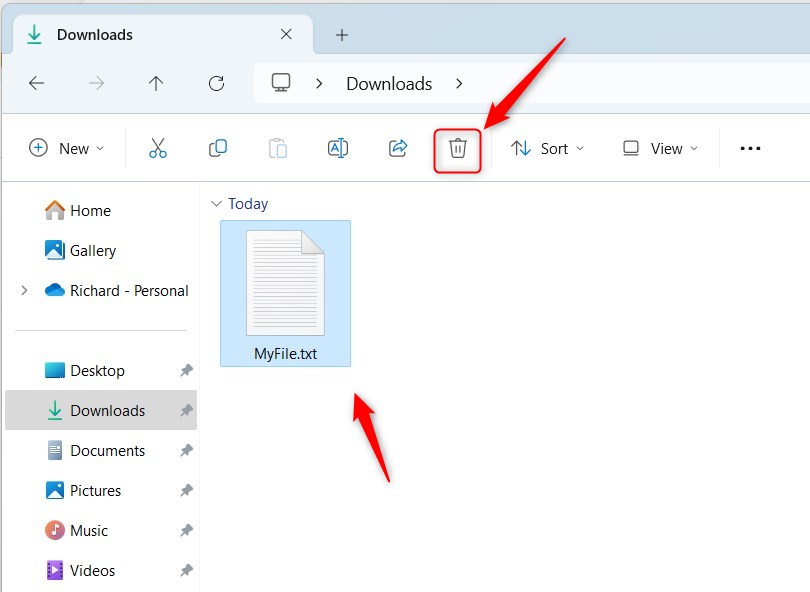
Press the Delete key to send files to the Recycle Bin, or hold Shift and press Del for permanent removal. You can also select a file in File Explorer and click the Delete button on the command bar.
Permanent Deletion vs. Recycle Bin
When you delete files in Windows 11, you can choose to send them to the Recycle Bin or delete them permanently.
Managing Disk Space and Storage
Freeing up disk space in Windows 11 can help your computer run faster by removing unneeded files.
How to Use Storage Sense
- Open Settings.
- Go to System > Storage.
- Turn on Storage Sense to let Windows manage your space automatically.
For more advanced management, visit the official Microsoft support page.
Cloud and OneDrive Syncing
If you use OneDrive, deleting a file from your PC often deletes it from the cloud too. To save space without deleting, use OneDrive Files On-Demand. This keeps your files in the cloud but removes them from your local hard drive until you click them.
Using Keyboard Shortcuts
You can delete files quickly using your keyboard:
- Delete: Sends the file to the Recycle Bin.
- Shift+Del: Deletes the file permanently, skipping the Recycle Bin.
Using the File Explorer Command Bar
- Open File Explorer.
- Select the file you want to remove.
- Click the Delete button in the top menu.
- Hold the SHIFT key while clicking Delete to remove the file permanently.
Using the File Explorer Context Menu
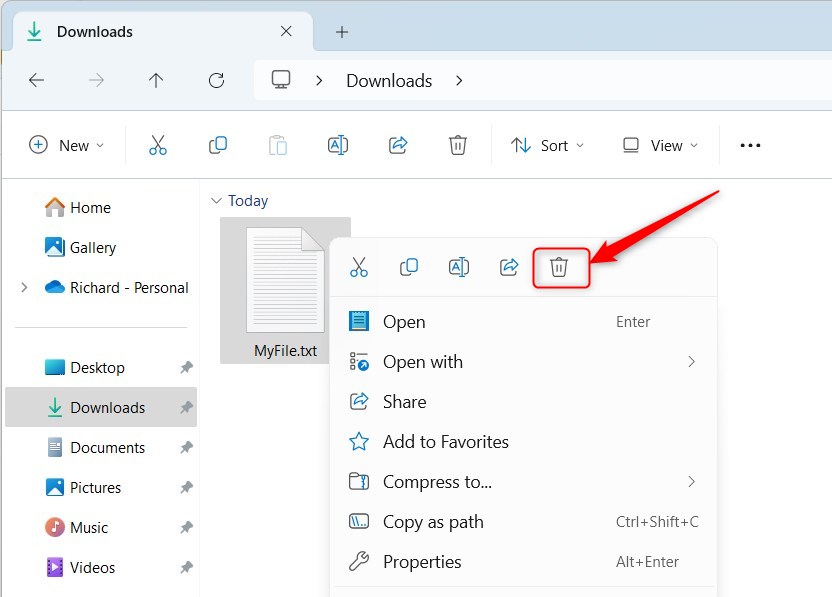
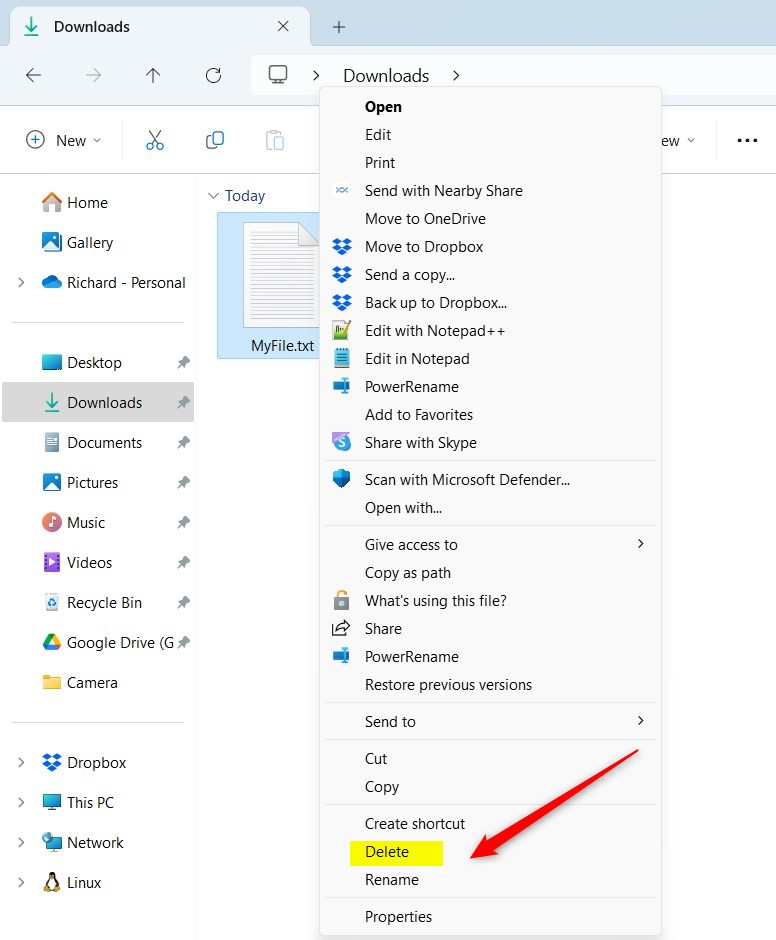
- Open File Explorer.
- Right-click the file.
- Select the Delete icon in the menu.
- If you don’t see it, click Show more options to see the full menu.
- Tip: Hold SHIFT while right-clicking to open the full menu immediately.
Using PowerShell (Admin Privileges Required)
ADMIN PRIVILEGES REQUIRED – Open Windows Terminal as an administrator. To delete a file permanently, use this command:Remove-Item -Path "C:\Users\GenericUser\Downloads\MyFile.txt" -Force
Using Command Prompt (Admin Privileges Required)
ADMIN PRIVILEGES REQUIRED – Open Windows Terminal as an administrator. To delete a file permanently, use this command:del /f /s /q /a "C:\Users\GenericUser\Downloads\MyFile.txt"
Summary
Managing files is a basic skill. Deleting files helps free up disk space and keeps your PC organized. Use the Recycle Bin for safety, or Shift+Del for permanent removal. Always be careful with permanent deletion, as it cannot be undone without specialized recovery tools.
How do I delete files that are currently in use?
If a file is in use, Windows will block the deletion. Close the program using the file first. If it still won’t delete, restart your computer to clear active processes, then try deleting the file again through File Explorer.
Does deleting a file from my PC also delete it from OneDrive?
Yes, if your files are synced with OneDrive, deleting them from your local folder will remove them from the cloud as well. Check your OneDrive settings if you want to keep files in the cloud while removing them from your local hard drive.
How can I recover files I accidentally deleted?
If you deleted a file normally, open the Recycle Bin on your desktop, right-click the file, and select Restore. If you used Shift+Del, the file is not in the Recycle Bin. You may need third-party data recovery software to attempt to retrieve it.
Was this guide helpful?

About the Author
Richard
Tech Writer, IT Professional
Richard, a writer for Geek Rewind, is a tech enthusiast who loves breaking down complex IT topics into simple, easy-to-understand ideas. With years of hands-on experience in system administration and enterprise IT operations, he’s developed a knack for offering practical tips and solutions. Richard aims to make technology more accessible and actionable. He's deeply committed to the Geek Rewind community, always ready to answer questions and engage in discussions.




No comments yet — be the first to share your thoughts!