How to Display Weather in Outlook Calendar on Windows 11


You can display weather in your Outlook Calendar on Windows 11 to see current conditions and forecasts directly within your schedule.
This feature integrates live weather data, allowing you to quickly check the temperature and forecast for a specific location right in your calendar view.
For Windows 11, this guide focuses on the new Outlook for Windows application. Older versions like Outlook LTSC 2021, Outlook 2019, and Outlook 2016 also support this functionality, though the interface may vary slightly.
Open Outlook settings, navigate to Calendar, and toggle the Weather switch to On. Then, in the Weather section, click Location, type your city, and click OK.
Why add weather to your calendar?
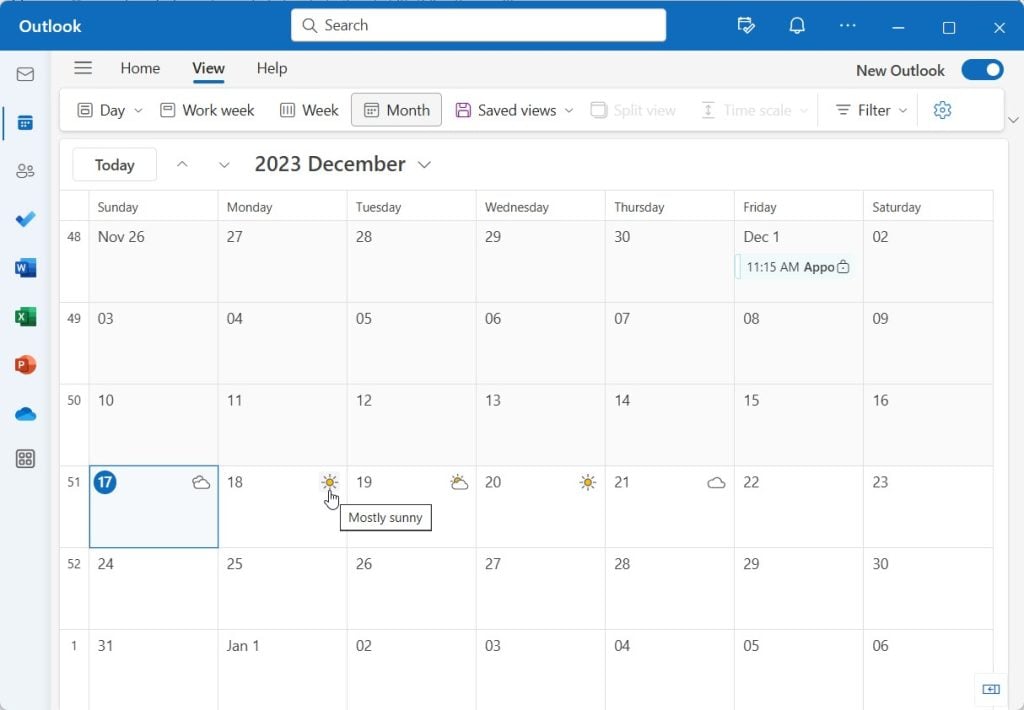
Adding weather to your Outlook calendar is a smart way to plan your day. You’ll see live weather icons and temperatures right next to your appointments, helping you prepare for outdoor events or know what to wear.
Step 1Enable Weather in Calendar
1. Open Outlook on your computer.
2. Click the Settings (gear) icon at the top right.
3. Select Calendar from the left sidebar.
4. Scroll down to the Weather section.
5. Flip the switch to On to display weather on your calendar.
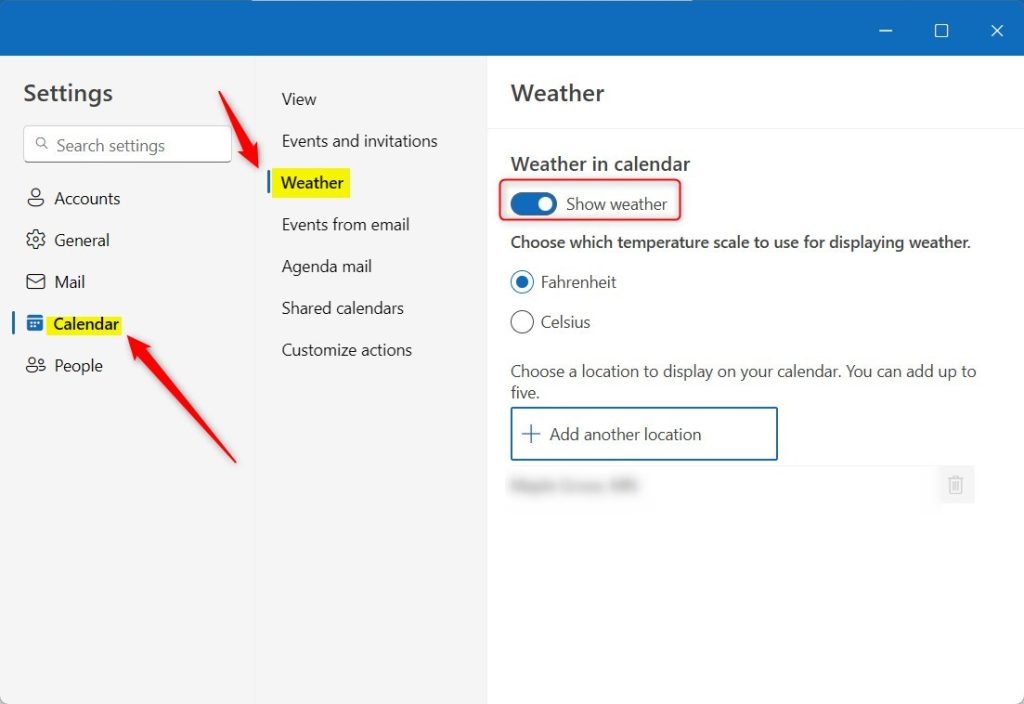
Step 2Set the Weather Location
Setting your weather location in Outlook Calendar is simple. Just go to Calendar settings, find the Weather section, click the Location button, and type in your city’s name to see local forecasts.
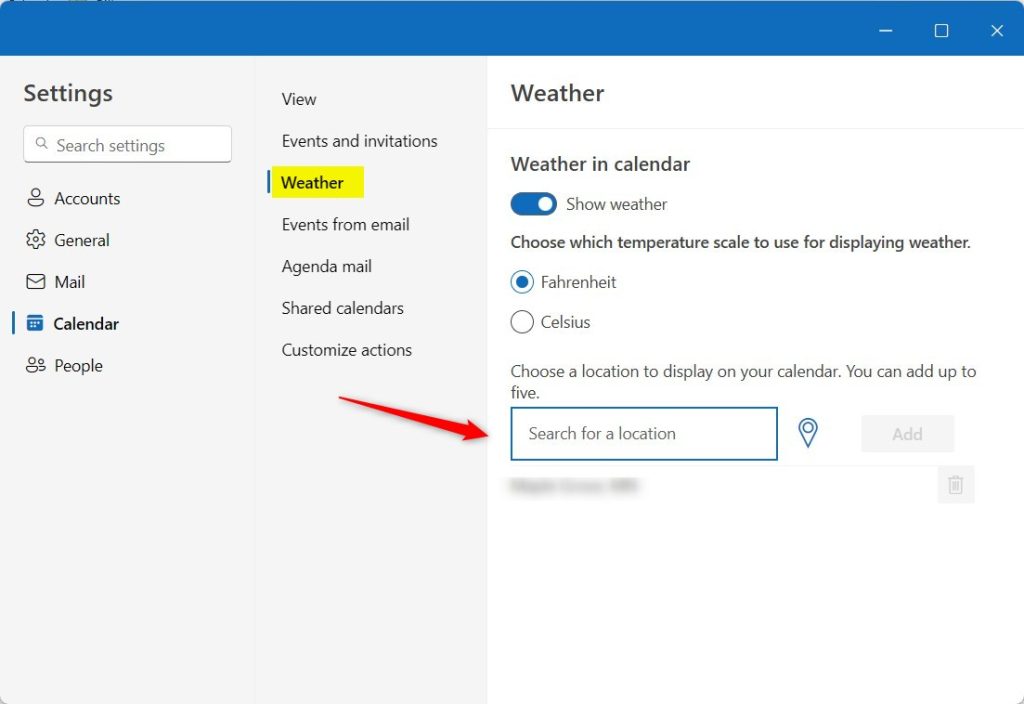
Note: You may need to allow location services. Admin Rights Needed: If your work computer is managed by your organization, you might need to ask your IT administrator to turn on location permissions. You can usually find these settings in Windows at 📁C:\Windows\System32\Settings.
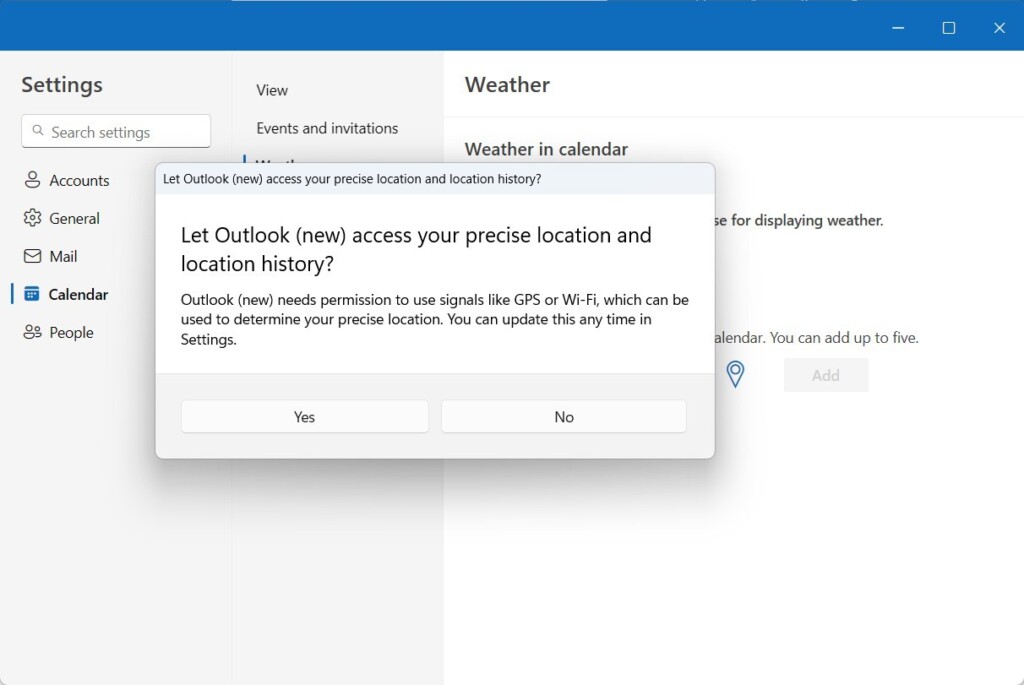
Troubleshooting: Weather Bar Missing
If the weather bar is missing, make sure your Outlook is updated to the latest version. Navigate to ‘File,’ then ‘Office Account,’ and select ‘Update Options.’ If the issue persists, verify that your privacy settings allow apps to access your location.
Third-Party Calendar Subscriptions
You can also add weather via external calendar subscriptions. Use an iCal format URL from a weather provider. In Outlook, go to Add Calendar > Subscribe from web and paste the URL. This allows you to see weather events as calendar items rather than just a bar.
Summary
With this setup, your schedule and local forecast live side-by-side, making daily planning a breeze. You have now learned how to display weather in Outlook calendar, troubleshoot missing bars, and manage multiple locations.
Why does the weather bar not show up in my Outlook?
The weather bar may be hidden due to account restrictions or disabled settings. Ensure the feature is toggled on in the Calendar settings menu. If you are using a work account, your organization might have disabled this feature via group policy for security or privacy reasons.
Can I add weather to Outlook for Web?
Yes, the weather feature is available in Outlook for the Web. The steps are identical to the desktop version: navigate to Settings, select Calendar, and enable the weather display. It will sync your location preferences across your Microsoft account automatically for a consistent experience.
How many locations can I save in the Outlook weather bar?
Outlook typically allows you to save up to five different locations in the weather bar. You can manage these by clicking the location name in the weather bar and selecting the option to add or remove cities from your saved list to keep your forecast relevant.
How do I change the temperature unit from Celsius to Fahrenheit in Outlook?
To change the temperature unit, go to the Calendar settings menu where you enabled the weather feature. Look for the temperature unit toggle or dropdown menu within the Weather section. Select either Celsius or Fahrenheit, then save your changes to update the display immediately.
Was this guide helpful?

About the Author
Richard
Tech Writer, IT Professional
Richard, a writer for Geek Rewind, is a tech enthusiast who loves breaking down complex IT topics into simple, easy-to-understand ideas. With years of hands-on experience in system administration and enterprise IT operations, he’s developed a knack for offering practical tips and solutions. Richard aims to make technology more accessible and actionable. He's deeply committed to the Geek Rewind community, always ready to answer questions and engage in discussions.




No comments yet — be the first to share your thoughts!