How to Manage Copilot Plugins in Windows 11


You manage Copilot plugins in Windows 11 by enabling or disabling them through the Copilot settings menu.
Copilot plugins extend Windows Copilot’s capabilities by connecting it to third-party applications and services, allowing it to access and process external information.
This article explains how to control which plugins are active on your Windows 11 PC, ensuring Copilot only interacts with approved data sources.
For instance, you might want to disable a plugin for a personal app to maintain data privacy while keeping a business-related plugin active for work tasks.
When you enable a plugin, you grant Copilot permission to access data from that specific service. Disabling a plugin immediately revokes this access, enhancing your control over data flow.
Enterprise Administrative Controls
[ADMIN PRIVILEGES REQUIRED] Managing Copilot plugins at an enterprise level happens in the Microsoft 365 admin center. Administrators can control which agents are available to users, ensuring that only verified tools are deployed. This prevents unauthorized data access and keeps your tenant secure.
Preinstalled vs. Custom Plugins
Preinstalled plugins come standard with Microsoft 365 Copilot and provide basic functionality. Custom plugins are built by your internal developers to connect to your specific business apps. Managing these requires different levels of contributor permissions within your organization.
How to Manage Copilot Plugins in Windows 11
For individual users, managing plugins is simple. Follow these steps to customize your experience:
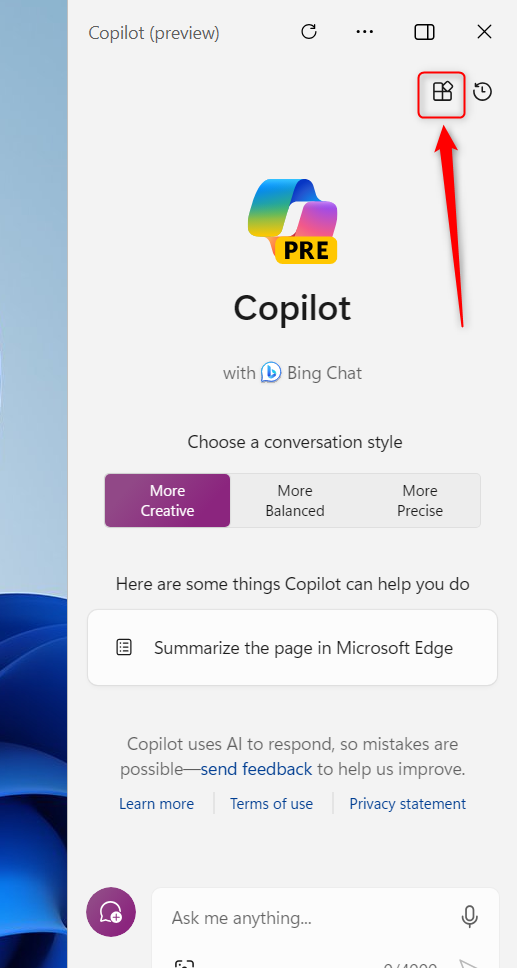
- Open the Windows Copilot by clicking its icon or pressing Windows key + C.
- Look for the Plugins (blocks) icon in the top right corner of the pane.
- To enable a feature, find it in the list and click the switch to the On position.
- To disable a feature, click the switch to the Off position.
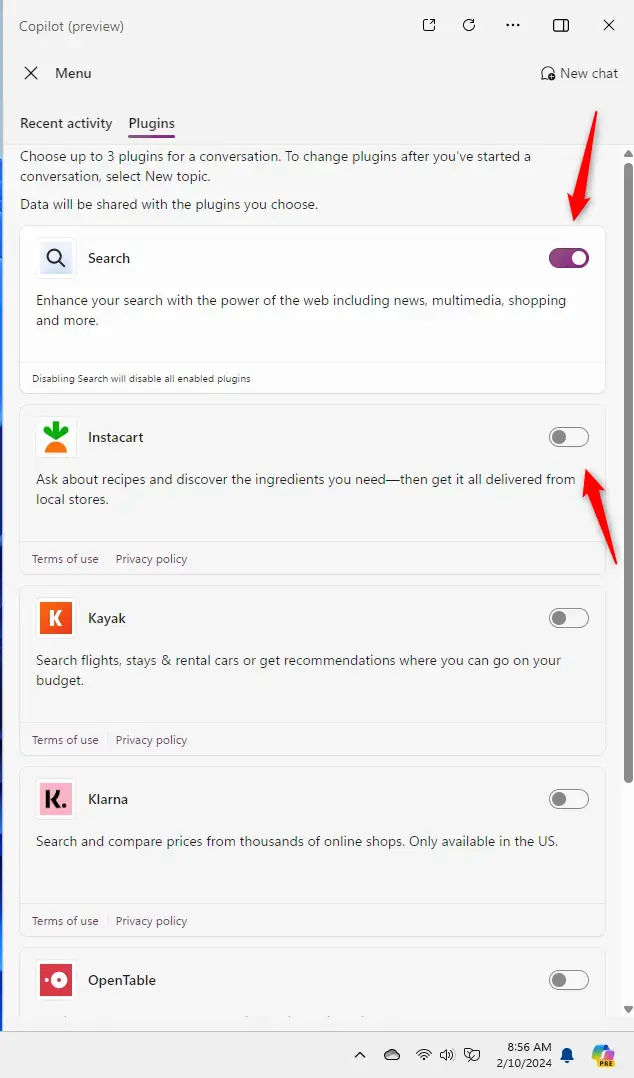
Note: If you turn off the “Search” plugin, all other plugins will be disabled automatically.
Summary
Managing Copilot plugins is essential for both personal productivity and enterprise security. By using the Plugins menu, users can toggle tools to fit their workflow, while administrators use the Microsoft 365 admin center to enforce data governance. Always remember that disabling the Search plugin acts as a master switch for all other features.
Related Articles
Who can manage Copilot plugins in an organization?
Only users with Global Administrator or specialized Copilot Administrator roles in the Microsoft 365 admin center can manage tenant-wide plugin policies. Individual users can only toggle plugins that have been explicitly enabled and approved for their use by the IT department.
Are plugins enabled by default in Microsoft 365 Copilot?
Some core plugins are enabled by default to ensure basic functionality. However, custom plugins and third-party integrations usually require explicit administrative approval and deployment through the admin center before they appear in the user interface for your employees.
Was this guide helpful?

About the Author
Richard
Tech Writer, IT Professional
Richard, a writer for Geek Rewind, is a tech enthusiast who loves breaking down complex IT topics into simple, easy-to-understand ideas. With years of hands-on experience in system administration and enterprise IT operations, he’s developed a knack for offering practical tips and solutions. Richard aims to make technology more accessible and actionable. He's deeply committed to the Geek Rewind community, always ready to answer questions and engage in discussions.



[…] from Edge, refresh Copilot prompts, resize the Copilot side pane, delete recent activity, enable or disable Copilot plugins, and […]