How to Pause and Resume Google Drive Sync on Windows 11


This guide explains how to pause and resume file syncing for Google Drive on Windows 11.
Google Drive is a service that saves your files to the internet. This lets you see your files on different devices. It also lets you share files with other people.
Why pause syncing?
Sometimes your internet connection might be slow. Pausing syncing saves your bandwidth for other tasks. You might also want to edit a file without it updating on the cloud right away. Pausing gives you control over when your files are uploaded.
What happens when done?
When you pause syncing, the app stops uploading or downloading your files. Your files stay exactly where they are. Once you resume, the app will start checking for changes again. It will then update all your files to match the latest versions.
How to pause syncing
1. Look at the bottom right corner of your screen. Click the small arrow to open the Taskbar overflow menu.
2. Click the Google Drive icon to open the menu window.
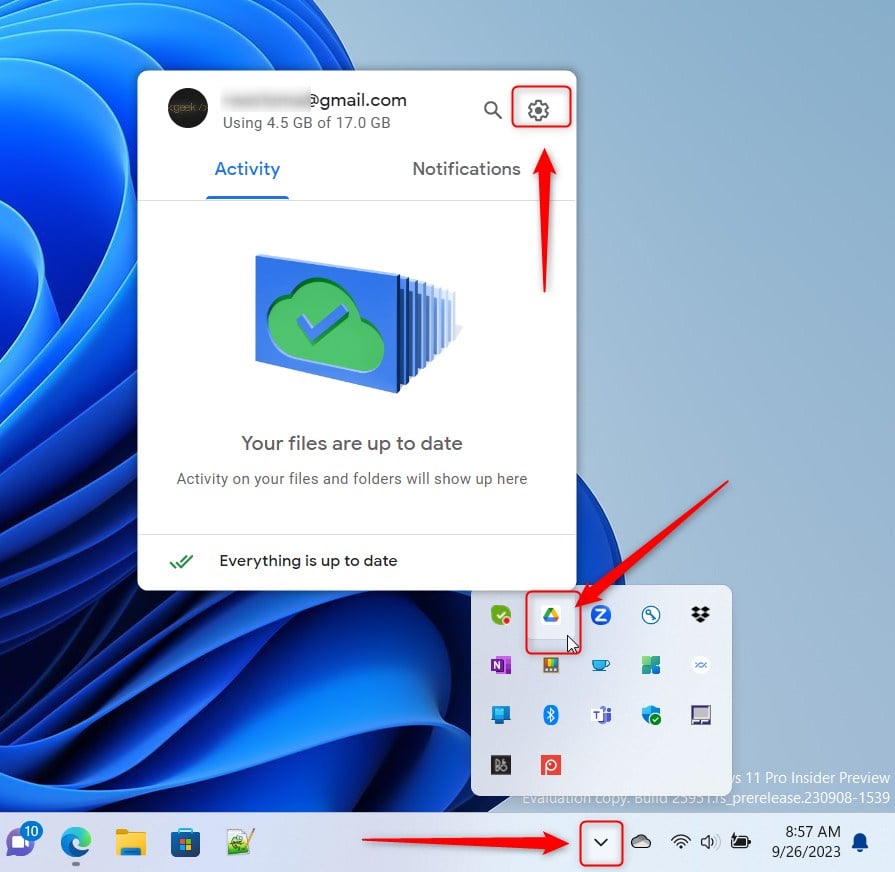
3. Click the Settings gear icon at the top right of the window.
4. Select Pause syncing.

Google Drive will stay paused until you tell it to start again.
How to resume syncing
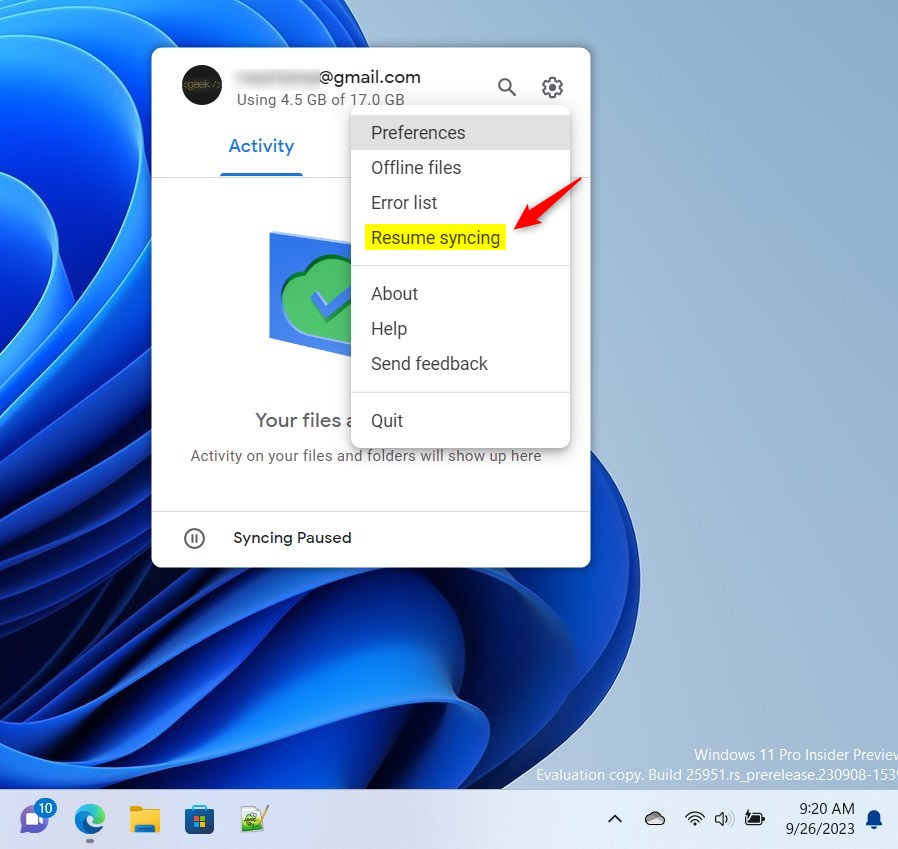
1. Click the Google Drive icon in the Taskbar overflow menu again.
2. Click the Settings gear icon.
3. Select Resume syncing.
Summary
Pausing and resuming your Google Drive sync is a great way to manage your internet speed and your files. By following these simple steps, you can stop syncing whenever you need to and start it back up just as easily. This gives you total control over how and when your data is sent to the cloud.
How do I pause Google Drive syncing on Windows 11?
Can I resume syncing after pausing Google Drive?
Why would I want to pause Google Drive syncing?
Will my files be updated while syncing is paused?
Is it easy to pause and resume syncing in Google Drive?
Was this guide helpful?




[…] and start Google Drive at login, stream Google Drive to a folder or driver letter, pause syncing, add files and photos to sync with Google Drive, stream or mirror their files on Google […]
[…] and start Google Drive at login, stream Google Drive to a folder or driver letter, pause syncing, add files and photos to sync with Google Drive, stream or mirror their files on Google Drive, […]
[…] and start Google Drive at login, stream Google Drive to a folder or driver letter, pause syncing, add files and photos to sync with Google Drive, and […]
[…] can install and start Google Drive at login, stream Google Drive to a folder or driver letter, pause syncing, and […]