How to Change Android Nearby Share File Location on Windows 11


Changing your Nearby Share download folder helps keep your PC organized. By default, files go to your Downloads folder, but you can redirect them to any local drive. Note that Android devices cannot directly save to external SD cards via this transfer method; files must first land in your PC’s internal storage.
Why change your file location?
When you use Nearby Share, your files often get lost in a sea of browser downloads. Changing the save location allows you to send photos to a Pictures folder or documents to a Work folder. This keeps your system clean and saves time.
What happens when you are done?
Once you update your settings, every future file transfer will automatically route to your chosen folder. You will no longer need to move files manually from the Downloads directory.
How to Change Nearby Share Location
Note: Some system-level configurations may require admin privileges.
- Open the Nearby Share app from your Start menu.

- Click the Settings gear icon in the top right corner.

- Find the section labeled Save received files to.
- Click the Change link.

- Use the File Explorer window to select your preferred folder.
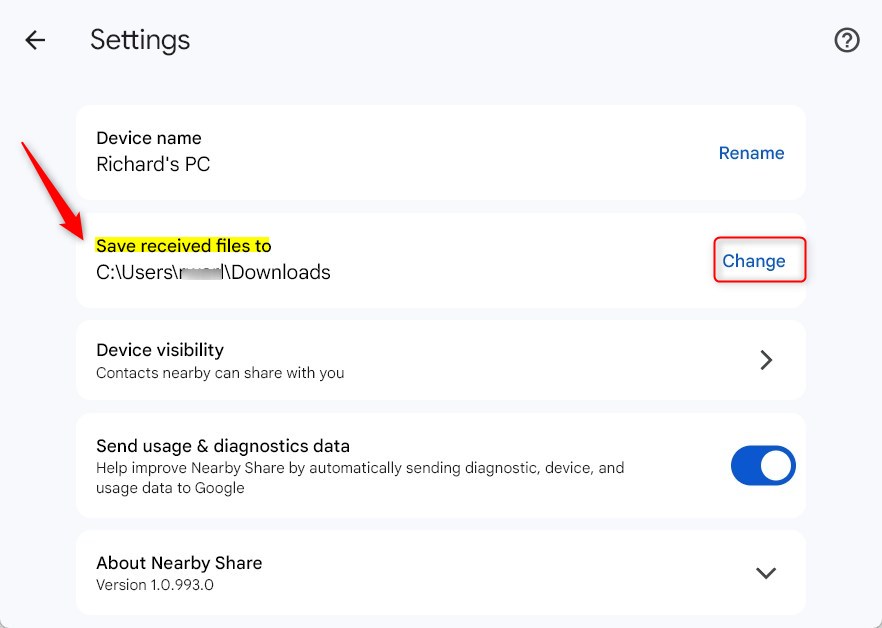
- Click Select Folder to confirm.
Troubleshooting Save Folder Errors
If the option is greyed out, ensure you have write permissions for the target folder. If you are in a corporate environment, your IT department may have locked this setting via Group Policy. Check if your user account has restricted access to the chosen directory path, such as C:\ProgramData or other system-protected areas.
Enterprise and Group Policy Management
In a business setting, administrators can manage Nearby Share settings using the Group Policy Editor. By navigating to the registry path HKEY_LOCAL_MACHINE\SOFTWARE\Policies\Google\NearbyShare, admins can enforce specific download paths for all users on a device. This ensures consistency across a fleet of computers.
Summary
- Nearby Share simplifies sending files from Android to Windows 11.
- Default downloads go to your user folder, but you can change this in the app settings.
- Always ensure your target folder has enough space and correct permissions.
- For more technical details, visit the official Microsoft Support page.
Why is the save location option greyed out?
The option may be greyed out if you lack write permissions for the selected folder or if an administrator has enforced a specific save path via Group Policy. Ensure you are logged in with an account that has full read and write access to the target directory on your Windows 11 PC.
Does Nearby Sharing support external drives?
Yes, you can select a folder on an external hard drive or USB flash drive. However, if the drive is disconnected when a file transfer occurs, the transfer will fail. Ensure your external storage is permanently connected to your PC to avoid interruption during the file transfer process.
Can I change the save location for all users on a device?
Nearby Share settings are typically user-specific. To change the location for all users, an administrator must use the Registry Editor to modify keys under HKEY_LOCAL_MACHINE. This requires advanced knowledge of Windows system management and should be done carefully to avoid breaking other system-wide file transfer configurations.
Was this guide helpful?





Leave a Reply