How to Enable File Preview in Windows 11 PowerToys

You enable file preview in Windows 11 using the File Explorer add-on within Microsoft PowerToys.
This allows you to instantly see the content of various file types directly in File Explorer, much like the Quick Look feature on macOS, without needing to launch the associated application.
To activate this, ensure you have installed Microsoft PowerToys, ideally version 0.60 or newer. Once enabled, you can preview PDFs, images, Markdown files, and more simply by clicking on them in File Explorer.
Open PowerToys, navigate to File Explorer Add-ons, and toggle on the desired previewers like SVG, Markdown, or source code. Ensure “Enable Thumbnail support” is also on. Then, open File Explorer and press Alt+P to reveal the Preview Pane and see file contents.
Prerequisites
You need to install Microsoft PowerToys first to use its features, including file preview.
Peek vs. File Explorer Add-ons
PowerToys has two main ways to preview files: Peek and File Explorer Add-ons, and it’s easy to mix them up.
How to Enable PowerToys Peek
Turning on PowerToys Peek lets you quickly see files like images, documents, and code without opening their apps.
- Open the PowerToys app.
- Select Peek from the left menu.
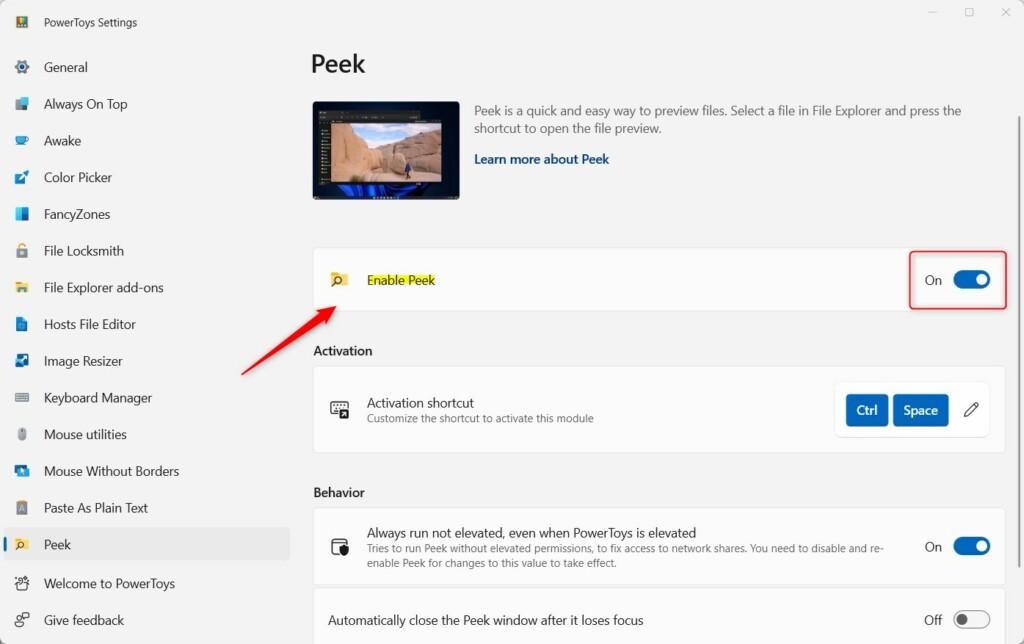
- Toggle Enable Peek to On.
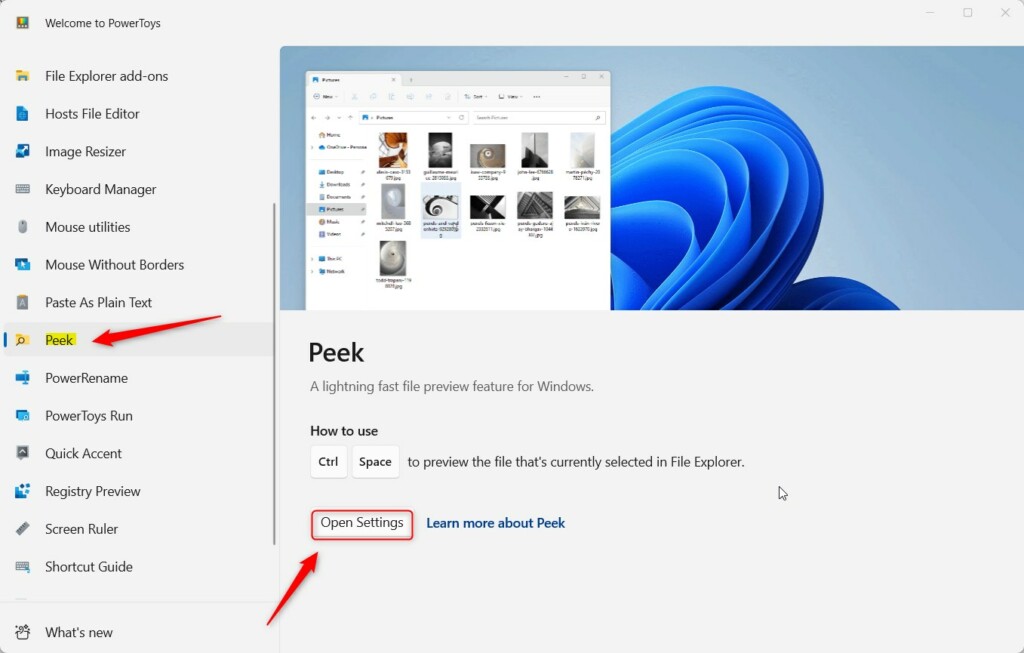
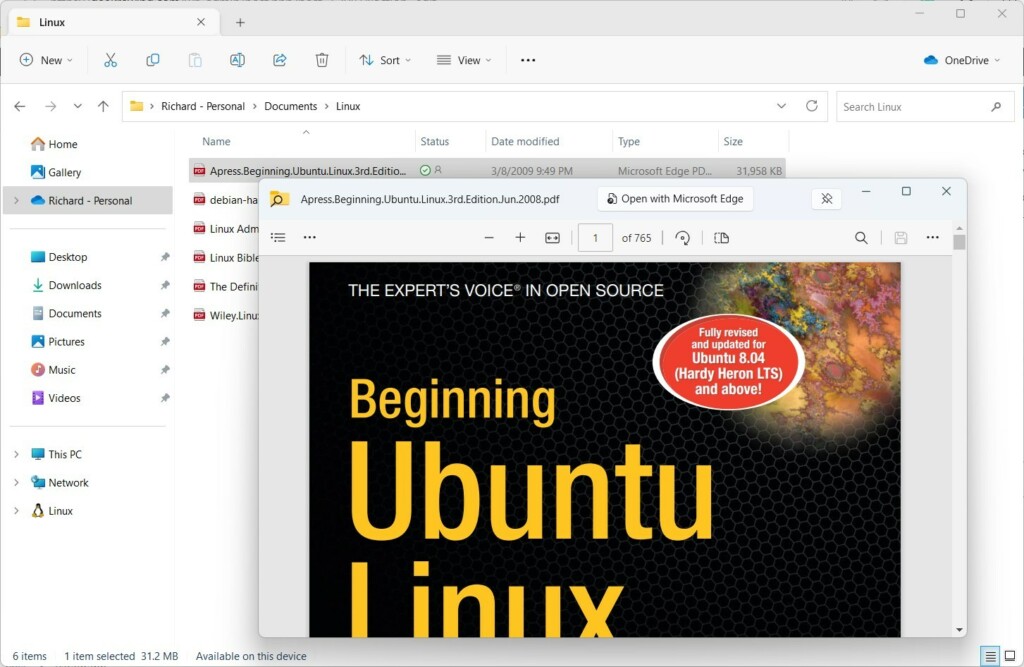
To use it, select any file in File Explorer and press CTRL + Spacebar. You can use your arrow keys to cycle through files in the same folder.
Using File Explorer Add-ons
PowerToys File Explorer Add-ons make the standard Windows Preview Pane better by adding support for more file types.
- Open PowerToys.
- Click File Explorer Add-ons.
- Toggle the switches for Enable SVG previewer, Enable Markdown previewer, and Enable source code previewer.
- Ensure Enable Thumbnail support is also turned on.
Once enabled, open File Explorer and press Alt+P to show the Preview Pane. Click on a file, and you will see its contents rendered automatically.
Troubleshooting
If your PowerToys file preview isn’t showing up, it might be a simple fix.
- Restart the PowerToys app.
- Check that the specific previewer (like SVG or Markdown) is toggled On in the settings.
- Ensure your file is not corrupted.
- If you are using a custom path like 📁C:\Users\GenericUser\Documents, ensure you have read permissions for that folder.
Summary
PowerToys provides two powerful ways to preview files: the Peek utility for instant pop-up previews and File Explorer Add-ons for deep integration with the Windows Preview Pane. By using these tools, you save time and improve your daily workflow. For more details, visit the official PowerToys documentation.
How do I enable the Preview Pane in 🪟 Windows 11?
Open File Explorer, click the View menu at the top, select Show, and then click Preview pane. Alternatively, you can press Alt+P on your keyboard while inside any folder to toggle the pane on or off instantly.
Can I preview STL files in Windows Explorer using PowerToys?
Yes, PowerToys includes support for STL files. By enabling the Thumbnail support and Preview Pane features within the File Explorer Add-ons section of the PowerToys settings, you can view 3D models directly in your file manager without needing to open a dedicated 3D modeling application.
Was this guide helpful?

About the Author
Richard
Tech Writer, IT Professional
Richard, a writer for Geek Rewind, is a tech enthusiast who loves breaking down complex IT topics into simple, easy-to-understand ideas. With years of hands-on experience in system administration and enterprise IT operations, he’s developed a knack for offering practical tips and solutions. Richard aims to make technology more accessible and actionable. He's deeply committed to the Geek Rewind community, always ready to answer questions and engage in discussions.




[…] Windows 11 thumbnail previews help you manage files visually. If they stop working, check your Folder Options first. If that fails, clear your thumbnail cache using Disk Cleanup or check your Registry settings. Always ensure you have enough disk space to allow Windows to save these preview images. For more advanced file viewing, consider using PowerToys. […]