How to Show Labels on Taskbar Pins in Windows 11


You can show text labels next to icons pinned to your Windows 11 taskbar by enabling a specific setting.
Showing taskbar pin labels displays the names of your pinned applications directly beneath their icons. Microsoft reintroduced this user-friendly feature in the Windows 11 23H2 update.
This makes your taskbar more organized and navigable, helping you quickly identify apps at a glance. You can easily distinguish between open programs, making switching applications much more efficient.
You can show text labels on your Windows 11 taskbar pins by going to Settings > Personalization > Taskbar > Taskbar behaviors. Check the box for “Show labels on Taskbar pins” to enable this feature. This option is available in Windows 11 version 23H2 and later.
Enable or Disable Show Labels via Settings
You can turn on or turn off labels for your pinned taskbar items in Windows 11 right from the Settings app, but this feature is only available if you have Windows 11 version 23H2 or a newer update installed.
- Open the Windows Settings app by pressing Windows key + I.
- Click Personalization on the left menu.

Windows 11 Personalization in the Settings app - Click on Taskbar on the right side.

Windows 11 Taskbar tile in the Settings app - Expand the Taskbar behaviors section.
- Check or uncheck Show labels on Taskbar pins to toggle the feature.
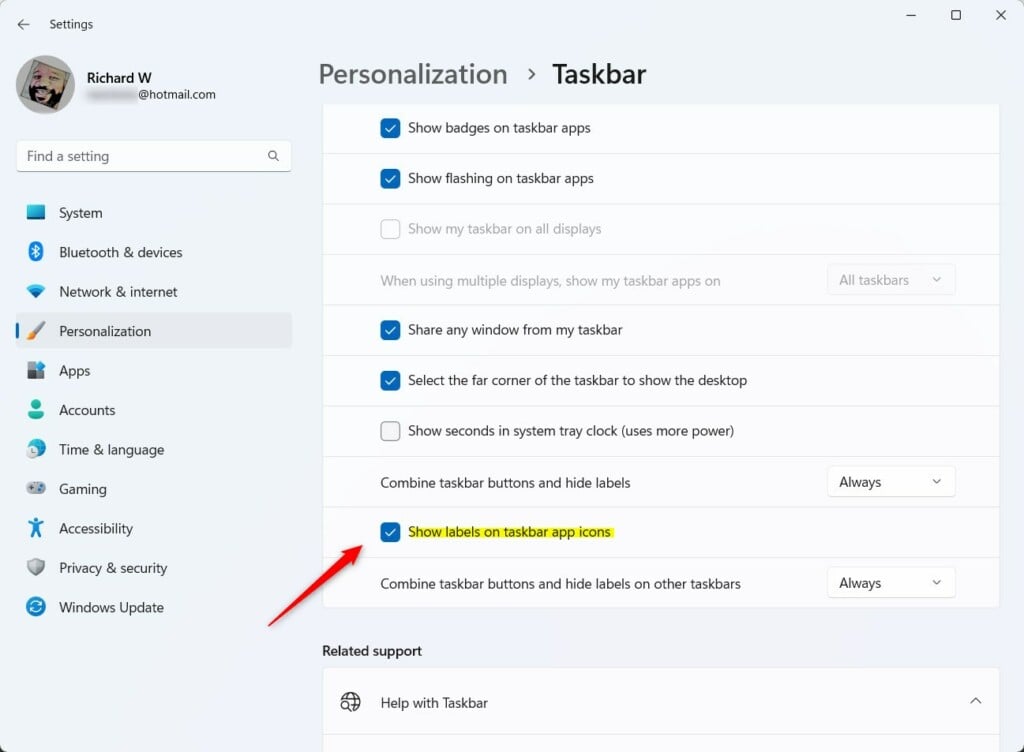
Show labels on taskbar app icons
Troubleshooting for Older 🪟 Windows 11 Builds
If you can’t find the option to show labels on your taskbar in Windows 11 Settings, you’re probably using an older version like 22H2, and you’ll need to check for updates or use other methods.
Advanced: Registry Editor Method (Requires Admin Privileges)
If you’re okay with making advanced changes and have admin rights, you can use the Registry Editor to show labels on your taskbar pins in Windows 11, even on older versions that don’t have the Settings option.
- Press Windows key + R, type regedit, and press Enter.
- Navigate to:
HKEY_CURRENT_USER\Software\Microsoft\Windows\CurrentVersion\Explorer\Advanced
windows registry advanced key - Right-click in the empty space, select New > DWORD (32-bit) Value.
- Name it
TaskbarShowLabels. - Double-click it and set the Value data to
1to show labels or0to hide them.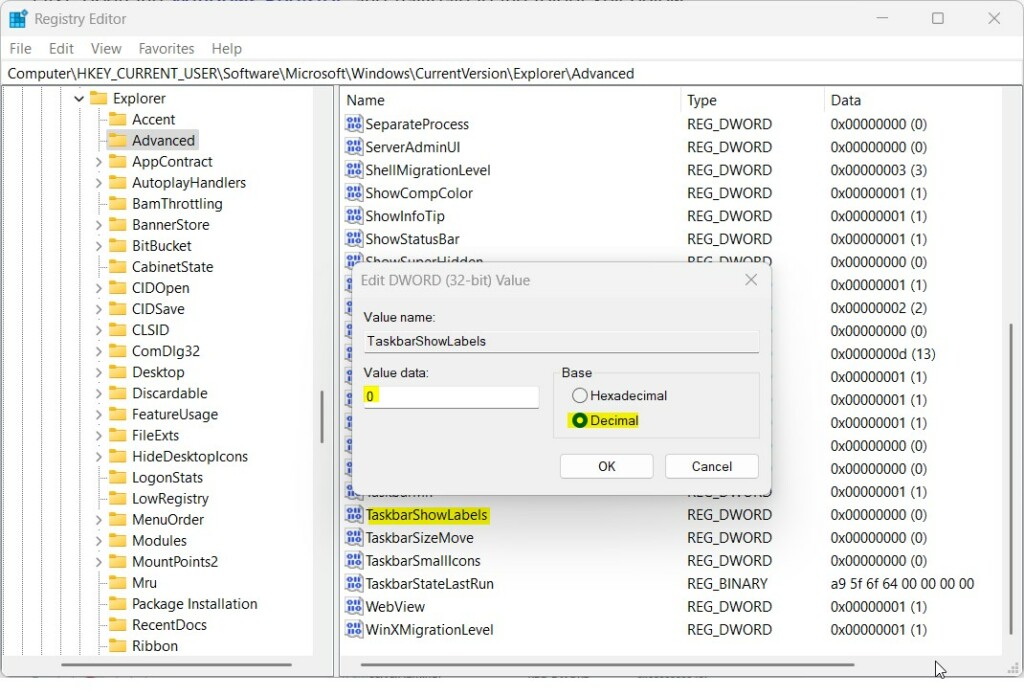
Show labels on taskbar pins registry - Restart your computer to apply changes.
Summary
You have learned how to manage taskbar labels in Windows 11. By using the native Settings menu or the Registry Editor, you can customize your taskbar button behavior to show or hide text labels, making your workflow more efficient.
Does 🪟 Windows 11 now support taskbar labels natively?
Yes. Starting with the Windows 11 23H2 update, Microsoft officially restored the ability to show labels on taskbar pins. Users can easily toggle this setting within the native Taskbar settings menu without needing external software or registry modifications.
Why did Microsoft remove taskbar labels in early 🪟 Windows 11 versions?
Microsoft removed taskbar labels in early Windows 11 versions to prioritize a minimalist, simplified design language. The goal was to reduce visual clutter and align the interface with a modern, icon-centric aesthetic, though this change proved controversial among power users who relied on labels for multitasking.
Is it safe to use third-party tools to restore taskbar labels?
Tools like ExplorerPatcher or StartAllBack are generally safe for experienced users, but they modify core system files. Since Windows 11 now supports labels natively, it is safer to update your OS to 23H2 rather than relying on third-party patches that might break after future Windows updates.
Was this guide helpful?

About the Author
Richard
Tech Writer, IT Professional
Richard, a writer for Geek Rewind, is a tech enthusiast who loves breaking down complex IT topics into simple, easy-to-understand ideas. With years of hands-on experience in system administration and enterprise IT operations, he’s developed a knack for offering practical tips and solutions. Richard aims to make technology more accessible and actionable. He's deeply committed to the Geek Rewind community, always ready to answer questions and engage in discussions.


No comments yet — be the first to share your thoughts!