How to Customize Edge Split Screen for Better Multitasking

You can customize Microsoft Edge’s Split Screen feature to display two websites simultaneously within a single tab, enhancing your multitasking capabilities.
Split Screen in Edge divides your browser window either vertically or horizontally, allowing two web pages to appear side-by-side or one above the other. This feature is built directly into Microsoft Edge for Windows 11 and newer operating systems.
Effectively using Edge Split Screen can dramatically speed up your workflow. Imagine researching on one half of your screen while drafting an email on the other, or comparing detailed product information from two different retail sites without the hassle of switching between numerous tabs.
Customize Edge Split Screen by going to Settings > Accessibility > Shortcut section and typing your desired shortcut keys in the “Shortcut for split window” box. Your changes save automatically, but restart the browser to ensure the new shortcut works.
Why use Split Screen?
Why use Split Screen? It’s a great way to multitask. Imagine reading an article on one side while taking notes on the other. No more constantly switching between tabs! This saves you time and helps you manage your work more effectively.
What happens when you are done?
Once you finish these steps, you will have a custom keyboard shortcut. You can open side-by-side view instantly. This makes your daily browsing much faster.
How to Enable Split Screen
Before you customize your shortcut, make sure the feature is active. Click the Split Screen icon in the top toolbar of Microsoft Edge. If you do not see it, go to Settings > Appearance and ensure the Split screen button is toggled on.
How to Customize Edge Split Screen Shortcuts
Customizing Edge split screen shortcuts lets you pick your own keyboard keys to quickly open the split view feature in Microsoft Edge.
- Open the Microsoft Edge browser.
- Click the Settings and more button (the three horizontal dots) in the top right corner.
- Select Settings from the menu.

- Click on Accessibility in the menu on the left side of your screen.
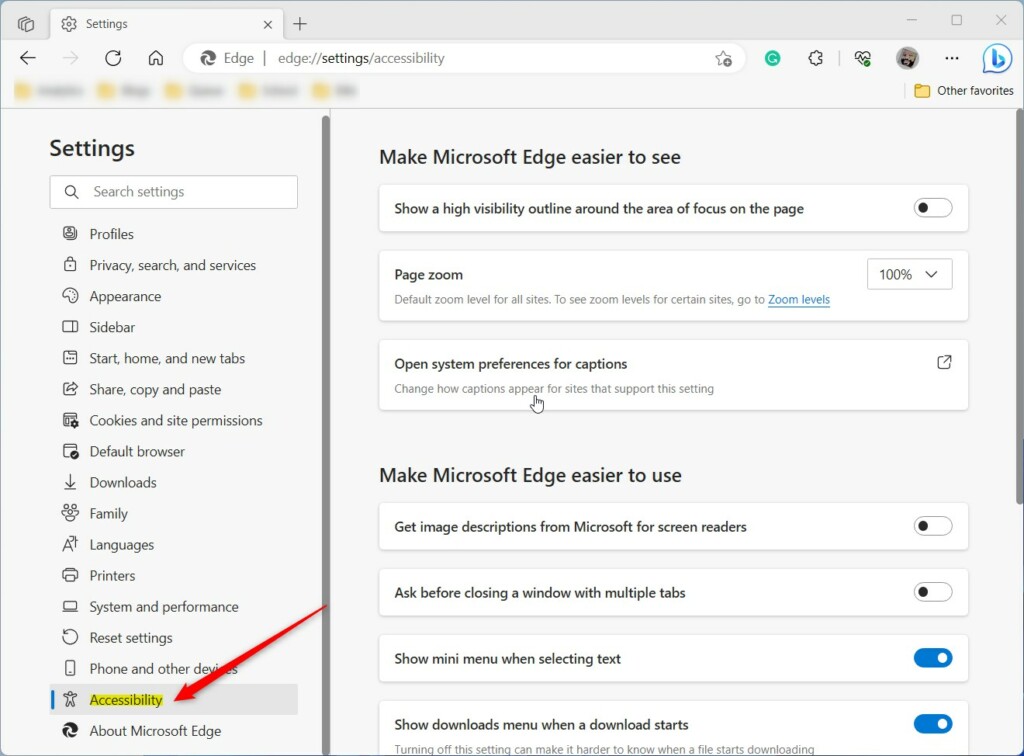
- Look for the Shortcut section. Find the box labeled Shortcut for split window.
- Type the new keys you want to use. You must include either the CTRL or ALT key in your combination.
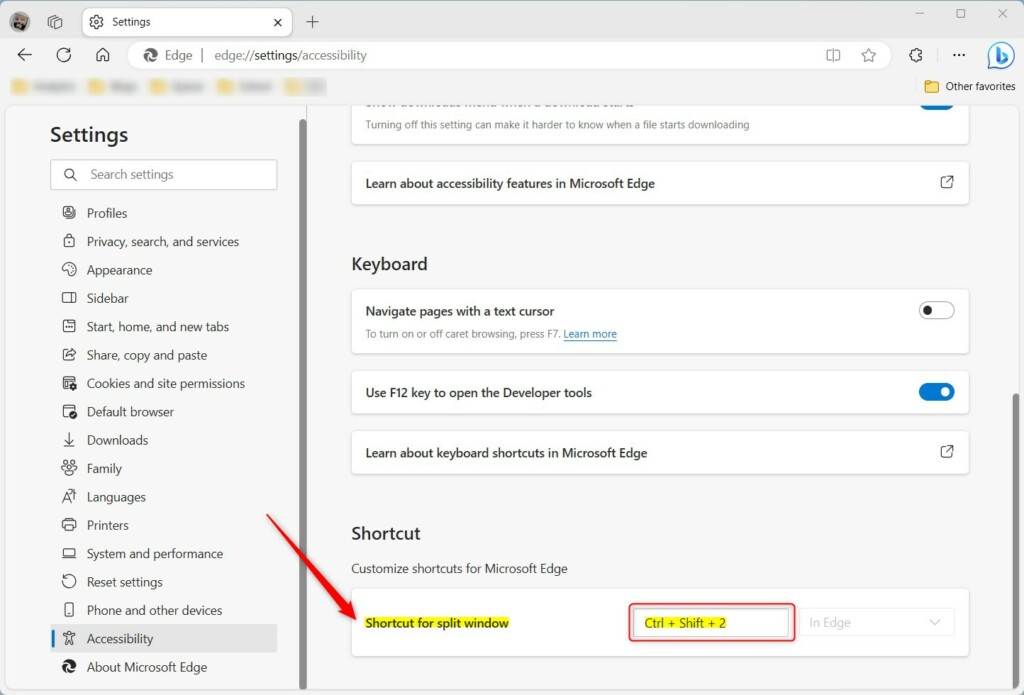
Your changes save automatically. Restart your browser to ensure the new shortcut works. Note: These settings are specific to your user profile. You do not need admin privileges to change these browser settings.
Managing and Resizing Windows
Once you’ve got your windows split, you can easily resize them to fit your needs by dragging the middle divider.
Summary
Customizing your split screen shortcut in Microsoft Edge is a smart way to make your computer work faster and better for you.
How do I exit split screen mode?
Does split screen work on mobile devices?
No, the split screen feature is currently only available for the desktop version of Microsoft Edge. Mobile devices have limited screen space, so the browser does not support side-by-side views. You should use standard tab switching on your phone or tablet to manage multiple websites effectively.
Can I open more than two websites in one tab?
Currently, Microsoft Edge only supports two websites in a single split screen view. You can have one website on the left and one on the right. If you need to view more sites at once, you will need to open additional browser windows or use separate tabs.
Was this guide helpful?

About the Author
Richard
Tech Writer, IT Professional
Richard, a writer for Geek Rewind, is a tech enthusiast who loves breaking down complex IT topics into simple, easy-to-understand ideas. With years of hands-on experience in system administration and enterprise IT operations, he’s developed a knack for offering practical tips and solutions. Richard aims to make technology more accessible and actionable. He's deeply committed to the Geek Rewind community, always ready to answer questions and engage in discussions.



do not have this option