How to Show or Hide the Details Pane in Windows 11 File Explorer


Windows 11 File Explorer has a handy Details pane. This tool lets you see file information, share items, and check activity without opening the file.
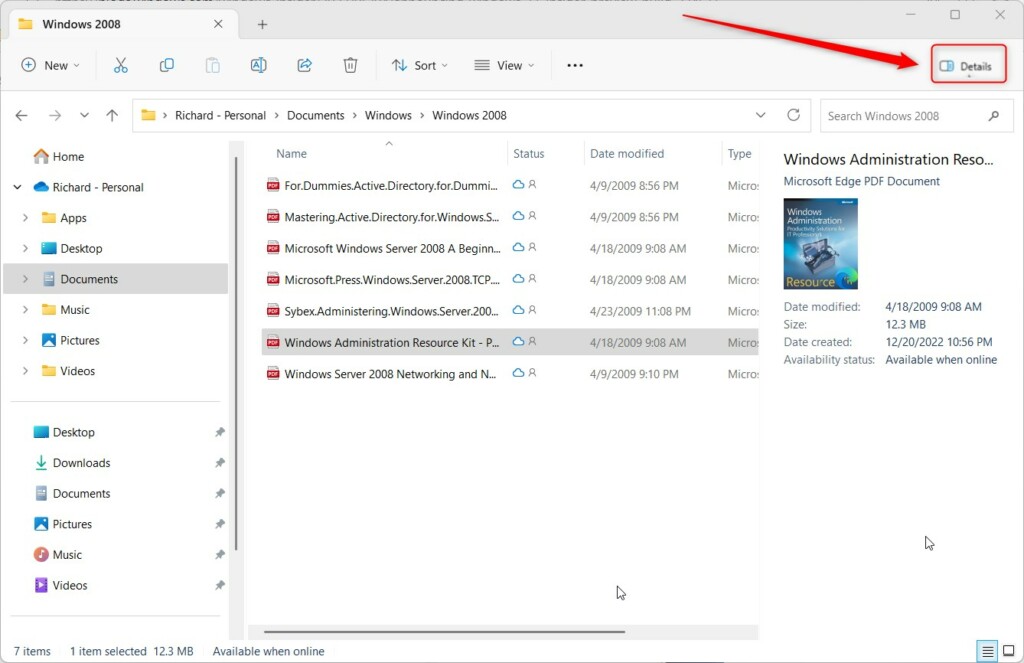
Open File Explorer and press Alt+Shift+P to toggle the Details pane. Alternatively, click View, then Show, and select Details pane. This pane displays file information and activity.
Why use the 🪟 Windows 11 Details pane?
The Windows 11 Details pane is a helpful tool in File Explorer that shows you important file information right away.
Comparison of Methods
| Method | Ease of Use | Requirement |
|---|---|---|
| Keyboard Shortcut | Fastest | None |
| View Menu | Easy | None |
| Registry Editor | Advanced | Admin Privileges |
Method 1The Keyboard Shortcut
The quickest way to toggle the pane is to open File Explorer and press Alt+Shift+P on your keyboard. This will show or hide the pane instantly.
Method 2The View Menu
If you prefer using your mouse, follow these steps:
- Open File Explorer.
- Click View in the top command bar.
- Select Show.
- Click Details pane to toggle it on or off.

Method 3Registry Editor (Advanced)
You can change the Windows 11 Details pane using the Registry Editor, but this is for advanced users and needs admin rights.
For advanced users, you can control the pane by editing the Windows Registry Editor. This requires administrator privileges and should be done with caution, as incorrect changes can cause system instability.
- Navigate to:
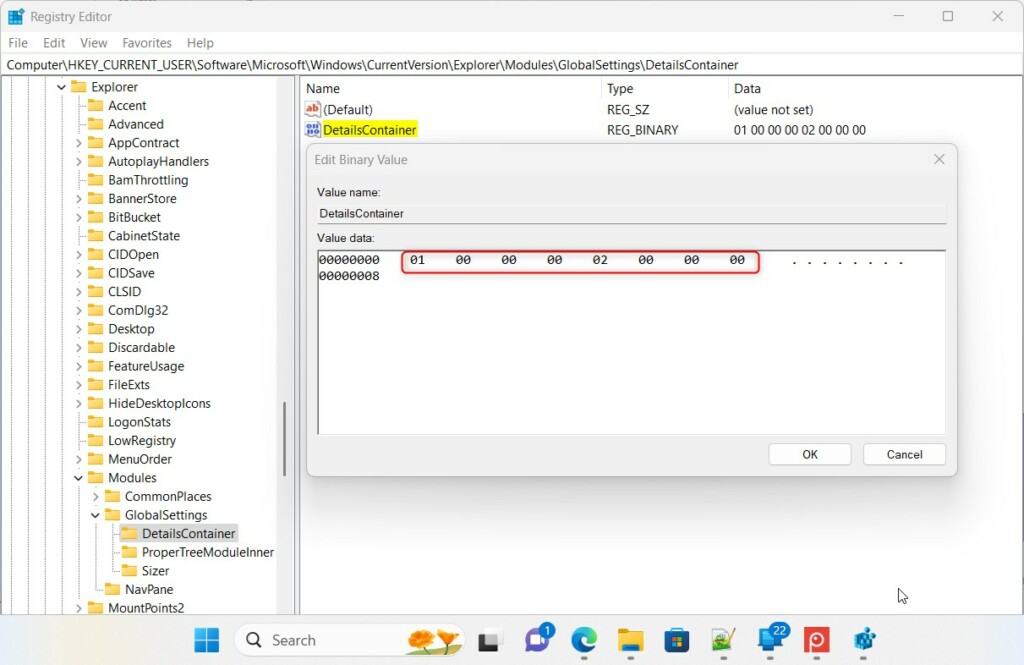
HKEY_CURRENT_USER\Software\Microsoft\Windows\CurrentVersion\Explorer\Modules\GlobalSettings\DetailsContainer - Double-click
DetailsContainerand set the value to01 00 00 00 02 00 00 00to show the pane. - Navigate to:
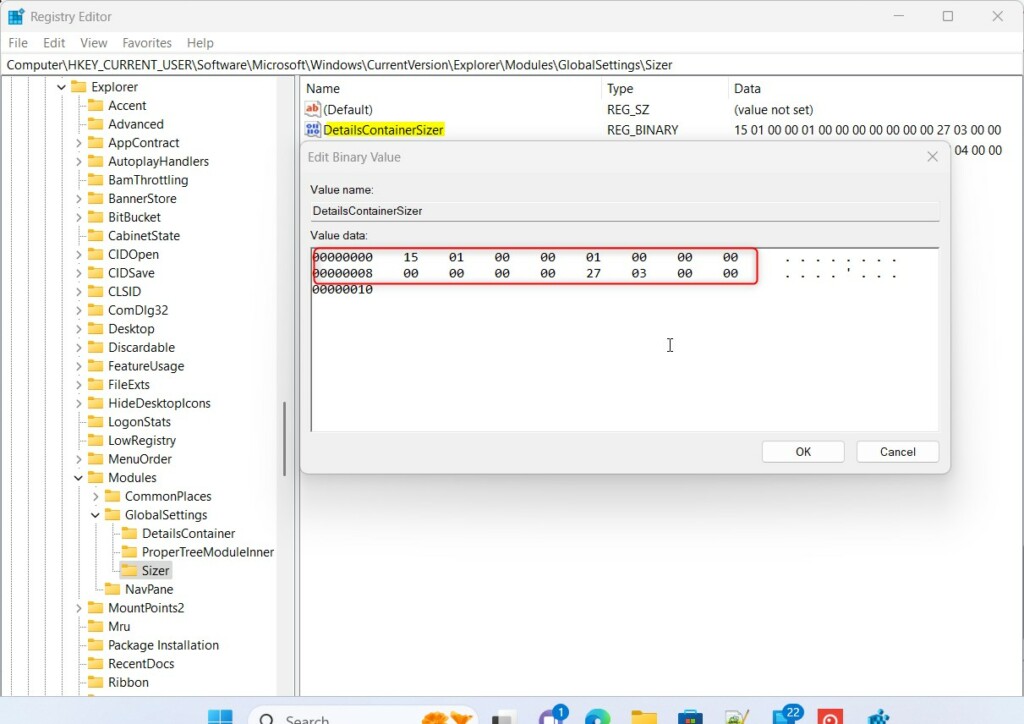
HKEY_CURRENT_USER\Software\Microsoft\Windows\CurrentVersion\Explorer\Modules\GlobalSettings\Sizer - Double-click
DetailsContainerSizerand set the value to15 01 00 00 01 00 00 00 00 00 00 00 c0 03 00 00.
To show the pane using the registry, navigate to HKEY_CURRENT_USER\Software\Microsoft\Windows\CurrentVersion\Explorer\Advanced, then double-click ShowDetailsPane and set its value to 1. To hide it, change the value of ShowDetailsPane to 0.
Customizing and Troubleshooting
If your Windows 11 Details pane isn’t showing up or you want to change its size, there are a few things you can try.
Summary
You can easily show or hide the Windows 11 Details pane using a keyboard shortcut, the View menu, or by changing settings in the Registry Editor.
Does the Details pane affect File Explorer performance?
Generally, no. The Details pane is lightweight and integrated into the Windows 11 UI. However, if you’re browsing folders with tons of high-resolution images, the pane might take a moment to load details. This could cause a slight delay while it generates previews.
How do I edit file properties directly from the Details pane?
Editing file properties directly from the Windows 11 Details pane is simple once it’s open.
Was this guide helpful?

About the Author
Richard
Tech Writer, IT Professional
Richard, a writer for Geek Rewind, is a tech enthusiast who loves breaking down complex IT topics into simple, easy-to-understand ideas. With years of hands-on experience in system administration and enterprise IT operations, he’s developed a knack for offering practical tips and solutions. Richard aims to make technology more accessible and actionable. He's deeply committed to the Geek Rewind community, always ready to answer questions and engage in discussions.

No comments yet — be the first to share your thoughts!