How to Hide Time and Date in Windows 11 System Tray


You can hide the time and date in your Windows 11 system tray directly through the Taskbar settings in Personalization.
The system tray, located in the bottom-right corner of your screen, typically displays the clock and calendar. Hiding these elements offers a cleaner, more focused desktop experience.
This option to hide the time and date is available in Windows 11 build 23440 and later versions. If you don’t see these settings, your Windows build may not yet support this feature.
You can hide the time and date in Windows 11 by going to Settings > Time & Language and toggling off the “Hide time and date in the System tray” option. If this option is not available, you may need to use the Registry Editor.
Hide or show the time and date via Settings
You can hide the time and date in Windows 11 using the Settings app by going to Time & Language. This is the easiest and safest way to change your clock display.
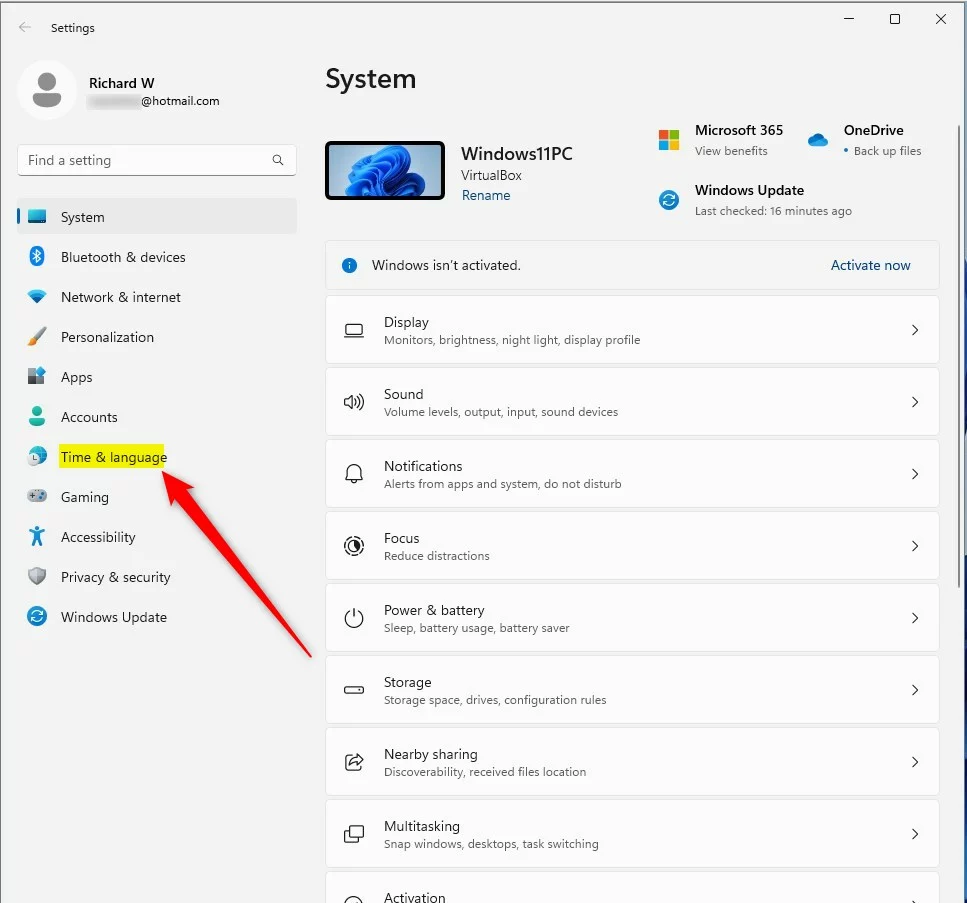
2. Select Time & Language from the menu on the left.
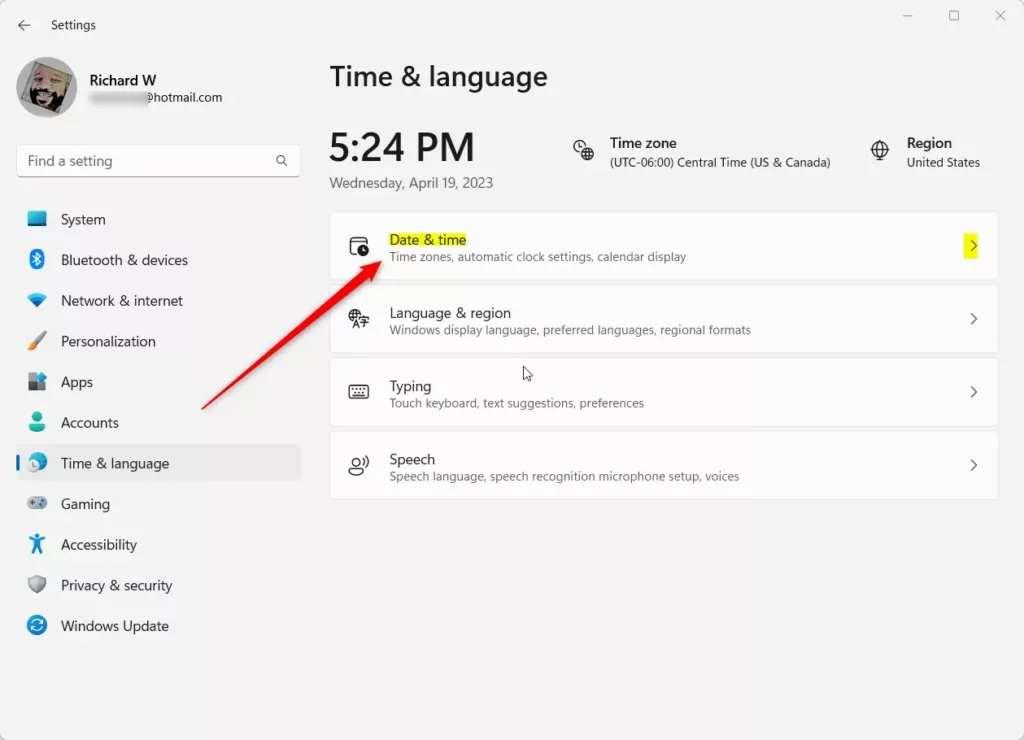
3. Click on the Date & Time box on the right.
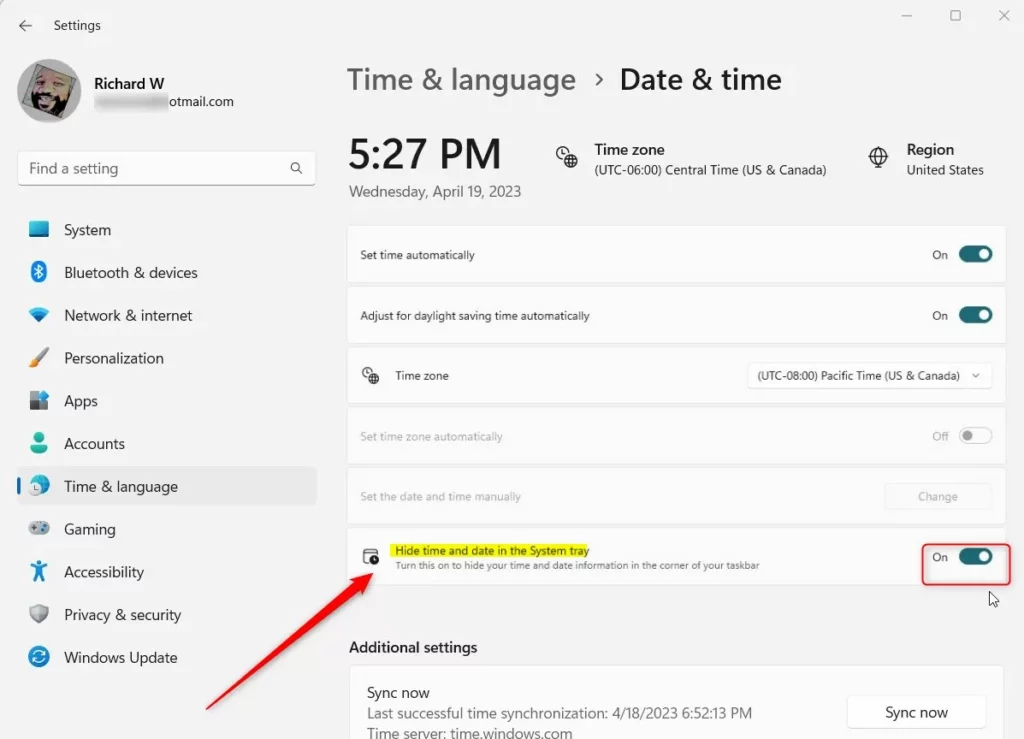
4. Find the option labeled Hide time and date in the System tray. Toggle the switch to On to hide the clock, or Off to show it.
Advanced Customization: Registry Editor
If you want more control, you can hide the time and date in Windows 11 using the Registry Editor. Just be very careful when making changes here, as mistakes can cause problems with your computer.
- Press the Windows key and R together, then type ‘regedit’ and hit Enter.
- Navigate to:
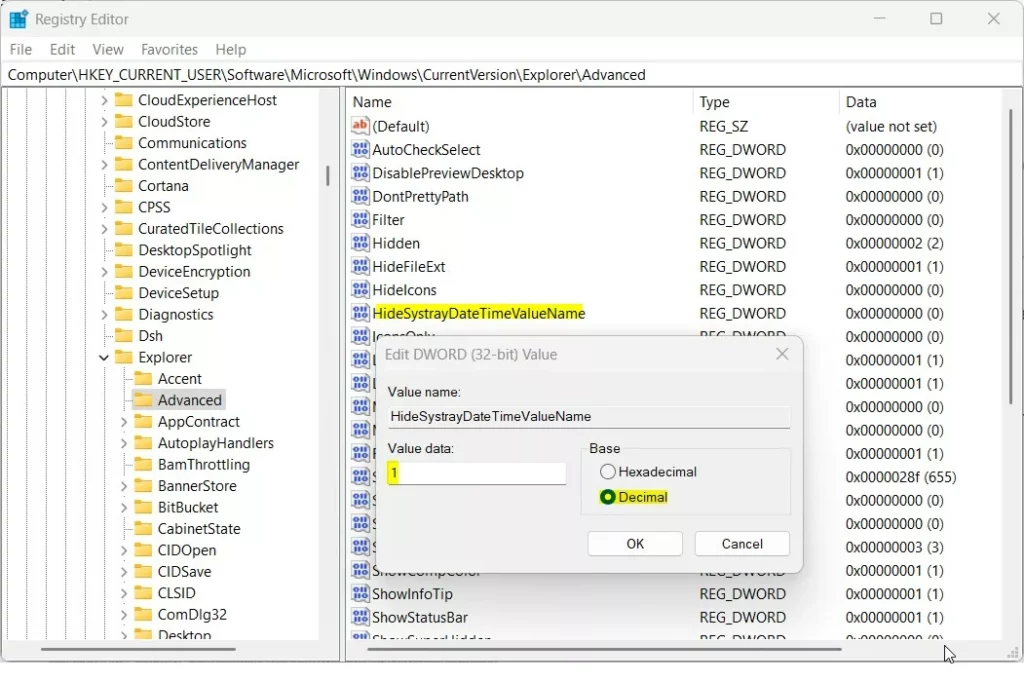
HKEY_CURRENT_USER\Software\Microsoft\Windows\CurrentVersion\Explorer\Advanced
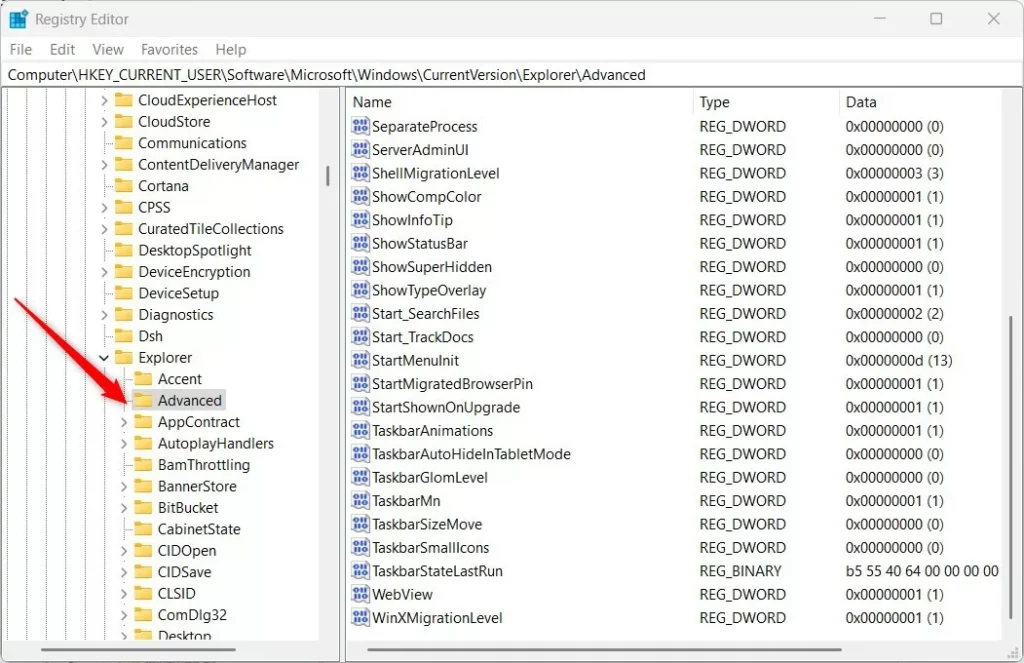
3. In the right pane, right-click and select New > DWORD (32-bit) Value. Name it ‘HideSystrayDateTime’.
4. Then, double-click this new value and set its data to ‘1’ to hide the clock.
5. To apply changes, you must restart Windows Explorer. Press Ctrl+Shift+Esc to open Task Manager, find Windows Explorer, right-click it, and select Restart.
Using Group Policy Editor
If you are on Windows 11 Pro or Enterprise, you can use the Group Policy Editor (gpedit.msc) to manage taskbar settings. This is safer than the registry for managing system-wide UI tweaks.
Troubleshooting and Risks
Hiding the clock does not affect system performance. If the clock disappears and you cannot restore it, return to the Settings app or the registry key and set the value back to 0. If using the registry, ensure you restart explorer.exe to refresh the taskbar.
Summary
To hide the time and date in Windows 11, the easiest method is using Settings, which is quick and safe. For advanced users, the Registry Editor can also hide the clock but needs extra care and admin access.- Settings: Use the Time & Language menu for the easiest, safest way to hide the clock.
- Registry: Use
HKEY_CURRENT_USER\Software\Microsoft\Windows\CurrentVersion\Explorer\Advancedto force the change. - Admin: Registry and Group Policy changes require administrative privileges.
- Restart: Always restart
explorer.exeif changes do not appear immediately.
Can I hide the clock without editing the registry?
Yes. If your version of Windows 11 supports it, you can toggle the setting within the Windows Settings app under Time & Language. This is the safest and most recommended method for most users, as it does not require administrative access or manual registry modifications.
Does this method work on 🪟 Windows 11 Home edition?
The standard Settings app method works on all editions. However, the Group Policy Editor (gpedit.msc) is typically only available on Windows 11 Pro, Enterprise, and Education editions. Home users should stick to the Settings app or the Registry Editor method if they need advanced customization.
Was this guide helpful?

About the Author
Richard
Tech Writer, IT Professional
Richard, a writer for Geek Rewind, is a tech enthusiast who loves breaking down complex IT topics into simple, easy-to-understand ideas. With years of hands-on experience in system administration and enterprise IT operations, he’s developed a knack for offering practical tips and solutions. Richard aims to make technology more accessible and actionable. He's deeply committed to the Geek Rewind community, always ready to answer questions and engage in discussions.



No comments yet — be the first to share your thoughts!