How to Disable OneDrive Personal Vault


You disable OneDrive Personal Vault by turning off the feature in OneDrive settings.
OneDrive Personal Vault is a secure folder within OneDrive that requires a second verification step, such as a PIN or fingerprint, to access sensitive files.
This protection adds an extra security layer, ensuring your most important documents remain safe from unauthorized access, even if your main account is compromised. This feature is available on OneDrive for Windows 10 and 11.
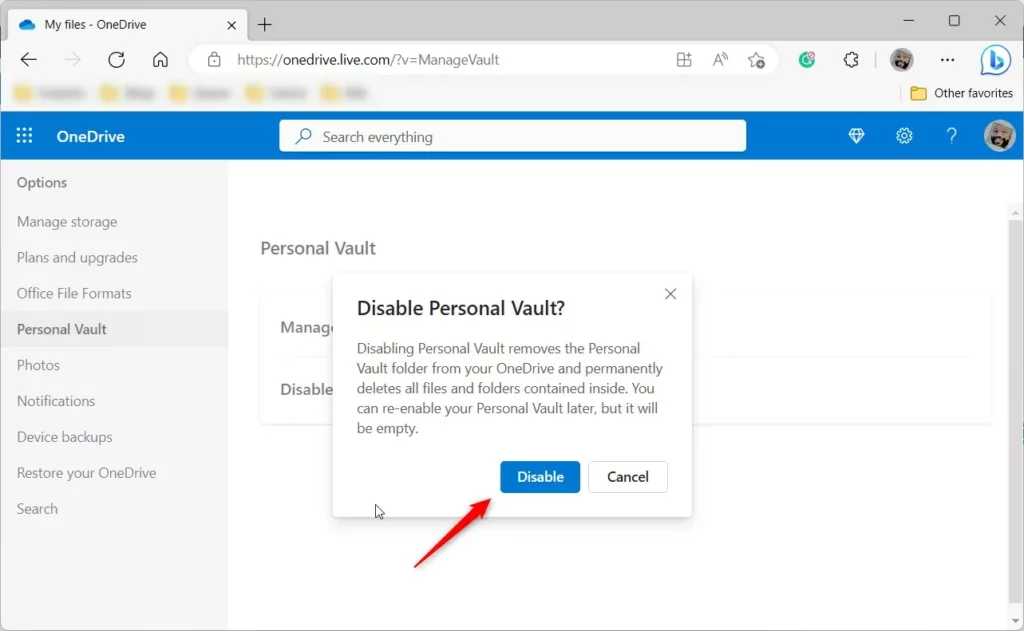
Be aware that disabling Personal Vault will permanently delete all files stored within it. Always back up any important data before proceeding.
Go to your OneDrive account page online, click the gear icon for Settings, then Options, and select Personal Vault. Verify your identity and click the Disable link, then confirm again. Remember that disabling Personal Vault permanently deletes all files within it.
How to Disable Your OneDrive Personal Vault
Turning off your OneDrive Personal Vault is simple and can be done whenever you need to. You’ll need to go to your OneDrive account online and follow a few steps to remove the vault completely. This process ensures your vault is no longer active on your account.
- Open your OneDrive account page online in a web browser. Sign in with your Microsoft account if you are not already logged in.
- Click the Settings (gear) icon and choose Options.
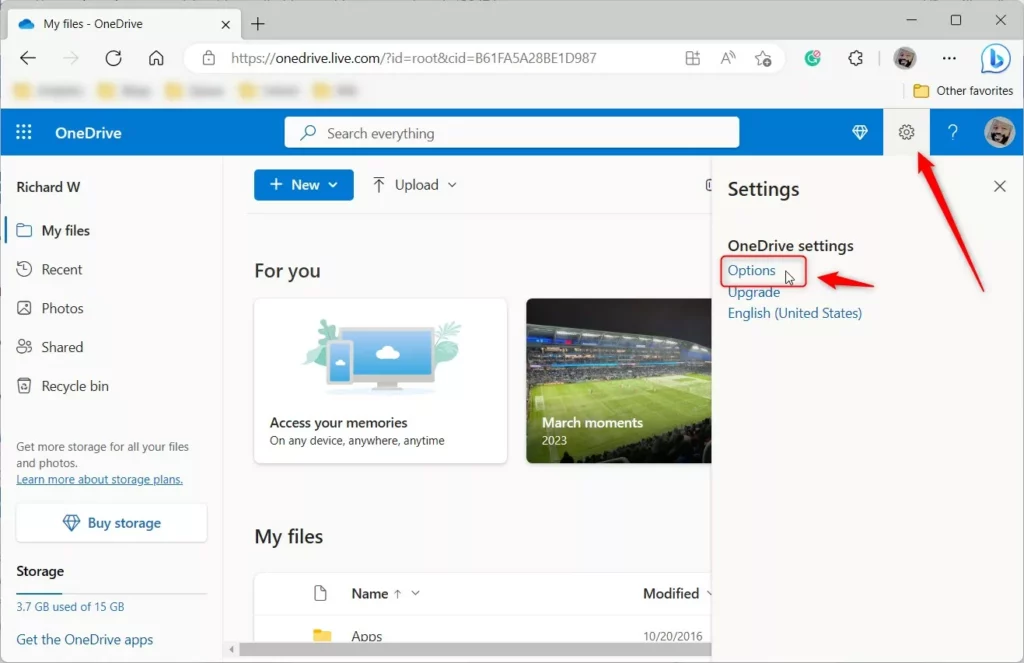
- Select Personal Vault from the menu on the left side of the screen.
- Click Verify your identity to prove it is really you.
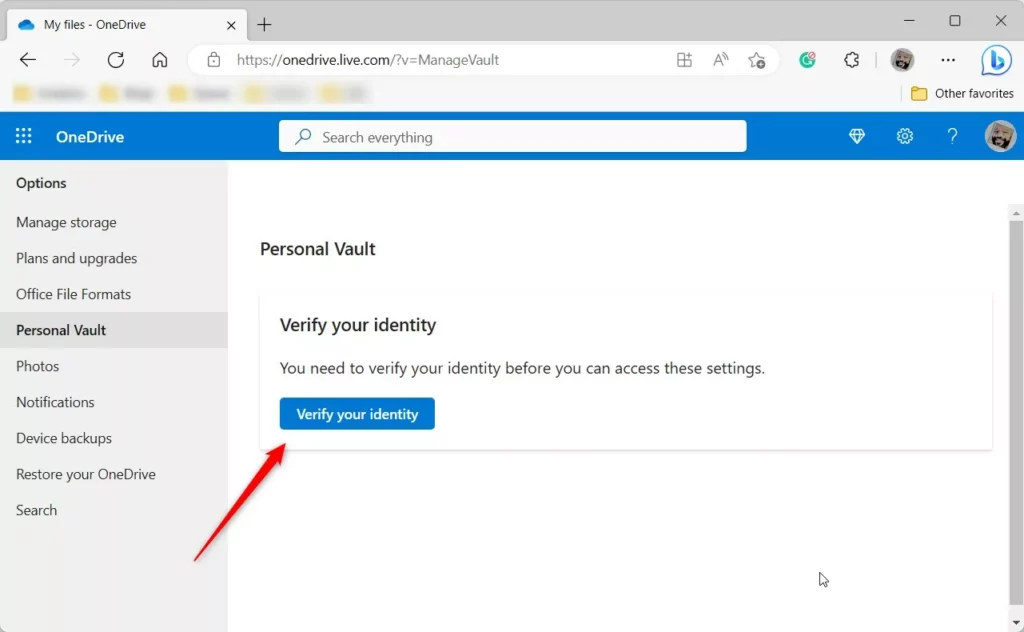
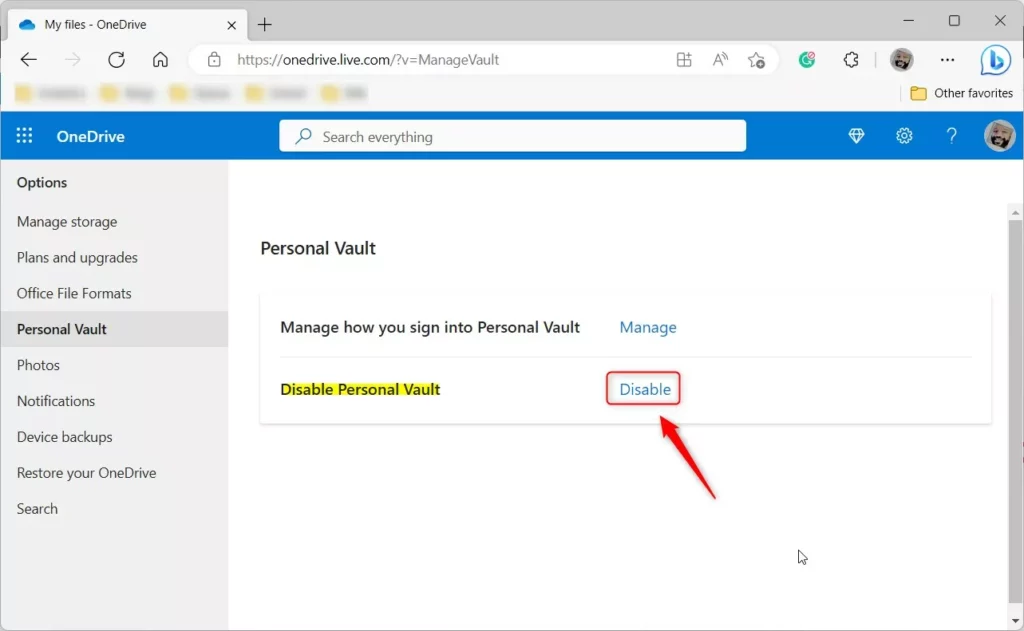
- Once your identity is confirmed, click the Disable link.
- A final confirmation box will appear. Click Disable again to finish.
You’re all done!
Summary
When you disable your OneDrive Personal Vault, remember that all the files inside are permanently deleted and can’t be recovered. If you decide to turn the vault back on later, the folder will be empty. It’s really important to move any files you want to keep out of the vault before you disable it.
Was this guide helpful?

About the Author
Richard
Tech Writer, IT Professional
Richard, a writer for Geek Rewind, is a tech enthusiast who loves breaking down complex IT topics into simple, easy-to-understand ideas. With years of hands-on experience in system administration and enterprise IT operations, he’s developed a knack for offering practical tips and solutions. Richard aims to make technology more accessible and actionable. He's deeply committed to the Geek Rewind community, always ready to answer questions and engage in discussions.




I have no disable button.
I tried to disable Personal Vault but don’t get the same screens you show in your instructions – I get a Manage button, click on that and
I don’t get anywhere to Disable or delete the Vault – I get a Manage button, but it takes me to a page for Security settings- no option for Disable or delete
How do I do this as I have multiple issues with files that will not upload. Also – is there a way to empty all the files waiting to upload but cannot?