Change Keyboard Layout in Ubuntu Linux: A Quick Guide


This post describes the steps to change your keyboard layout in Ubuntu Linux.
The default keyboard layout will also be installed when you install a new preferred language in Ubuntu Linux.
Ubuntu Linux also allows users to install additional languages and keyboards to support these languages for language-specific key layouts and input options. For example, adding an input language lets you set a language preference order for websites and apps and change your keyboard language.
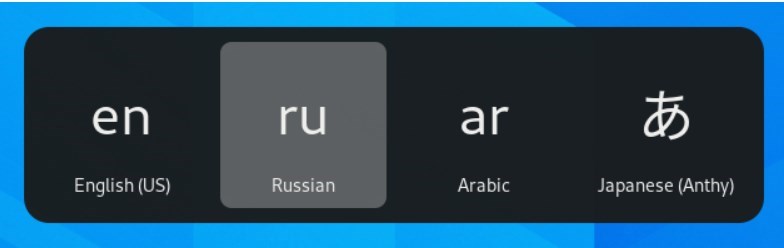
You can switch between the keyboard layouts you use when you have multiple input language keyboards installed. To do that, press the Super+Space keys to go to the next keyboard and Shift+Super+Space to cycle through all your installed keyboards.
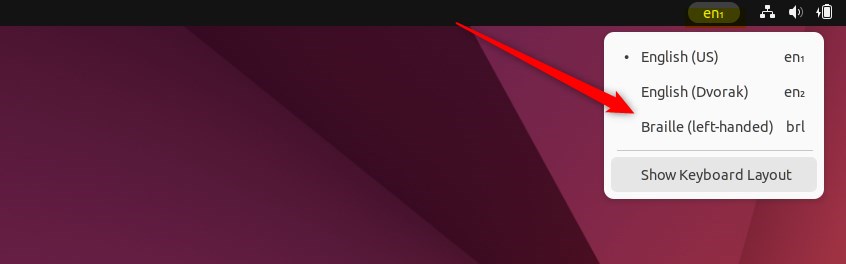
You can also select the language abbreviation in your top bar and choose the language or input method you want to use.
Below is how one can change the keyboard layout in Ubuntu Linux.
How to switch keyboard layout in Ubuntu Linux
As mentioned above, you can switch your keyboard layout; press and hold the Super key, and then repeatedly press the Spacebar to cycle through all your installed keyboards.
Below are shortcuts and steps to change the keyboard layout in Ubuntu Linux.
By default, you can press the Super+Space keys to the nest keyboard and Shift+Super+Space to cycle through all your installed keyboards.
Install alternative keyboard layouts:
Ubuntu Linux has a centralized location for the majority of its settings. From system configurations to creating new users and updating, all can be done from the System Settings panel.
To get to System Settings, open the Activities overview and start typing Settings.

Alternatively, click on the System menu at the top-right corner of the top bar on your desktop.
On the System menu, select Settings, as highlighted below.

In the Settings app, click on the Keyboard tile.
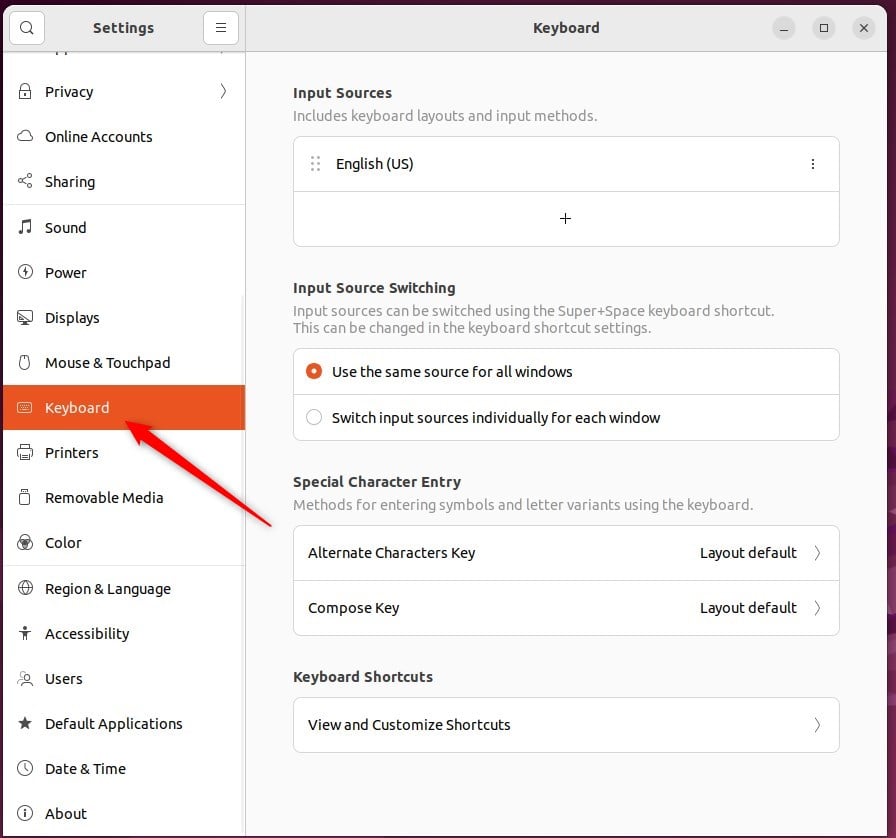
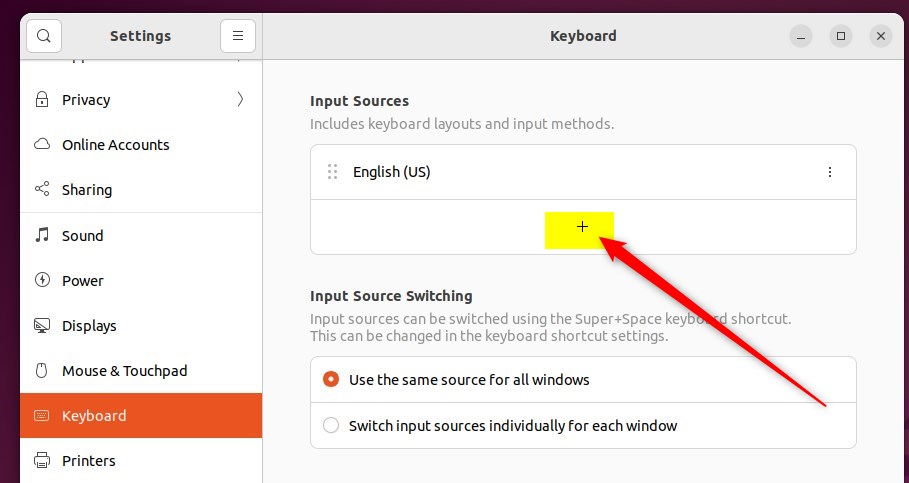
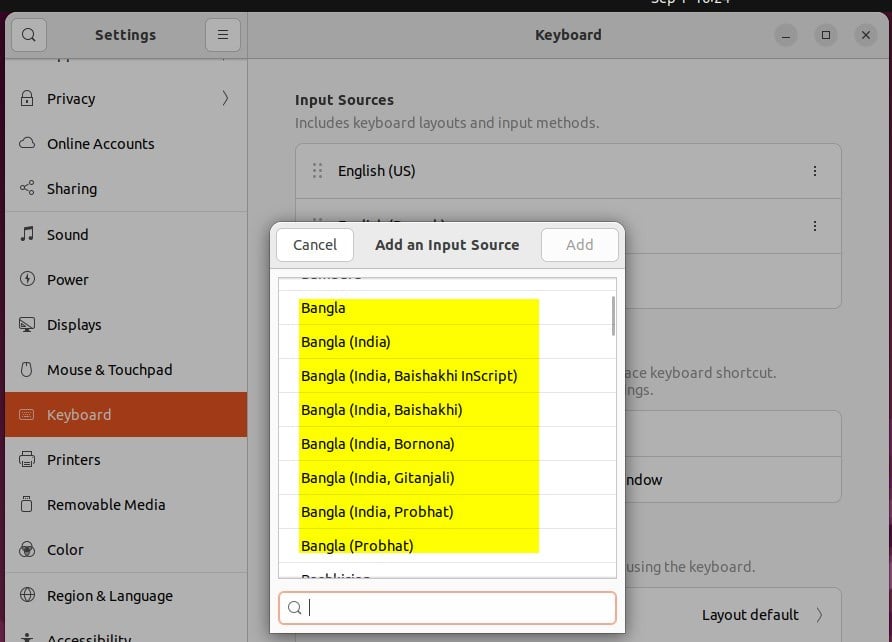
In the System Settings -> Keyboard settings pane, click the + button in the Input Sources section.
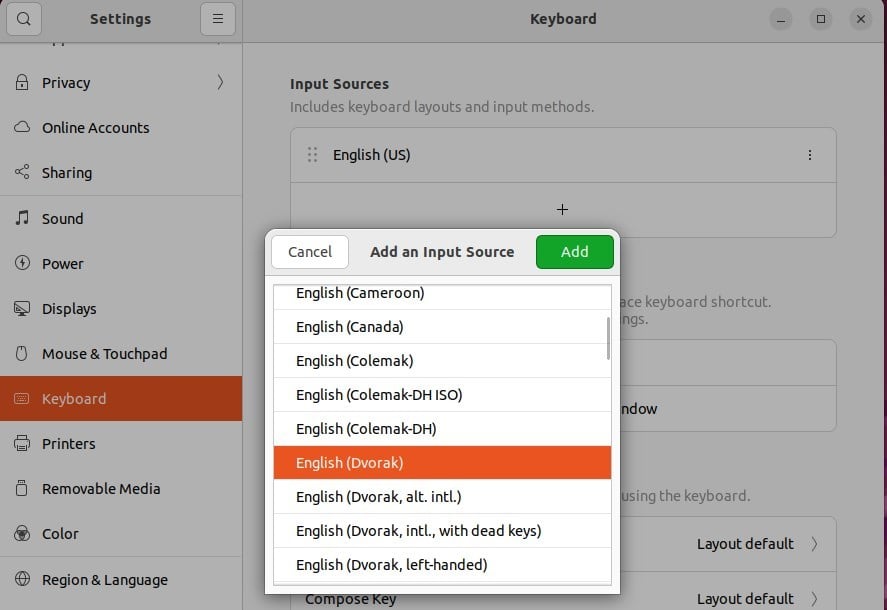
Select the language associated with the layout, then select a layout and press Add.
If you don’t see a keyboard layout on the list provided, click the vertical ellipses highlighted below.
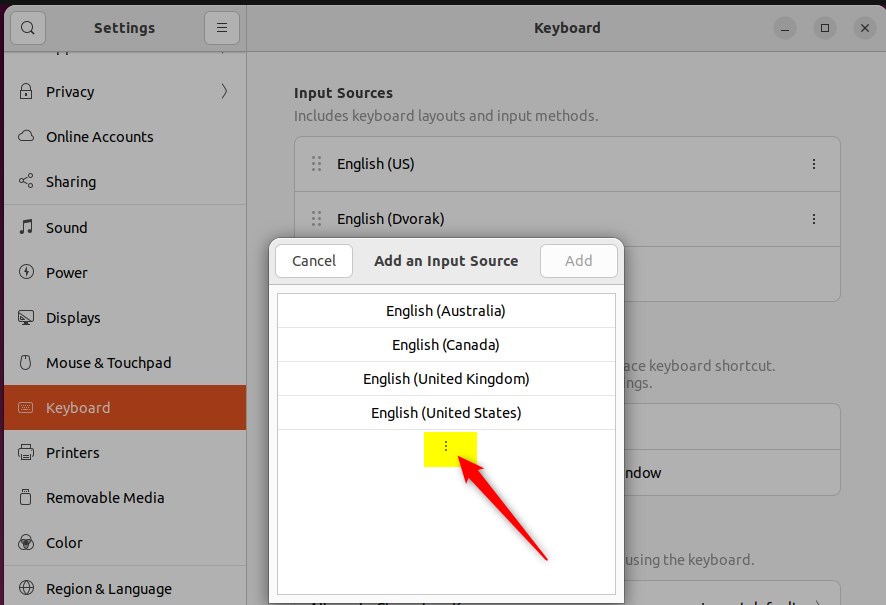
Choose the keyboard layout that you want to use.
You should then be able to switch between input language layouts using the language bar on the top of your screen.
Press the Super+Space keys to go to the following keyboard layout and Shift+Super+Space to cycle through all your installed keyboards.
That should do it!
Conclusion:
- Switching the keyboard layout in Ubuntu Linux is a simple process allowing efficient multi-language input.
- Users can effortlessly add, select, and cycle through different keyboard layouts to accommodate diverse language preferences.
- The centralized System Settings in Ubuntu Linux provides easy access to configuring and adding keyboard layouts, enhancing user experience.
- Switching between input language layouts using the language bar on the top of the screen ensures convenient and flexible keyboard usage.
Frequently Asked Questions
How do I change the keyboard layout in Ubuntu Linux?
What are the keyboard shortcuts to switch layouts in Ubuntu?
Can I add multiple keyboard layouts in Ubuntu Linux?
Where can I find the keyboard settings in Ubuntu?
What should I do if my desired keyboard layout is not listed in Ubuntu?
Was this guide helpful?



Leave a Reply