How to Enable or Disable Voice Clips in Windows 11


You enable or disable voice clips in Windows 11 to control whether Microsoft collects your voice recordings for product improvement.
Voice clips are short audio recordings of your voice used by Microsoft to enhance features like speech recognition and voice commands. Your Windows 11 PC sends these clips to Microsoft by default unless you change the setting.
To manage this privacy setting, you’ll typically navigate to the Speech privacy settings. This allows you to retain full control over your audio data.
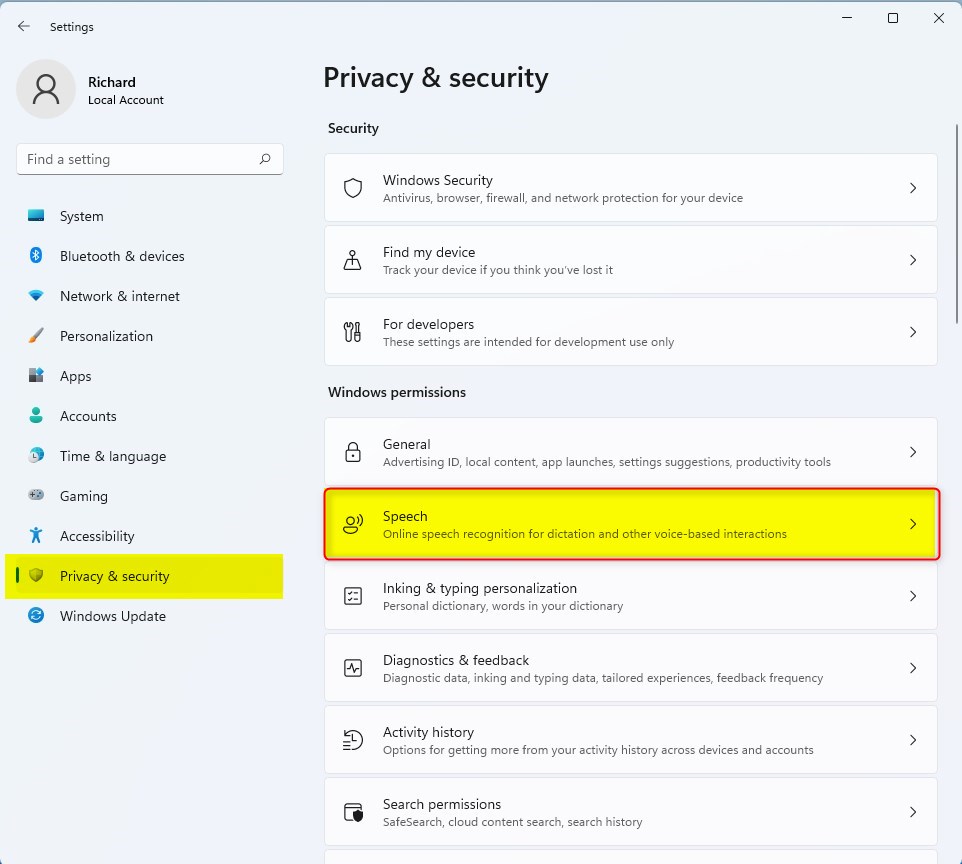
To stop Windows from sending voice data to Microsoft, go to Settings > Privacy & security > Speech and toggle off Online speech recognition. This prevents audio clips from being uploaded to Microsoft servers for analysis.
Why manage voice clips and dictation?
Windows 11 includes powerful tools like voice typing to help you write text using your microphone. Sometimes, these tools collect audio data to improve accuracy. You may want to disable these features to protect your privacy or stop the voice typing overlay from appearing unexpectedly.
What happens when you disable these features?
When you disable voice clips, Microsoft stops collecting your audio samples for training. When you disable dictation, the ⊞ Win+H shortcut will no longer trigger the listening interface, preventing accidental activation.
Understanding Speech Recognition Types
| Feature | Description |
|---|---|
| Online Speech Recognition | Uses Microsoft cloud servers to process your voice. Requires an internet connection. |
| Device-based Speech Recognition | Processes your voice locally on your computer. Does not send audio to the cloud. |
How to disable voice typing overlay and dictation
The voice typing overlay often appears when you press the ⊞ Win+H shortcut. To stop this, you can disable the feature entirely.
- Open Settings by pressing ⊞ Win+I.
- Click Time & language in the left sidebar.
- Select Speech.
- Toggle off Online speech recognition to stop cloud processing.

Advanced: Permanently disable dictation via Registry Editor
Permanently disable dictation in Windows 11 using the Registry Editor by following these steps, but be sure to back up your registry first.
- Press ⊞ Win+R, type regedit, and press Enter.
- Navigate to 🗝️HKEY_CURRENT_USER\Software\Microsoft\Speech_OneCore\Settings\OnlineSpeechPrivacy.
- If the key does not exist, right-click the parent folder to create it.
- Set the HasUserAccepted value to 0.
Using Group Policy to disable speech services
Note: This step requires administrative privileges and is available on Pro/Enterprise editions.
- Press ⊞ Win+R, type gpedit.msc, and press Enter.
- Go to Computer Configuration\Administrative Templates\Windows Components\App Privacy.
- Find Let Windows apps access Speech Recognition and set it to Disabled.
Summary
Managing your voice data in Windows 11 is essential for maintaining control over your privacy. By adjusting your Speech settings, using the Registry Editor, or applying Group Policy, you can effectively disable voice clips and dictation. For more information on how Microsoft handles data, visit the official Microsoft Privacy documentation.
Why does the voice typing overlay still appear after I turn off speech recognition?
The voice typing overlay might still show up in Windows 11 even after you’ve turned off speech recognition if the dictation service is running in the background or an app is triggering the shortcut.
How can I stop Windows from sending voice data to Microsoft?
You can stop Windows 11 from sending your voice data to Microsoft by going to Settings, then Privacy & security, and finally Speech, where you’ll turn off the Online speech recognition setting.
Was this guide helpful?

About the Author
Richard
Tech Writer, IT Professional
Richard, a writer for Geek Rewind, is a tech enthusiast who loves breaking down complex IT topics into simple, easy-to-understand ideas. With years of hands-on experience in system administration and enterprise IT operations, he’s developed a knack for offering practical tips and solutions. Richard aims to make technology more accessible and actionable. He's deeply committed to the Geek Rewind community, always ready to answer questions and engage in discussions.




No comments yet — be the first to share your thoughts!