How to Enable OneDrive Files On-Demand in Windows 11

This guide explains how to use OneDrive Files On-Demand in Windows 11. OneDrive files on demand
Why use Files On-Demand?
Files On-Demand helps you save space on your computer. It keeps your files in the cloud instead of taking up room on your hard drive. You can still see your files in File Explorer, but they only download when you open them.
What happens when done?
Once enabled, your files will show a cloud icon. This means they are stored online. When you double-click a file, it downloads to your computer so you can use it. Your computer will stay organized and have more free storage space.
Files On-Demand works with apps from the Windows Store, including OneDrive.
How to enable or disable Files On-Demand
Before you begin, make sure you are signed in to OneDrive with your Microsoft account.
- Find the OneDrive cloud icon in the taskbar. It is usually near the bottom right of your screen.
- If you do not see it, click the Show hidden icons arrow to see hidden icons.

If you cannot find the icon, open your Start menu, type OneDrive, and select the app to launch it.
- Click the OneDrive icon.
- Select Help & Settings, then choose Settings.
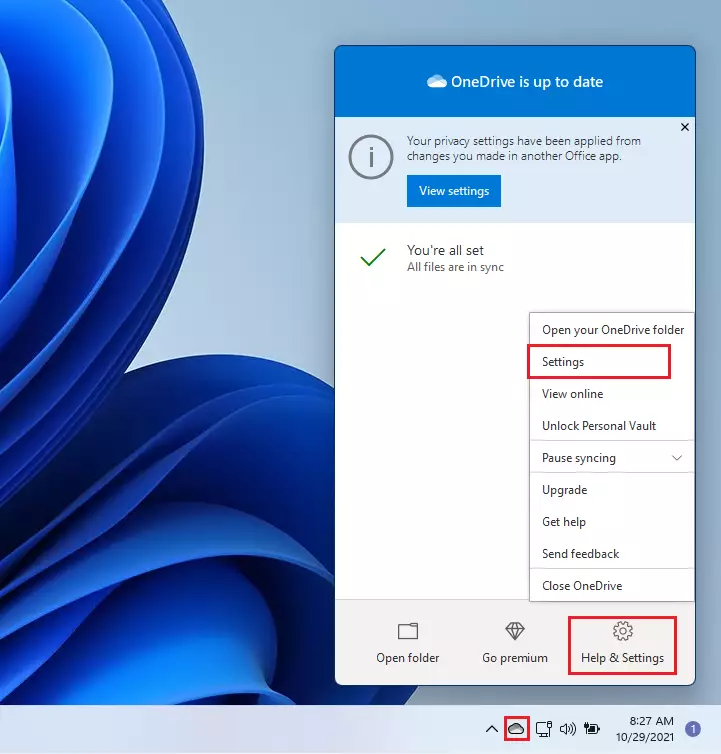
- Go to the Settings tab.
- Check the box labeled Save space and download files as you use them to turn this feature on.
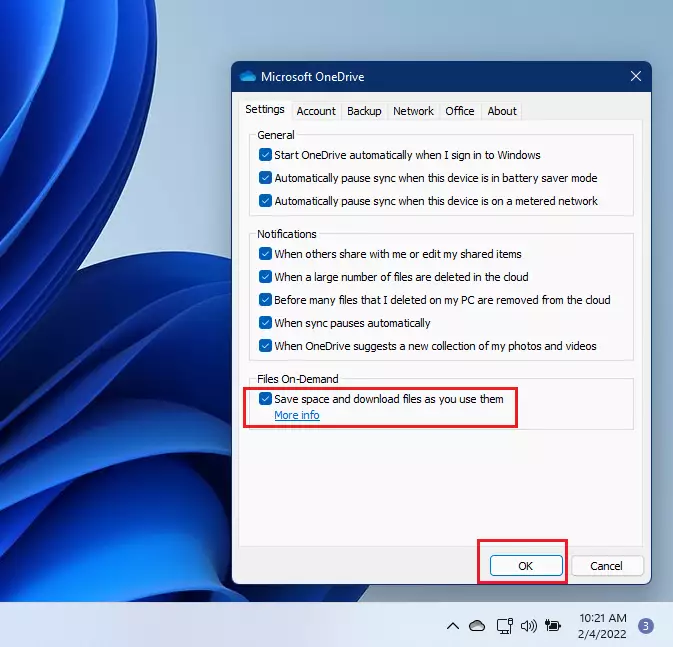
- Click OK to save your changes.
To turn this feature off later, simply follow these same steps and uncheck the box.
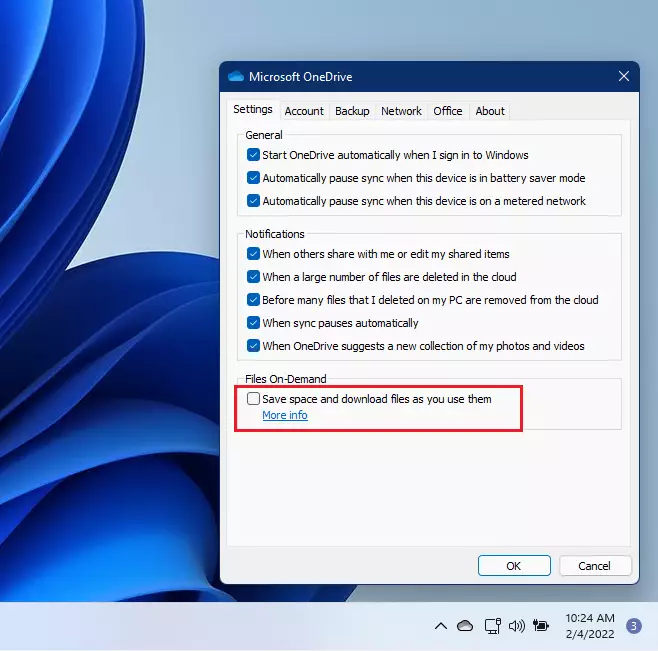
Note: You must repeat these steps on every computer you own, as these settings do not sync across devices.
Summary
OneDrive Files On-Demand is a great tool for managing your storage. It lets you keep all your files in the cloud while keeping your local drive clear. Remember that this setting is specific to each computer, so you need to configure it individually on every device you use.
Was this guide helpful?



Leave a Reply