How to Enable or Disable Microsoft Defender Cloud Protection


This guide explains how to manage Microsoft Defender Cloud Protection, which is a core feature of Microsoft Defender Antivirus. Please note: This article refers specifically to the antivirus security feature for Windows PCs. It is not related to ‘Microsoft Defender for Cloud,’ which is a separate enterprise platform used for securing cloud infrastructure and servers.
Why use Cloud Protection?
Microsoft Defender uses the cloud to find new viruses quickly. It helps stop threats before they can harm your computer. It is turned on by default to keep you safe. By connecting to the Microsoft Active Protection Service (MAPS), your computer receives near-instant protection against the latest malware, even before traditional security intelligence updates are downloaded to your device.
What happens when done?
If you turn this off, your computer will not get real-time security updates from the cloud. This makes your device much more likely to catch a virus. We do not recommend turning it off.
How to change settings in Windows Security
You can change this setting easily in the Windows Security app.
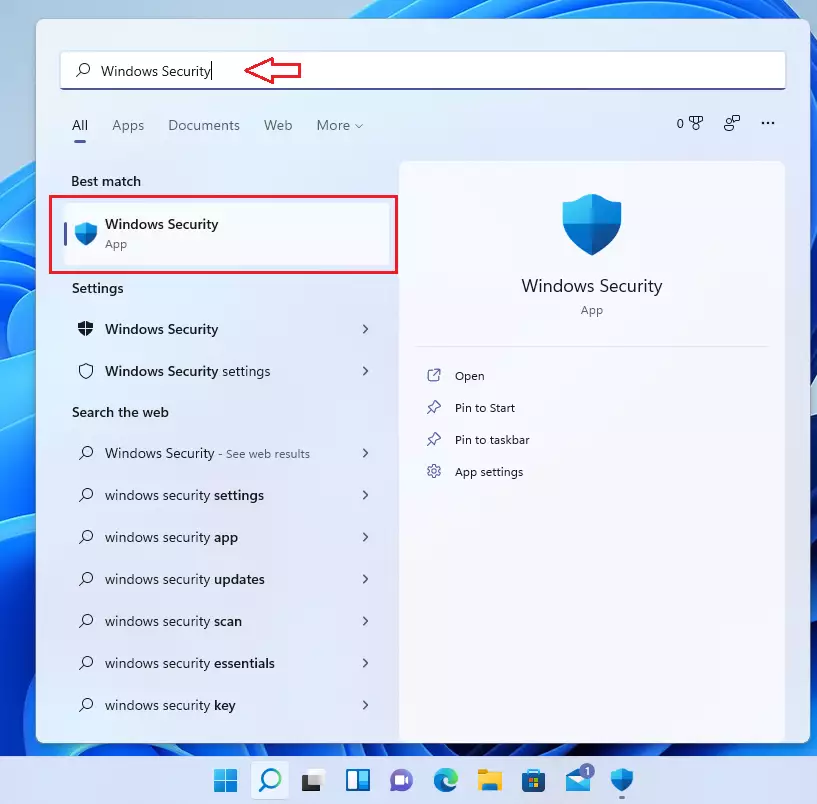
- Click the search box on your taskbar and type Windows Security.
- Select Windows Security from the list.
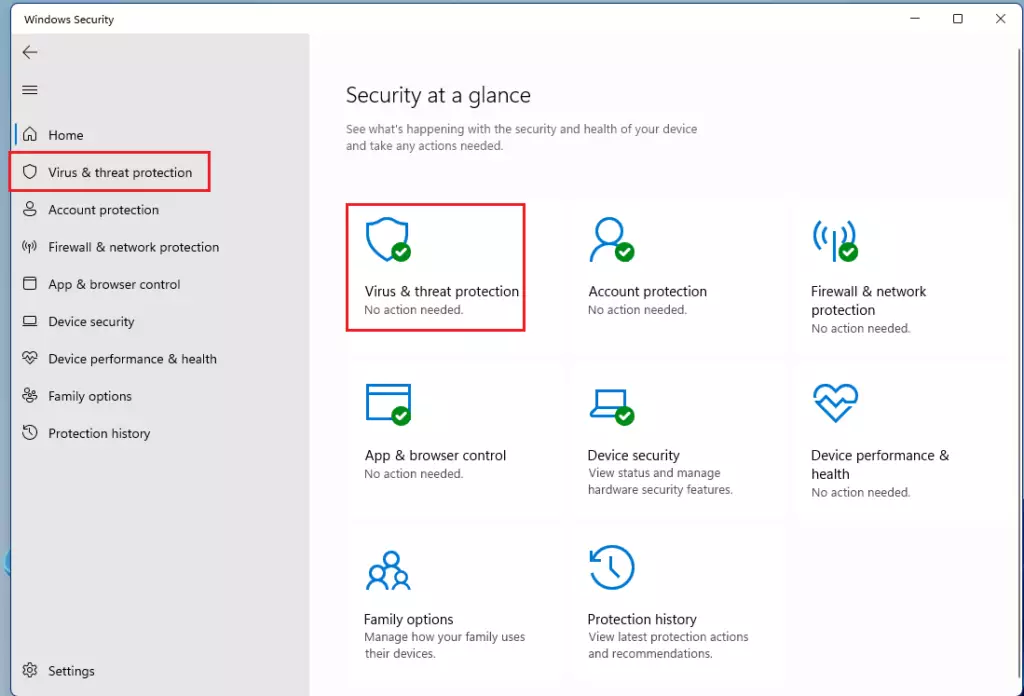
- Click on Virus & threat protection.
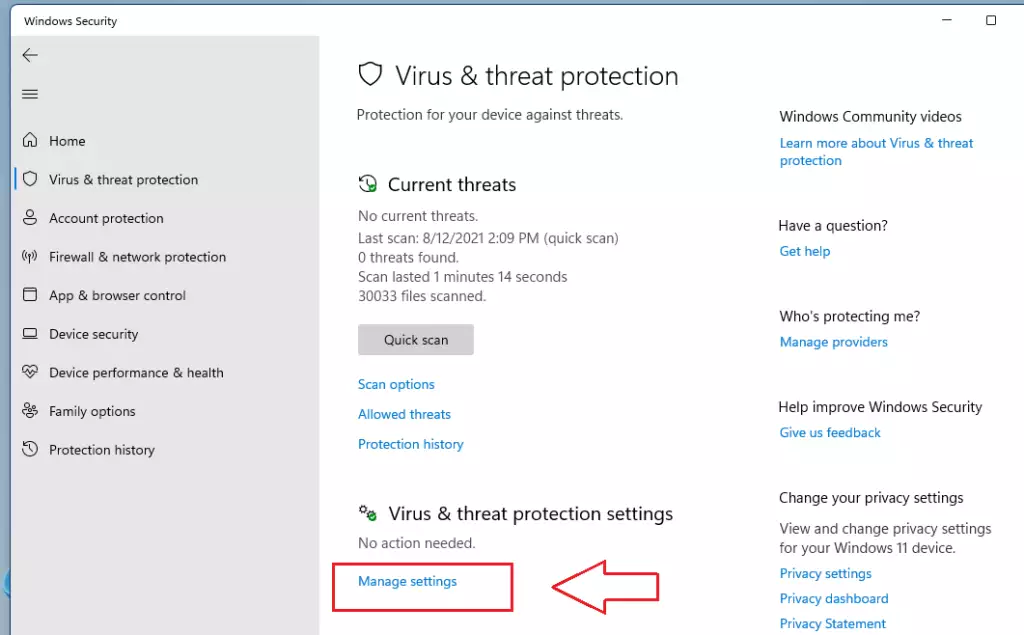
- Look for Virus & threat protection settings and click Manage settings.
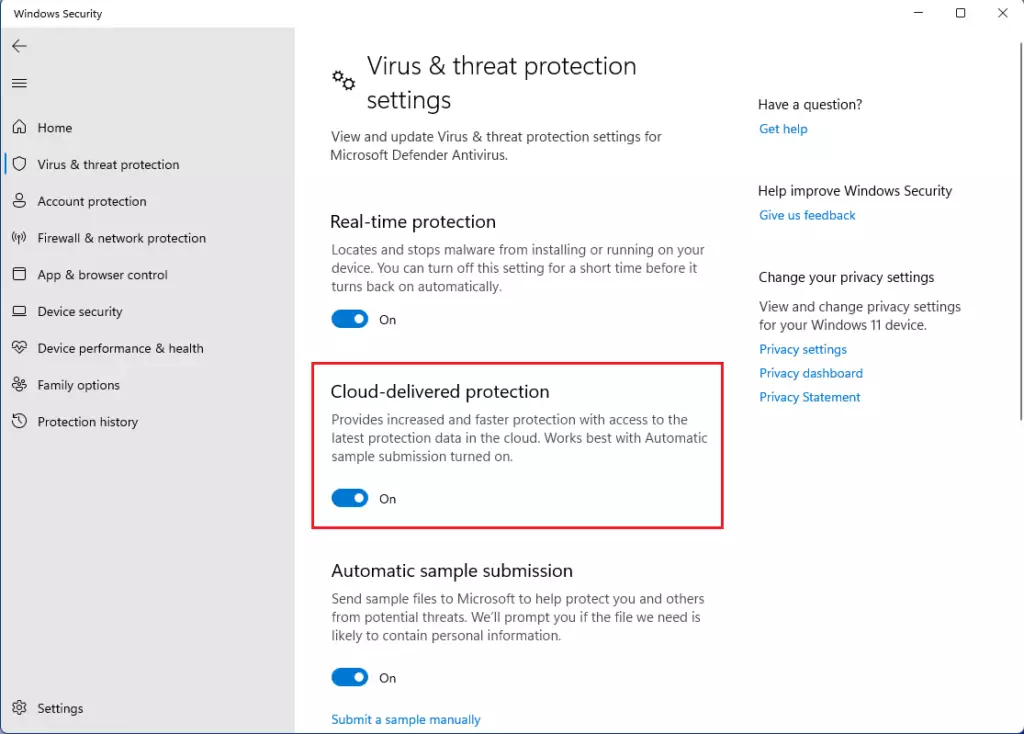
- Toggle Cloud-delivered Protection to On or Off.
How to use Group Policy (Admin Privileges Required)
Advanced users and IT administrators can use the Group Policy editor to manage these settings across a device. For more information, visit the official Microsoft documentation for Group Policy templates.
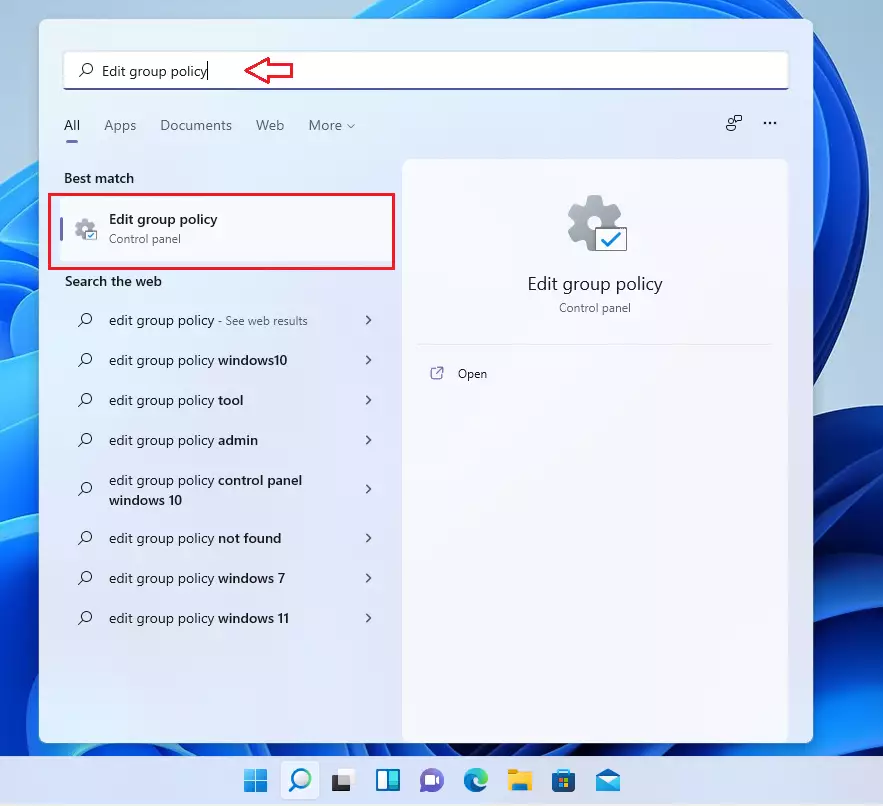
- Click the Start menu and search for Edit group policy.
- Select it to open the editor.
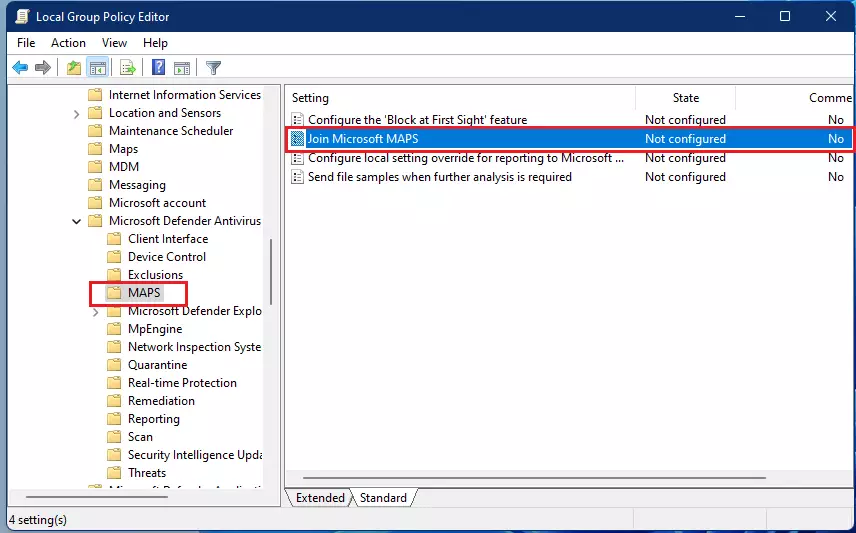
- In the left menu, follow this path: Computer Configuration > Administrative Templates > Windows Components > Microsoft Defender Antivirus > MAPS.
- On the right side, double-click Join Microsoft MAPS.
- Choose Enabled and set it to Basic MAPS or Advanced MAPS.
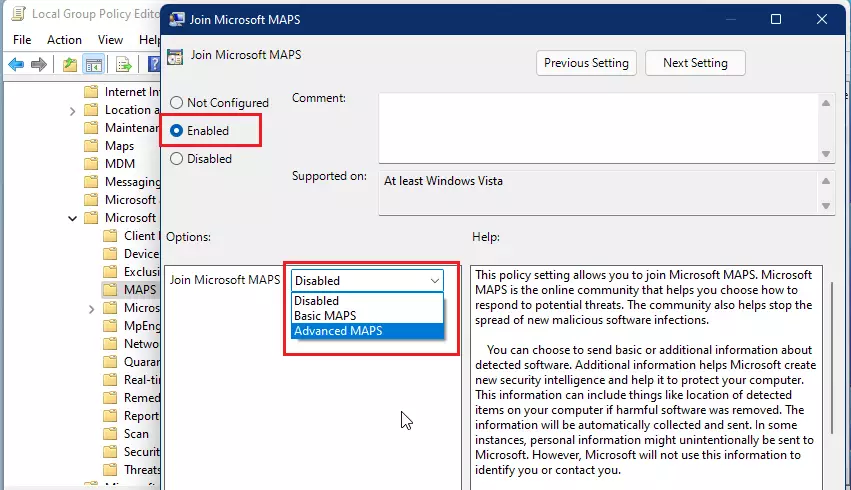
- Click OK and close the window.
Summary
Cloud-delivered protection is a vital component of your computer’s security. It connects your device to the Microsoft Active Protection Service to provide real-time, automated threat detection. While you can manage these settings via the Windows Security app or Group Policy, we strongly recommend keeping them enabled to ensure your system remains protected against the latest digital threats.
Does cloud protection impact system performance?
Cloud-delivered protection is designed to be lightweight. It only sends small amounts of telemetry data to Microsoft when a suspicious file is detected. Because the heavy analysis happens in the cloud rather than on your local processor, it generally improves your overall endpoint security posture without slowing down your daily tasks.
What data is sent to Microsoft when cloud protection is enabled?
When enabled, Microsoft collects telemetry data and metadata about potential threats. If you choose to enable automatic sample submission, suspicious files may be uploaded to Microsoft for deeper analysis. This helps improve automated threat detection for all users, but you should review your privacy settings if you prefer not to share files.
Was this guide helpful?





Leave a Reply