How to Locate and Lock Your Windows 11 Device Remotely

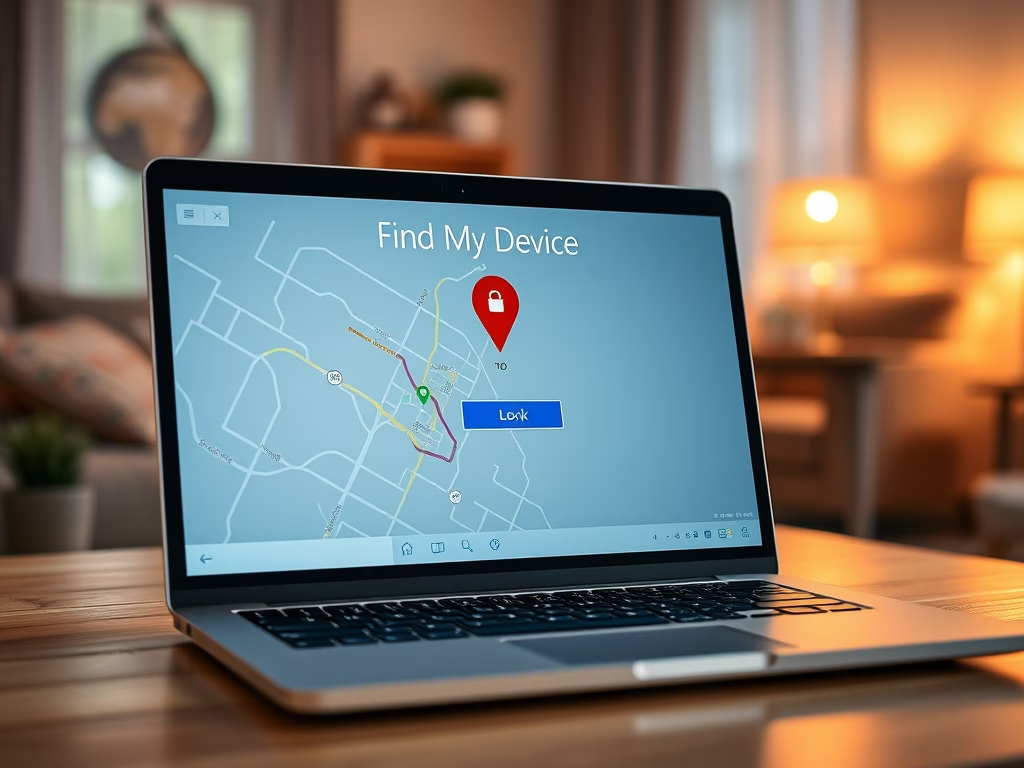
You locate and lock your Windows 11 device remotely using the built-in “Find my device” feature.
This essential security tool lets you track your PC’s location on a map and remotely lock it down to protect your personal data from unauthorized access.
For this to work, your Windows 11 device needs to be signed into a Microsoft account, and the “Find my device” setting must be turned on before it gets lost or stolen. You will also need an internet connection on both your device and the one you use to track it.
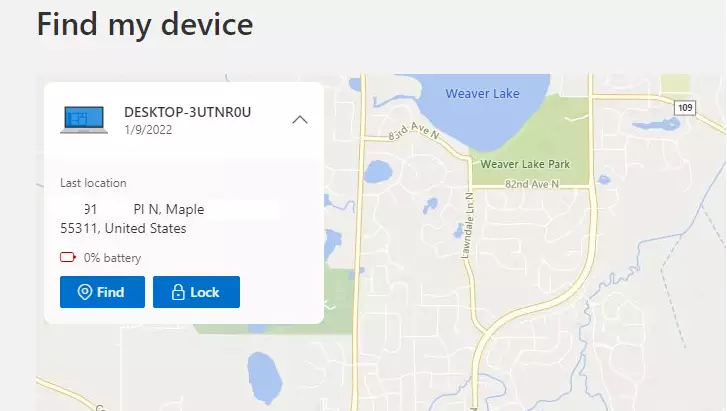
Use the “Find my device” feature by signing into your Microsoft account on another device and navigating to Devices > Find my device. Select your computer, then choose “Lock” and follow the prompts to secure it.
What Happens When You Lock Your Device?
Locking your Windows 11 device remotely signs out all users and freezes the login screen, making it unusable without your password.
Pre-requisites: Setting Up for Success
To lock your Windows 11 device remotely, you must first set it up by signing in with a Microsoft account and turning on ‘Find My Device’ in settings.
- Sign in with a Microsoft account (Local accounts do not support remote tracking).
- Enable ‘Find My Device’ in Settings > Privacy & security > Find my device.
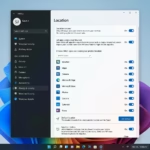
- Turn on Location Services.
- Ensure the device is connected to the internet.
Consumer vs. Enterprise Management
Home users typically lock their Windows 11 devices using the Microsoft account portal, while businesses use advanced tools like Microsoft Intune.
Troubleshooting: Why is the Lock Button Grayed Out?
The lock button may be grayed out on your Windows 11 device if it’s offline, not managed by your Microsoft account, or if location services are off.
- Offline Status: The device must be connected to the internet to receive the lock command.
- Account Type: You are not logged in with an administrator account.
- Managed Device: Your device is joined to a corporate domain, meaning your IT administrator manages security, not you.
- Location Disabled: If location services were off, the server cannot verify the device’s status.
How to Locate and Lock Your Device
Follow these steps to secure your machine via the Microsoft Device Management portal:
- Log in to your Microsoft account on a separate device.
- Navigate to the Devices tab.
- Select your missing computer from the list.
- Click Find my device.
- Select Lock and follow the prompts. [Admin Privilege Required]
Summary
Locking your Windows 11 device remotely is an important security step that requires your Microsoft account and ‘Find My Device’ to be set up.
Can I lock my PC if it is offline?
No. The remote lock command requires an active internet connection to reach your device. If your laptop is offline, the command will stay in a pending state. It will execute automatically the moment the device connects to a Wi-Fi or cellular network.
What is the difference between remote lock and remote wipe?
A remote lock stops anyone from accessing your Windows 11 device, keeping your files safe until you get it back, while a remote wipe deletes everything permanently.
Was this guide helpful?

About the Author
Richard
Tech Writer, IT Professional
Richard, a writer for Geek Rewind, is a tech enthusiast who loves breaking down complex IT topics into simple, easy-to-understand ideas. With years of hands-on experience in system administration and enterprise IT operations, he’s developed a knack for offering practical tips and solutions. Richard aims to make technology more accessible and actionable. He's deeply committed to the Geek Rewind community, always ready to answer questions and engage in discussions.
No comments yet — be the first to share your thoughts!