How to Turn On or Off Find My Device in Windows 11

Find My Device in Windows 11 helps you locate a lost or stolen PC by showing its last known location on a map.
This security feature lets you remotely lock or erase your device if it falls into the wrong hands, protecting your personal data.
To use Find My Device, you need to enable it in your Windows 11 settings, ensuring your Microsoft account is linked to the device.
You can turn this tracking feature on or off in the Privacy & security section of your Windows 11 settings.
Open Settings, navigate to Privacy & security, then click Find my device. Use the toggle switch to turn the feature on or off. This setting requires administrator privileges and enabled location services.
What is Find My Device?
Find My Device in Windows 11 is a helpful tool that lets you track your computer if it’s lost or stolen.
When turned on, your device sends its location to Microsoft regularly. This way, you can see where it was last connected to the internet.
Click here to check your device’s location online after turning Find My Device on.
Important Things to Know
- You must be signed in as an administrator on your Windows 11 device to turn Find My Device on or off.
- Location services must be enabled on your device for this feature to work.
- When you try to find your device online, anyone using the device will see a notification.
How to Turn On or Off Find My Device (Option 1: Using Settings)
- Press Windows key + I on your keyboard to open Settings.
- On the left side, click Privacy & security.
- On the right side, click Find my device.
- To turn the feature on, click the toggle switch to On. To turn it off, click the toggle switch to Off.
- You can now close Settings.
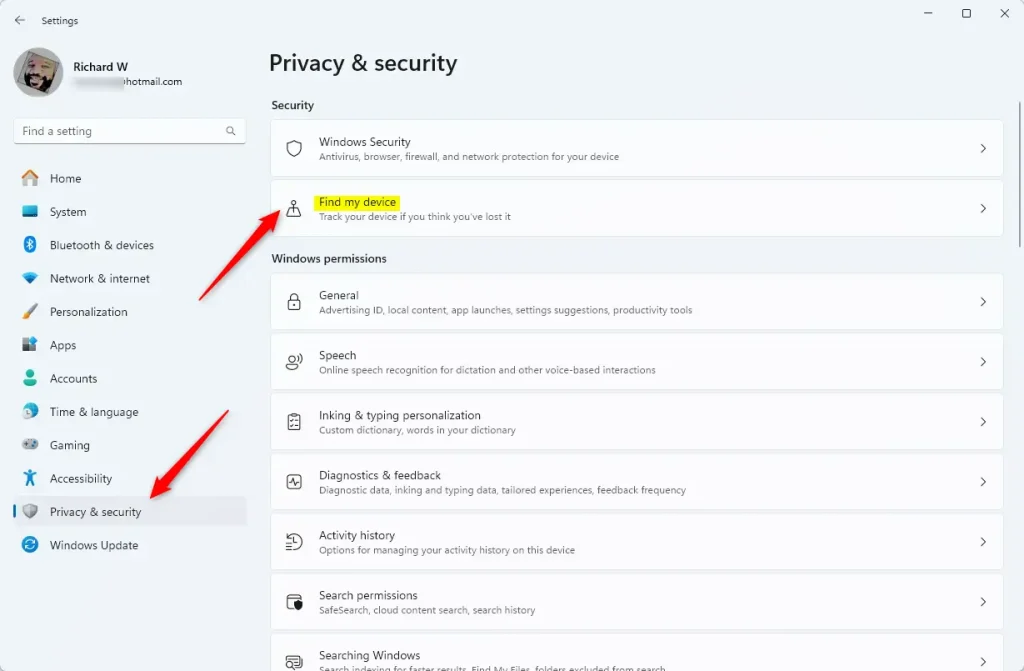
You can easily turn on or off Find My Device in Windows 11 using the Settings app.
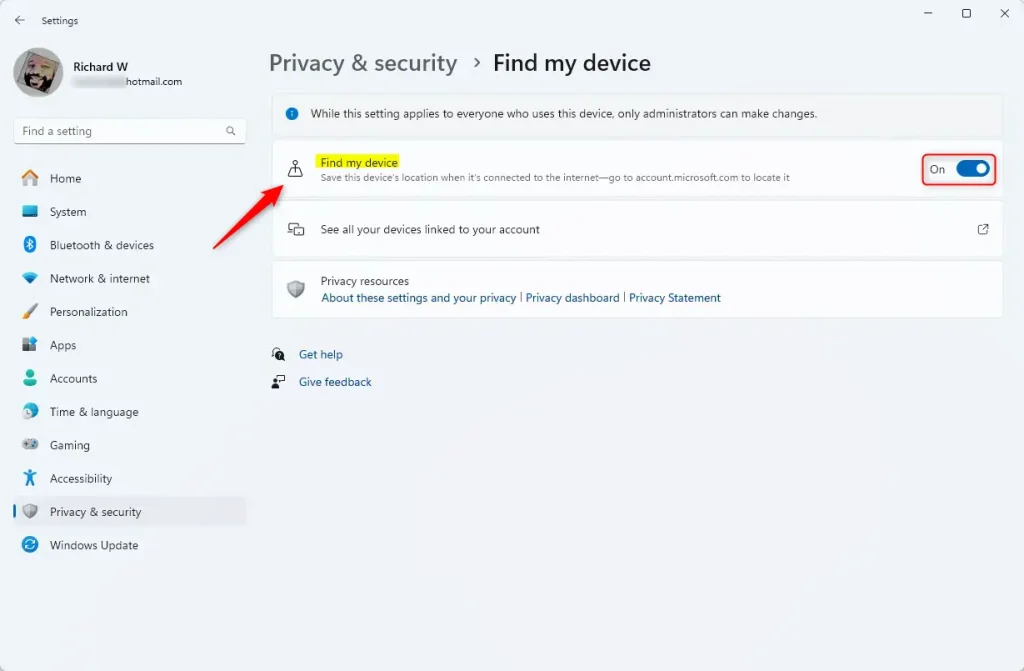
You can easily turn on or off Find My Device in Windows 11 using the Settings app.
How to Turn On or Off Find My Device (Option 2: Using Registry Editor)
Before you begin, remember that editing the registry can be risky. It’s a good idea to back up your registry first and follow these steps carefully.
Turn On Find My Device
reg add "HKLM\SOFTWARE\Microsoft\MdmCommon\SettingValues" /v LocationSyncEnabled /t REG_DWORD /d 1 /f
Turn Off Find My Device
reg add "HKLMSOFTWARE\Microsoft\MdmCommon\SettingValues" /v LocationSyncEnabled /t REG_DWORD /d 0 /f
After saving the file, double-click it. You’ll then confirm to merge the changes into your registry. This will turn Find My Device on or off depending on the file you use.
Summary
- Find My Device helps you track your Windows 11 device if it gets lost.
- You need to be an administrator on the device to change this setting.
- You can turn it on or off easily through the Settings app or by editing the Registry.
- Your device will update its location automatically when connected to the internet and this feature is on.
- Make sure location services are enabled for Find My Device to work.
Find My Device in Windows 11 helps you locate your computer if it’s lost or stolen, and you can turn it on or off easily through Settings.
How do I use Find My Device on 🪟 Windows 11?
Windows 11: Select Start. > Settings. > Privacy & security. > Find my device.
Should I enable Find My Device in 🪟 Windows 11?
Find My Device is a feature that can help you locate your Windows 10 or Windows 11 device if it's lost or stolen. To use this feature, sign in to your device with a Microsoft account and make sure you're an administrator on it.
How do I find my device info on 🪟 Windows 11?
To find your device name and model, you can use one of the following methods: Right-click Start and choose Windows Settings, select System and pick About.
Was this guide helpful?

About the Author
Richard
Tech Writer, IT Professional
Richard, a writer for Geek Rewind, is a tech enthusiast who loves breaking down complex IT topics into simple, easy-to-understand ideas. With years of hands-on experience in system administration and enterprise IT operations, he’s developed a knack for offering practical tips and solutions. Richard aims to make technology more accessible and actionable. He's deeply committed to the Geek Rewind community, always ready to answer questions and engage in discussions.



No comments yet — be the first to share your thoughts!