How to Assign Apps Shortcut Key in Windows 11

This tutorial explains how to set up your own keyboard shortcuts to open apps quickly in Windows 11.
Right-click the app’s desktop shortcut, select Properties, then click the Shortcut key field and press your desired key combination. Click OK to save.
Why do this? Using keyboard shortcuts saves time by letting you launch your favorite programs without clicking through menus with your mouse.
What does this achieve? You’ll be able to press a specific key combination to instantly open the apps you use most often.
Note: If you move a shortcut to a new folder, the keyboard shortcut will stop working. Also, if you assign the same key to two different apps, the newest one will take over.
| Press this key | Assigned Shortcut Key |
|---|---|
| Numbers 0-9 from top of keyboard | Ctrl + Alt + <number> |
| Numbers 0-9 or characters / * – + . on numpad | Num <number or character> |
| Letters A-Z | Ctrl + Alt + <letter> |
| Character keys ` ~ @ # $ % ^ & ( ) = + [ ] { } | ; : , ‘ “ . < > / ? | Ctrl + Alt + <character key> |
| Up, Down, Left, or Right arrow keys | Ctrl + Alt + <arrow key> |
| Function keys F1-F12 | <function key> |
Assign Shortcut Key to Desktop Apps
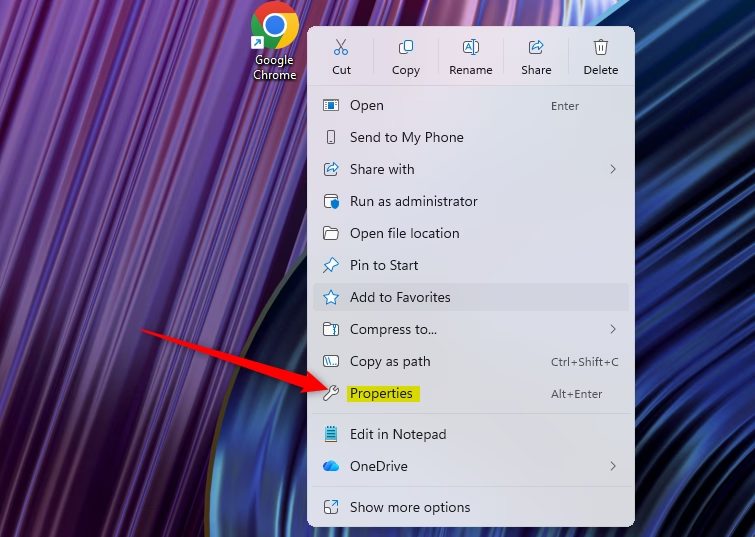
1. Right-click your desktop shortcut and select Properties.
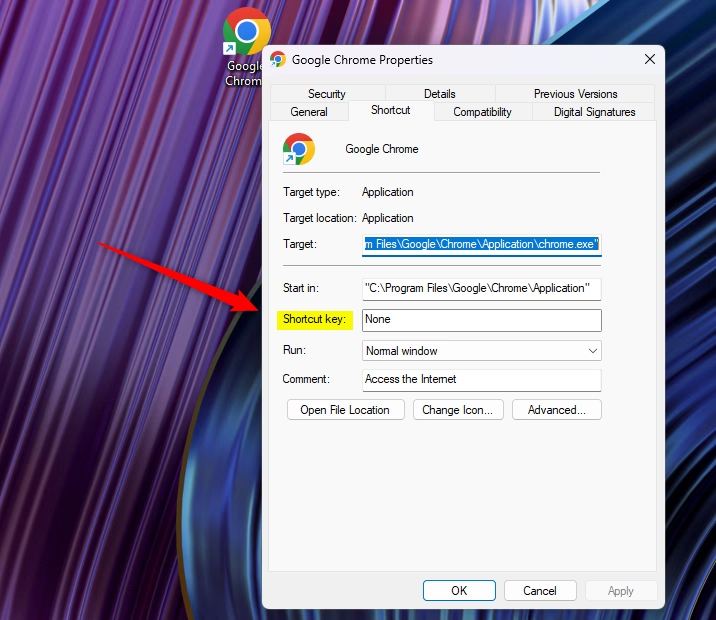
2. In the Shortcut tab, click the Shortcut key field. Press your desired key combination. Click OK.
Assign Shortcut Key to Taskbar Apps
Note: This method doesn’t work for Microsoft Store apps.
1. First, hold the Shift key and right-click the taskbar icon. Then, select Properties.
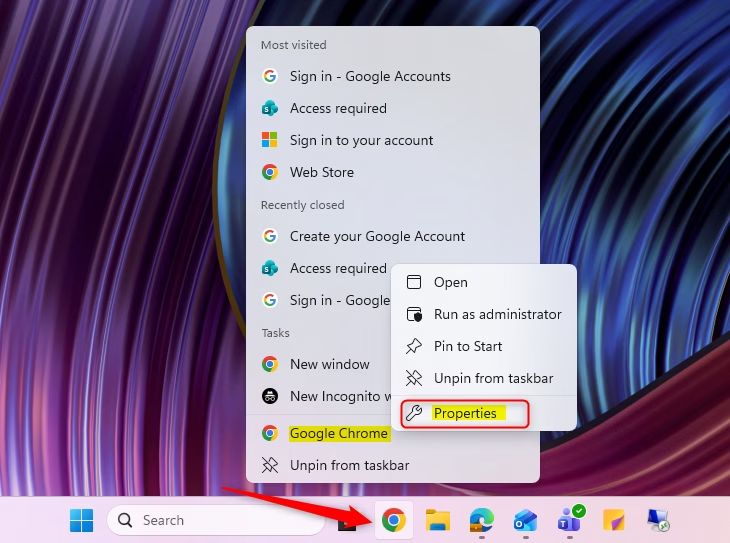
2. In the Shortcut tab, click the Shortcut key field, press your keys, and finally click OK.
Assign Shortcut Key to All Apps List
You can easily set up a custom keyboard shortcut for most apps in Windows 11 by making a shortcut and then telling it which keys to use.
- Open the Start menu and click the All apps button.
- Right-click your app, hover over More, and select Open file location.
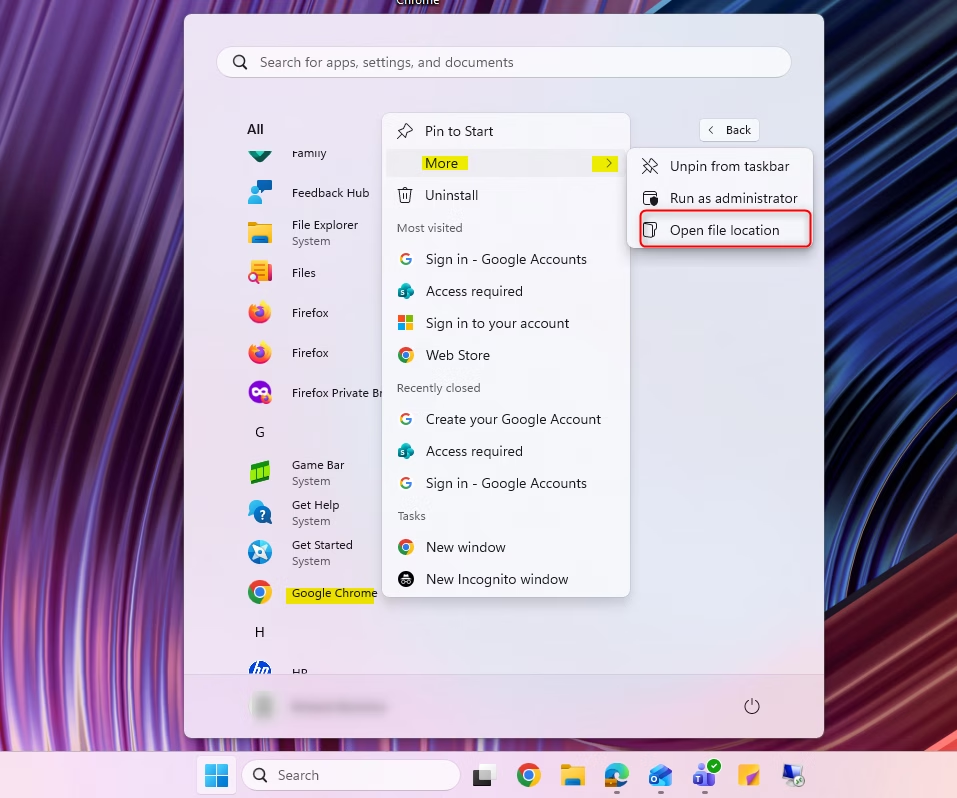
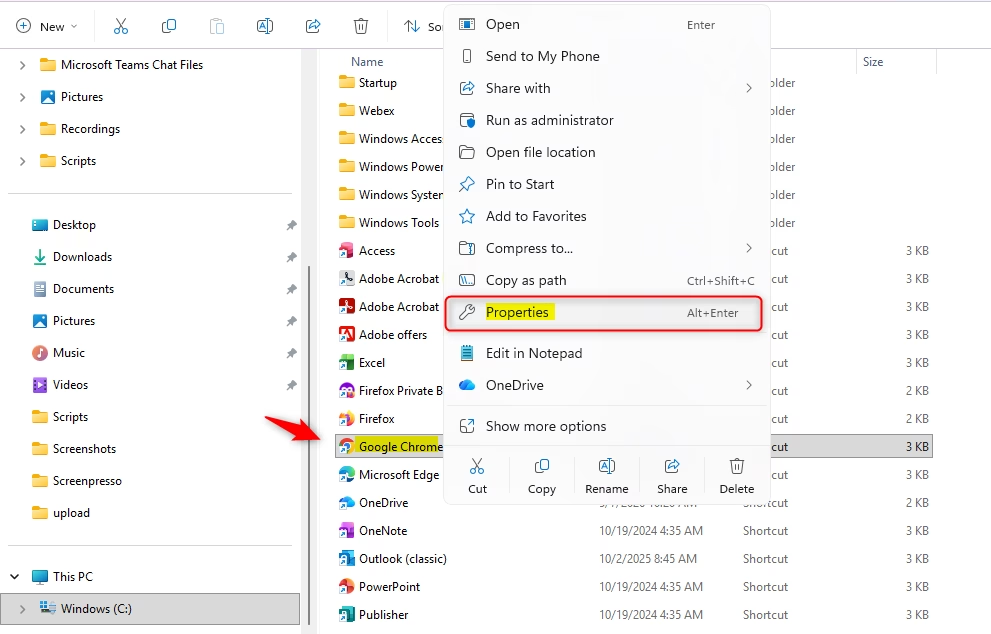
- Right-click the icon in the folder that opens and select Properties.
- Click in the Shortcut key box and press your desired keys.
- Click OK.
Assign Shortcut Key to Start Menu Pinned App
Note: This method doesn’t work for Microsoft Store apps.
- Open the Start menu.
- Right-click the pinned app and select Open file location.
- Right-click the icon in the folder that opens and select Properties.
- Click in the Shortcut key box and press your desired keys.
- Click OK.
Using PowerToys Keyboard Manager
For more control, use Microsoft PowerToys. The Keyboard Manager lets you remap keys globally without needing a desktop shortcut.
Steps:
- Open PowerToys Settings.
- Select Keyboard Manager.
- Click Remap a shortcut.
- Click the + icon to add a new mapping.
- Choose your trigger keys and the app you want to launch.
Taskbar Productivity: Windows + Number Keys
Windows 11 has a built-in feature to launch pinned apps. Press the Windows key + 1 to open the first app on your taskbar, Windows key + 2 for the second, and so on. This is a super quick way to manage your workspace.
Troubleshooting and Limitations
If your shortcut stops working, ensure the original file has not been moved. If you assign a key already used by Windows, your custom shortcut will usually take priority, but some system keys are reserved.
Reserved Windows Hotkeys to Avoid
| Key Combination | Function |
|---|---|
| ⊞ Win+D | Show Desktop |
| ⊞ Win+E | File Explorer |
| ⊞ Win+L | Lock PC |
Summary
You can speed up your work by assigning custom keys to your apps. Use the Properties menu for standard desktop shortcuts or PowerToys for advanced remapping. Always check for conflicts with existing Windows keys to ensure your shortcuts work reliably.
Why does my shortcut key stop working after a restart?
This often happens if the shortcut file was moved or deleted. Windows loses the link to the original program. Ensure your shortcut remains in the same folder and that the folder path has not changed since you assigned the key.
Can I assign keyboard shortcuts to UWP apps from the Microsoft Store?
Native Windows shortcut properties do not support UWP apps directly. To launch these, create a desktop shortcut by dragging the app from the Start menu to your desktop, or use the PowerToys Keyboard Manager for better compatibility.
What happens if I assign a shortcut key that is already in use by Windows?
Generally, your custom shortcut will override the default Windows behavior. However, some core system shortcuts like ⊞ Win+L or ⊞ Win+D are protected by the operating system and cannot be reassigned using the standard Properties method.
How do I remove a custom keyboard shortcut?
Open the Properties window for the shortcut. Click inside the Shortcut key field and press the Backspace or Delete key on your keyboard. The field will change to ‘None’. Click OK to save your changes and remove the assignment.
Was this guide helpful?
100% of readers found this helpful (1 votes)

About the Author
Richard
Tech Writer, IT Professional
Richard, a writer for Geek Rewind, is a tech enthusiast who loves breaking down complex IT topics into simple, easy-to-understand ideas. With years of hands-on experience in system administration and enterprise IT operations, he’s developed a knack for offering practical tips and solutions. Richard aims to make technology more accessible and actionable. He's deeply committed to the Geek Rewind community, always ready to answer questions and engage in discussions.


No comments yet — be the first to share your thoughts!