

Speed up Edge or fix display issues by managing graphics hardware acceleration.
Graphics hardware acceleration uses your computer’s GPU, or Graphics Processing Unit, for the browser’s rendering tasks. This can speed up how quickly web pages load and videos play.
You can usually find this setting in Edge’s settings menu, under the “System and performance” section. If you’re on older hardware or seeing visual glitches, disabling it can sometimes fix those problems.
This guide walks you through changing this feature for your Microsoft Edge browser on Windows 11.
To enable or disable graphics hardware acceleration in Microsoft Edge, go to Settings > System and performance. Toggle the “Use graphics acceleration when available” option to your desired setting. This improves performance or resolves display issues.
What Is Hardware Acceleration?
Microsoft Edge has a feature called hardware acceleration. When you turn it on, Edge moves graphics and text rendering work from your computer’s main processor (CPU) to your graphics card (GPU). This frees up your CPU to run other programs faster.
Why Disable Hardware Acceleration?
Hardware acceleration is on by default. But sometimes it causes problems. If web pages load slowly, videos stutter, or fonts look blurry, turning off hardware acceleration might help. Your graphics driver may have compatibility issues. Or your display adapter might not support the right acceleration settings.
Option 1Change Settings in Microsoft Edge
You can change Microsoft Edge’s hardware acceleration settings directly in the browser, and it only affects your personal account.
- Open Microsoft Edge.
- Click the three-dot menu button (top right), then click Settings. You can also press Alt+F.
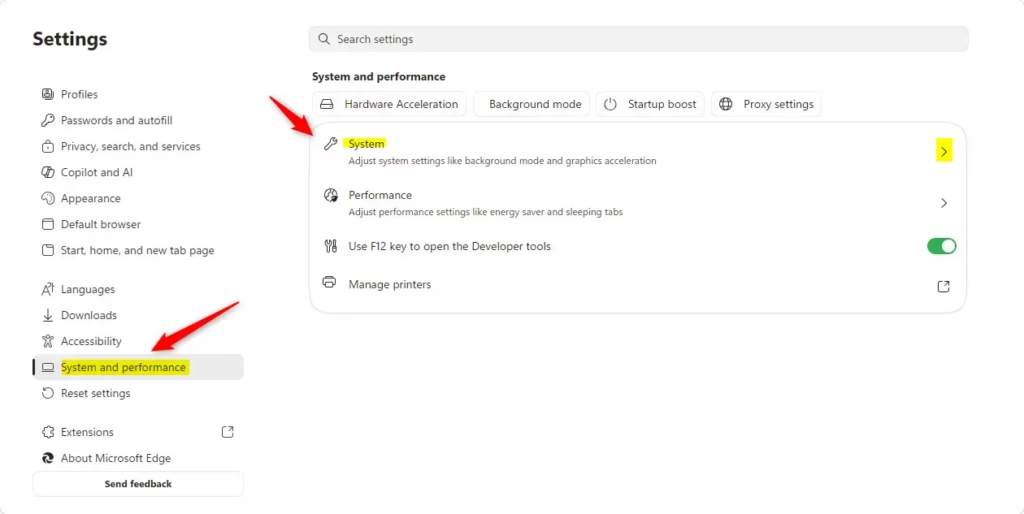
- In the left panel, click System and performance. Then click System in the right panel. If you don’t see a left panel, click the three-line menu button at the top left.
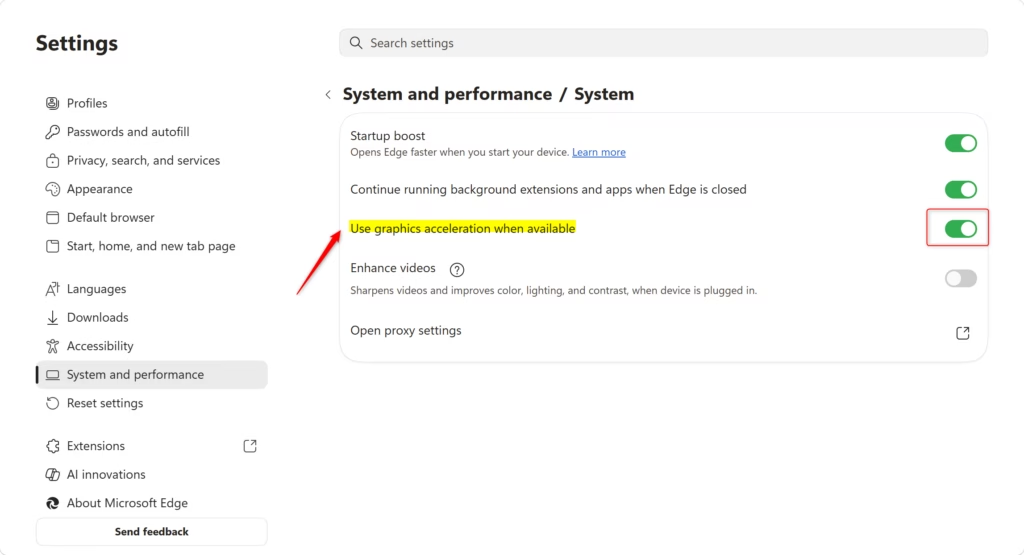
- Find the option that says “Use graphics acceleration when available”. Turn it On (default) or Off depending on what you need.
- Close the Settings tab when done.

Option 2Change Settings for All Users Using Registry
⚠️ Admin privileges required
This method applies to everyone on your computer and overrides individual user settings.
You can choose between Windows Terminal or Registry Editor. Pick one method below.
Always Turn On Hardware Acceleration for Everyone
Open Windows Terminal as an administrator and run this command:
reg add "HKEY_LOCAL_MACHINE\SOFTWARE\Policies\Microsoft\Edge" /v HardwareAccelerationModeEnabled /t REG_DWORD /d 1 /f
Or in Registry Editor, navigate to this path and add this value:
Path: HKEY_LOCAL_MACHINE\SOFTWARE\Policies\Microsoft\Edge
Always Turn Off Hardware Acceleration for Everyone
Open Windows Terminal as an administrator and run this command:
reg add "HKEY_LOCAL_MACHINE\SOFTWARE\Policies\Microsoft\Edge" /v HardwareAccelerationModeEnabled /t REG_DWORD /d 0 /f
Or in Registry Editor, navigate to this path and add this value:
Path: HKEY_LOCAL_MACHINE\SOFTWARE\Policies\Microsoft\Edge
Allow User Choice (Default)
If you want to let users choose their own settings again, use this command:
reg delete "HKEY_LOCAL_MACHINE\SOFTWARE\Policies\Microsoft\Edge" /v HardwareAccelerationModeEnabled /f
Summary
Hardware acceleration in Microsoft Edge uses your graphics card to speed things up, making it run better than using just your computer’s main processor.
Should I turn off hardware acceleration in Edge?
You should only turn off hardware acceleration in Microsoft Edge if you’re having problems with how it runs.
Should I leave hardware acceleration on or off?
You should generally leave hardware acceleration turned on because it helps your browser run faster.
How do I turn on hardware acceleration for a browser?
To turn on hardware acceleration in Microsoft Edge, open the browser, click the three dots, and then choose Settings.
Does disabling hardware acceleration increase CPU usage?
Yes, turning off hardware acceleration usually makes your computer’s main processor work harder.
Should I turn off hardware acceleration in Edge?
You should only turn off hardware acceleration in Microsoft Edge if you are experiencing performance issues. If you notice web pages loading slowly, stuttering videos, or blurry fonts, disabling this feature can resolve compatibility conflicts between your browser and your graphics driver, potentially improving your overall browsing experience and stability.
Should I leave hardware acceleration on or off?
You should generally leave hardware acceleration turned on. It is enabled by default because it moves graphics and text rendering tasks from your CPU to your GPU, which improves browser speed and responsiveness. Only disable it if you encounter specific visual glitches, stuttering, or crashes while using the Microsoft Edge browser.
How do I turn on hardware acceleration for a browser?
To enable hardware acceleration in Microsoft Edge, open the browser and click the three-dot menu, then select Settings. Navigate to the System and performance tab. Under the System section, toggle the switch for 'Use graphics acceleration when available' to the On position, then restart your browser to apply the changes.
Does disabling hardware acceleration increase CPU usage?
Yes, disabling hardware acceleration typically increases CPU usage. When this feature is off, your computer's main processor must handle all graphics and text rendering tasks instead of moving them to the graphics card. This can cause your CPU to work harder, potentially slowing down other programs running on your computer.
Was this guide helpful?

About the Author
Richard
Tech Writer, IT Professional
Richard, a writer for Geek Rewind, is a tech enthusiast who loves breaking down complex IT topics into simple, easy-to-understand ideas. With years of hands-on experience in system administration and enterprise IT operations, he’s developed a knack for offering practical tips and solutions. Richard aims to make technology more accessible and actionable. He's deeply committed to the Geek Rewind community, always ready to answer questions and engage in discussions.



No comments yet — be the first to share your thoughts!