How to Enable or Disable Run at Startup for Xbox app in Windows 11

This tutorial will show you how to turn the Xbox app on or off so it starts when you sign in to Windows 11.
Open the Xbox app, go to Settings, click App, and toggle “Launch Xbox when I start my computer” on or off. You can also manage this in Windows Settings under Apps > Startup or via Task Manager.
The Xbox app for Windows lets you play and manage your PC games on your device. Whether you have Xbox Game Pass or bought games from the Microsoft Store, you can find them all in this app.
Why do this? If you use the Xbox app often, having it start automatically when you log in saves you time.
What happens? The Xbox app will open by itself each time you start your computer and sign in.
Note: These settings only apply to your user account, not other users on the computer.
References:
Download the Xbox PC app to play new games, see what your friends are playing, and chat with them across PC, mobile, and console.
Option 1Use Xbox App Settings
Turn Xbox App On or Off at Startup
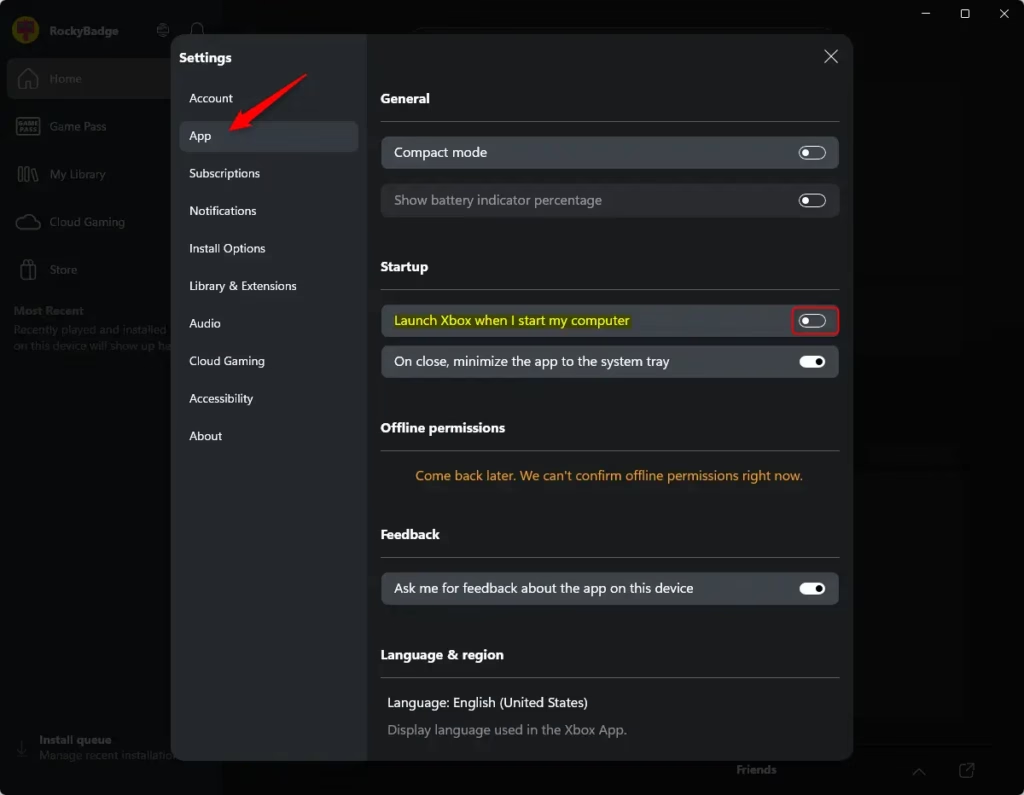
You can turn the Xbox app startup on or off directly in the app’s settings. Just open the Xbox app, go to Settings, then App, and flip the switch for ‘Launch Xbox when I start my computer’ to control if it runs when Windows starts.
- Open the Xbox app.
- Click the Profile button and then click Settings.
- Click App in the left side menu.
- Under Startup settings, turn on or off “Launch Xbox when I start my computer.” The default is off.
Close Settings when done.
Option 2Use Registry Editor
Turn On or Off Run Xbox App at Startup Using the Registry
Controlling the Xbox app startup using the Windows Registry is an advanced option that needs administrator rights. You can change this setting by opening the Registry Editor or using a command in Windows Terminal to adjust the specific value.
Open Windows Terminal and run the command below. Or open Registry Editor and browse to the registry key to edit the value.
Turn On Run Xbox app at Startup:
reg add "HKEY_CURRENT_USER\Software\Classes\Local Settings\Software\Microsoft\Windows\CurrentVersion\AppModel\SystemAppData\Microsoft.GamingApp_8wekyb3d8bbwe\Xbox.App.Tasks.FullTrustComponent" /v State /t REG_DWORD /d 2 /f
Turn Off Run Xbox app at Startup (default):
reg add "HKEY_CURRENT_USER\Software\Classes\Local Settings\Software\Microsoft\Windows\CurrentVersion\AppModel\SystemAppData\Microsoft.GamingApp_8wekyb3d8bbwe\Xbox.App.Tasks.FullTrustComponent" /v State /t REG_DWORD /d 0 /f
Option 3Use Windows Settings
Enable or Disable Run Xbox App at Startup in Settings
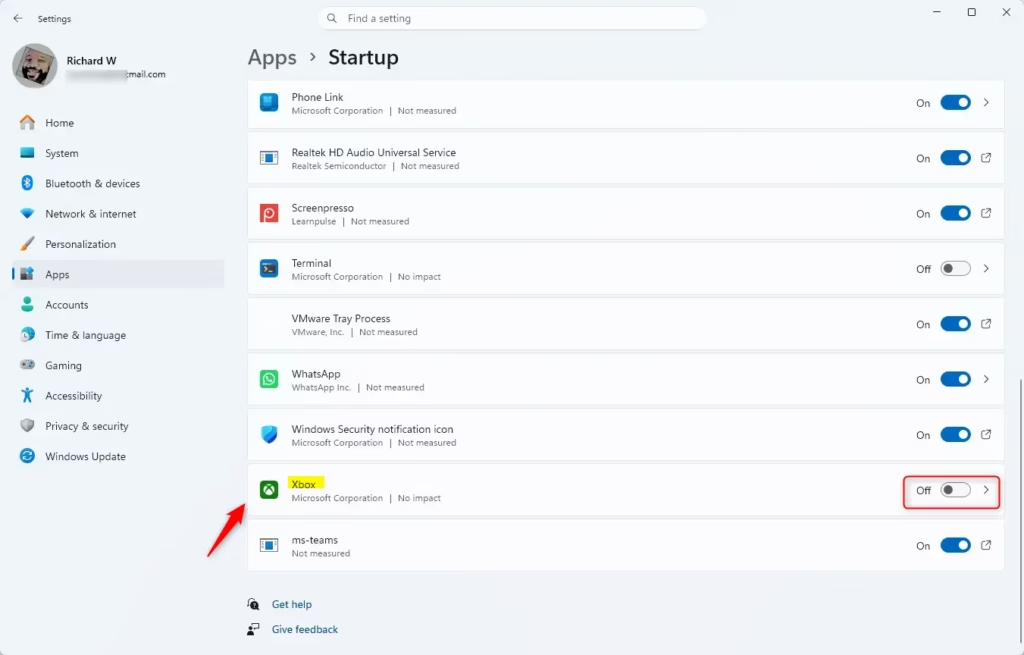
- Open Settings by pressing ⊞ Win+I.
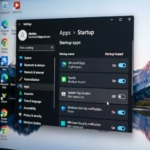
- Click on Apps on the left side, and click on Startup on the right side.
- Tuggle the button to turn On or Off the Xbox app.
Option 4Use Task Manager
Enable or Disable Run Xbox App at Startup in Task Manager
- Open Task Manager by pressing
Managing the Xbox app's startup in Task Manager is straightforward. Press Ctrl+Shift+Esc to open it, then click on the 'Startup apps' tab, find the Xbox app, and use the 'Enable' or 'Disable' button.
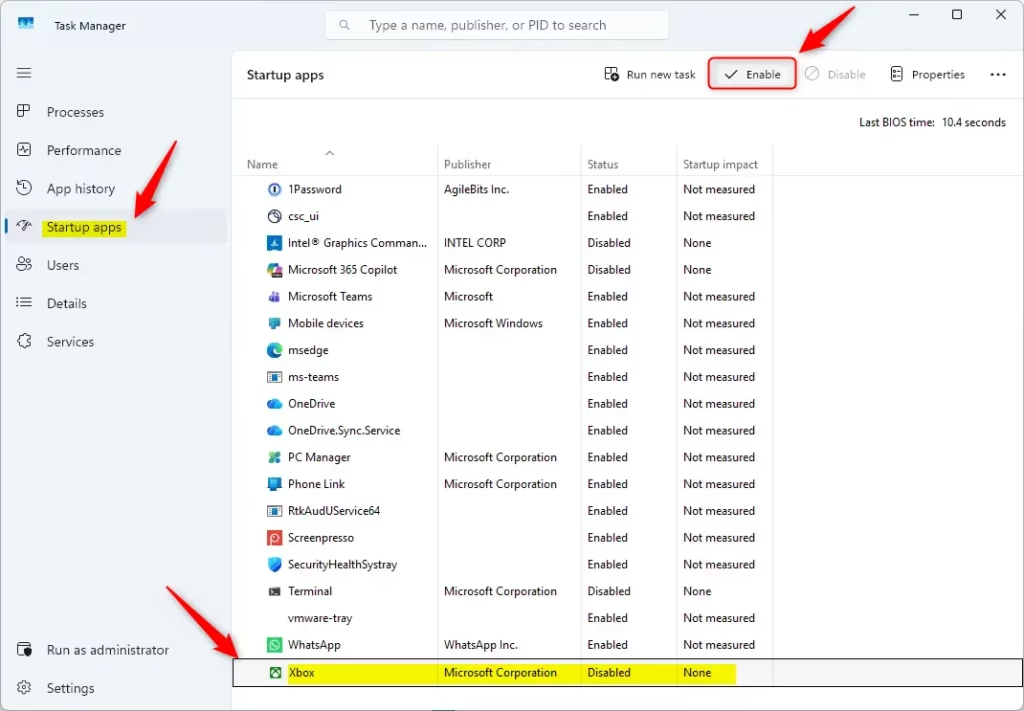
Task Manager showing startup apps to disable for Windows 11 performance Close Task Manager when done.
Summary
You've learned several ways to control if the Xbox app starts automatically with Windows 11. You can choose the method that works best for you, whether it's through the app's settings, Task Manager, or the Windows Registry.
How do I stop the Xbox app from opening on startup?
To stop the Xbox app from opening automatically when you start your computer, open the app itself and go to Settings by clicking your profile icon. Then, simply turn off the option labeled 'Launch Xbox when I start my computer'.
How to fix launching the Xbox app?
If the Xbox app isn't launching correctly, you can try fixing it through Windows Settings. Go to Apps, find the Xbox app, click the three dots, select Advanced options, and try the 'Repair' button first, then 'Reset' if needed.
How to fix error code 0x8000000d?
The Xbox app error code 0x8000000d often means there are problems with installation files or the Microsoft Store. You can try fixing this by running the Windows Store Apps troubleshooter and making sure your Windows is updated.
How do I stop Microsoft apps from opening on startup?
To stop any Microsoft app from starting automatically with Windows, open Task Manager by pressing Ctrl+Shift+Esc. Go to the 'Startup apps' tab, find the app you want to stop, right-click it, and choose 'Disable'.
Was this guide helpful?

About the Author
Richard
Tech Writer, IT Professional
Richard, a writer for Geek Rewind, is a tech enthusiast who loves breaking down complex IT topics into simple, easy-to-understand ideas. With years of hands-on experience in system administration and enterprise IT operations, he’s developed a knack for offering practical tips and solutions. Richard aims to make technology more accessible and actionable. He's deeply committed to the Geek Rewind community, always ready to answer questions and engage in discussions.



No comments yet — be the first to share your thoughts!