How to Change Mouse Haptic Feedback Intensity in Windows 11

This tutorial will show you how to change the mouse haptic feedback intensity level in Windows 11. This feature works with compatible mice.
What Is Haptic Feedback?
Haptic feedback gives you small vibrations on your mouse. Why use this? It helps you feel when you snap windows into place, align objects, or resize things on your screen. It gives you better control and precision.
When Can You Use This?
You can feel mouse haptic feedback in Windows 11 on specific builds, starting with Dev 25H2 build 26300.8142 and Beta 25H2 build 26220.8148, using compatible devices for actions like snapping windows or hovering over buttons.
When haptic signals is turned on for the mouse, you can choose how strong you want the vibrations to be.
Option One
Change Mouse Haptic Feedback Intensity in Settings
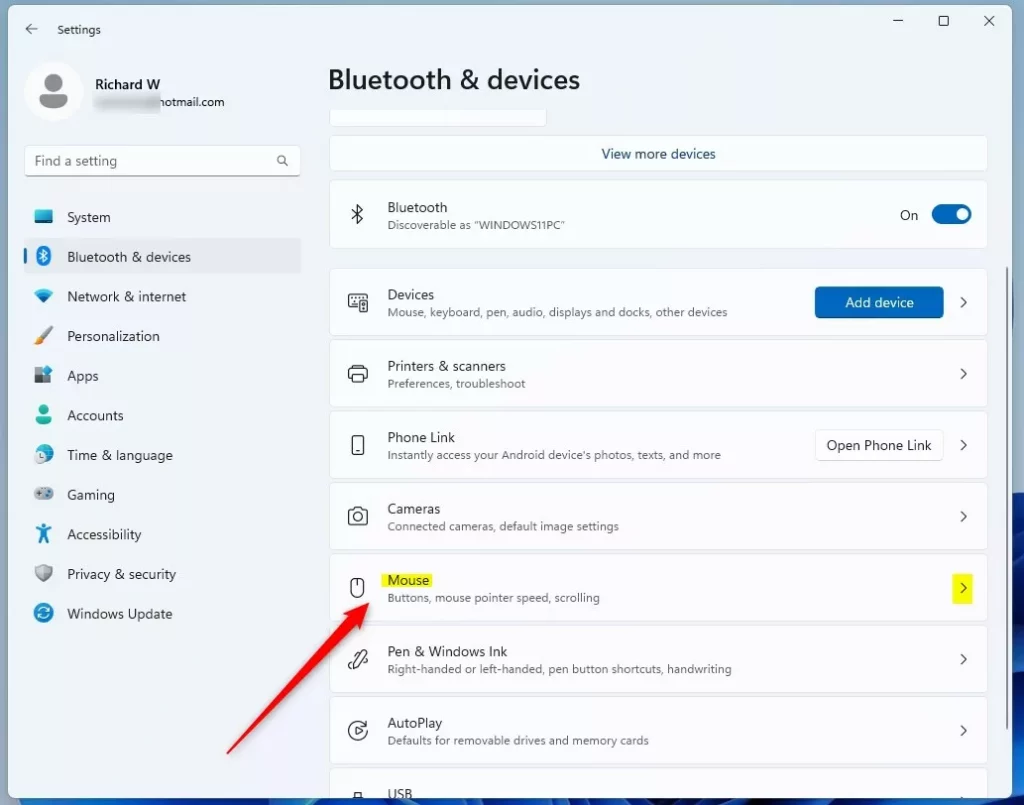
You can change your mouse haptic feedback intensity in Windows 11 through the Settings app by going to Bluetooth & devices, then Mouse, and clicking on Haptic signals.- Open Settings by pressing
Win+I. - Click Bluetooth & devices on the left side. Then click Mouse on the right side.
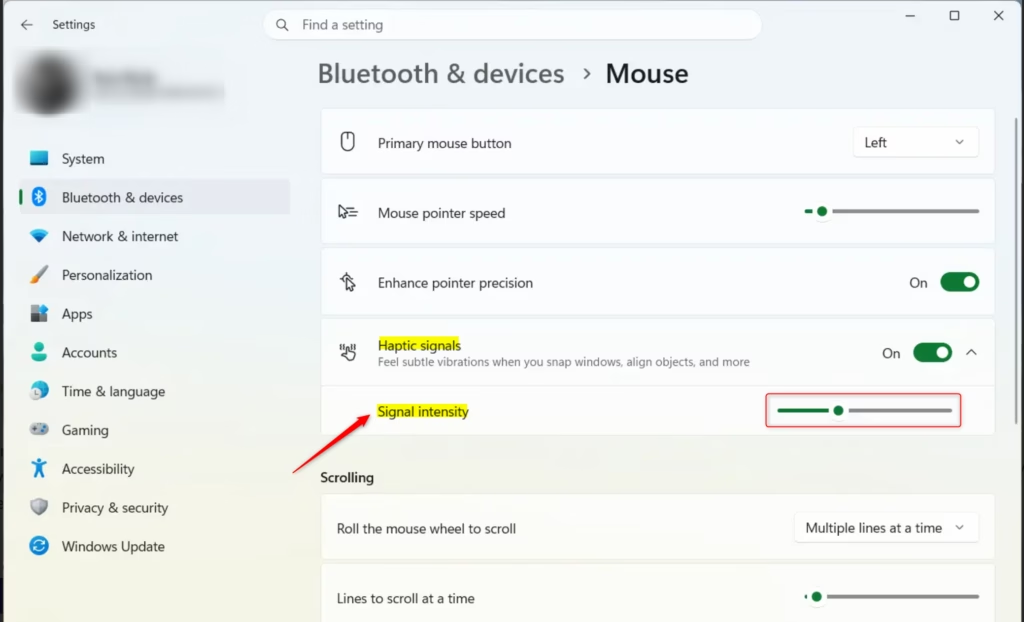
- Click Haptic signals to expand it open.
- Move the Signal intensity slider left (less vibration) or right (more vibration). You can choose intensity levels 1 to 4. Level 2 is the default. Hover your pointer over the slider to see the current level number.
- You can now close Settings if you like.
Option Two
Change Mouse Haptic Feedback Intensity Using Registry Editor
Changing mouse haptic feedback intensity using the Registry Editor in Windows 11 requires administrator rights and involves running specific commands in Windows Terminal to set your desired vibration level.
Open Windows Terminal as an administrator and run the commands below. Choose the intensity level you want:
Intensity Level 1:
reg add "HKEY_CURRENT_USER\Software\Microsoft\Windows NT\CurrentVersion\Windows\EnhancedPenSupport" /v MouseFeedbackIntensity /t REG_BINARY /d 000000000000D03F /f
Intensity Level 2 (Default):
reg add "HKEY_CURRENT_USER\Software\Microsoft\Windows NT\CurrentVersion\Windows\EnhancedPenSupport" /v MouseFeedbackIntensity /t REG_BINARY /d 000000000000E03F /f
Intensity Level 3:
reg add "HKEY_CURRENT_USER\Software\Microsoft\Windows NT\CurrentVersion\Windows\EnhancedPenSupport" /v MouseFeedbackIntensity /t REG_BINARY /d 000000000000E83F /f
Intensity Level 4:
reg add "HKEY_CURRENT_USER\Software\Microsoft\Windows NT\CurrentVersion\Windows\EnhancedPenSupport" /v MouseFeedbackIntensity /t REG_BINARY /d 000000000000F03F /f
Option Three
Change Mouse Haptic Feedback Intensity in Logi Options+
If you have a compatible Logitech mouse, like the MX Master 4, you can adjust its mouse haptic feedback intensity through the Logi Options+ software by selecting Subtle, Low, Medium, or High.
- Open Logi Options+.
- Click on your supported Logitech mouse.
- Click HAPTIC FEEDBACK.
- Click on the Haptic feedback details.
- Select Subtle, Low, Medium (default), or High for the haptic intensity you want. (see screenshot below)
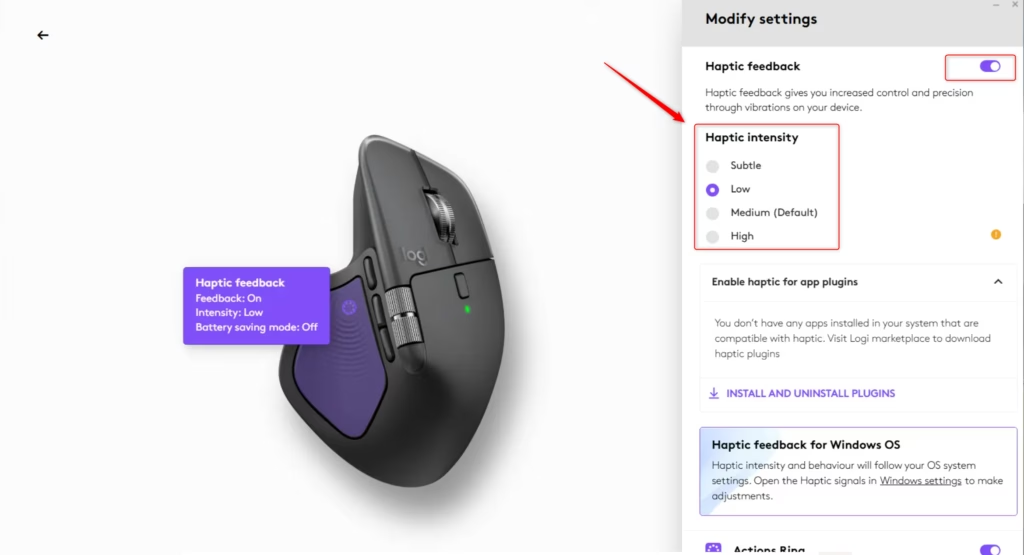
Note: Changing the haptic intensity in Logi Options+ will override Option One and Option Two.
Summary
You have three main ways to adjust mouse haptic feedback intensity in Windows 11: the easy-to-use Settings app, the Registry Editor for advanced users, or Logi Options+ for compatible Logitech mice.
Is there a haptic feedback mouse?
Yes, specific modern mice support haptic feedback technology. These devices provide physical vibrations during tasks like snapping windows, resizing elements, or aligning objects in applications. To use this feature, ensure your mouse is compatible and that you are running Windows 11 build 26300.8142 or higher, where haptic signals are natively supported.
How to fix mouse glitch in 🪟 Windows 11?
To fix mouse glitches in Windows 11, you can start by updating your mouse drivers, trying a different USB port, or adjusting pointer precision settings.
How to enable mouse smoothing in 🪟 Windows 11?
You can enable mouse smoothing, called ‘Enhance pointer precision’ in Windows 11, by going to Mouse settings and checking the box in the Pointer Options tab.
Why does 🪟 Windows 11 feel choppy?
Windows 11 can feel choppy due to outdated graphics drivers, apps using too many resources in the background, or incorrect display refresh rate settings.
Was this guide helpful?

About the Author
Richard
Tech Writer, IT Professional
Richard, a writer for Geek Rewind, is a tech enthusiast who loves breaking down complex IT topics into simple, easy-to-understand ideas. With years of hands-on experience in system administration and enterprise IT operations, he’s developed a knack for offering practical tips and solutions. Richard aims to make technology more accessible and actionable. He's deeply committed to the Geek Rewind community, always ready to answer questions and engage in discussions.



No comments yet — be the first to share your thoughts!