How to Stop Getting Insider Preview Builds on Windows 11 PC


This tutorial will show you how to stop getting early test versions of Windows 11. These are called Insider Preview Builds.
What is Windows Insider Program?
Flighting means you test early versions of Windows 11 before everyone else gets them. When you run these test versions and send feedback to Microsoft, you help Microsoft make Windows better. Once you registered for the Windows Insider Program, you can run preview builds on as many devices as you want.
Why Stop Getting Preview Builds?
Windows Insiders help shape the future of Windows. But if you want to stop getting early test versions, you can unregister and leave the program. You can also just unenroll your device. This stops the preview builds but keeps your email updates from Microsoft.
Important Information
Admin privileges required: You must be signed in as an administrator to stop getting preview builds.
What happens depends on which channel you use:
- If you use Beta Channel or Release Preview Channel: You can stop getting preview builds when the next major Windows 11 update comes out.
- If you use Canary Channel or Dev Channel: You need to do a clean install of Windows 11 to stop immediately.
Option 1Use Settings
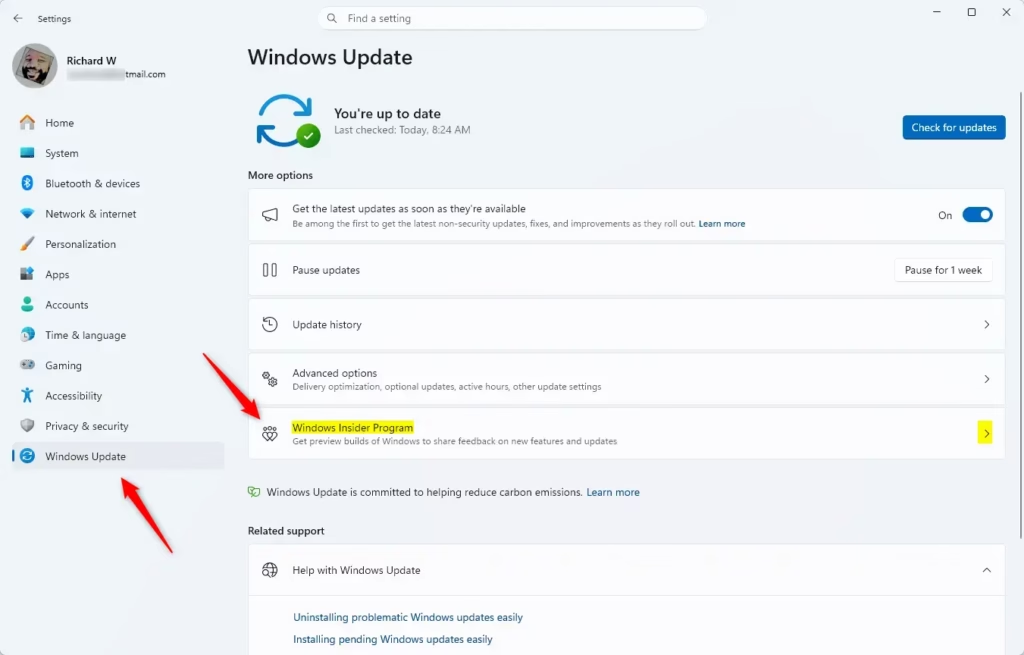
- Open Settings by pressing
Win+I. - Click Windows Update on the left side.
- Click Windows Insider Program on the right side.
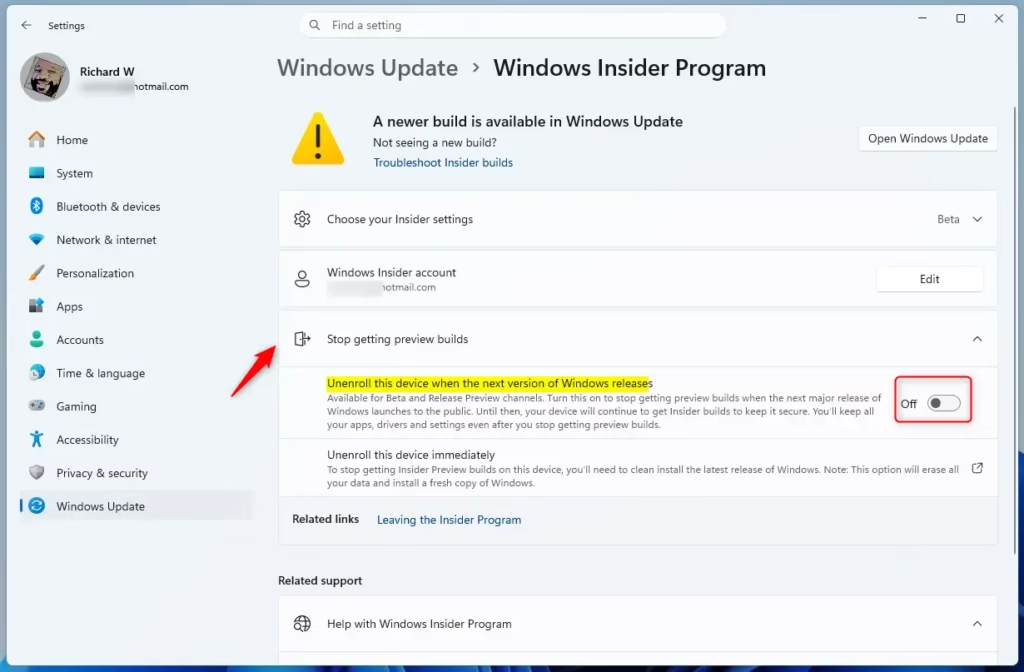
- Turn On to stop getting preview builds, or turn Off to keep getting them. Look for Unenroll device.
- You can close Settings when done.
Option 2Use Registry Editor ⚙️
Admin privileges required: Open Windows Terminal as an administrator and run the commands below.
To turn ON stopping preview builds:
reg add "HKEY_LOCAL_MACHINE\SOFTWARE\Microsoft\WindowsSelfHost\UI\Selection" /v OptOutState /t REG_DWORD /d 1 /f
To turn OFF stopping preview builds (this is the default):
reg add "HKEY_LOCAL_MACHINE\SOFTWARE\Microsoft\WindowsSelfHost\UI\Selection" /v OptOutState /t REG_DWORD /d 0 /f
Summary
Stopping Insider Preview Builds means you will no longer get early test versions of Windows 11. If you use Beta or Release Preview channels, you can unenroll through Settings. If you use Canary or Dev channels, you will need to reinstall Windows 11 completely. Always remember you need admin access to make these changes.
How to stop Insider Preview builds?
To stop receiving Insider Preview builds, navigate to Settings > Windows Update > Windows Insider Program. Select 'Stop getting preview builds' and toggle the option to unenroll your device. Note that if you are on the Canary or Dev channels, you must perform a clean install of Windows 11 to exit.
What is 🪟 Windows 11 Insider Preview build?
A Windows 11 Insider Preview build is an early, experimental version of the operating system released to members of the Windows Insider Program. These builds allow users to test new features and provide feedback to Microsoft before the software is officially released to the general public for stable, everyday use.
How to get rid of 🪟 Windows 11 Home Insider Preview watermark?
The watermark appears because you are running an evaluation copy of Windows. To remove it, you must unenroll from the Windows Insider Program and install a stable, public release of Windows 11. For users on Dev or Canary channels, this requires a clean installation, which will erase your current system data.
Why are people leaving 🪟 Windows 11?
Users often leave Windows 11 Insider builds because early versions can be unstable, contain bugs, or cause compatibility issues with specific hardware and software. Others choose to leave the program to return to a stable, production-ready environment that does not require frequent updates or the risk of unexpected system crashes.
Was this guide helpful?
0% of readers found this helpful (1 votes)

About the Author
Richard
Tech Writer, IT Professional
Richard, a writer for Geek Rewind, is a tech enthusiast who loves breaking down complex IT topics into simple, easy-to-understand ideas. With years of hands-on experience in system administration and enterprise IT operations, he’s developed a knack for offering practical tips and solutions. Richard aims to make technology more accessible and actionable. He's deeply committed to the Geek Rewind community, always ready to answer questions and engage in discussions.


No comments yet — be the first to share your thoughts!