How to Enable or Disable Keep Copilot app Running on Close in Windows 11


This tutorial guides you on how to control whether the Copilot app keeps running in the background after you close it on Windows 11.
What is Microsoft Copilot?
What is Microsoft Copilot? Think of Microsoft Copilot as your AI assistant, designed to help with a wide range of tasks on your computer.
Why Would You Want to Change This Setting?
You might want to keep the Copilot app running in the background even after you close it so it’s ready to go instantly. This setting controls whether the Copilot icon stays visible in your taskbar system tray after you close the main window. Changing this preference is simple and takes effect right away.
When turned on: The Copilot app keeps running in the background. The Copilot icon stays in your taskbar system tray. You can click it to reopen or quit Copilot anytime.
When turned off: The Copilot app fully closes. It stops running completely.
How to Enable or Disable Keep Copilot Running on Close
- Open the Copilot app on your computer.
- Click the Account button on the left sidebar. Then click Settings.
- Click Preferences on the left side. Turn on or off the option that says “On close, keep the app running” based on what you want.
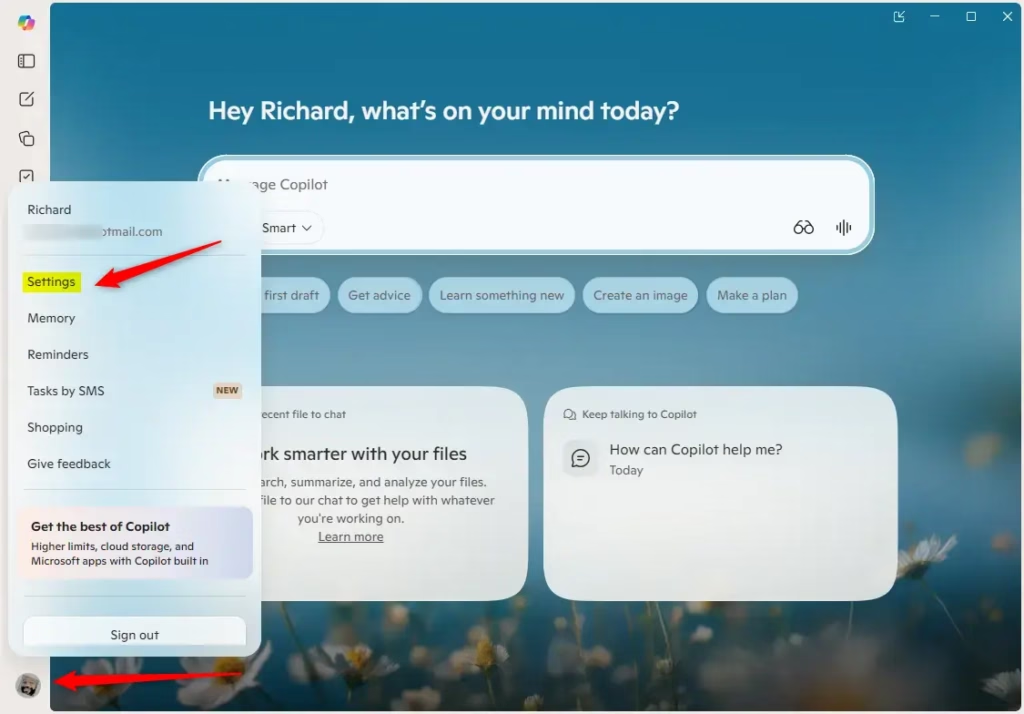
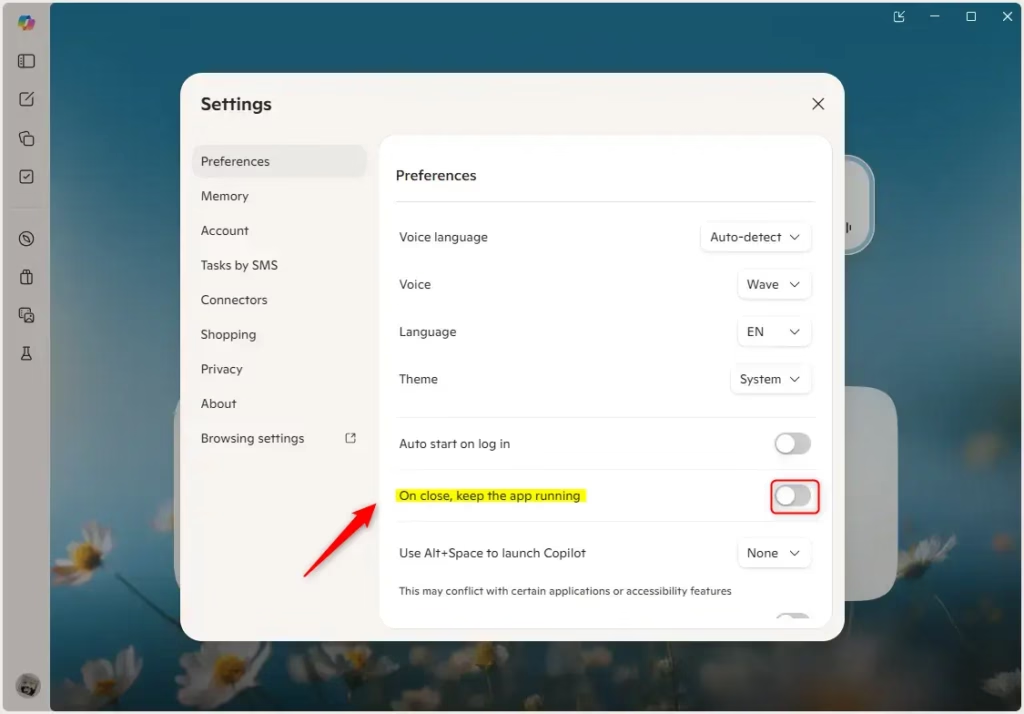
To change the setting for keeping Copilot running when you close it, first open the Copilot app on your Windows 11 computer. Then, go to your Account, click on Settings, and select Preferences from the left side. You’ll find the option to turn ‘On close, keep the app running’ on or off there.
Summary
Copilot can either keep running in the background after you close it, or shut down completely. You control this with a single setting. Open Copilot, navigate to Account settings, then Preferences, and toggle “On close, keep the app running” on or off. Pick the option that suits your workflow.
Why is Microsoft removing Copilot from 🪟 Windows 11?
The Copilot button in the Snipping Tool app also no longer appears when you select an area to capture. This change is part of Microsoft’s plan to reduce unnecessary Copilot entry points, starting with apps like Snipping Tool, Photos, Widgets, and Notepad, to fix Windows 11.
Was this guide helpful?

About the Author
Richard
Tech Writer, IT Professional
Richard, a writer for Geek Rewind, is a tech enthusiast who loves breaking down complex IT topics into simple, easy-to-understand ideas. With years of hands-on experience in system administration and enterprise IT operations, he’s developed a knack for offering practical tips and solutions. Richard aims to make technology more accessible and actionable. He's deeply committed to the Geek Rewind community, always ready to answer questions and engage in discussions.


No comments yet — be the first to share your thoughts!