How to Enable or Disable Settings Search Helper in Windows 11


Think of the Settings Search Helper in Windows 11 as your personal AI assistant for system settings. It uses artificial intelligence to understand what you’re looking for and quickly show you the right options, making it simpler to get your PC just how you like it.
This feature uses artificial intelligence to understand your search queries and present the most relevant settings, making it easier to configure your PC.
You can enable or disable the Settings Search Helper through the Windows Settings app. For example, it is available in preview builds of Windows 11, version 23H2.
Enable or disable the Settings Search Helper in Windows 11 via the Group Policy Editor or Windows Registry. Navigate to Computer Configuration > Administrative Templates > Windows Components > Windows AI and adjust the “Disable Settings agentic search experience” setting. Administrator privileges are required.
What is the Settings Search Helper?
The Settings Search Helper is a new tool in Windows 11 that acts like a smart assistant for your settings. It helps you find and change settings by understanding what you type in plain English, making it easier to manage your PC.
Why use it? If you want to change your Wi-Fi settings but don’t know where to find them, open Settings and type your question. The helper will guide you to the right place or make the change for you.
Note: Right now, this helper works best if your Windows language is set to English.
How to Turn the Settings Search Helper On or Off
Make sure you’re signed in with an administrator account before you start.
Option 1Using the Local Group Policy Editor (For 🪟 Windows 11 Pro, Enterprise, Education)
If you’re using Windows 11 Pro, Enterprise, or Education, you can turn off the Settings Search Helper using the Local Group Policy Editor. This method lets you control the feature through a dedicated tool for managing system settings.
- Press Windows key + R on your keyboard to open the Run box.
- Type
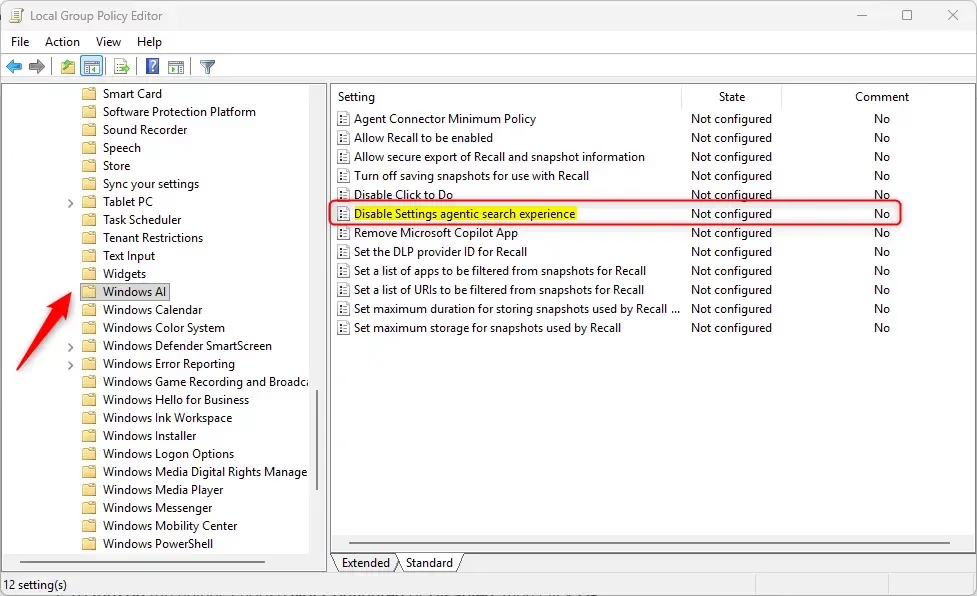
gpedit.mscand press Enter to open the Local Group Policy Editor. - In the left panel, go to: Computer Configuration > Administrative Templates > Windows Components > Windows AI
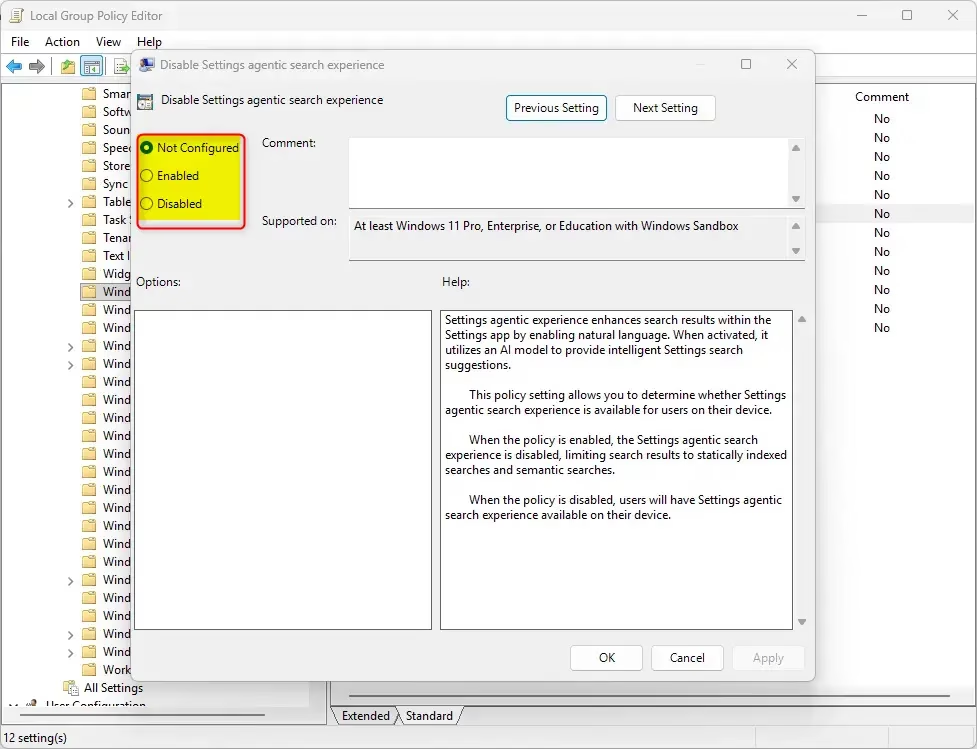
- In the right panel, find and double-click on “Disable Settings agentic search experience”.
- To turn on the helper, choose Not Configured or Disabled, then click OK.
- To turn off the helper, choose Enabled, then click OK.
Option 2Using the Windows Registry (For All Windows Editions)
For any edition of Windows 11, you can turn the Settings Search Helper on or off by making changes in the Windows Registry. This advanced method requires admin rights but gives you full control over the feature.
⚠️ Admin privileges required for this step.
To Turn On the Settings Search Helper (Default):
reg delete "HKEY_LOCAL_MACHINE\SOFTWARE\Policies\Microsoft\Windows\WindowsAI" /v DisableSettingsAgent /fTo Turn Off the Settings Search Helper:
reg add "HKEY_LOCAL_MACHINE\SOFTWARE\Policies\Microsoft\Windows\WindowsAI" /v DisableSettingsAgent /t REG_DWORD /d 1 /fWhat Does This Feature Do For You?
- Easier to Find Settings: Just type your question like you would ask a person. The helper understands you.
- Helps Fix Problems: It can suggest solutions or even fix some settings automatically if you allow it.
- Works on More PCs: Available on many new Windows 11 computers with different processors like Snapdragon, AMD, and Intel.
- Quick Links: Gives you direct buttons to open the right settings page from your search.
- Language Support: Works in English now. French support is coming soon for some users.
- Easy to Turn On or Off: You decide if you want to use this helper or not.
The Settings Search Helper makes finding settings much easier by letting you ask questions in plain English, just like talking to a person. It understands your needs and guides you directly to what you’re looking for.
For more official information, check out Microsoft’s guide: Configure the agent in Windows Settings.
Summary
The Settings Search Helper is a new AI tool in Windows 11 version 24H2 that understands your questions to help you find settings or fix issues, and you can turn it on or off using the Group Policy Editor or Registry.
Was this guide helpful?

About the Author
Richard
Tech Writer, IT Professional
Richard, a writer for Geek Rewind, is a tech enthusiast who loves breaking down complex IT topics into simple, easy-to-understand ideas. With years of hands-on experience in system administration and enterprise IT operations, he’s developed a knack for offering practical tips and solutions. Richard aims to make technology more accessible and actionable. He's deeply committed to the Geek Rewind community, always ready to answer questions and engage in discussions.




No comments yet — be the first to share your thoughts!