How to Delete Copilot Memory

Access Copilot settings via the app, Edge browser, or website. Navigate to Privacy or Memory, then click “Delete Memory” or “Delete all memory” to remove all data, or manage specific memories individually.
What is Copilot Memory?
Copilot memory is how Microsoft’s AI assistant keeps track of things you’ve talked about to help you out better. It remembers details from your chats so it can give you more personal and useful answers next time.
Why should you care? Copilot uses these memories to give you faster, more personal help.
What happens when you clear them? Copilot will forget those details. This helps protect your privacy or lets you reset your preferences.
How to Delete Copilot Memory
Option 1Using the Copilot App on 🪟 Windows 11
- Open the Copilot app on your Windows 11 PC.
- Sign in with your Microsoft account if needed.
- Make sure Copilot is in full view. Then click the Account button on the sidebar and choose Settings.
- Click on Privacy.
- To delete all memories: Click Del Memory at the bottom. Then click Del Memory again to confirm.
- To delete specific memories:
- Click Manage memory.
- Find the memory you want to remove and click the trash can icon.
- Click Del to confirm.
- Close the settings when you’re done.
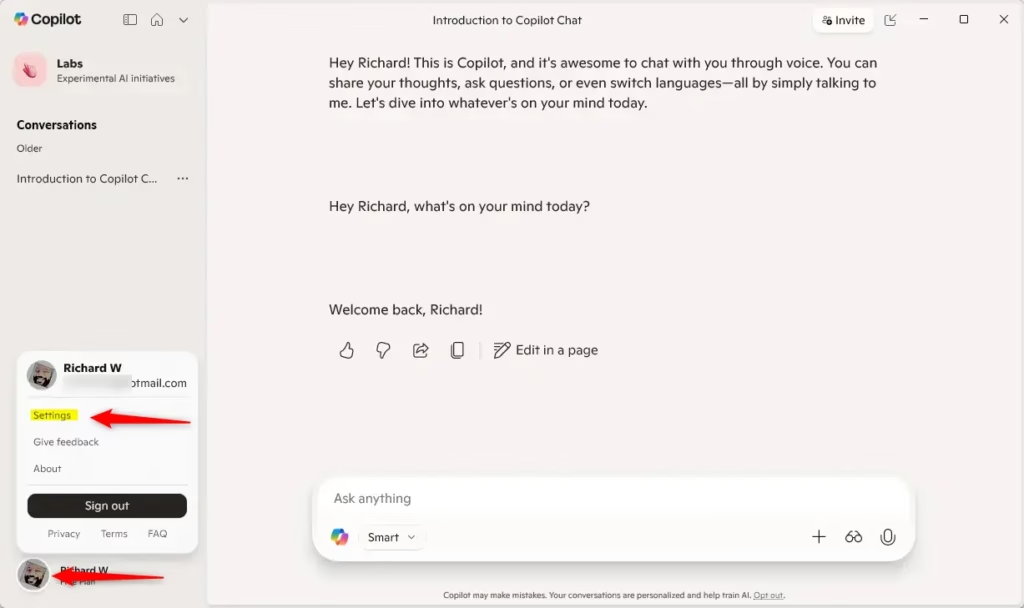
You can delete your Copilot memory right from the Copilot app on your Windows 11 computer. Just open the app, sign in if you need to, and head to the settings to manage your chat history.
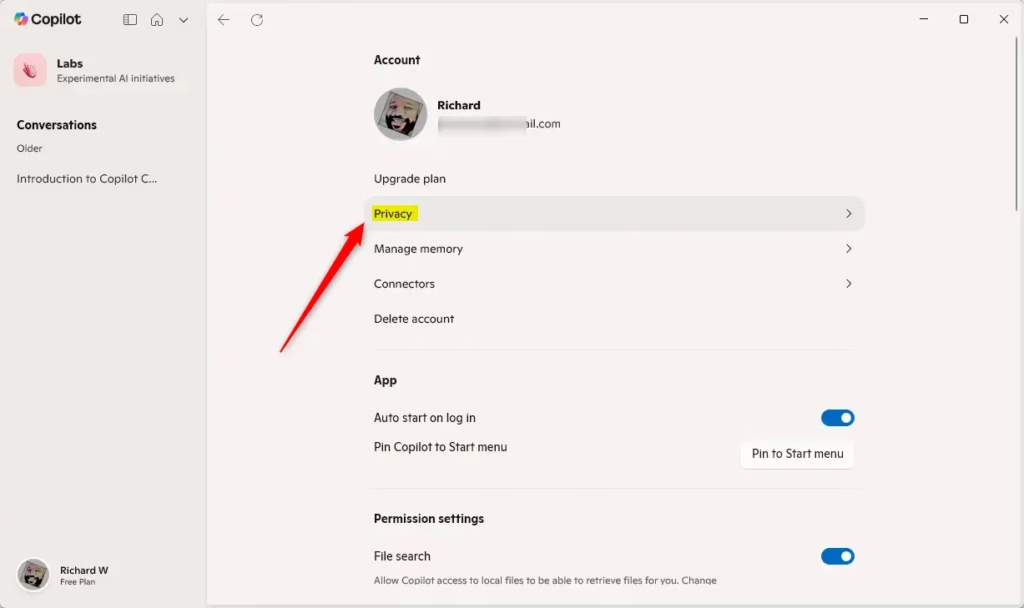
You can delete your Copilot memory right from the Copilot app on your Windows 11 computer. Just open the app, sign in if you need to, and head to the settings to manage your chat history.
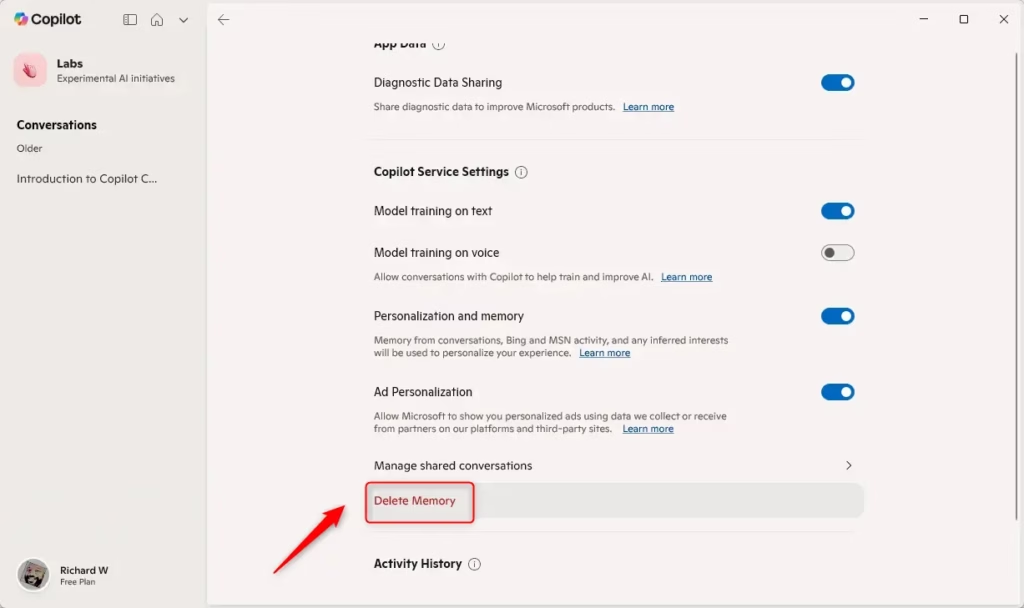
You can delete your Copilot memory right from the Copilot app on your Windows 11 computer. Just open the app, sign in if you need to, and head to the settings to manage your chat history.
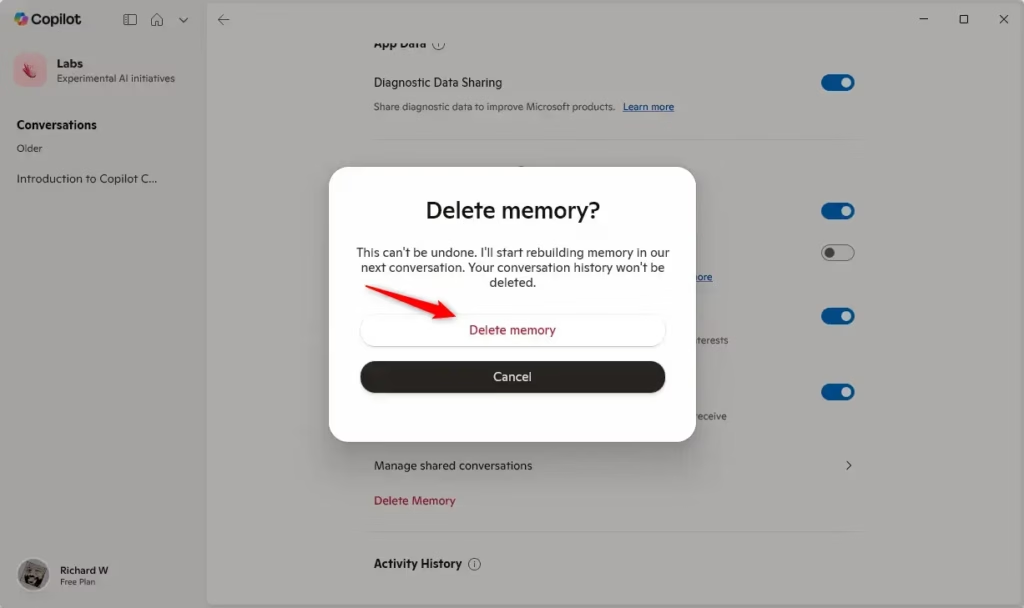
You can delete your Copilot memory right from the Copilot app on your Windows 11 computer. Just open the app, sign in if you need to, and head to the settings to manage your chat history.
Option 2Using Microsoft Edge Browser
- Open Microsoft Edge on your computer.
- Sign in to Edge with your Microsoft account if you haven’t already.
- Click the Copilot icon on the toolbar.
- Click the More options button (3 dots). Then select Settings.
- Go to the Privacy section.
- Click Manage personalization and memory.
- To delete all memories: Click Del all memory. Then click it again to confirm.
- To delete specific memories:
- Click Edit next to “Facts you’ve shared.”
- Click the trash can icon for the memory you want to remove.
- Click Del to confirm.
- Close settings when finished.
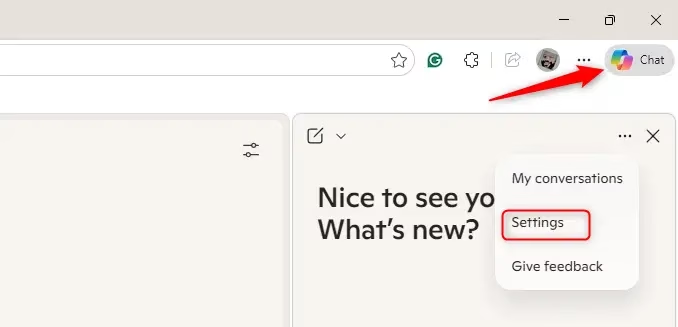
If you use Microsoft Edge, you can easily clear your Copilot memory through the browser itself. Open Edge, find the Copilot icon, and go into its settings to manage what it remembers about your conversations.
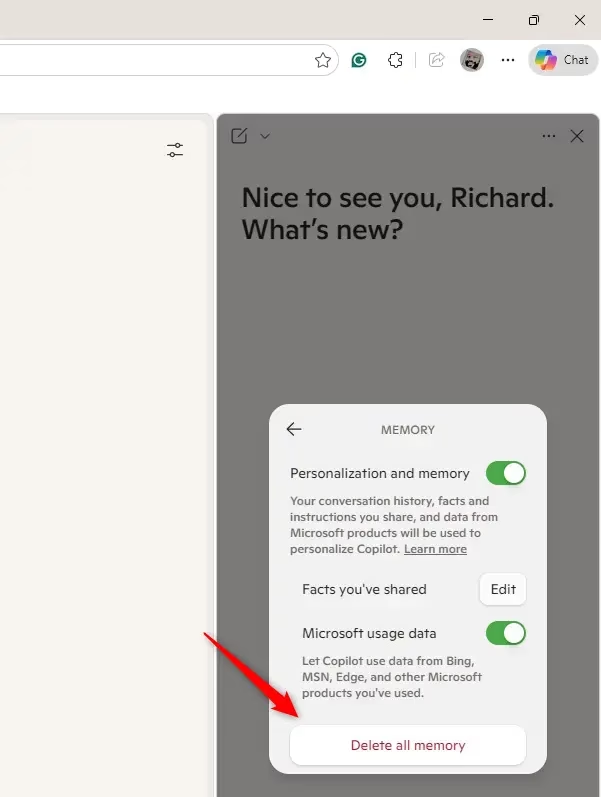
If you use Microsoft Edge, you can easily clear your Copilot memory through the browser itself. Open Edge, find the Copilot icon, and go into its settings to manage what it remembers about your conversations.
Option 3Using the Copilot Website
- Go to the Copilot website.
- Sign in with your Microsoft account if needed.
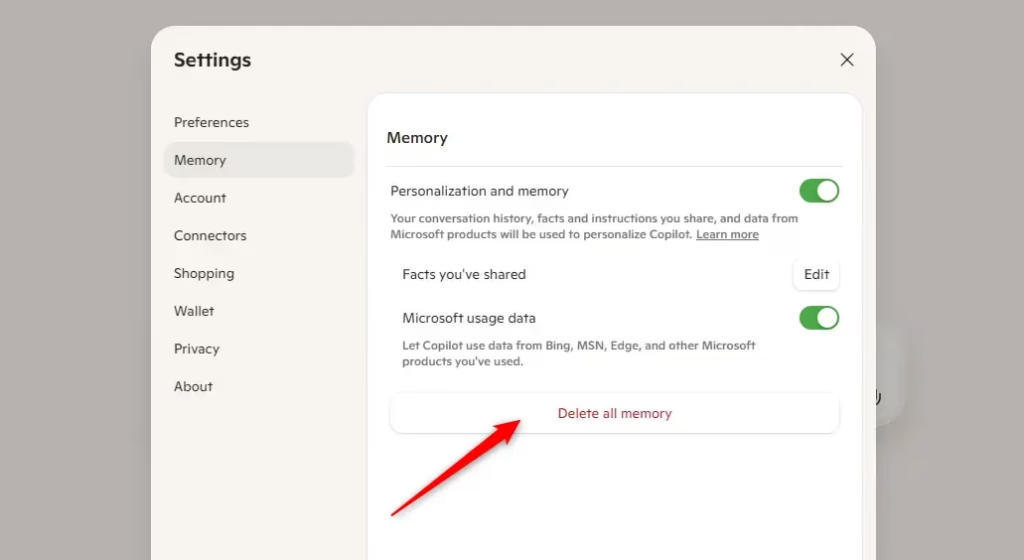
- Click the Account button (your profile picture) on the sidebar. Then select Memory.
- To delete all memories: Click Del all memory. Then click it again to confirm.
- To delete specific memories:
- Click Edit next to “Facts you’ve shared.”
- Click the trash can icon next to the memory you want to delete.
- Click Del to confirm.
- Close settings when done.
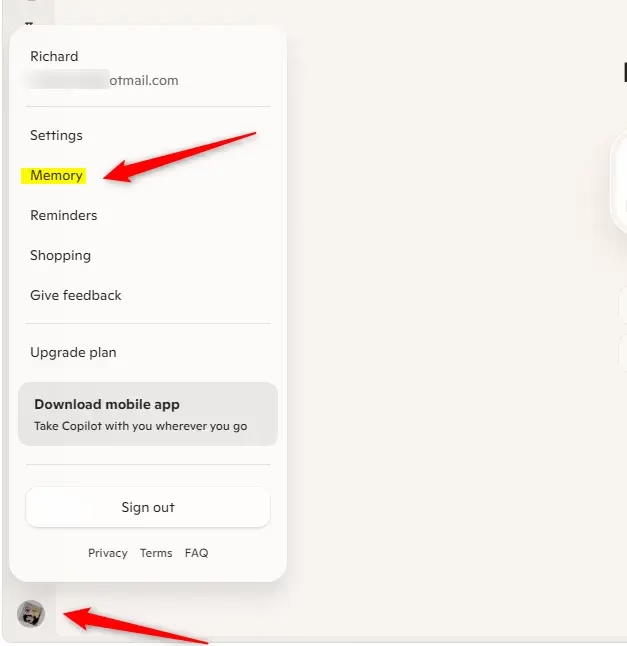
You can also delete your Copilot memory by visiting the official Copilot website. Simply go to the site, sign in, and you’ll find options to manage or delete all the information Copilot has stored about you.
You can also delete your Copilot memory by visiting the official Copilot website. Simply go to the site, sign in, and you’ll find options to manage or delete all the information Copilot has stored about you.
Tip: Regularly checking and managing your Copilot memory is a good way to protect your privacy. It also keeps your assistant personalized the way you want.
Learn More About Copilot
Want to know more? Check out these resources from Microsoft:
Summary
Keeping your Copilot memory in check means you control what the AI knows about you, making your experience both personal and private. You can easily delete all or some memories anytime using the app, Edge, or the website.
- Personalized Help: Copilot uses your saved memories to give better, faster assistance.
- Easy Management: You can delete all or some memories anytime. Use the app, Edge browser, or website.
- You’re in Control: Choose what Copilot remembers. Keep your experience exactly how you like it.
- Privacy Matters: Clearing memories regularly keeps your info safe.
- Stay Updated: Check for new Copilot features to keep using it effectively.
Follow these steps and you’ll have more control over your Copilot assistant and your privacy.
Can I clear Copilot memory?
To delete everything from memory in Copilot: Select your profile icon, then select Memory > Delete all Memory.
Was this guide helpful?

About the Author
Richard
Tech Writer, IT Professional
Richard, a writer for Geek Rewind, is a tech enthusiast who loves breaking down complex IT topics into simple, easy-to-understand ideas. With years of hands-on experience in system administration and enterprise IT operations, he’s developed a knack for offering practical tips and solutions. Richard aims to make technology more accessible and actionable. He's deeply committed to the Geek Rewind community, always ready to answer questions and engage in discussions.


No comments yet — be the first to share your thoughts!