How to Change Hard Disk Idle Timeout in Windows 11

You change your hard disk idle timeout in Windows 11 to control when your hard drive powers down automatically due to inactivity.
This feature, also known as the “disk spin-down timer,” helps conserve energy, especially on laptops, by shutting off the physical platters in your hard disk when they aren’t being accessed.
However, this power-saving measure can cause a slight delay when you next access the disk, as it needs to spin back up. Windows 11 allows you to adjust this timeout period to balance power savings with responsiveness.
By default, Windows 11 might set this timeout to 20 minutes (1200 seconds), but you can configure it to be shorter or longer using specific power plan settings.
What is Hard Disk Idle Timeout?
This is the time Windows waits before turning off the hard disk when it’s not being used. It only works with traditional hard drives (HDDs) and does not affect SSDs or faster drives like NVMe.
Why Change This Setting?
Changing the hard disk idle timeout helps your battery last longer. It reduces power consumption when you’re not using your computer actively.
Steps to Change Hard Disk Idle Timeout in 🪟 Windows 11
- Open Control Panel: Click the Start button and type Control Panel, then press Enter. Or you can follow this guide: How to Open Control Panel in Windows 11
- Go to Power Options: In Control Panel, click on Hardware and Sound, then select Power Options.
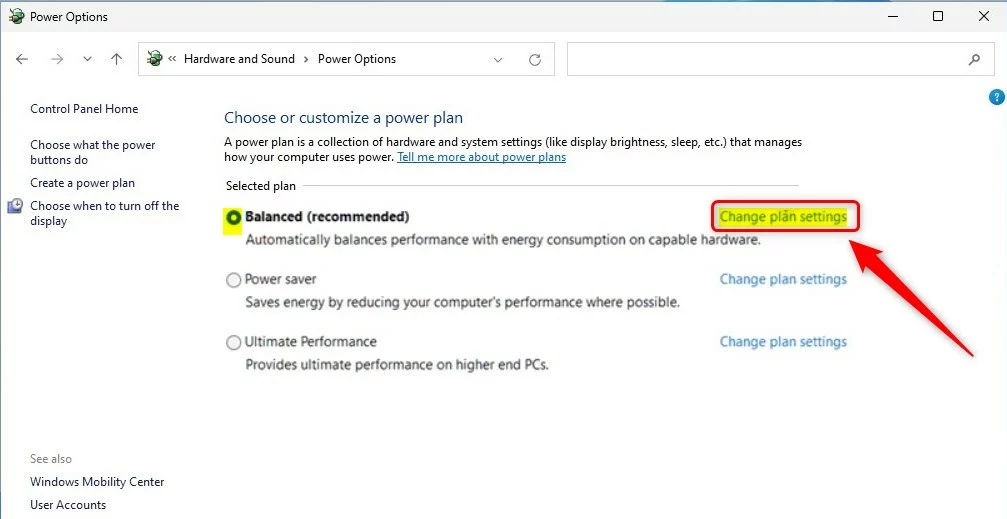
- Choose your current power plan: Find the power plan that is marked as Active. Click the Change plan settings link next to it.
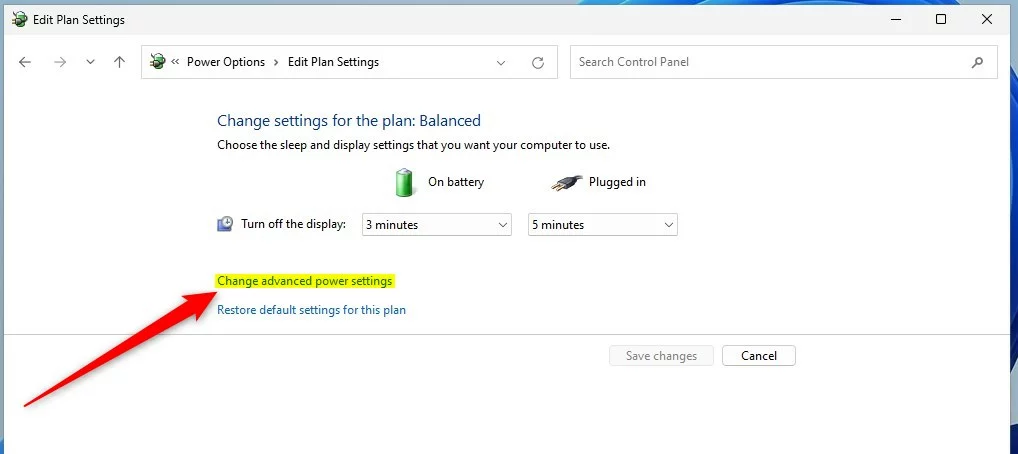
- Adjust the hard disk settings:
- In the pop-up window, scroll down and click the plus sign (+) next to Hard disk.
- Click the plus sign (+) next to Turn off hard disk after.
- Set the time (in minutes) for On battery and Plugged in. For example, you can change it to 10 minutes on battery and 20 minutes plugged in.
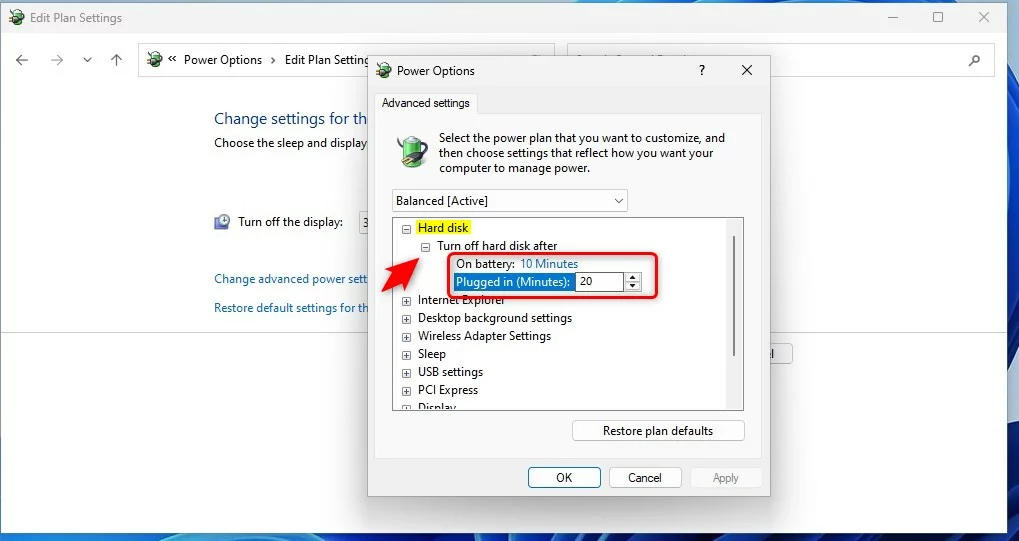
- Save your changes: Click OK to save and close the window. You can now close the Control Panel or Settings app.
Important Notes
- This setting only works for traditional hard drives (HDD). It does not affect SSDs or NVMe drives.
- If you set the timeout too short, your hard disk might turn off too often, causing small delays when accessing files.
- You don’t need admin privileges to change these power settings in Windows 11.
What Happens When You Change This Setting?
Once you apply these changes, your hard disk will turn off after the time you set. When you access files or programs again, the disk will wake up automatically. You might notice a slight delay of a few seconds, but your battery will last longer.
Summary
- Windows 11 can turn off your hard disk after a set time to save power.
- You can change this timeout using the Control Panel’s Power Options.
- This helps save battery life but may cause slight delays when the disk wakes up.
- The setting only works on traditional hard drives (HDD), not SSDs.
For more info, you can visit the official Microsoft page: Microsoft Disk Idle Timeout Settings
Was this guide helpful?

About the Author
Richard
Tech Writer, IT Professional
Richard, a writer for Geek Rewind, is a tech enthusiast who loves breaking down complex IT topics into simple, easy-to-understand ideas. With years of hands-on experience in system administration and enterprise IT operations, he’s developed a knack for offering practical tips and solutions. Richard aims to make technology more accessible and actionable. He's deeply committed to the Geek Rewind community, always ready to answer questions and engage in discussions.



No comments yet — be the first to share your thoughts!