Repair Windows 11: Upgrade Without Losing Your Files

You can repair Windows 11 without losing your files by performing an in-place upgrade.
An in-place upgrade reinstalls Windows 11 over your existing installation, preserving your personal files, installed applications, and system settings.
To begin this repair process, you’ll need a Windows 11 ISO file that matches your current edition, language, and version, or is a newer release. Ensure you have at least 20 GB of free disk space on your C: drive.
Steps to Repair 🪟 Windows 11 with an In-place Upgrade
Before you begin, please check these important things:
- Turn off or uninstall any antivirus or security software you installed.
- Turn off BitLocker encryption if it’s enabled.
- Download a full Windows 11 ISO file if you don’t have one.
- Mount (open) the ISO file on your computer.
Once you have done these, follow these simple steps:
1Open the 🪟 Windows 11 ISO file
Double-click the ISO file you downloaded. It will open like a new drive on your computer.
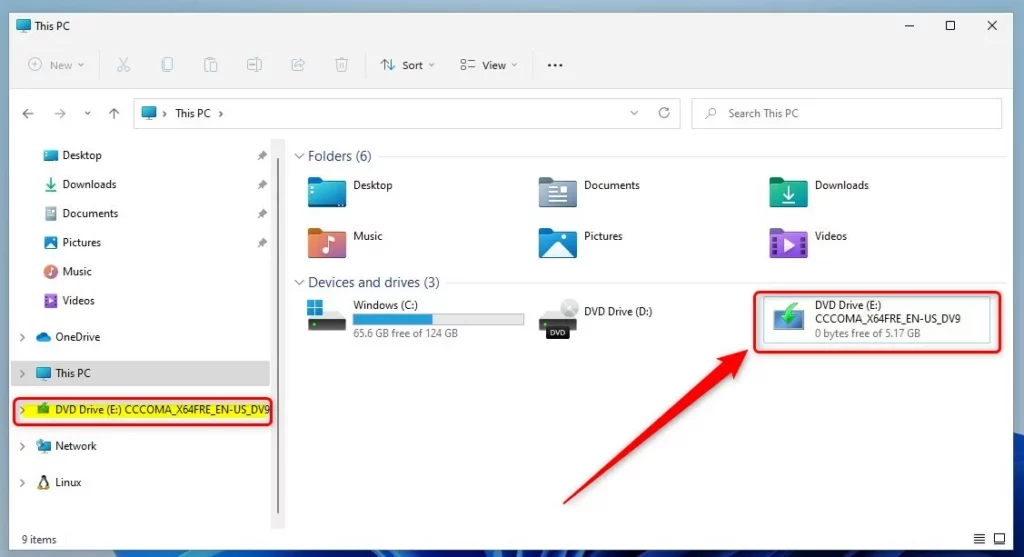
Windows 11 ISO file opened (mounted) to start the upgrade
2Run the setup program
Inside the opened ISO, find and double-click setup.exe to start the Windows installer.
If you see a pop-up asking for permission (User Account Control), click Yes. ⚠️ Admin privileges required.
3Change update settings
When the setup window opens, click the link that says “Change how Setup downloads updates”.
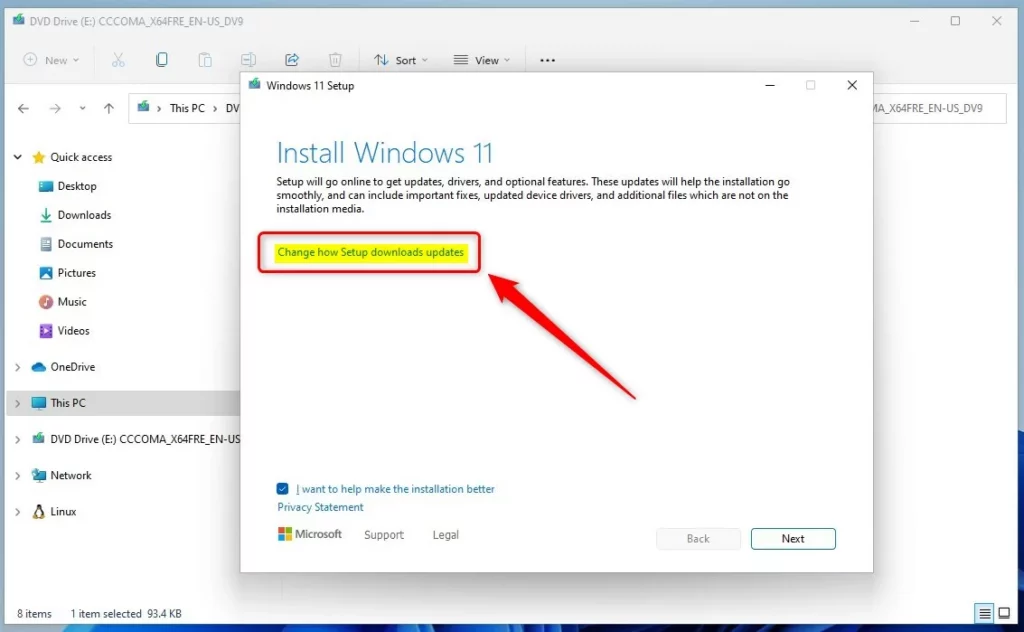
Windows 11 setup window with option to change update preferences
4Choose Not right now for updates
In the next window, select Not right now. This means the setup won’t download updates, drivers, or extra features during install.
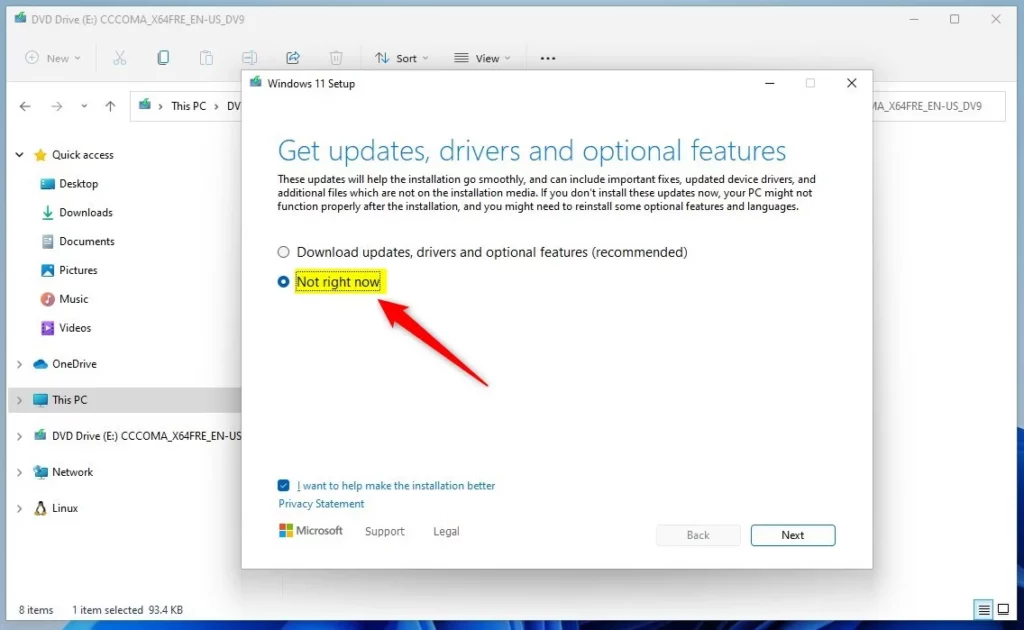
Choose “Not right now” to skip updates during setup
5Let Windows check your PC
The setup will now check your computer to make sure it’s ready for the upgrade. It will check for enough free space and other requirements.
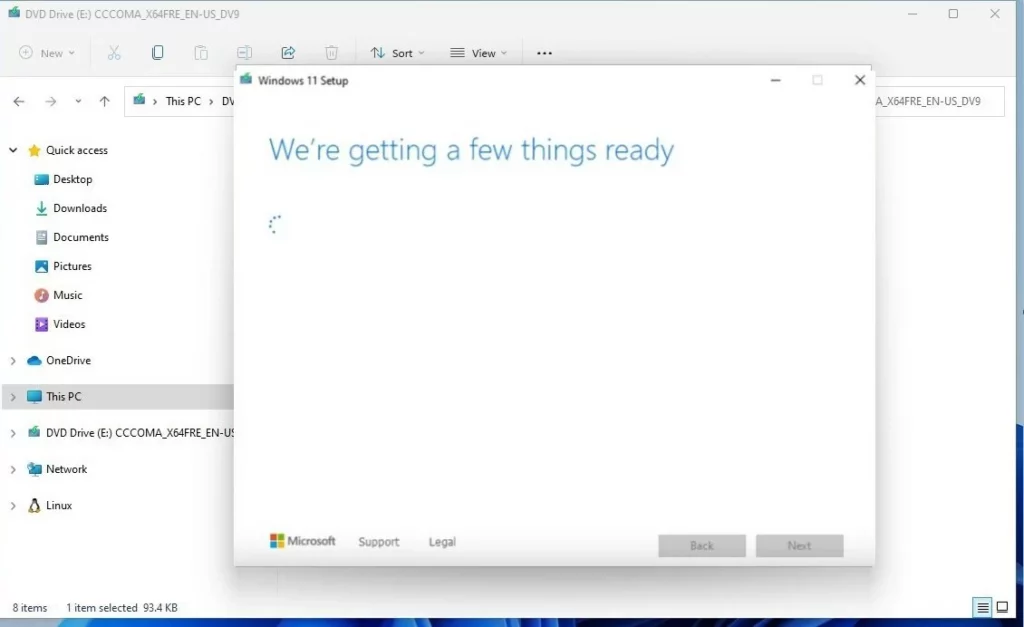
Windows is preparing your system for the upgrade
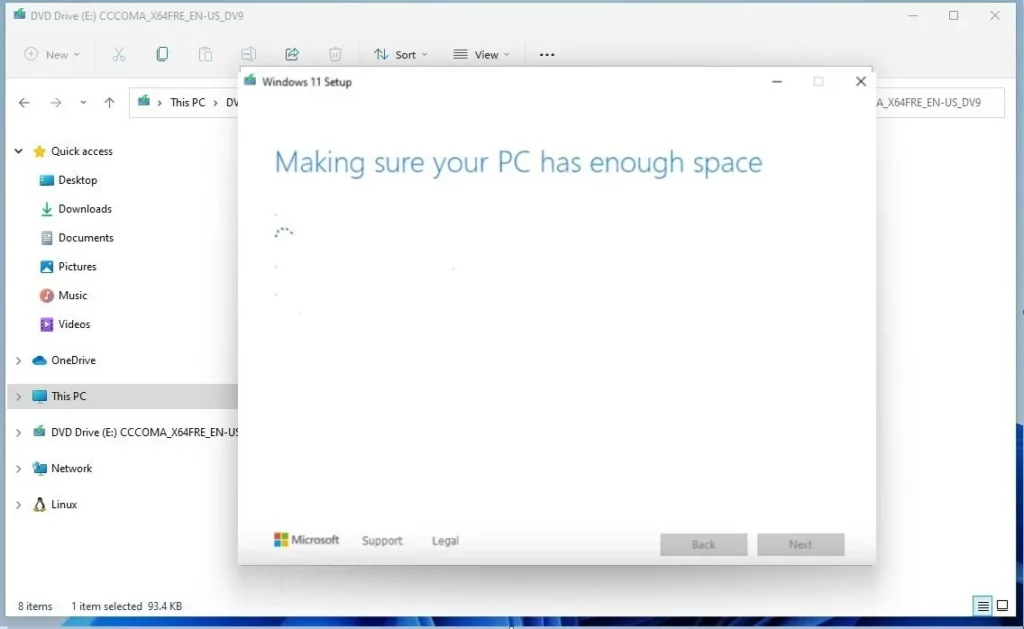
Windows checking if there is enough storage space
6Choose what to keep
When you see the Ready to install window, click the link that says Change what to keep.
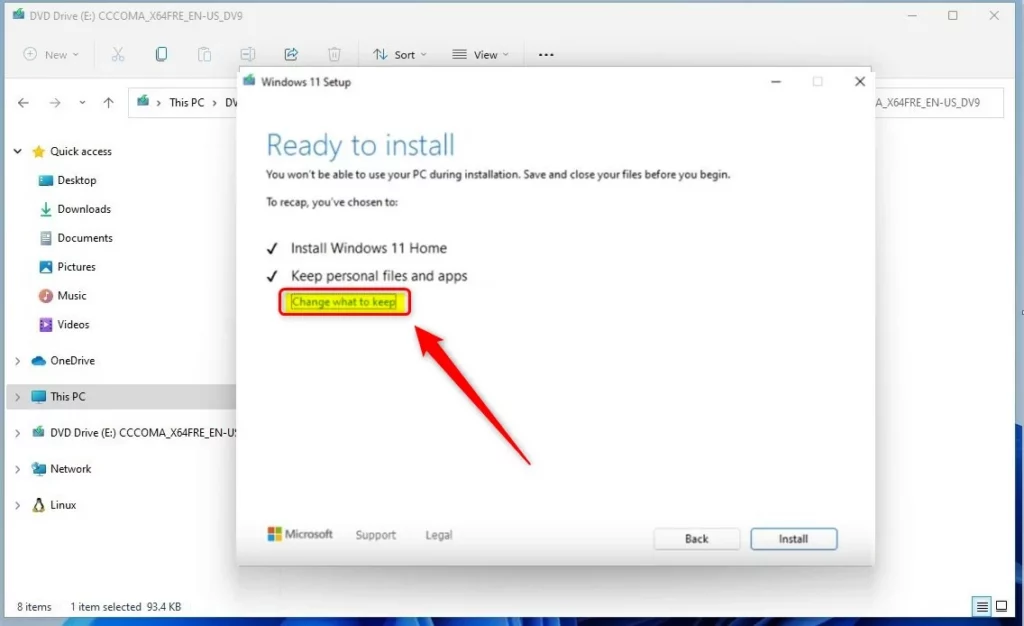
Click “Change what to keep” before installing
7Select Keep personal files and apps
In the next window, pick Keep personal files and apps to make sure nothing gets deleted.
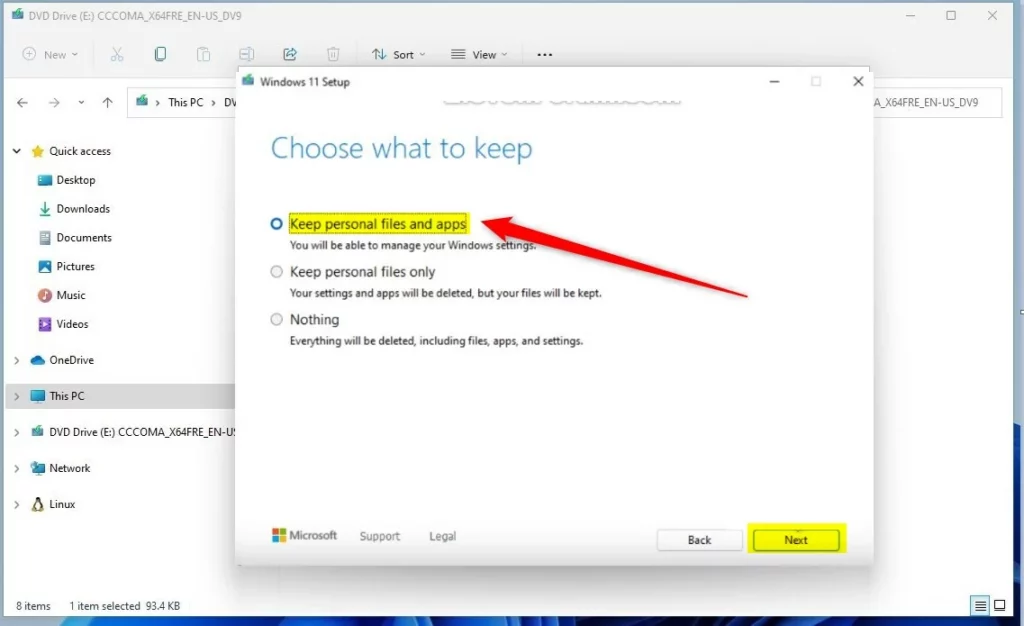
Choose to keep your files and apps during the upgrade
8Start the upgrade
Click the Install button to begin the repair process.
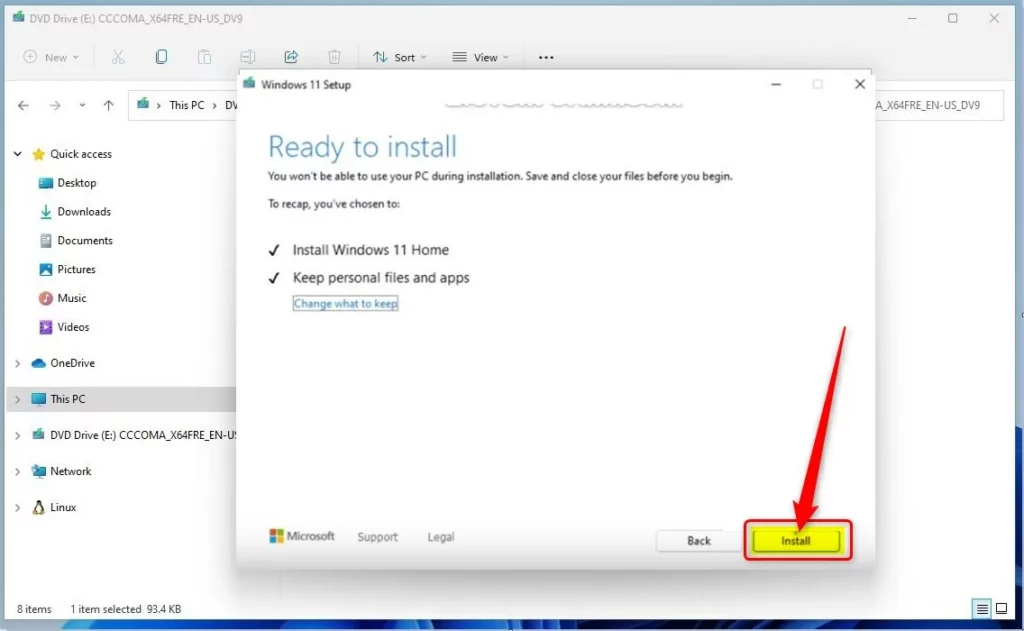
Click Install to start the repair
9Wait for the repair to finish
Your PC will now upgrade Windows 11 while keeping your files and apps safe. This can take some time, and your computer may restart a few times.

Windows 11 repair process running
10Done!
When finished, you will be able to log back into your PC. Your files and apps should still be there, and many Windows problems may be fixed.
Summary
- This guide helps you repair Windows 11 without losing your files, apps, or settings.
- Doing an In-place upgrade is a safe way to fix Windows problems when nothing else works.
- If you have questions or want to share tips, feel free to leave a comment where you found this guide.
Was this guide helpful?

About the Author
Richard
Tech Writer, IT Professional
Richard, a writer for Geek Rewind, is a tech enthusiast who loves breaking down complex IT topics into simple, easy-to-understand ideas. With years of hands-on experience in system administration and enterprise IT operations, he’s developed a knack for offering practical tips and solutions. Richard aims to make technology more accessible and actionable. He's deeply committed to the Geek Rewind community, always ready to answer questions and engage in discussions.


No comments yet — be the first to share your thoughts!