How to Check Microsoft Defender Updates in Windows 11

You check Microsoft Defender updates in Windows 11 through the Windows Security app to keep your PC protected from the latest threats.
Microsoft Defender Antivirus is built right into Windows 11. It needs up-to-date security intelligence (which is like a database of known threats) to identify and neutralize malware. These crucial updates usually download automatically.
However, you can manually check for and install these updates to protect your system right away. This process ensures Defender has the latest threat definitions (the specific information Defender uses to identify malware).
Open Windows Security, go to Virus & threat protection, click Protection updates, and then click Check for updates. This ensures your system has the latest security intelligence to protect against current threats. Windows 11 usually updates automatically, but manual checks provide immediate peace of mind.
How to Check for Microsoft Defender Updates
Step 1Open the Windows Security App
Click the Start button (that’s the Windows icon in the bottom-left corner of your screen). Then, type ‘Windows Security’ and press Enter. Want to know more about this app? Check out our Windows Security app guide.
Step 2Go to Virus & Threat Protection
In the Windows Security window, click on Virus & threat protection.
Step 3Open Protection Updates
Scroll down a little bit. Click the Protection updates link.
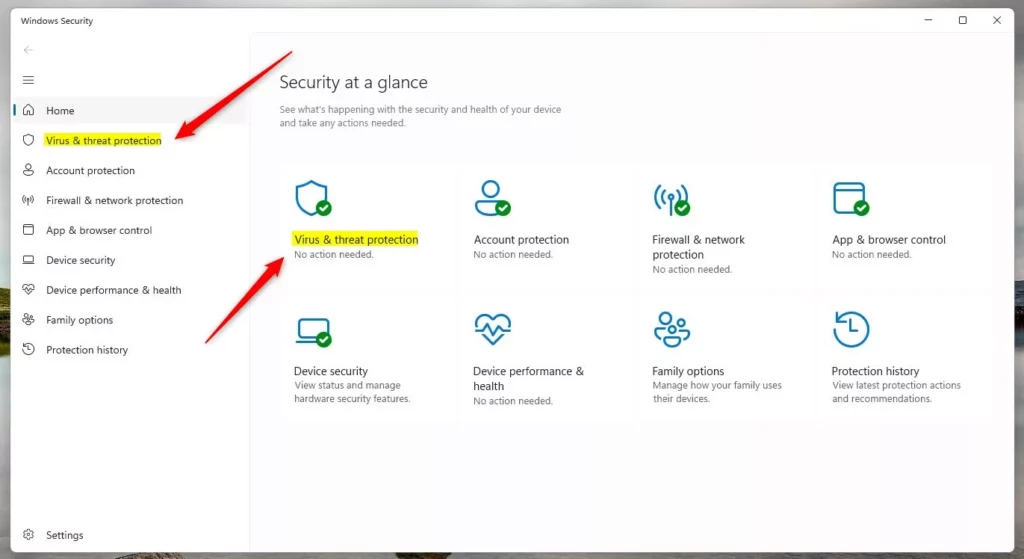
Windows Security app – Virus & threat protection screen
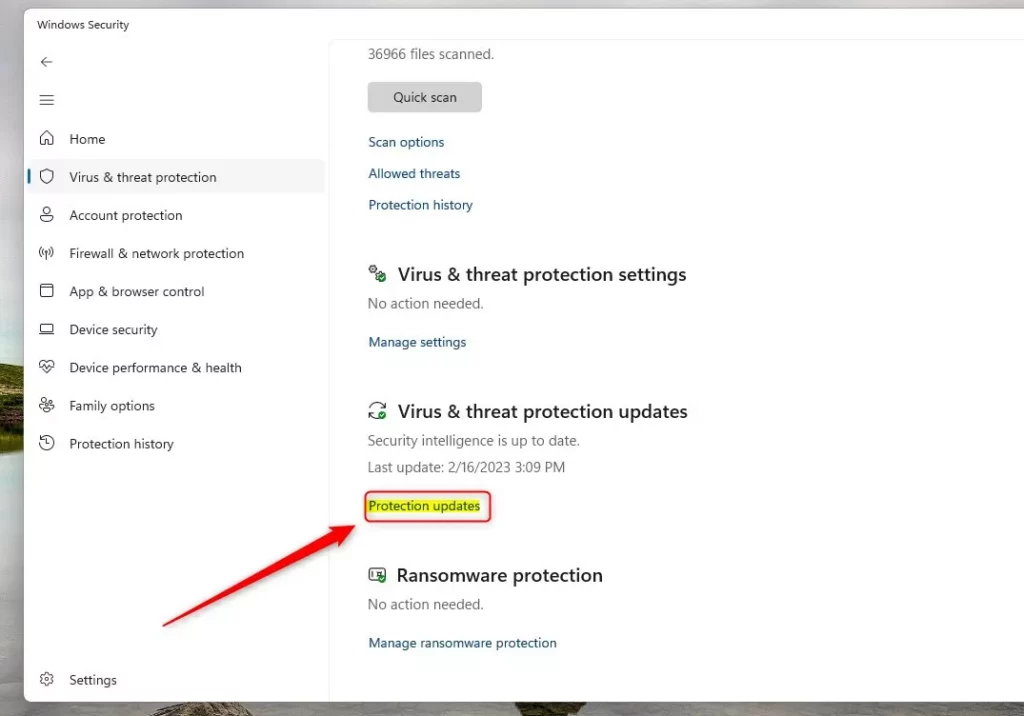
Click the ‘Protection updates’ link
Step 4 Check for Updates
You’ll see information about your current security update, including the version number and when it was last updated. Click the Check for updates button. Your PC will search for the latest update and download it if it finds one.

Click ‘ Check for updates’ to get the latest security intelligence
Why Should You Keep Microsoft Defender Updated?
Why does this matter? Microsoft Defender uses these updates to recognize and stop new viruses and threats. When you skip updates, your computer becomes more vulnerable to new types of attacks.
What happens when you update? Your computer gets the latest protection against current threats. Keeping your security intelligence fresh helps protect your files, passwords, and personal information.
You can always manually check anytime you want to make sure you have the newest protection available.
Summary
Manually checking for Microsoft Defender updates in Windows 11 is a quick process. Open Windows Security, go to Virus & threat protection, click Protection updates, and then click Check for updates. Regular updates keep your PC safer from new threats. While Windows 11 usually updates automatically, manually checking gives you peace of mind that you have the latest protection.
Does Microsoft Defender Antivirus automatically update?
Automatic updates help ensure your antimalware solution detects the latest threats by getting updates automatically as part of Windows Update. If you’re having problems with Windows Update, use the troubleshooter. If you don’t already use Microsoft Defender Antivirus, learn how to turn it on.
Was this guide helpful?

About the Author
Richard
Tech Writer, IT Professional
Richard, a writer for Geek Rewind, is a tech enthusiast who loves breaking down complex IT topics into simple, easy-to-understand ideas. With years of hands-on experience in system administration and enterprise IT operations, he’s developed a knack for offering practical tips and solutions. Richard aims to make technology more accessible and actionable. He's deeply committed to the Geek Rewind community, always ready to answer questions and engage in discussions.



No comments yet — be the first to share your thoughts!