How to Change Assistive Technology Settings in Windows 11

Why Use Assistive Technology?
Does someone in your home need extra help using their computer? Windows 11 has special built-in tools called Assistive Technology. These tools help people with disabilities use their computer more easily. Think of them as accessibility helpers that make computing simpler and more comfortable.
What Happens When You Use These Tools?
Assistive Technology includes helpful features like:
- Narrator – reads text on your screen out loud.
- Magnifier – makes things on your screen bigger.
- Sticky Keys – helps you press keyboard shortcuts one key at a time.
- Filter Keys – ignores extra repeated key presses.
- Toggle Keys – plays sounds when you press Caps⇩, Num Lock, or Scroll Lock.
These tools work before you sign in, after you sign in, or all the time. You decide what works best for you.
How to Change When Assistive Features Turn On
Here’s how to set up your assistive technology in Windows 11:
- Open the Control Panel app. If you need help opening Control Panel, check this guide: How to Open Control Panel in Windows 11.
- In Control Panel, click on Appearance and Personalization, then choose Ease of Access Center.
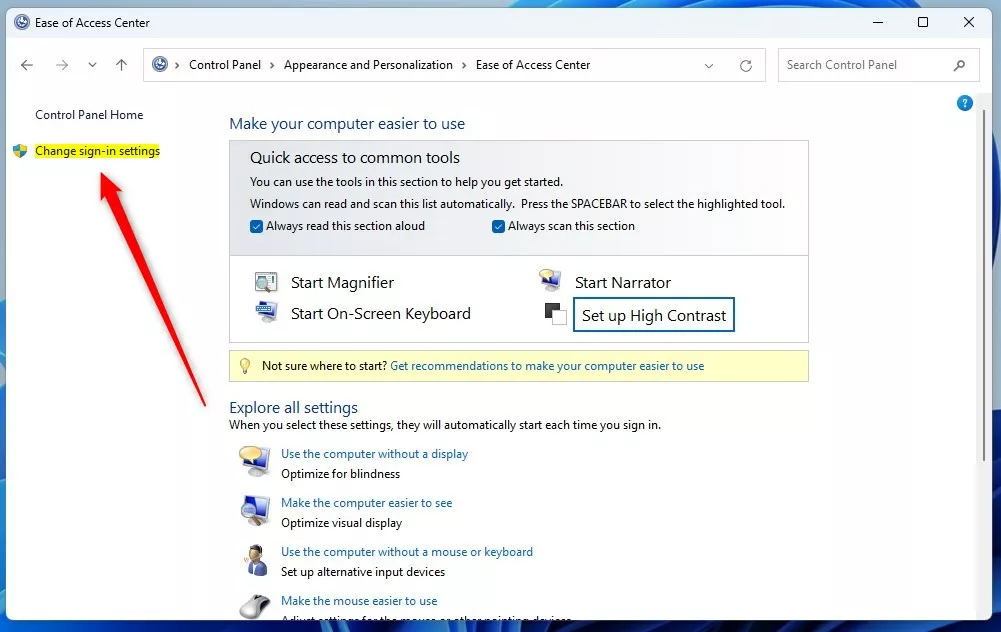
- On the left side of the Ease of Access Center page, click the link that says Change sign-in settings.
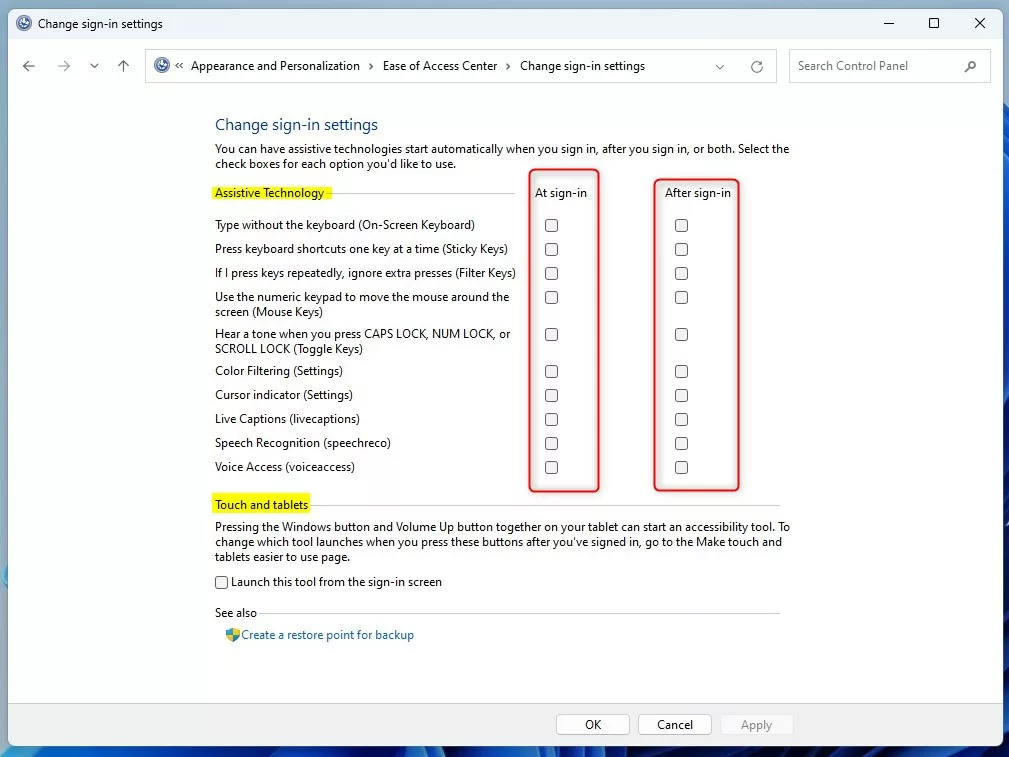
- You will see options for when assistive features start. Check the boxes for the options you want:
- Start assistive technology before sign-in.
- Start assistive technology after sign-in.
- Or both.
- When done, click OK to save your changes.
That’s it! You have successfully changed your assistive technology sign-in settings.
Summary
- Windows 11 has helpful assistive technology features for people with disabilities.
- You can choose if these features start before or after you sign in to your computer.
- Changing these settings is easy through the Control Panel and the Ease of Access Center.
- Following these steps lets you customize your computer to work best for you.
- If you want to learn more about each assistive feature, check the links provided above.
Was this guide helpful?

About the Author
Richard
Tech Writer, IT Professional
Richard, a writer for Geek Rewind, is a tech enthusiast who loves breaking down complex IT topics into simple, easy-to-understand ideas. With years of hands-on experience in system administration and enterprise IT operations, he’s developed a knack for offering practical tips and solutions. Richard aims to make technology more accessible and actionable. He's deeply committed to the Geek Rewind community, always ready to answer questions and engage in discussions.



No comments yet — be the first to share your thoughts!