How to Enable Double Tap Period on the Windows 11 Touch Keyboard


You enable double tap period on the Windows 11 Touch Keyboard by activating a specific setting within the Touch Keyboard’s preferences.
This feature allows the Touch Keyboard to automatically insert a period (.) and a space when you quickly tap the spacebar twice, streamlining sentence punctuation for touch users.
Enabling this convenient shortcut, first introduced in Windows 10 and present in Windows 11, can significantly speed up your typing experience. You can easily toggle this setting on or off through your Windows 11 personalization options.
Go to Settings > Time & language > Typing > Touch keyboard, then check the box for “Add a period after I double-tap the Spacebar”. This setting automatically inserts a period and space when you tap the spacebar twice.
What is the Touch Keyboard?
Touchscreen devices that don’t have a physical keyboard use a virtual keyboard called the Touch Keyboard. It helps you type on the screen.
When you tap a text box or any place where you can type, Windows 11 will often open this Touch Keyboard automatically.
Why Use Double Tap Period?
You can make typing faster by turning on the option that adds a period when you double tap the spacebar on this keyboard. This saves you time because you don’t have to tap the period key separately.
How to Turn On or Off the Double Tap Spacebar Period Feature
Follow these easy steps to enable or disable this feature:
- Open Windows Settings:
- Click the Start menu (Windows icon) and select Settings, or
- Press
Windows key + Ion your keyboard.
- In Settings, click Time & language on the left side.
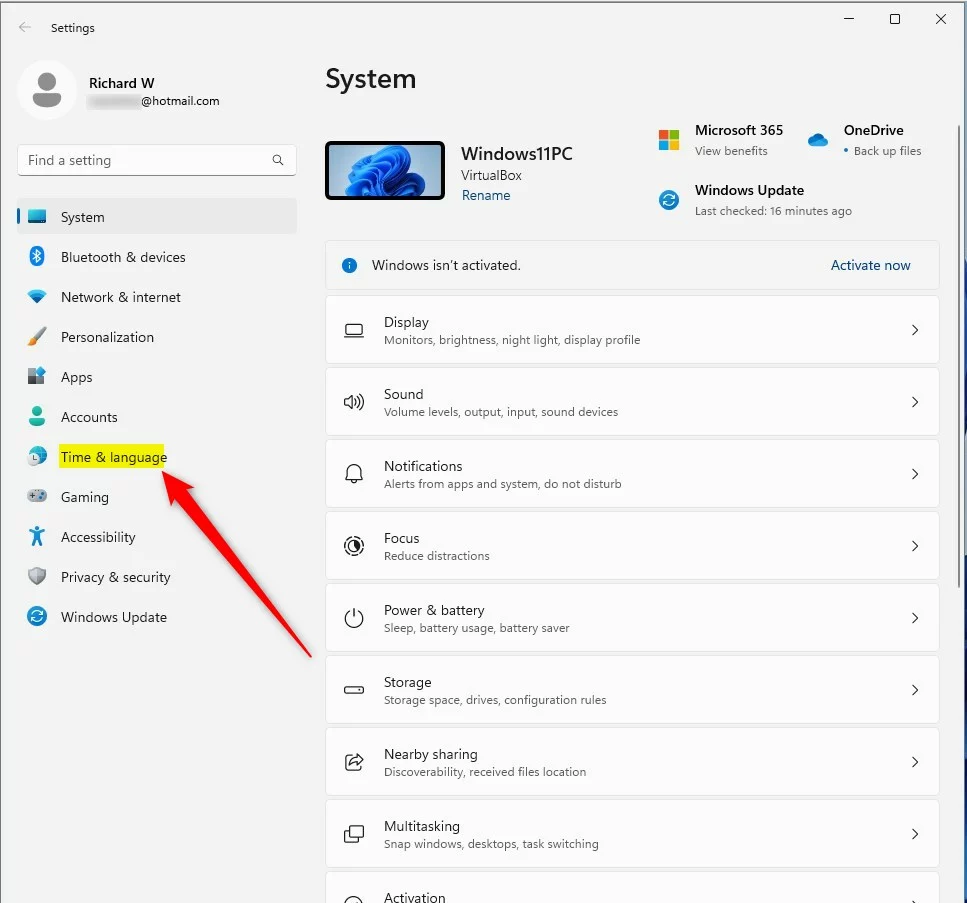
windows 11 time and language icon - On the right side, click on Typing to open typing options.
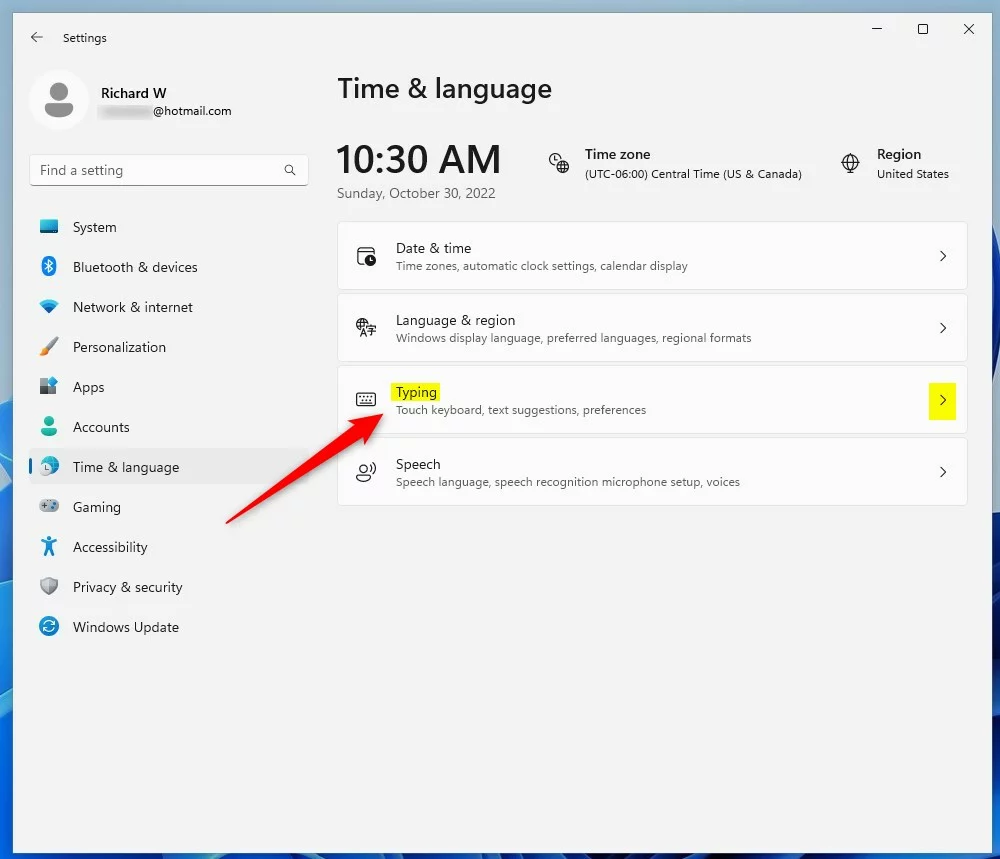
windows 11 time and language typing tile - Scroll down and find the Touch keyboard settings section. Click to expand it.
- Check the box next to “Add a period after I double-tap the Spacebar” to turn on the feature. Uncheck it if you want to turn it off.
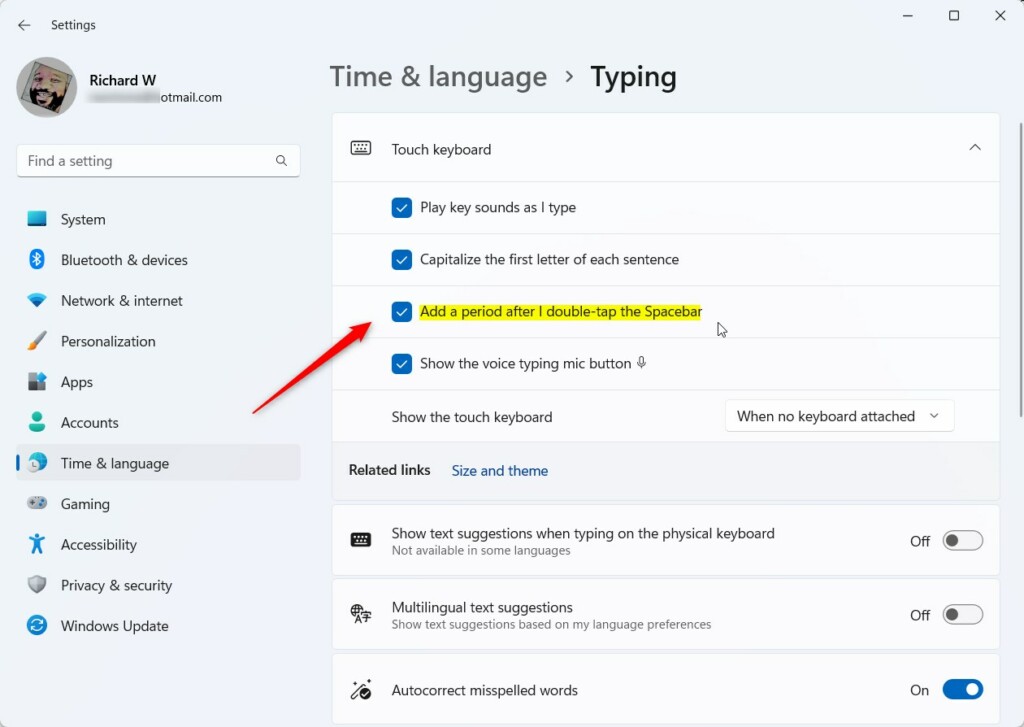
Windows 11 add a period after double tapping spacebar
How to Enable or Disable Double Tap Period Using the Registry Editor (Advanced)
If you’re comfortable with Windows advanced settings, you can also turn this feature on or off by editing the Registry.
Warning: Changing the Registry can cause problems if not done correctly. Please follow carefully or ask for help.
- Open the Registry Editor:
- Press
Windows key + R, typeregedit, and pressEnter. - If prompted, click Yes to allow changes. ⚠️ Admin privileges required
- Press
- In Registry Editor, go to this folder (key):
HKEY_CURRENT_USER\Software\Microsoft\TabletTip\1.7- If you don’t see the 1.7 folder, right-click on TabletTip, choose New > Key, and name it
1.7.
- If you don’t see the 1.7 folder, right-click on TabletTip, choose New > Key, and name it
- Click the 1.7 folder. On the right side, right-click on an empty area and choose New > DWORD (32-bit) Value.
- Name the new value
EnableDoubleTapSpace. - Double-click
EnableDoubleTapSpaceand set:- Base: Decimal
- Value data: 1 to enable or 0 to disable
- Click OK, close the Registry Editor, and restart your computer.
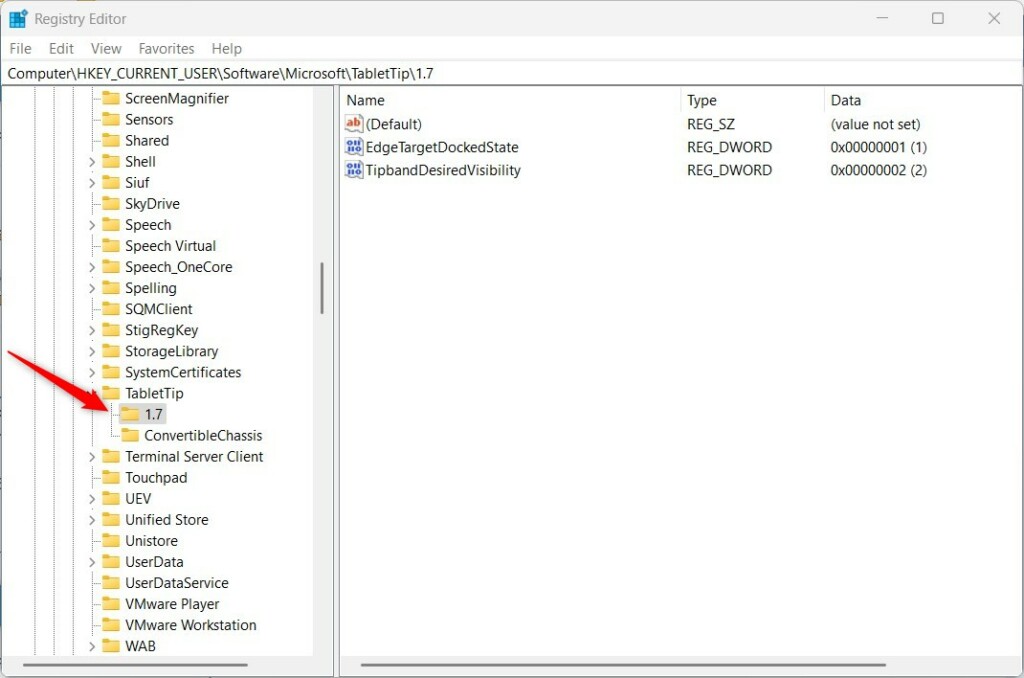
Windows 11 TabletTip registry key 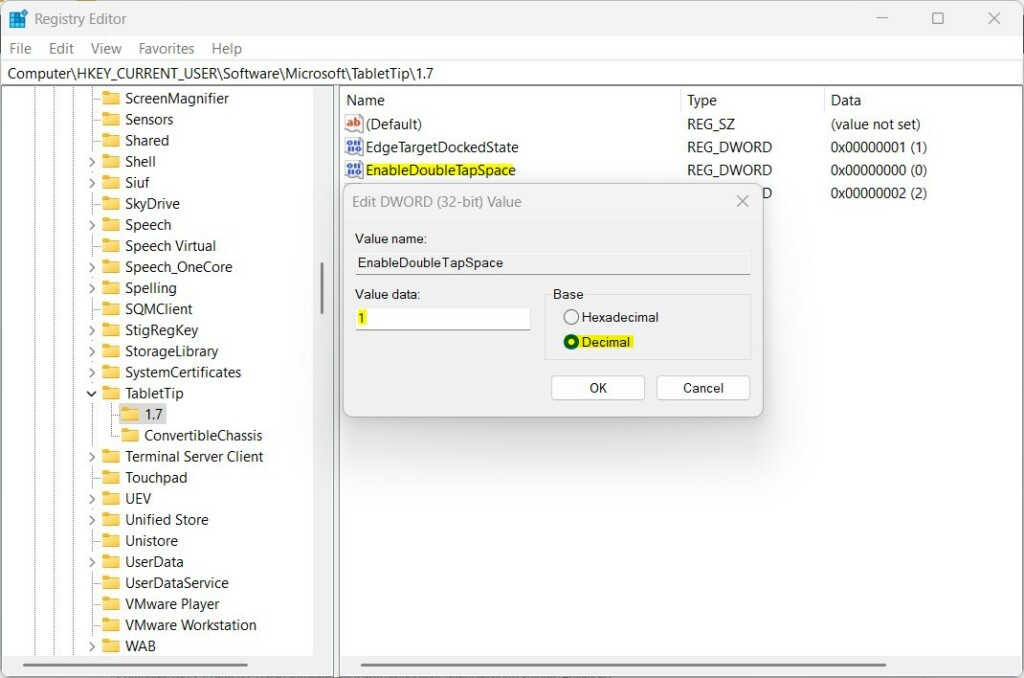
Windows 11 TabletTip key value data
Summary
You can easily enable or disable adding a period by double tapping the spacebar on the Windows 11 Touch Keyboard.
Use the Settings app for a simple method, or the Registry Editor if you want more control.
These options help you type faster and make your Touch Keyboard experience better.
If you have any questions or want to share tips, feel free to use the comments below!
How do I turn off the touch keyboard on 🪟 Windows 11?
Right-click the taskbar and then select Taskbar settings. Tip: For touch screens, press and hold the taskbar and then select Taskbar settings. In the Personalization > Taskbar window, under the System tray icons section, select Never in the drop-down menu next to Touch keyboard.
How do I get my keyboard to come up on my touch screen?
Right-click the taskbar and in the menu that appears, make sure Show touch keyboard button is selected. Tip: For touch screens, press and hold the taskbar and then make sure Show touch keyboard button is selected.
How do I turn on touch mode on 🪟 Windows 11?
In the Device Manager window that opens, select the arrow next to Human Interface Devices to expand it. Under Human Interface Devices, right-click on HID-compliant touch screen and select either Enable device or Disable device depending on which action is desired.
Was this guide helpful?

About the Author
Richard
Tech Writer, IT Professional
Richard, a writer for Geek Rewind, is a tech enthusiast who loves breaking down complex IT topics into simple, easy-to-understand ideas. With years of hands-on experience in system administration and enterprise IT operations, he’s developed a knack for offering practical tips and solutions. Richard aims to make technology more accessible and actionable. He's deeply committed to the Geek Rewind community, always ready to answer questions and engage in discussions.


No comments yet — be the first to share your thoughts!