How to Add or Remove the Shutdown button in Windows 11


You can add or remove the shutdown button from Windows 11’s Start menu by using either the Local Group Policy Editor or the Registry Editor.
The shutdown button provides a quick way to safely turn off your computer. Hiding it can prevent accidental shutdowns, especially on shared PCs.
Windows 11 usually shows the shutdown option front and center. You can remove it if you want a tidier Start menu or need to limit who can turn off the PC. This tutorial will guide you through making that change in Windows 11.
You can add or remove the shutdown button in Windows 11 by editing the Registry Editor. Navigate to 🗝️HKEY_LOCAL_MACHINESOFTWAREMicrosoftPolicyManagerdefaultStart, create or modify the HideShutDown key, and set its ‘value’ data to 0 to show or 1 to hide the button. Restart your PC for changes to take effect.
How to Hide or Show the Shutdown Button
To control the shutdown button, you’ll be modifying a setting in the Registry Editor.
Important: Editing the registry can affect your computer. Follow the steps carefully. You may want to back up your registry first.
Steps to Hide or Show the Shutdown Button:
- Press
Win + Ron your keyboard to open the Run box. - Type
regeditand press Enter. ⚠️ Admin Required: If asked by User Account Control, click Yes to allow. - In the Registry Editor window, use the left sidebar to find this folder path:
HKEY_LOCAL_MACHINE\SOFTWARE\Microsoft\PolicyManager\default\Start - Look for a folder (key) named
HideShutDown. If you don’t see it:- Right-click on the
Startfolder. - Choose
New > Key. - Name the new key
HideShutDown.
- Right-click on the
- Click the
HideShutDownfolder to select it. - In the right side pane, right-click on an empty space and choose
New > String Value. - Name this new value
value. - Double-click the value you created to edit it.
- In the box labeled Value data, enter:
0to show (unhide) the shutdown button.1to hide the shutdown button.
- Click OK to save.
- Close the Registry Editor and restart your PC for the change to take effect.
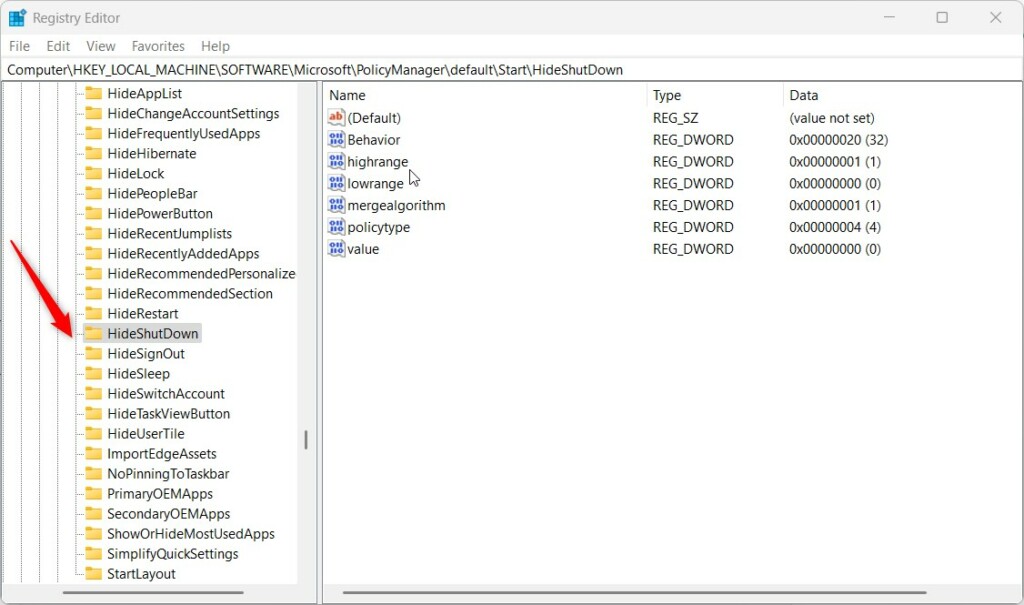
Registry Editor showing the HideShutDown key in Windows 11
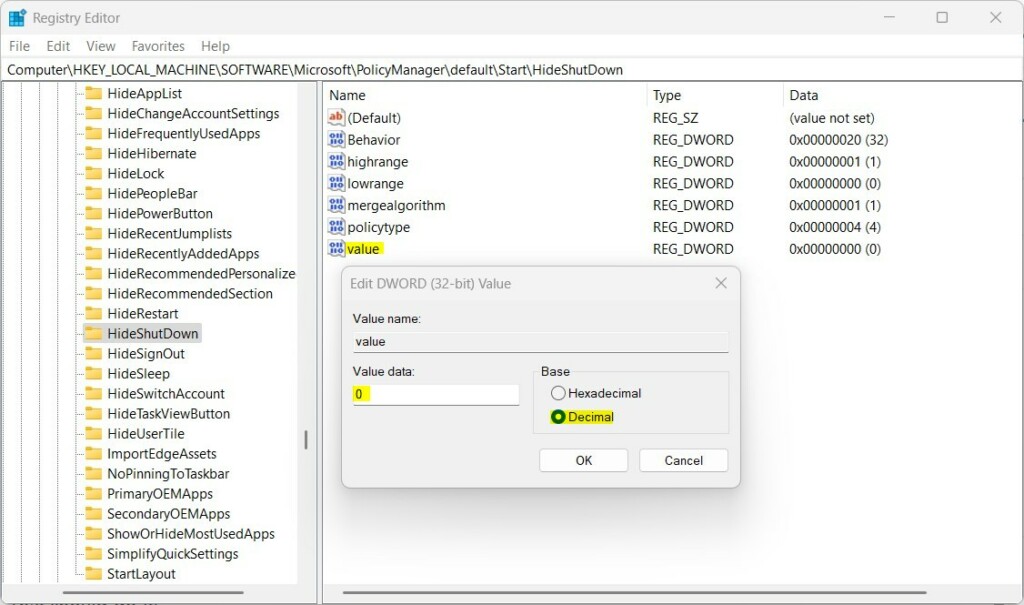
Setting the value data to hide (1) or show (0) the shutdown button
Summary
- You can hide or unhide the shutdown button on the Start menu by changing a registry setting.
- Hiding shutdown stops others from accidentally turning off your PC if you share it.
- Showing shutdown keeps the normal option to turn off your PC quickly.
- Always be careful when editing the registry. Back it up before making changes.
- For official info from Microsoft, check out their page here: Microsoft HideShutdown Policy
How do I disable the turn off button on my PC?
For Windows 10, you can open Control Panel from the Start menu. Go to System and Security, then Power Options. Click ‘Change what the power buttons do.’ For both ‘On battery’ and ‘Plugged in,’ select ‘Do nothing’ for ‘When I press the power button.’ Finally, click ‘Save changes.’
Can I customize the shutdown shortcut icon?
And select properties, making sure the shortcut tab is selected. Click ‘Change Icon.’ When the popup dialogue box appears, click OK. You can then select from the many icons available.
Was this guide helpful?

About the Author
Richard
Tech Writer, IT Professional
Richard, a writer for Geek Rewind, is a tech enthusiast who loves breaking down complex IT topics into simple, easy-to-understand ideas. With years of hands-on experience in system administration and enterprise IT operations, he’s developed a knack for offering practical tips and solutions. Richard aims to make technology more accessible and actionable. He's deeply committed to the Geek Rewind community, always ready to answer questions and engage in discussions.



No comments yet — be the first to share your thoughts!