How to Find Other Computers on Your Windows 11 Network

You can find other computers and devices on your Windows 11 network by enabling Network Discovery.
Network Discovery is a Windows feature that allows your PC to see and interact with other devices on the same local network, such as other computers, printers-in-windows-11/" class="sal-link" rel="noopener" target="_blank" data-sal-id="35610">printers, and media devices.
To ensure your Windows 11 PC can find others, Network Discovery and File Sharing must be turned on for your current network profile. This is typically set to Private for home networks, and you usually need to have Windows 11 version 22H2 or later installed.
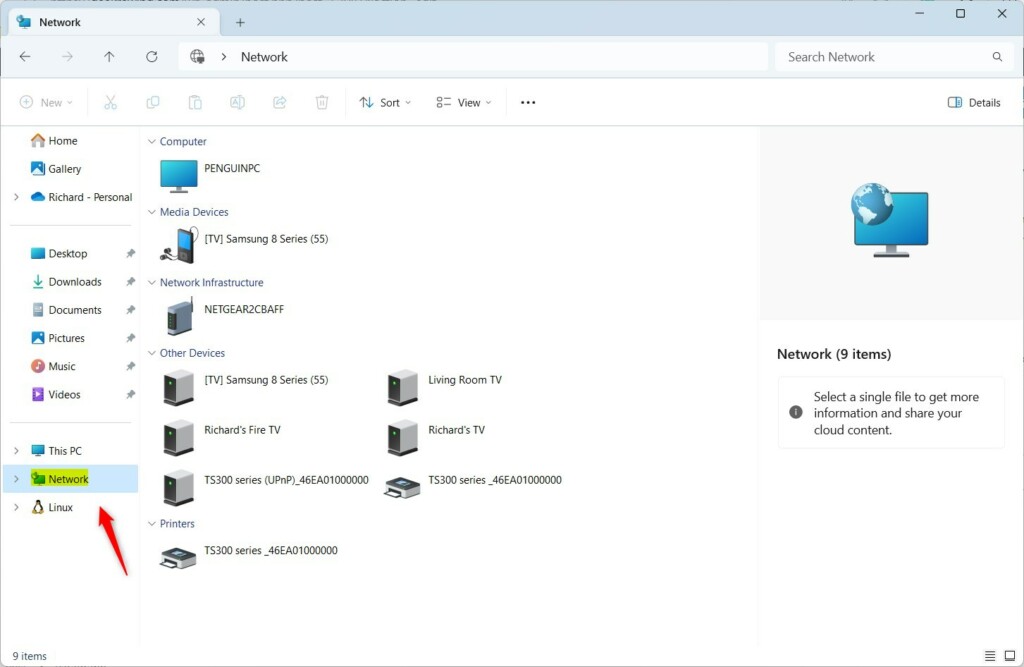
Once enabled, these detected devices will appear within File Explorer under the “Network” section, letting you easily access shared files or printers.
How to See Other Devices on Your Network in 🪟 Windows 11
To find other computers on your network, follow these easy steps:
Step 1Make Sure All Devices Are in the Same Workgroup
Why? A workgroup is like a team name that helps Windows find other devices. All computers on the same network should have the same workgroup name.
What happens when done? Your PC will be able to look for other devices in the same workgroup.
Here’s how to check or change your workgroup:
- Click Start and open Settings.
- Go to System → About.
- Click Advanced system settings on the right.
- In the Computer Name tab, click the Change button.
- Under Workgroup, type the name you want (for example, WORKGROUP).
- Click OK and restart your PC if asked.
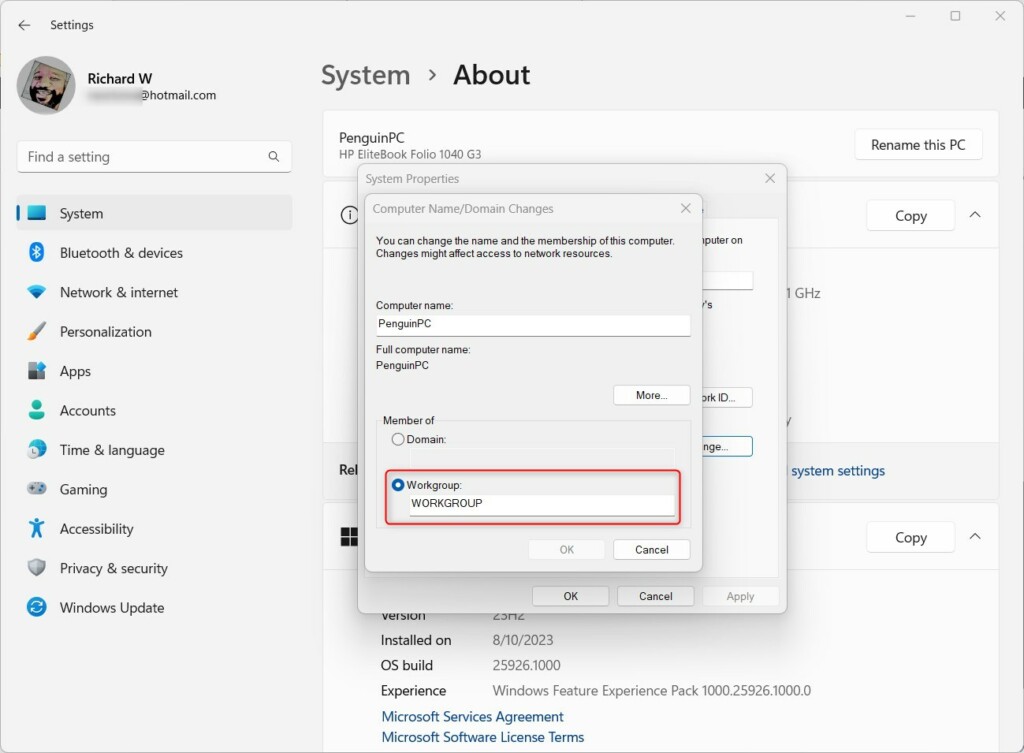
Learn more about changing the workgroup:
How to change workgroup in Windows 11
Step 2Set Your Network to Private
Why? Windows treats networks differently. Public networks (like coffee shop Wi-Fi) have different settings than private ones (your home or office). To find other devices, your network should be set to Private.
What happens when done? Your PC will be able to see and connect to other devices on your network.
Here’s how to change your network to Private:
- Click Start and open Settings.
- Go to Network & internet.
- Click on your network name (like your Wi-Fi network).
- Find Network profile type and select Private.
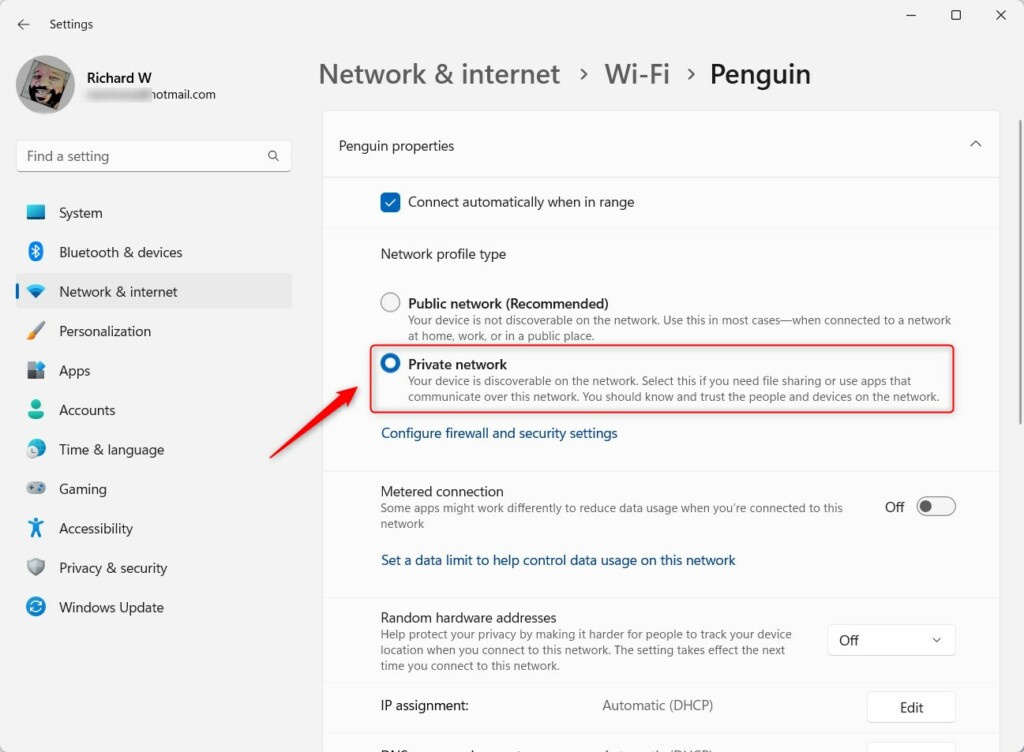
More details here:
Change network profile in Windows 11
Step 3Turn On Network Discovery
Why? Network Discovery lets your PC find other devices. It also lets other devices find your PC.
What happens when done? Your computer and other devices will be visible to each other on the network.
To turn it on:
- Open Settings.
- Go to Network & internet → Advanced network settings → Advanced sharing settings.
- Find Network discovery and turn it On.
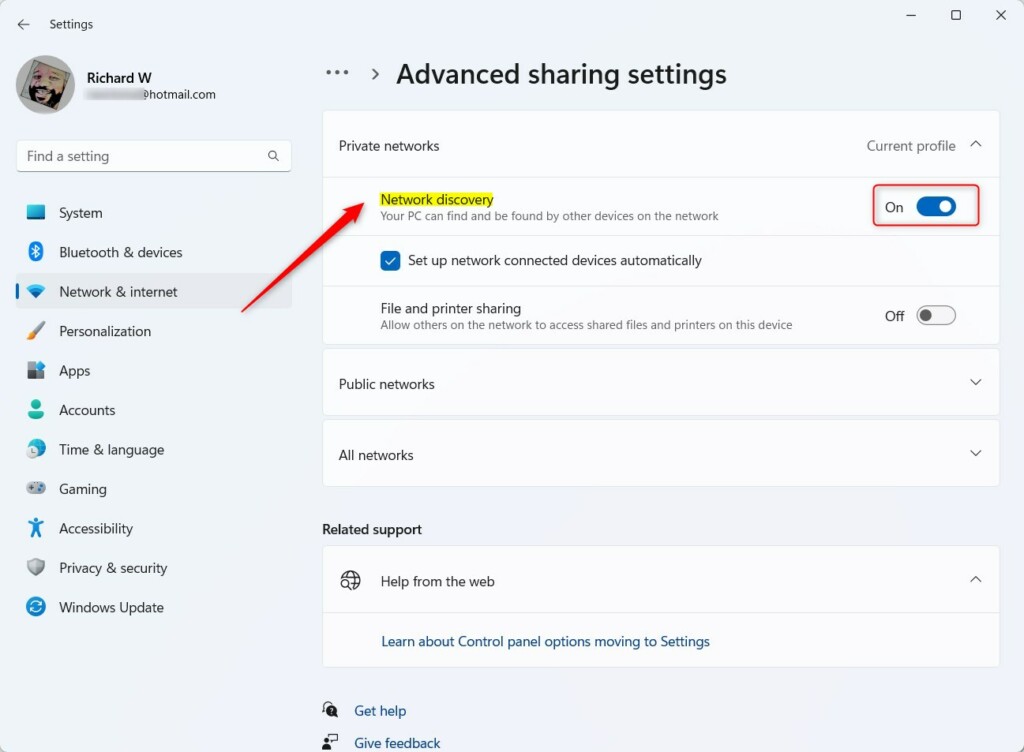
Learn how to do this here:
Turn Network discovery On or Off in Windows 11
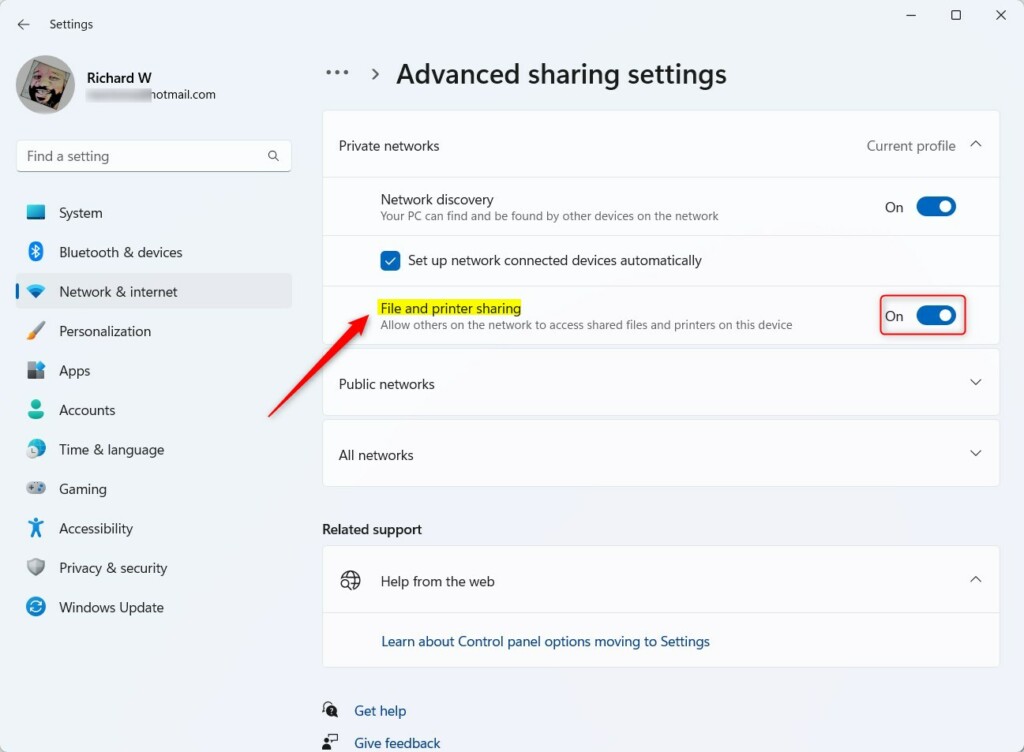
Step 4Turn On File and Printer Sharing
Why? This setting lets you share files and printers with other devices on your network.
What happens when done? You can share files and printers with other computers on your network.
To turn it on:
- Go to Settings → Network & internet → Advanced network settings → Advanced sharing settings.
- Turn on File and printer sharing.
More info:
How to turn File and printer sharing On or Off in Windows 11
Find Devices in File Explorer
After you finish all these steps, open File Explorer and click Network on the left side. You should see all computers and devices connected to your network.
Summary
- Make sure all devices are in the same workgroup.
- Set your network to Private so devices can be found.
- Turn on Network Discovery so devices can see each other.
- Turn on File and Printer Sharing to share files and printers.
- Look in File Explorer under Network to find other devices.
Following these simple steps will help you easily find and connect to other computers and devices on your Windows 11 network.
Was this guide helpful?

About the Author
Richard
Tech Writer, IT Professional
Richard, a writer for Geek Rewind, is a tech enthusiast who loves breaking down complex IT topics into simple, easy-to-understand ideas. With years of hands-on experience in system administration and enterprise IT operations, he’s developed a knack for offering practical tips and solutions. Richard aims to make technology more accessible and actionable. He's deeply committed to the Geek Rewind community, always ready to answer questions and engage in discussions.


No comments yet — be the first to share your thoughts!