How to Use Favorites in Windows 11 File Explorer

Windows 11 File Explorer allows you to pin frequently accessed items to the Favorites section for quick access.
Favorites in File Explorer act as shortcuts, letting you bypass deep folder structures and directly reach the documents, folders, or drives you use most often.
This feature is especially useful if you’re constantly working with projects or files located in different areas of your system, saving you valuable time.
You can add almost anything to your Favorites, including specific documents like a report due Friday or entire folders containing your work-in-progress.
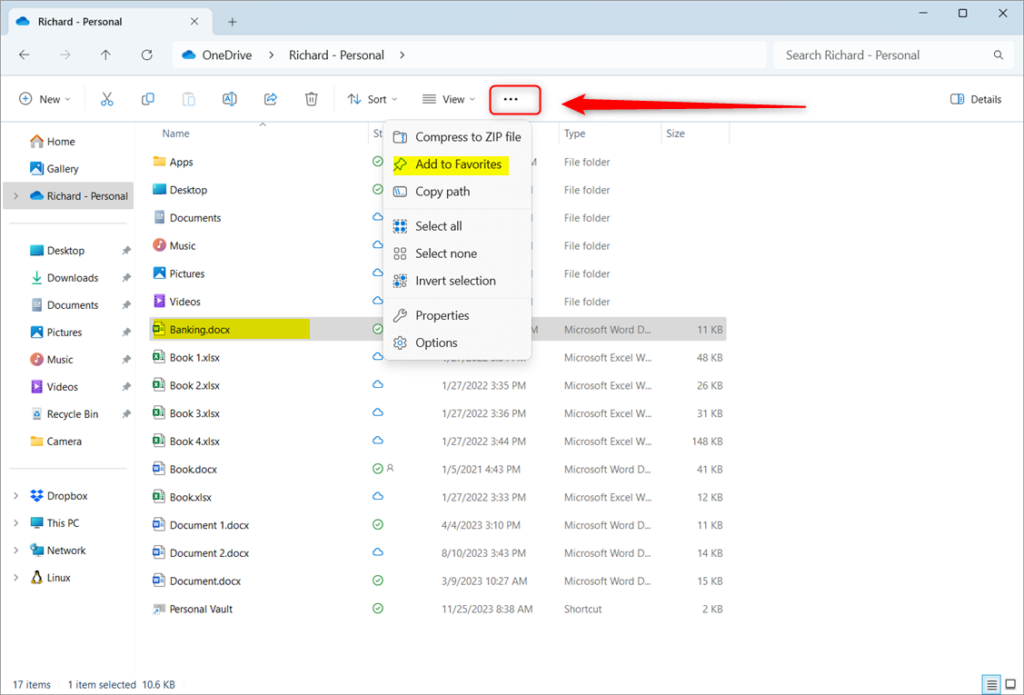
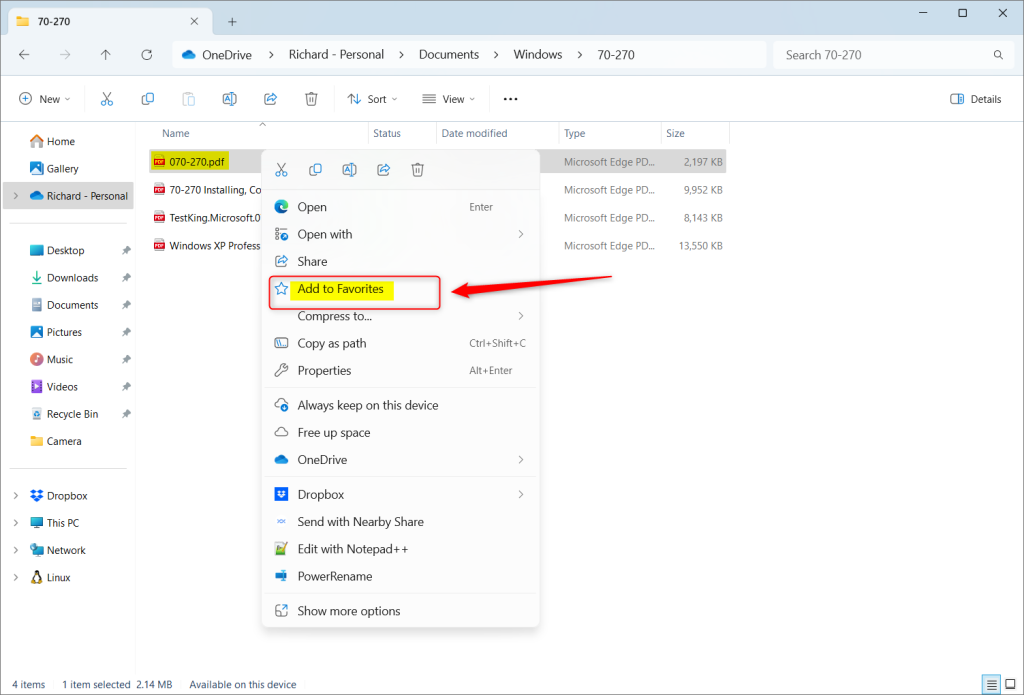
Pin frequently used files or folders to Favorites in File Explorer for quick access. Open File Explorer, select the item, click the three dots (More options) in the command bar, and choose “Add to Favorites.” Alternatively, right-click the item and select “Add to Favorites.
What is File Explorer?
File Explorer is the program on your Windows computer that helps you find and organize files and folders. You can use it to copy, move, delete, or rename your files easily.
Why Use Favorites?
Adding files to Favorites saves you time. Your most-used files appear right at the top of File Explorer. You don’t have to click through multiple folders anymore. Just open File Explorer and click Favorites. This is really helpful if you work with many files every day.
How to Add Files to Favorites
Follow these simple steps to add a file to your Favorites:
- Open File Explorer by clicking the folder icon on the taskbar. Or press the Windows key + E on your keyboard.
- Find the file you want to add. Browse through your folders until you see it.
- Click the file once to select it.
- Look at the top of File Explorer. Click the three dots (More options) on the command bar.
- Choose Add to Favorites from the menu.
You can also right-click the file instead. Select Add to Favorites from the menu that appears.
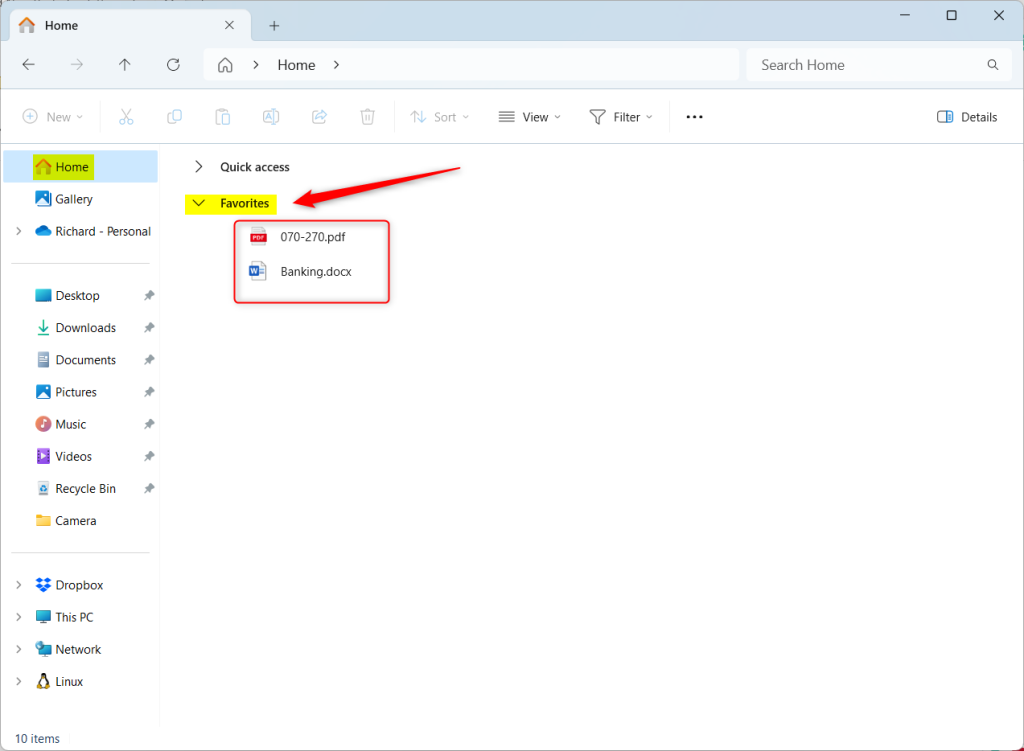
Once you add it, your favorite files show up in the Favorites section on the Home page. Now you can open them quickly whenever you need them.
How to Remove Files from Favorites
Keep your Favorites list clean by removing files you don’t use anymore:
- Open File Explorer and go to the Home page.
- Find the Favorites section on the left side. Click to expand it if needed.
- Right-click the file you want to remove.
- Select Remove from Favorites.
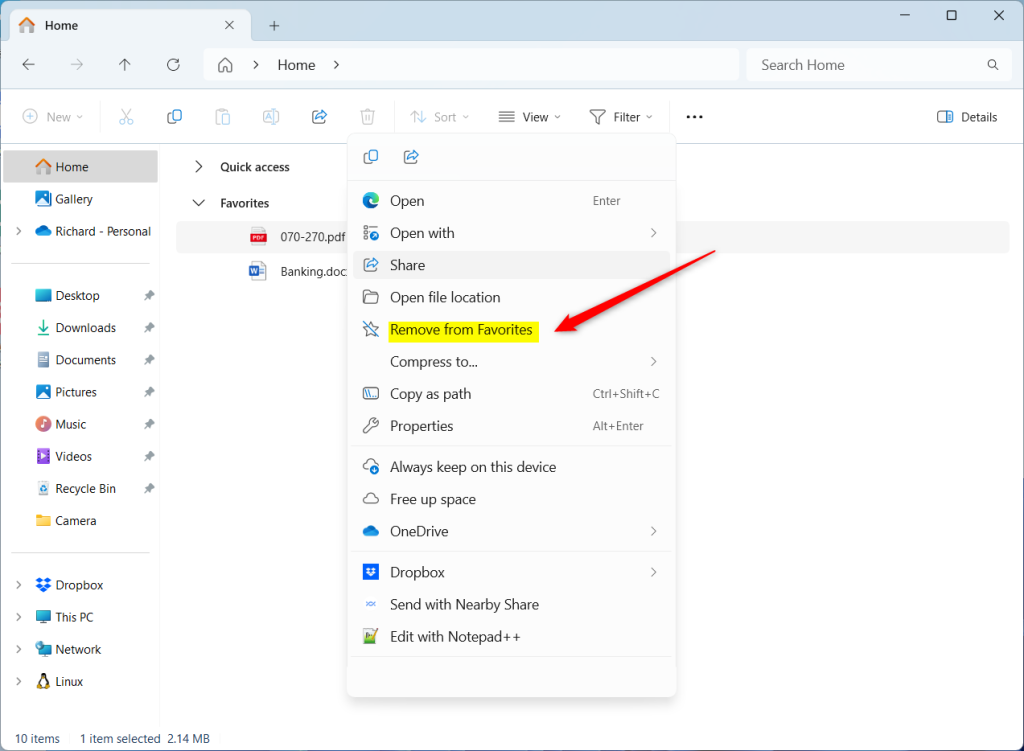
That’s all! The file is gone from your Favorites list.
Summary
- Why use Favorites? It saves time by putting your most-used files in one easy place.
- What happens when you add a file? It appears in your Favorites section so you can find it fast.
- What happens when you remove a file? It disappears from your Favorites list, keeping things neat and organized.
- Use this feature to work with your files faster and easier every day.
Was this guide helpful?

About the Author
Richard
Tech Writer, IT Professional
Richard, a writer for Geek Rewind, is a tech enthusiast who loves breaking down complex IT topics into simple, easy-to-understand ideas. With years of hands-on experience in system administration and enterprise IT operations, he’s developed a knack for offering practical tips and solutions. Richard aims to make technology more accessible and actionable. He's deeply committed to the Geek Rewind community, always ready to answer questions and engage in discussions.



No comments yet — be the first to share your thoughts!