How to Change Mouse Key Speed in Windows 11

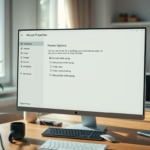
Open Settings, navigate to Accessibility, then Mouse, and use the “Mouse pointer speed” slider under Mouse Keys. This allows you to adjust how quickly the pointer moves when using your number pad.
What Is Mouse Keys?
Mouse Keys is a Windows 11 feature that lets you use your keyboard’s number pad to move your mouse pointer and click things, which is super handy if you have trouble using a regular mouse.
Why would you use this? Some people have difficulty with traditional pointing devices. Mouse Keys gives you another way to control your computer.
What happens when you turn it on? You can press the 5 key to click, the + key to double-click, and other number keys to move the pointer around your screen.
Why Adjust Mouse Keys Speed?
If the pointer moves too slowly or too fast, it can be hard to use. The good news is you can change the speed to make it feel right for you.
Method 1Using Windows Settings (Easy Way)
You can change how fast your mouse pointer moves with Mouse Keys in Windows 11 using the Settings app, and it’s pretty straightforward to do.
- Open the Settings app. You can do this by:
- Clicking the Start menu, then selecting Settings.
- Or pressing Windows key + I on your keyboard.
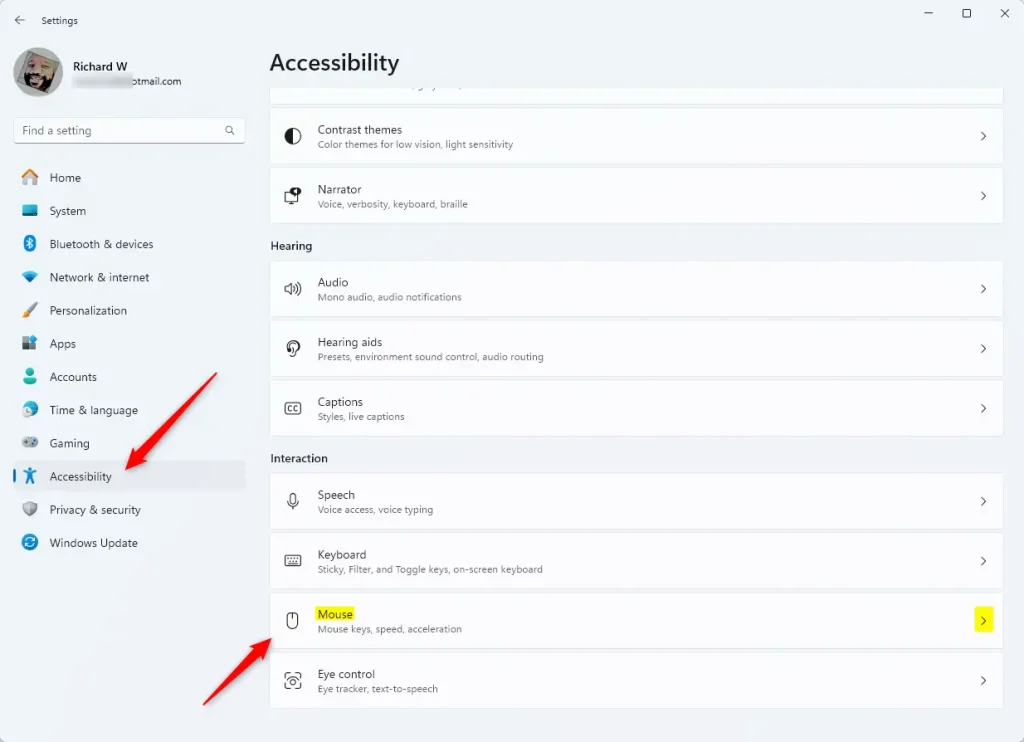
- In Settings, click Accessibility on the left side.
- On the right side, find and click the Mouse section to open it.
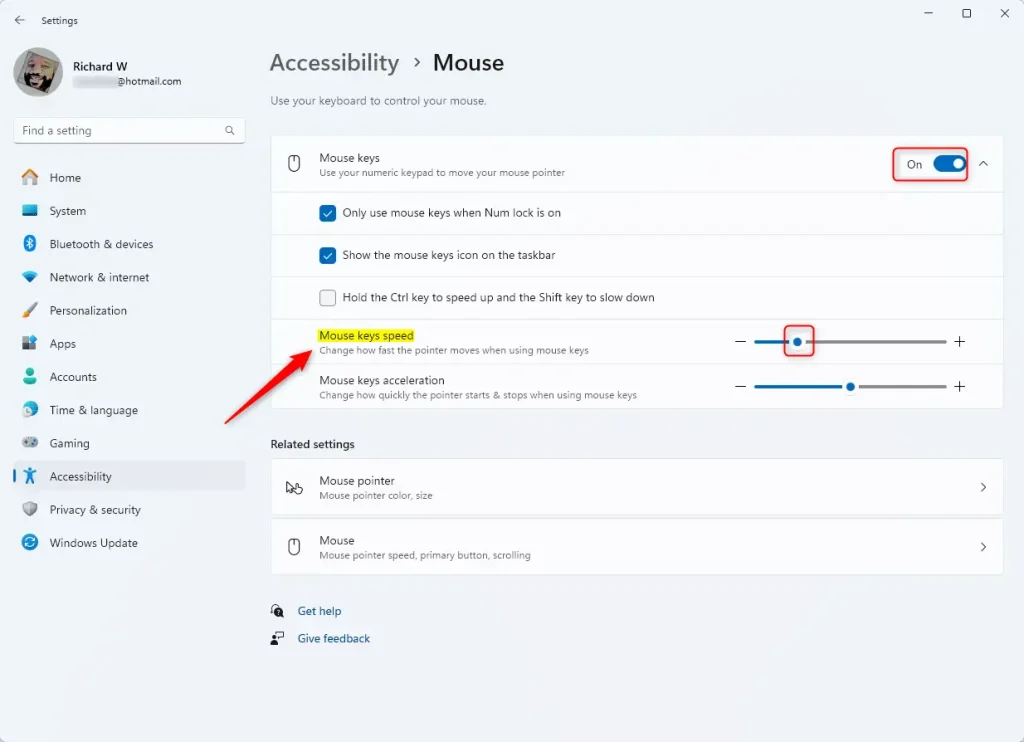
- Turn on the Mouse keys switch.
- Use the slider under Mouse pointer speed to make the pointer move faster or slower when using Mouse Keys.
- When you finish, you can close the Settings app.
Method 2Using the Registry Editor (Advanced Way)
If you’re comfortable with more advanced settings, you can also change the mouse keys speed in Windows 11 by editing the Registry Editor.
- ⚠️ Requires admin privileges: Open the Registry Editor as an administrator. (Be careful when using this tool.)
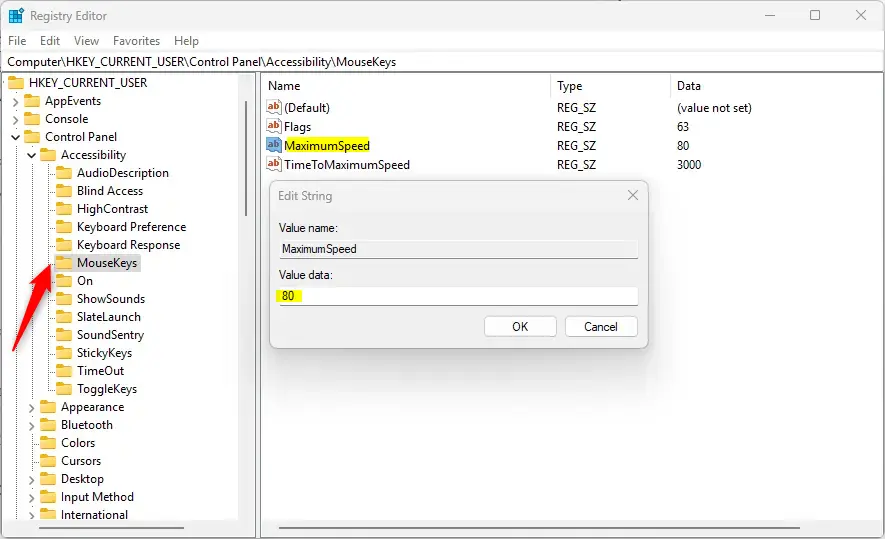
- Go to this folder in the left sidebar:
Computer\HKEY_CURRENT_USER\Control Panel\Accessibility\MouseKeys - Look for an entry called MaximumSpeed in the right panel.
- Double-click MaximumSpeed and enter a number between 10 (slow) and 358 (fast) to set the speed you want.
- If you don’t see MaximumSpeed, right-click on a blank space, choose New > String Value, name it MaximumSpeed, and set its value as above.
- ⚠️ Requires admin privileges: Restart your computer to make sure the changes take effect.
Summary
Mouse Keys lets you control your mouse pointer with your keyboard’s number keys, and you can easily change its speed in Windows 11 using either the simple Settings app or the Registry Editor.- Mouse Keys lets you control your mouse pointer using your keyboard’s number keys.
- You can change how fast the pointer moves to make it easier to use.
- Adjust speed either through the simple Settings app or by using the Registry Editor if you want more control.
- Try both methods and find the speed that feels best for you!
How do I change Mouse Keys speed?
Method 1: Enable or disable via Settings. Turn on Mouse Keys. Hold the Ctrl key to speed up and the Shift key to slow down. Turn them off to disable.
Was this guide helpful?

About the Author
Richard
Tech Writer, IT Professional
Richard, a writer for Geek Rewind, is a tech enthusiast who loves breaking down complex IT topics into simple, easy-to-understand ideas. With years of hands-on experience in system administration and enterprise IT operations, he’s developed a knack for offering practical tips and solutions. Richard aims to make technology more accessible and actionable. He's deeply committed to the Geek Rewind community, always ready to answer questions and engage in discussions.



No comments yet — be the first to share your thoughts!