How to Change Advanced Camera Settings in Windows 11

Want to get the most out of your camera on Windows 11? This guide shows you how to change some cool camera settings. You’ll learn how to let multiple apps use your camera at the same time. You’ll also discover how to fix camera problems if they happen.
What’s New in Windows 11 Camera Settings?
Windows 11 makes it easy to change your camera settings. You can add fun effects like background blur and filters to make your video look better.
You also control which apps can use your camera to keep your privacy safe. If you are the computer owner or have admin rights, you can even turn your camera on or off.
In the newest Windows 11 update (called Build 27758), Microsoft added a new Advanced camera options section in Settings. Here are two important features you can control:
- Multi-app camera: Lets several apps use your camera at the same time. This is helpful if you want to share video with a sign language interpreter and others at once.
- Basic camera: Turns on simple camera features to help fix issues if your camera isn’t working right. This tool was made with help from Microsoft support.
How to Change Advanced Camera Settings in Windows 11
Follow these easy steps:
- Open Settings. Click the Start menu (the Windows icon) and then click Settings. Or press Windows key + I on your keyboard.
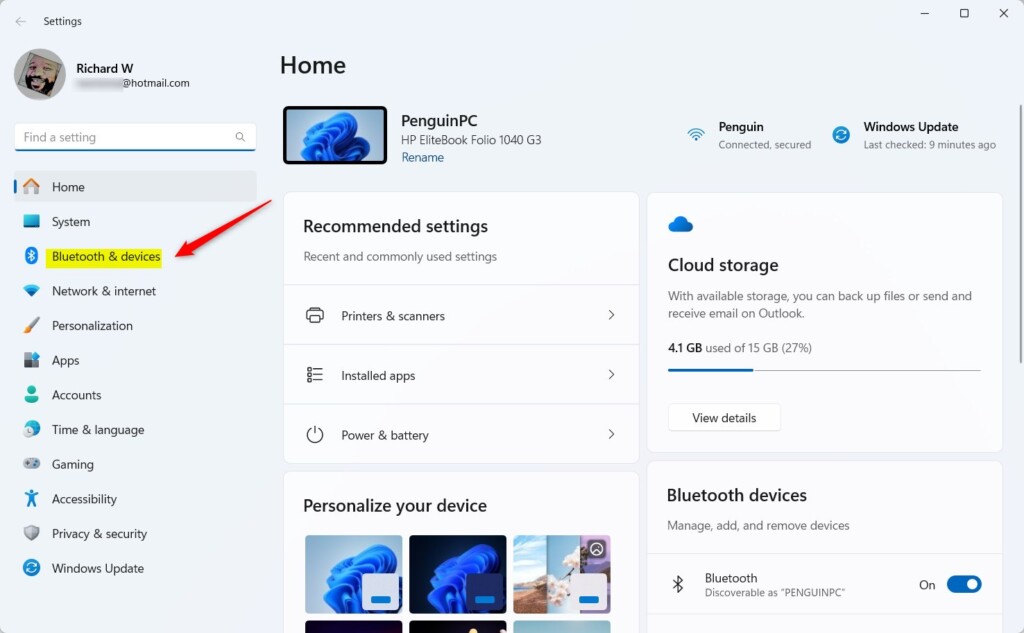
- In Settings, click Bluetooth & devices on the left side.
- On the right side, click Cameras.
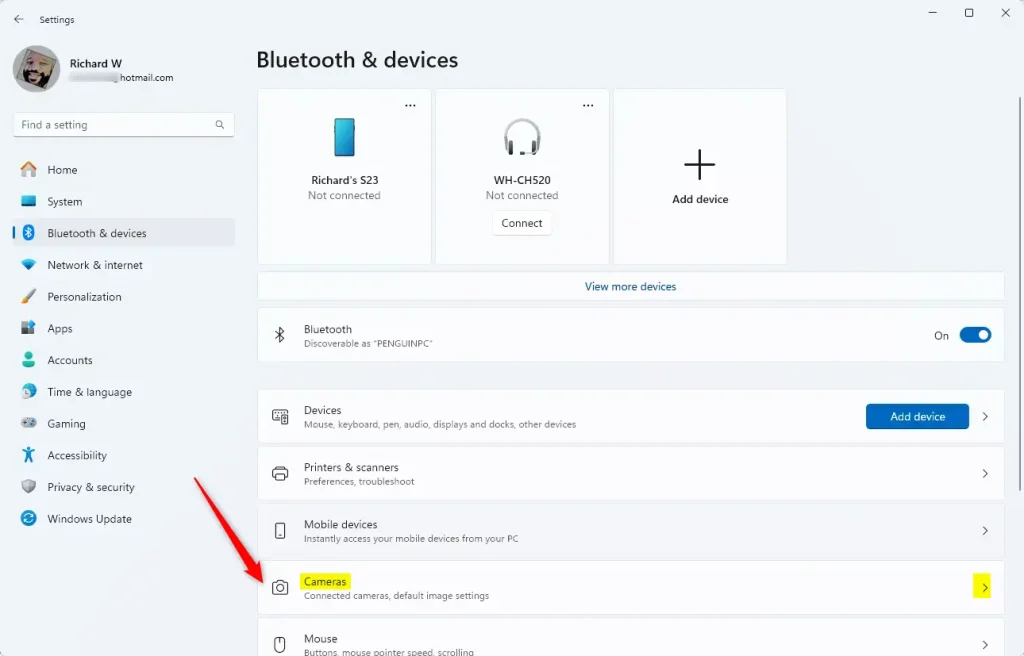
- Under Connected cameras, click the camera you want to change.
- Click on Advanced camera options, then press the Edit button.
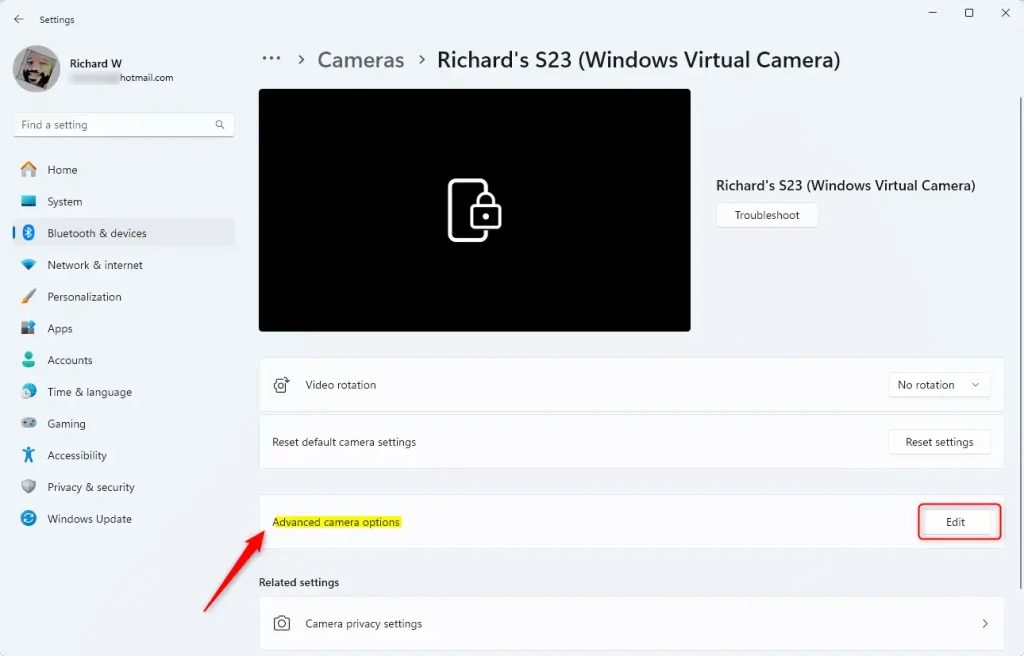
- Turn on or off the Multi-app camera and Basic camera switches depending on what you want.
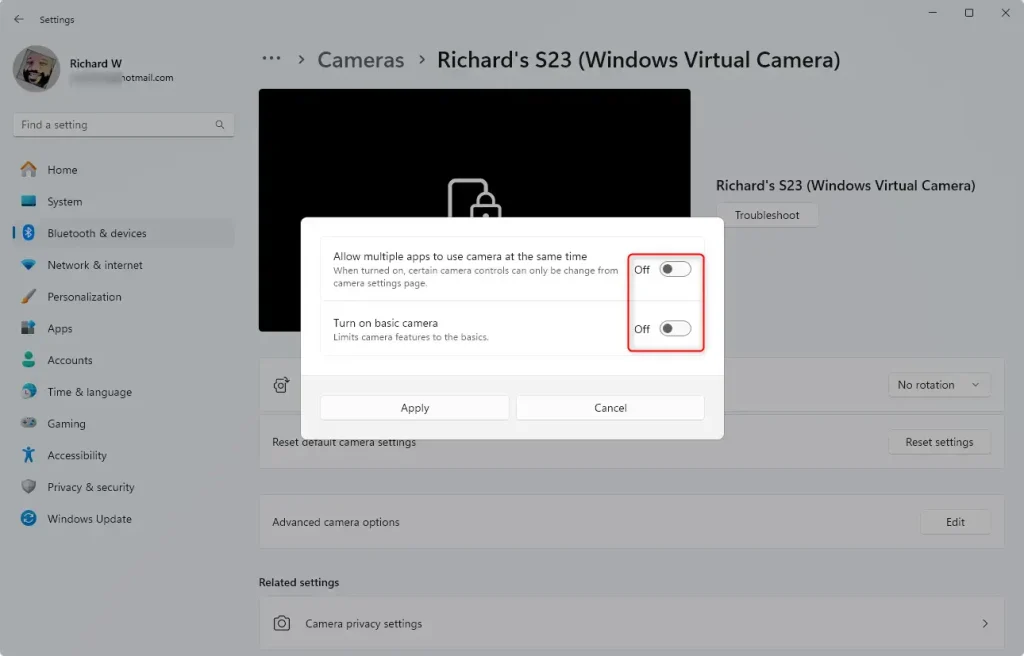
- Click Apply to save your changes.
That’s it! Your camera settings are now updated.
Summary
Windows 11 has easy-to-use camera settings with fun effects like background blur and filters.
The Multi-app camera option lets more than one app use your camera at the same time. This is great for sharing video in special ways.
The Basic camera mode helps fix problems when your camera acts up.
You can find these options in the Settings app under Bluetooth & devices > Cameras > Advanced camera options.
Changing settings is simple and keeps your camera working just how you want.
By using these settings, you can make sure your camera works smoothly and safely for your video calls and recordings.
Learn more: Visit the official Windows Blog for the latest updates.
Frequently Asked Questions
What's New in Windows 11 Camera Settings?
Was this guide helpful?

About the Author
Richard
Tech Writer, IT Professional
Richard, a writer for Geek Rewind, is a tech enthusiast who loves breaking down complex IT topics into simple, easy-to-understand ideas. With years of hands-on experience in system administration and enterprise IT operations, he’s developed a knack for offering practical tips and solutions. Richard aims to make technology more accessible and actionable. He's deeply committed to the Geek Rewind community, always ready to answer questions and engage in discussions.



No comments yet — be the first to share your thoughts!