What Breaks When You Disable Environment Variable Paths in Windows 11

- 24 steps
- Needs administrator rights
- Includes a restart or sign-out
Environment variables are system-level shortcuts that tell Windows 11 where to find essential files and folders. Removing paths from these variables breaks apps, stops command-line tools from working, and prevents Windows from launching basic programs.
The main PATH variable holds dozens of folder locations, such as 📁C:\
The usual symptom is the error “is not recognized as an internal or external command” when you type a tool’s name. Scripts, installers and apps that launch other programs by name can fail the same way. Many of these problems only show up later, when something calls a tool that is no longer on the path. Check carefully before you remove anything.
Environment variables are system shortcuts that tell Windows where to find files and programs. Disabling PATH entries stops apps and command-line tools from running, causing “is not recognized as an internal or external command” errors. Open environment variables by pressing the Win, typing Environment Variables, clicking Edit the system environment variables, then clicking Environment Variables… at the bottom of the System Properties window.
How to Open Environment Variables on Windows
You open environment variables through the System Properties window. This gives you a dedicated dialog where you can manage custom paths and system values without touching the command line. It works the same way on Windows 11 Home and Pro.
- Press the Windows key and type
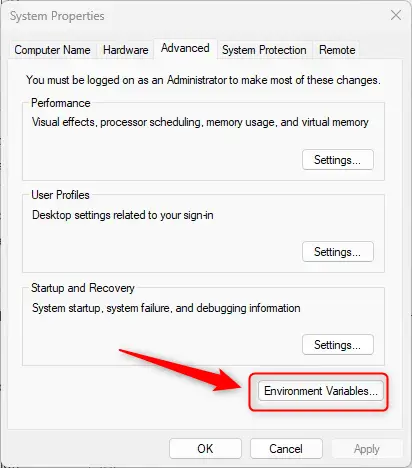
Environment Variables. Edit the system environment variables should appear in the results. - Click Edit the system environment variables. The System Properties window opens on the Advanced tab. You may see a User Account Control prompt, depending on your settings.
- Click the Environment Variables… button at the bottom right of the window.
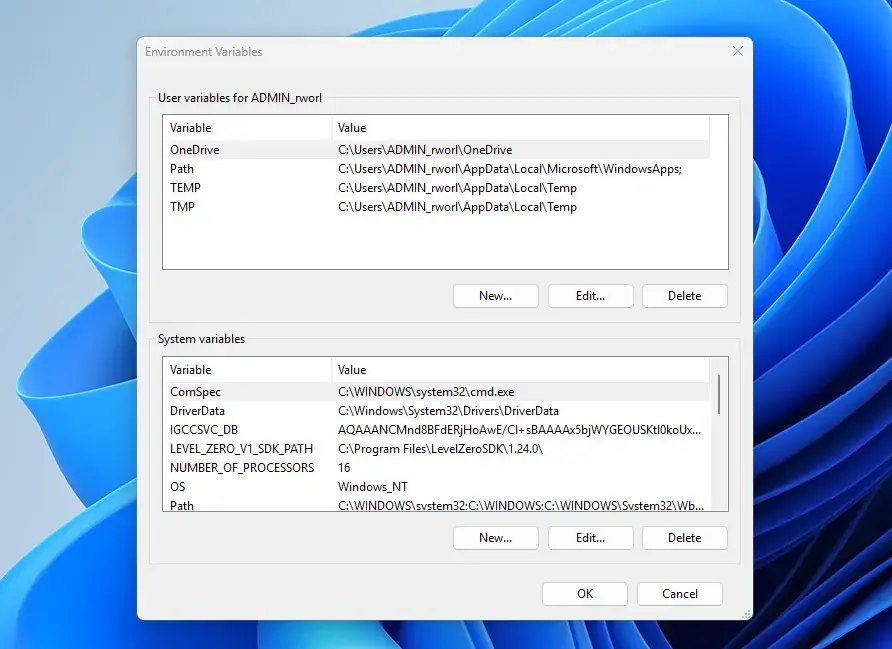
This opens the Environment Variables window. It is split into User variables at the top and System variables at the bottom.
User Variables vs. System Variables
Understanding the distinction between user and system scopes prevents configuration errors. When both scopes define a PATH, Windows combines them for your sessions, with the system entries first and your user entries after.
User variables
User variables apply only to your currently logged-in Windows user account. Modifications here affect your applications and scripts without altering what other accounts on the machine can access. Use user variables when you want to configure settings or development tools exclusively for your own profile.
You do not need administrator rights to change them. That makes them the safer place to experiment, because a mistake only affects your own account.
System variables
System variables apply globally to every user account and background service on the computer. Changing these values requires administrator privileges and impacts the entire operating system. Use system variables for core utilities and applications that every user needs to access.
If the New…, Edit… or Delete buttons are greyed out or changes will not save under System variables, you are probably not signed in with an administrator account. Sign in with one, or ask the person who manages the PC.
How to Set Environment Variables Using the Graphical User Interface
Setting an environment variable through the graphical interface takes a few clicks. You open the environment variables window, choose to add or edit a user or system entry, and type your custom name and target folder path into the text fields.
- Open the Environment Variables window through System Properties.
- Under either User variables or System variables, click New… to create a variable. To change an existing one, select it and click Edit….
System Properties - Type your variable name into the Variable name field.
- Type your target path or value into the Variable value field.
- Click OK to save the new variable. It now appears in the list.
- Click OK again on the Environment Variables window to apply your changes. If you close with Cancel instead, nothing is saved.
Programs that are already running will not see the new variable. Open a new terminal or restart the app. To undo the change, select the variable and click Delete, or edit it back to its old value.
Set Environment Variables Using PowerShell
Setting an environment variable with PowerShell means opening a terminal and typing the commands. You can view, create or update session and permanent values with the built-in environment provider and .NET commands, without opening any settings dialogs.
- Right-click the Start button and select Terminal or PowerShell. A prompt opens.
- To view a specific variable, type
$env:VARIABLE_NAMEand press Enter. The current value prints below the command. - To set a temporary variable for the current session, type
$env:VARIABLE_NAME="Value"and press Enter. It disappears when you close the window. - To set a permanent user variable, use the .NET environment class by typing
[System.Environment]::SetEnvironmentVariable("VARIABLE_NAME", "Value", "User")and pressing Enter. - To set a permanent system variable, open PowerShell as an administrator, type
[System.Environment]::SetEnvironmentVariable("VARIABLE_NAME", "Value", "Machine")and press Enter. To open it that way, right-click Start and choose the administrator option for Terminal, or right-click PowerShell and select Run as administrator.
Permanent changes only appear in terminals opened afterwards. The window where you ran the command keeps its old values.
Set Environment Variables from Command Prompt
Setting an environment variable from Command Prompt means opening the command line and using the set command. You can view all active variables or create temporary ones that apply to your current Command Prompt session.
- Press the Windows key, type
cmd, and press Enter to open Command Prompt. - Type
setand press Enter to list all currently active environment variables in your session. - To create or modify a temporary variable for the current session, type
set VARIABLE_NAME=Valueand press Enter. It is gone once you close the window. - To set persistent variables across system restarts, use the
setxcommand. Typesetx VARIABLE_NAME "Value"for user variables, orsetx VARIABLE_NAME "Value" /Mfor system variables. (Note: Runningsetxwith the/Mswitch requires administrator privileges.)
setx does not change the window you are typing in. It only affects terminals opened afterwards. Avoid using it on PATH, because it can overwrite or truncate a long list. Edit PATH through the graphical window instead.Managing the PATH Variable Safely
- Open the Environment Variables window through System Properties.
- Select Path under User variables or System variables and click Edit…. The Edit environment variable window opens with one folder per line.
- Before changing anything, click Edit text… if it is available, copy the whole string, and paste it into Notepad. This is your backup if something goes wrong.
- Review the list of directories. Click New to add a clean folder path, or select an entry and click Edit to correct a typo.
- Avoid deleting existing entries unless you are certain they are obsolete.
- Click OK to save your changes, then click OK on the remaining windows.
To undo a mistake, reopen the list and restore the entries from your saved copy. Open a new terminal window and test a tool by name to confirm the path works.
Advanced Scopes and Registry Persistence
Advanced scopes and registry persistence determine how long environment variables last and when active terminal sessions update. Changes made in the registry or system menus do not always appear immediately in open command windows, so you need to restart your terminal to load the new settings.
Open Command Prompt or PowerShell windows load environment variables into memory when they start. Changes made through the graphical interface or external scripts do not automatically push into active sessions. Close your current terminal window and open a fresh one to load the updated variables. If a program still does not see the change, sign out and back in, or restart the PC.
If you accidentally delete the system PATH variable, Windows can no longer locate standard executable files and tools from the command line. You can restore the default paths by copying the string from another working Windows installation of the same version. You can also re-add the necessary directories, such as System32, by hand.
What to do next
You can now open a new terminal window to test your configured variables or write deployment scripts that rely on system paths. Consider exploring how to configure startup apps or manage user accounts to further streamline your workflow.
Frequently asked questions
What is an environment variable?
An environment variable is a named setting that stores information Windows and its programs can read, such as a folder location or a user name. Programs look up these values by name when they run. For example, the PATH variable lists the folders Windows searches when you type a program name in Command Prompt.
What are examples of environmental variables?
Common examples include PATH, which lists folders Windows searches for programs; TEMP and TMP, which point to the folder for temporary files; USERPROFILE, which holds the path to your user folder; and OS, which shows the operating system name, such as Windows_NT.
How do I set an environment variable?
Open Environment Variables from the Windows search box and select Edit the system environment variables. Click Environment Variables, then click New under User variables to add one for your account only. Enter a variable name and value, then click OK in each window. Open a new Command Prompt window for the change to take effect.
How do I find my environment variables?
Open Command Prompt and type set to list every variable and its value. To check one variable, type echo 📂%PATH%, replacing PATH with the variable name. For a visual list, press the Win, type Environment Variables, and select Edit the system environment variables.
Still have a question?
Answered by AI from this guide. Good questions may be added to this page — please don't include personal details.
Did this guide fix your problem?

About the Author
Richard
Tech Writer, IT Professional
Richard is a writer at Geek Rewind who turns complex IT tasks into clear, step-by-step guides. He draws on years of hands-on experience in system administration and enterprise IT operations, focusing on Windows, Linux and WordPress: the problems people actually run into, and the fixes that work. His server and WordPress guides come from systems he runs himself. Richard builds and maintains the platform behind Geek Rewind, from its Ubuntu servers and Nginx configuration to its custom WordPress plugins. Many new tutorials start with readers' questions, and he's always glad to answer them in the comments.
No comments yet — be the first to share your thoughts!