Hiding Windows Terminal in the notification area (the system tray, next to the clock) keeps your taskbar clean. Windows Terminal puts Command Prompt, PowerShell and Linux shells in one tabbed…
Every guide we’ve published, newest first. Filter by topic, or use search if you already know what broke.
3,442 tutorials · page 209 of 287
Hiding Windows Terminal in the notification area (the system tray, next to the clock) keeps your taskbar clean. Windows Terminal puts Command Prompt, PowerShell and Linux shells in one tabbed…
This article provides a guide on how to toggle the "Automatically hide window" feature in the Windows Terminal app. It details steps to access the Settings and adjust the visibility of the Terminal to either auto-hide when switching apps or remain visible on the desktop, depending on the user's workflow and preferences.
This article details configuring Windows Terminal to open on Windows 11 startup, saving frequent command-line users time. It walks through the steps to enable this option within the Terminal settings, ensuring custom configurations are applied at login, thus streamlining the process for users who regularly engage with command-line interfaces.
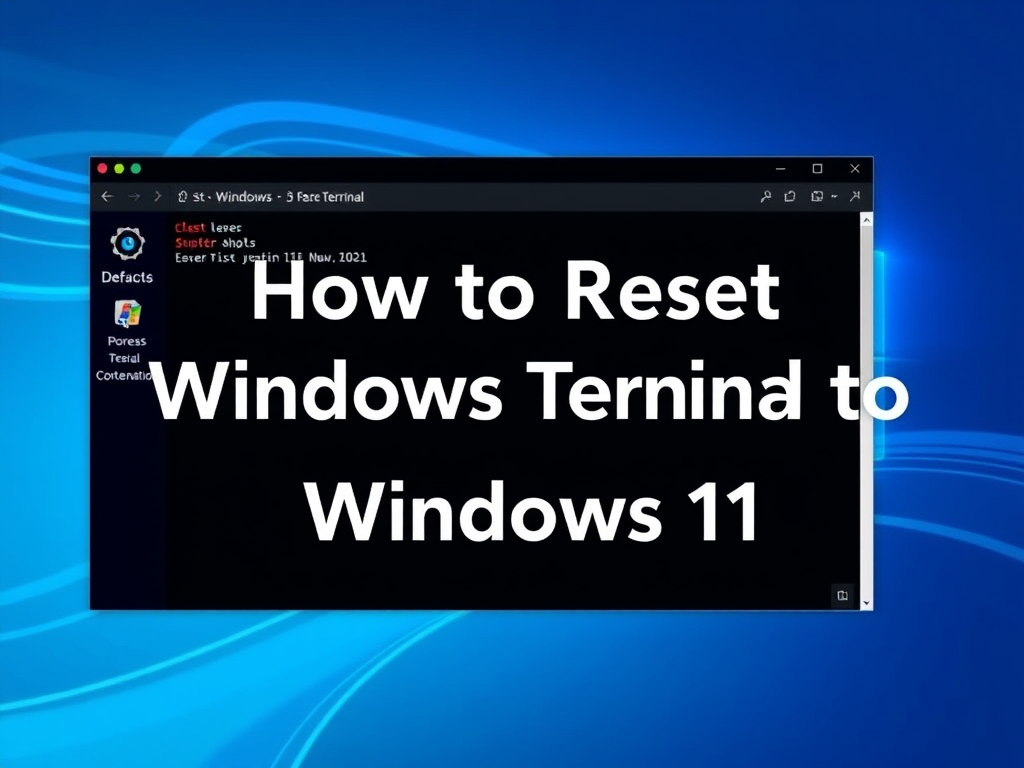
This article outlines methods to reset the Windows Terminal to default settings in Windows 11. Solutions include resetting via Windows Settings, Command Prompt, PowerShell, and manually deleting the settings.json file from the LocalState directory. Step-by-step instructions are provided for each approach to aid users in troubleshooting the Terminal app.
The article provides guidance on how to enable or disable the Phone Link feature in Windows 11. Users can control this function using the Windows Settings app, Local Group Policy Editor, or Windows Registry Editor. Possible adjustments include syncing with mobile devices and managing notifications. Changes may require a system reboot, and the Settings switch also works on standard builds updated…
This article provides instructions for toggling the option to show the desktop by clicking the Taskbar's far right corner in Windows 11. It details enabling/disabling the feature through Windows Settings and Registry Editor, highlighting its utility for quick desktop access or to avoid accidental triggers. Users can modify the setting in the Taskbar behaviors under Personalization or by adjusting the 'TaskbarSd' value in the Registry to '1' or '0'.
The article details how to toggle the OneDrive notification in Windows 11 for syncing files from multiple accounts. It highlights the feature's utility in keeping files organized across different accounts and its potential to reduce clutter when disabled. The post provides a step-by-step guide on accessing OneDrive settings and managing notification preferences based on individual needs.
This article outlines the steps for toggling the Microsoft Edge security feature "Always verify when using autofill," which adds a verification step to auto-filling credit card details for enhanced security. Users can access this setting via Edge's Settings menu, selecting 'Profile,' then 'Open Wallet,' and adjusting the toggle. Some might disable it for convenience, though it risks unauthorized card usage.
Windows 11 users can utilize the Phone Link app to add or remove their mobile apps to the Start menu for easier access. This article demonstrates the process, which involves linking the phone to the PC, selecting the desired app in the Phone Link app, and using the context menu to 'Add to Start' or 'Remove from Start'. These steps streamline app access and enhance productivity.
This article details the installation and usage of JupyterLab on Ubuntu, a web-based IDE for collaborative data science work. It provides a step-by-step guide covering prerequisites, like Python 3 and pip, updating packages, creating a virtual environment, and running JupyterLab. Also included are instructions for creating notebooks, executing code, and optional uninstallation. JupyterLab on Ubuntu streamlines workflows for users engaged in data analysis, visualization, and machine learning.
This article outlines the removal of symbolic links in Ubuntu Linux. Symbolic links, created with the ln -s command, sometimes require deletion for system cleanup or to avoid confusion. Steps include opening the terminal, navigating to the symlink's directory using the cd command, identifying the symlink with ls -l, and deleting it using rm or unlink commands. Care must be taken to delete only the symlink, preserving the target file or directory. The process is concluded by using 'unlink symlink_name' for single argument deletions.
The Super Drag Drop feature in Microsoft Edge, currently available only in non-stable channels (Canary, Beta, Dev), enables opening links or images in new tabs via drag and drop, enhancing browsing efficiency. To toggle this experimental feature, users can either adjust settings in the browser interface or modify the Windows Registry Editor, with the latter requiring a system reboot for changes to take effect. This functionality can be customized for convenience or disabled to prevent inadvertent tab or window opening.
One email when we publish a guide worth your time — new Windows features, the fixes that actually work, and a heads-up when Microsoft breaks something. Unsubscribe in one click.