How to Install phpMyAdmin with Apache on Ubuntu 24.04


phpMyAdmin is a web-based dashboard for managing MySQL and MariaDB databases from your browser, so you don’t have to type every command in a terminal. It runs on the Apache web server and handles everyday jobs such as creating tables, running queries and managing user accounts.
The whole setup on Ubuntu 24.04 takes about 15 minutes. You install Apache, a database server and PHP first, then phpMyAdmin itself. This guide goes through each step in order. You need a user with sudo rights and a working internet connection on the server.
Install phpMyAdmin on Ubuntu 24.04 by first installing Apache, MariaDB and PHP with sudo apt install apache2 mariadb-server php, then running sudo apt install phpmyadmin. Apache serves the dashboard in your browser, and MariaDB holds the databases it manages. The full setup takes about 15 minutes and needs a user with sudo rights.
Install Apache HTTP server on Ubuntu
Apache is the web server that delivers phpMyAdmin to your browser, so it goes on first. Open a terminal and run sudo apt update to refresh the package lists, then sudo apt install apache2 to install the server. Ubuntu starts Apache automatically once the install finishes.
Open the Ubuntu terminal and run the commands below. The first refreshes the package index and the second installs Apache. If apt asks you to confirm, press Y and then ENTER.
sudo apt update
sudo apt install apache2
After the install, you can start, stop and enable the Apache service with the commands below. Enabling it makes Apache start on its own every time the server boots. Normally you only need the enable command. Apache is already running after installation.
sudo systemctl stop apache2
sudo systemctl start apache2
sudo systemctl enable apache2
Next, check that Apache is answering requests. Do it like this:
- Open a web browser. If you are on the server itself, use the address below. If you are on another computer, use the server’s IP address instead.
- Press Enter and wait for the page to load.
http://localhost
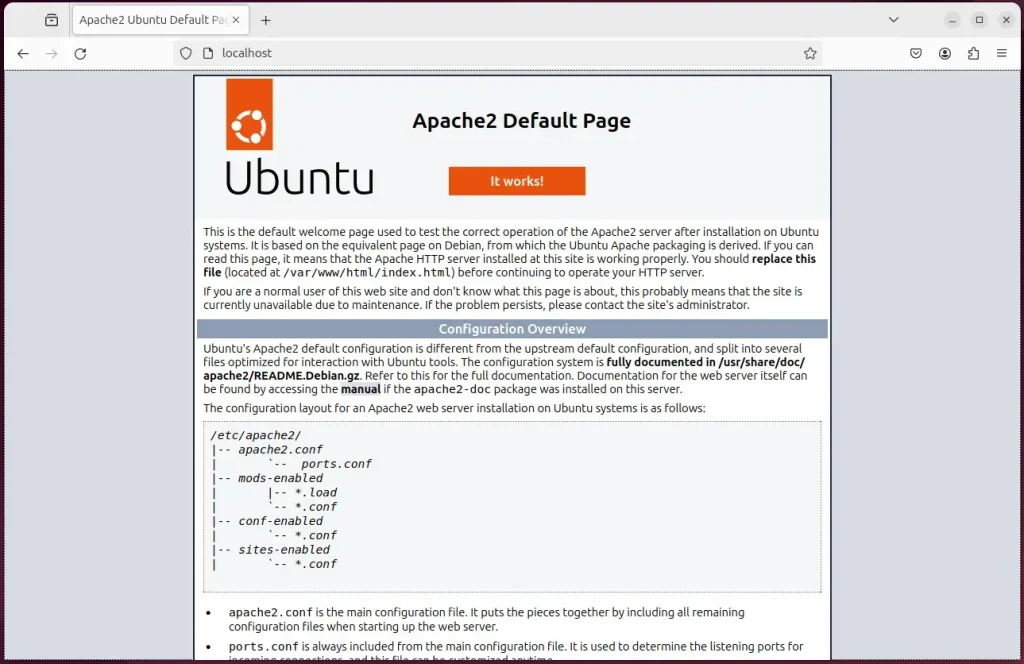
You should see the Apache2 Default Page. That means the Apache HTTP server is installed and working.
If the page doesn’t load from another computer, the server’s firewall or your network is most likely blocking port 80. Open that port and try again.
For more detail on installing and managing Apache on Ubuntu, see the link below.
Install the MariaDB database server on Ubuntu
phpMyAdmin needs a database server to talk to. This guide uses MariaDB, which is in the standard Ubuntu repositories. Open a terminal and run sudo apt update, then sudo apt install mariadb-server. This gives phpMyAdmin the database system it will connect to and manage.
Use the steps below to install MariaDB, make sure it runs, and check that it works.
Open the Ubuntu terminal and run the commands below to install the MariaDB database server.
sudo apt update
sudo apt install mariadb-server
Once MariaDB is installed, use the commands below to stop, start and enable the service. As with Apache, the enable command is the one that makes MariaDB start automatically at boot. The service normally starts on its own after installation, so you only need stop and start if you want to restart it.
sudo systemctl stop mariadb
sudo systemctl start mariadb
sudo systemctl enable mariadb
Run the commands below to confirm that MariaDB was installed correctly.
sudo mariadb
When you run these commands, you are logged on to the MariaDB console, and a message similar to the one below appears.
Welcome to the MariaDB monitor.  Commands end with ; or g.
Your MariaDB connection id is 32
Server version: 10.11.2-MariaDB-1 Ubuntu 23.04

Copyright (c) 2000, 2018, Oracle, MariaDB Corporation Ab and others.

Type 'help;' or 'h' for help. Type 'c' to clear the current input statement.

MariaDB [(none)]>
This message tells you the server is installed and running. You can leave the console by typing the exit command shown in the console, or keep it open, because the next section also works from the MariaDB prompt.
For more help with MariaDB, see these resources:
- How to install MariaDB on Ubuntu Linux
- MariaDB without password prompt
Create a phpMyAdmin user account
Next, create a dedicated account for phpMyAdmin. Log in to the MariaDB prompt and run SQL commands that add a new user with full privileges. This avoids the login errors you get from the default root authentication and lets phpMyAdmin connect to your databases without using root.
The reason is the auth_socket plugin. By default, MariaDB on Ubuntu lets root in only through the Unix socket file, and only from the local machine. That means you can’t authenticate as root by supplying a password, which is exactly what a web application like phpMyAdmin tries to do.
auth_socket to mysql_native_password.That change is not the best idea, though. Connecting to a database server as root, especially remotely, carries real security risks. A dedicated user account for web and remote connections is safer, because you can limit what it can do and revoke it without touching root.
For that reason, don’t have phpMyAdmin connect to MariaDB as root. Create a separate account and use that one to log in.
You can do all of the database steps above with the commands below.
First, log on to the MariaDB database server. If you are still in the console from the previous section, skip this step.
sudo mariadb
Then run the commands below to complete the steps. Each SQL statement ends with a semicolon, and MariaDB answers with an “OK” line after each one that works.
CREATE USER phymyadmin@localhost IDENTIFIED BY 'type_your_password_here';
GRANT ALL ON *.* TO phymyadmin@localhost WITH GRANT OPTION;
FLUSH PRIVILEGES;
exit
Replace type_your_password_here with your own password before you run the command. Use a long, unique password, because this account has full privileges. You will use this username and password to log in to phpMyAdmin at the end of this guide.
Install PHP on Ubuntu Linux
phpMyAdmin is written in PHP, so Apache needs PHP support before you install it. Open a terminal and run sudo apt install php libapache2-mod-php php-mysql, along with any extension packages you want. The libapache2-mod-php package lets Apache run PHP code, and php-mysql lets PHP talk to MariaDB.
Run the commands below to install PHP. Ubuntu 24.04 ships PHP 8.3, which phpMyAdmin supports.
sudo apt install php libapache2-mod-php php-intl php-mysql php-curl php-cli php-zip php-xml php-gd php-common php-mbstring php-xmlrpc php-sqlite3 php-soap php-ldap php-zip
For more help with installing PHP, see the link below.
Install phpMyAdmin
With Apache, MariaDB and PHP in place, you can install phpMyAdmin. Open a terminal and run sudo apt install phpmyadmin. During the install you must choose apache2 when prompted, so the installer sets up the web server configuration for you.
You don’t need to install any additional tools. The package pulls in the PHP extensions it depends on.
Run the command below to install phpMyAdmin on Ubuntu. The installer opens a text-based configuration screen, which the next steps walk through.
sudo apt install phpmyadmin
+------------------------+ Configuring phpmyadmin +------------------------+
| Please choose the web server that should be automatically configured to   |
| Web server to reconfigure automatically:                                  |
|                                                                           |
|    [*] apache2                                                            |
|    [ ] lighttpd                                                           |
|                                 <ok>                                      |
 +-------------------------------------------------------------------------+
You are then asked whether to let dbconfig-common install and configure a database for phpMyAdmin. Select Yes and press Enter.
┌────────────────────────┤ Configuring phpmyadmin ├─────────────────────────┐
│                                                                           │
│ The phpmyadmin package must have a database installed and configured      │
│ before it can be used. This can be optionally handled with                │
│ dbconfig-common.                                                          │
│                                                                           │
│ If you are an advanced database administrator and know that you want to   │
│ perform this configuration manually, or if your database has already      │
│ been installed and configured, you should refuse this option. Details on  │
│ what needs to be done should most likely be provided in                   │
│ /usr/share/doc/phpmyadmin.                                                │
│                                                                           │
│ Otherwise, you should probably choose this option.                        │
│                                                                           │
│ Configure database for phpmyadmin with dbconfig-common?                   │
│                                                                           │
│                    <Yes>                       <No>                       │
│
Next, type a password for phpMyAdmin’s own database registration and confirm it. It can be any password you like. It is separate from the account you created earlier, and you will rarely need to type it again. If you leave the field empty, the installer generates a random password for you.
Setup Let’s Encrypt SSL/TLS for phpMyAdmin
phpMyAdmin carries your database login over the network, so it should not be served over plain HTTP. Let’s Encrypt provides free SSL/TLS certificates. You install Certbot and configure Apache to use the certificate, which encrypts traffic between the browser and the server and protects your login details from being intercepted. You normally need a domain name that points to the server, and ports 80 and 443 must be reachable from the internet.
The post below covers installing Let’s Encrypt and creating SSL certificates for Apache in detail.
How to set up Let’s Encrypt SSL certificate for Apache on Ubuntu Linux
After you have restarted the Apache web server, open your browser and go to the server hostname or IP address defined in the Apache server block. If you set up HTTPS, use the https:// version of the address.
To reach phpMyAdmin, open your web browser and go to the server hostname or IP address followed by /phpmyadmin. The phpMyAdmin login page should appear.
http://localhost/phpmyadmin
Log on with the account you created earlier for phpMyAdmin, using the username and the password you set in the SQL step. Don’t use the password you typed during the phpMyAdmin install. If you see “Access denied”, recheck the username and password you used in that SQL step.
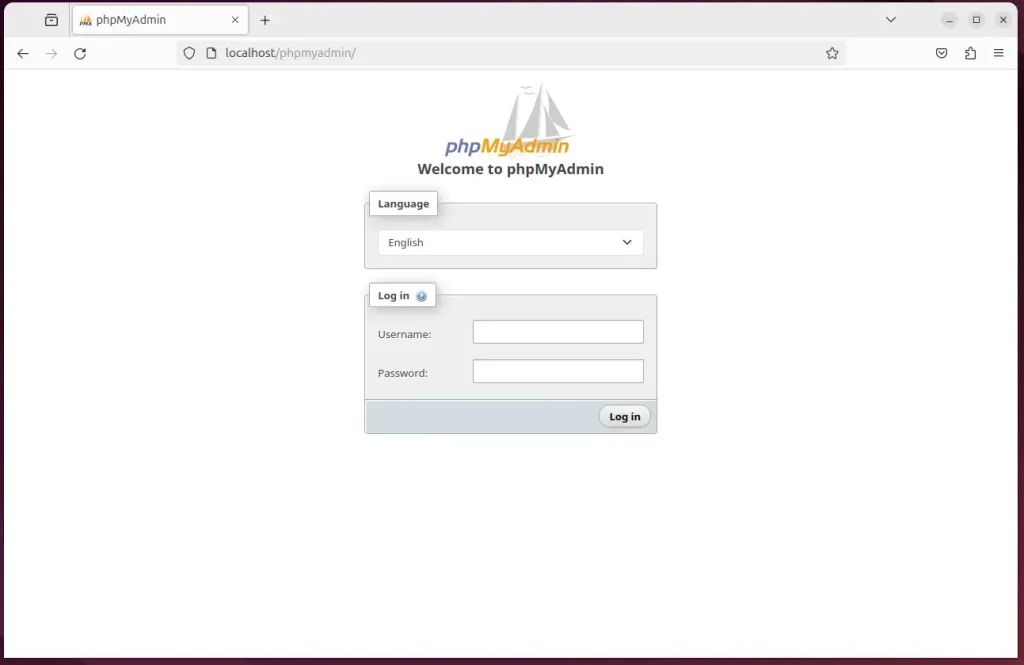
That’s it! You should now see the phpMyAdmin dashboard with your databases listed on the left.
If you followed the steps above and the /phpmyadmin page still doesn’t load (you get a “Not Found” error, for example), Apache probably isn’t loading the phpMyAdmin configuration. Try the fix below. Open the file shown in the next block for editing.
sudo nano /etc/apache2/apache2.conf
Then add the following line to the end of the file, and save it.
Include /etc/phpmyadmin/apache.conf
Then restart Apache so it reads the change.
sudo systemctl restart apache2
Reload /phpmyadmin in your browser. That should do it. If you want to undo the change, remove the line you added and restart Apache again.
Conclusion
- Installing phpMyAdmin with Apache on Ubuntu 24.04 gives you full database management through a user-friendly web interface.
- Apache, MariaDB and PHP, together with phpMyAdmin, make a solid environment for database administration.
- Securing your phpMyAdmin installation with Let’s Encrypt SSL/TLS protects your login details and the data you send.
- Following the steps above gives you a working setup, with phpMyAdmin reachable in your browser for everyday database tasks, using a dedicated account instead of root.
Have a question about this guide?
Answered by AI from this guide. Good questions may be added to this page — please don't include personal details.
Did this guide fix your problem?

About the Author
Richard
Tech Writer, IT Professional
Richard is a writer at Geek Rewind who turns complex IT tasks into clear, step-by-step guides. He draws on years of hands-on experience in system administration and enterprise IT operations, focusing on Windows, Linux and WordPress: the problems people actually run into, and the fixes that work. His server and WordPress guides come from systems he runs himself. Richard builds and maintains the platform behind Geek Rewind, from its Ubuntu servers and Nginx configuration to its custom WordPress plugins. Many new tutorials start with readers' questions, and he's always glad to answer them in the comments.
No comments yet — be the first to share your thoughts!