How to Set HDR JXR Wallpapers in Windows 11

HDR JXR wallpapers are desktop backgrounds saved in the JPEG XR format that display brighter highlights and deeper shadows than standard JPG or PNG pictures. Direct support for these high dynamic range images arrived in Windows 11 build 22621.1610 for displays that meet HDR certification standards.
Standard desktop pictures often look washed out on bright screens, but JXR files use extra color depth to make sunsets pop and night scenes look rich. You need a compatible monitor and the right settings turned on in Windows to see the full effect.
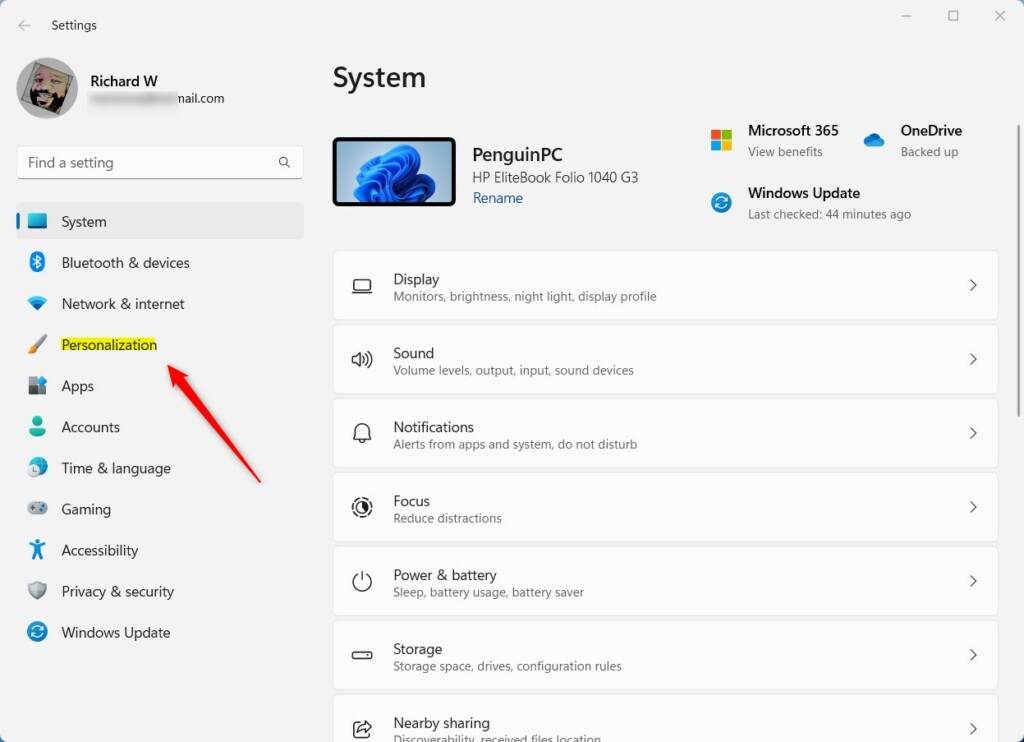
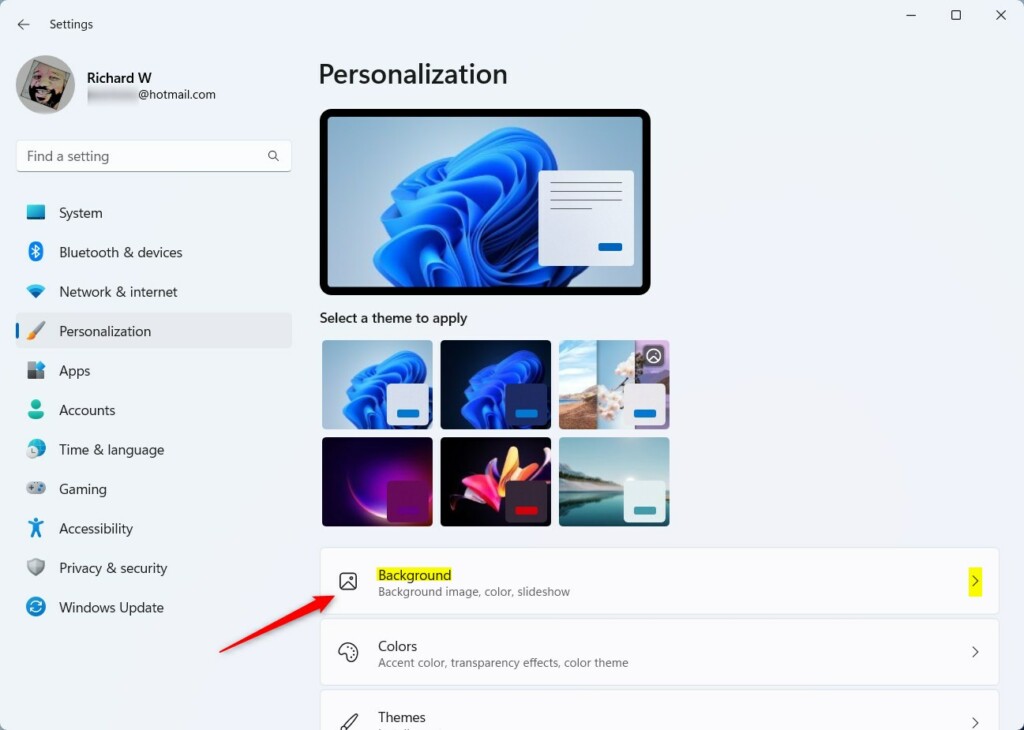
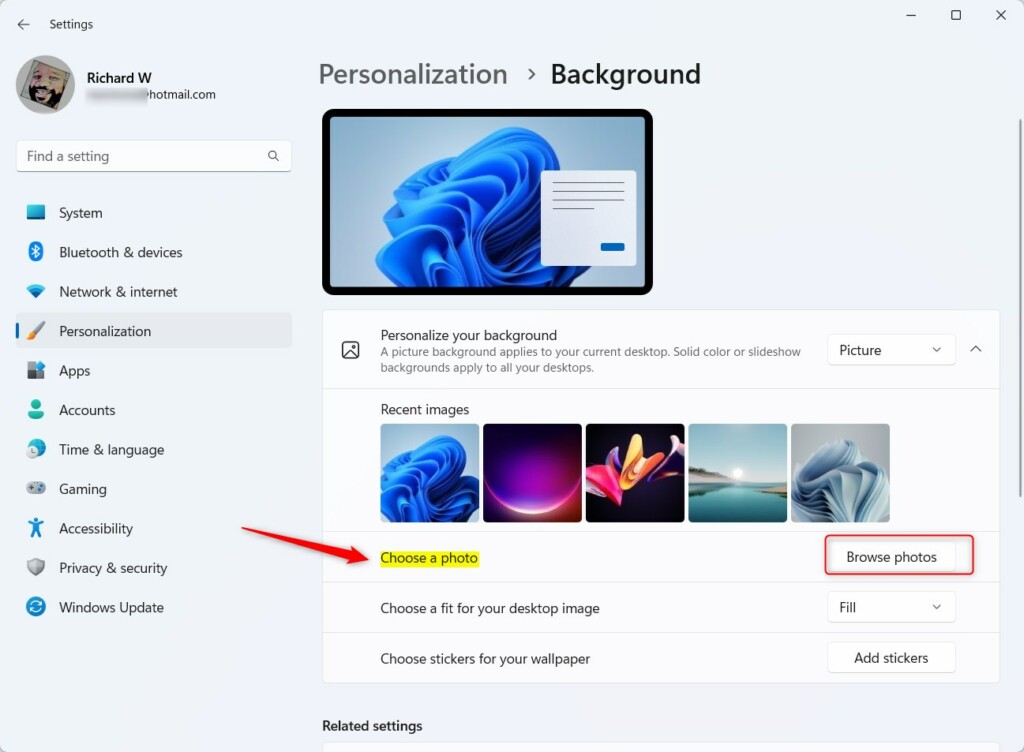
Open Settings , go to Personalization, then Background. Ensure the background is set to Picture, click Browse photos, and select your .jxr file. Your monitor must support HDR and have it enabled in Windows display settings.
Hardware Requirements
HDR JXR wallpapers Windows 11 hardware requirements include a monitor with DisplayHDR certification and a graphics card that supports HDR output. You also need Windows 11 build 22621.1610 or newer, and you must have HDR turned on in your display settings before you can use high dynamic range image files as your desktop background.
- Display: A monitor with DisplayHDR certification is recommended.
- GPU: A modern graphics card that supports HDR output is required.
- Software: Windows 11 build 22621.1610 or newer.
- Settings: HDR must be enabled in Windows 11 display settings.
Comparison: SDR vs. HDR Wallpaper
| Feature | SDR (JPG/PNG) | HDR (JXR) |
|---|---|---|
| Color Range | Limited | Wide Color Gamut |
| Brightness | Standard | High Peak Brightness |
| Visual Quality | Flat | Vivid and Realistic |
How to set your HDR wallpaper
Setting HDR JXR wallpapers Windows 11 takes just a few steps through your display and personalization settings. You need to open the Settings app , choose Personalization, click Background, and browse for your high dynamic range image file using the standard picture settings menu on your computer.
- Open the Settings app by pressing Win+I.
- Click on Personalization in the left menu.
- Click the Background tile.
- Ensure the dropdown is set to Picture.
- Click Browse photos and select your .jxr file.
- Open the Settings app by pressing Win+I.
- Click on Personalization in the left menu.
- Click the Background tile.
- Ensure the dropdown is set to Picture.
- Click Browse photos and select your .jxr file.
Troubleshooting
If display panels flicker during background application, check for updated graphics drivers. Switching between SDR (Standard Dynamic Range) and HDR modes frequently triggers a momentary blank screen. Verifying that Auto HDR is configured correctly resolves washed-out image tones.
Summary
- Windows 11 supports JXR files for high-quality HDR backgrounds.
- Ensure your monitor has HDR support enabled in display settings.
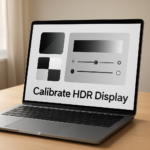
- Use the Windows HDR Calibration app for the most accurate colors.
- HDR wallpapers may increase battery usage on portable devices.
Reference: Windows Blog
Was this guide helpful?

About the Author
Richard
Tech Writer, IT Professional
Richard is a writer at Geek Rewind who turns complex IT tasks into clear, step-by-step guides. He draws on years of hands-on experience in system administration and enterprise IT operations, focusing on Windows, Linux and WordPress: the problems people actually run into, and the fixes that work. His server and WordPress guides come from systems he runs himself. Richard builds and maintains the platform behind Geek Rewind, from its Ubuntu servers and Nginx configuration to its custom WordPress plugins. Many new tutorials start with readers' questions, and he's always glad to answer them in the comments.



No comments yet — be the first to share your thoughts!