How to Enable Touch Mode in Microsoft Edge


Touch mode in Microsoft Edge changes the size of buttons and spacing between them, making it easier to tap with your finger on a touchscreen. Available since version 115.0.1851.0, this layout feature makes icons and tabs larger and pushes them further apart so you can use your PC like a tablet.
Microsoft Edge usually turns touch mode on by itself when it detects a touchscreen or a 2-in-1 computer. You can also turn it on or off manually whenever you want more breathing room for your taps.
Enable touch mode in Microsoft Edge by going to Settings, then Appearance. Under the Touch section, select Auto, On, or Off from the Touch mode menu. Close and reopen Edge for changes to take effect.
How to Change Touch Mode Settings
- Open Microsoft Edge.
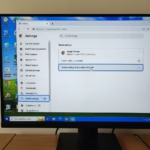
- Click the three dots button in the top right corner (you can also press Alt+F). Then, click on Settings.

micrsoft edge browser more option and settings - In the left-hand menu, click on Appearance.
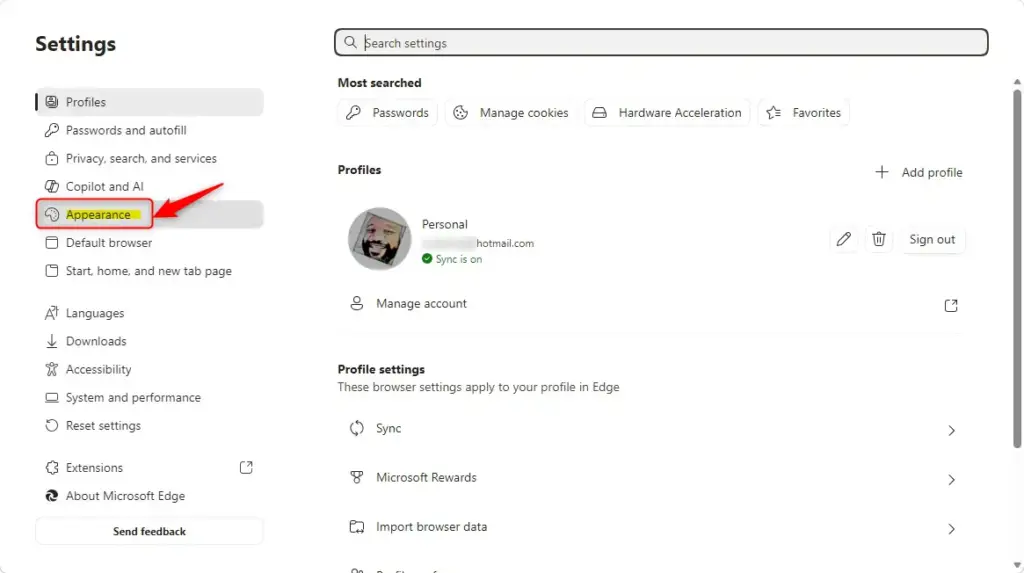
You can enable touch mode Edge settings through the main browser menu to make buttons and tabs easier to tap on a touchscreen. To change touch mode settings, open Microsoft Edge, click the three dots menu in the top right corner, select Settings, and open the Appearance tab where you will find the touch control options.
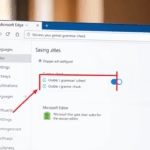
- Look for the Other appearance settings section, you will see a drop-down menu for Touch mode.
- Click the drop-down menu and choose one of the following:
- Auto (default): Edge decides automatically if touch mode is needed.
- On: Touch mode is always on.
- Off: Touch mode is always off.
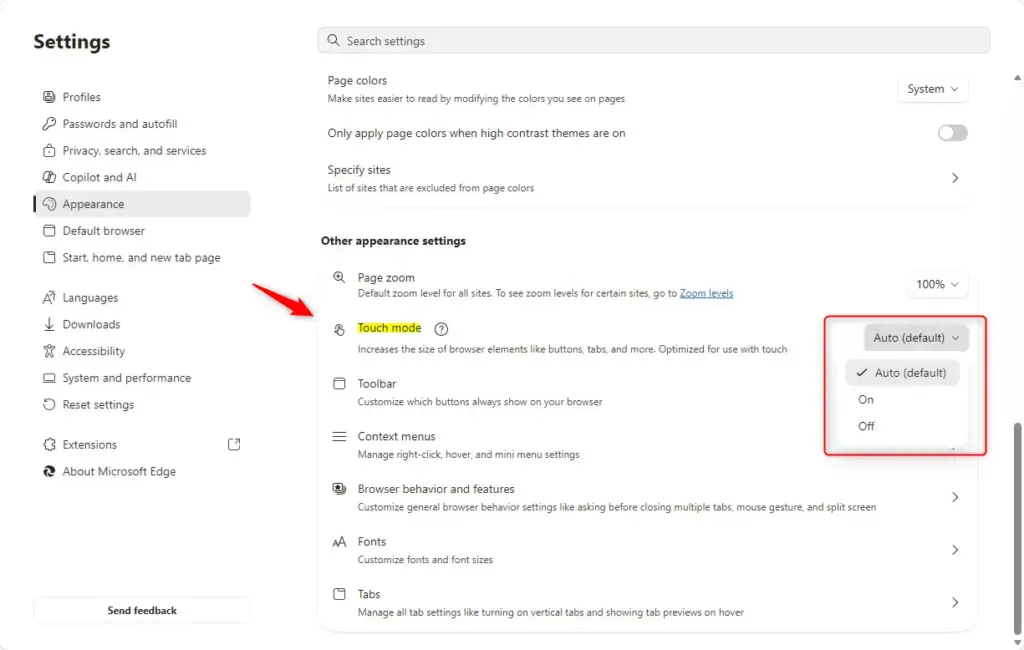
- You can now close the Settings tab.
Summary
Managing touch mode in Microsoft Edge is as simple as navigating to Settings Appearance You can set it to Auto, On, or Off. This helps adjust the browser’s interface for touch screen use.

No comments yet — be the first to share your thoughts!