How to Enable End Task in Windows 11 Taskbar

End Task in the Windows 11 taskbar adds a direct right-click shortcut to close frozen or stuck apps without opening Task Manager (a system monitor that shows running apps and resource use). Microsoft introduced this shortcut in Windows 11 version 23H2 to speed up how you force-quit unresponsive programs.
Turn on this feature once in the Settings app under System and for developers. After you turn it on, right-clicking any open app icon on your taskbar shows an End task option that stops the app right away.
Go to Settings System For developers and toggle “End task” to On. Right-click an app icon on the taskbar to see and select the “End task” option for frozen applications.
What happens when done?
Once enabled, right-clicking any application icon on your taskbar shows an End task option. Selecting it forces that program to close immediately. This is a safe way to close an unresponsive process without needing to restart your computer.
How to enable or disable End Task
To enable end task Windows 11 features, you need to open your Settings app and go to the developer options. This hidden shortcut lets you right-click any app on your taskbar and close it instantly without opening Task Manager . You can turn this feature on or off at any time by toggling a single switch in your system settings.
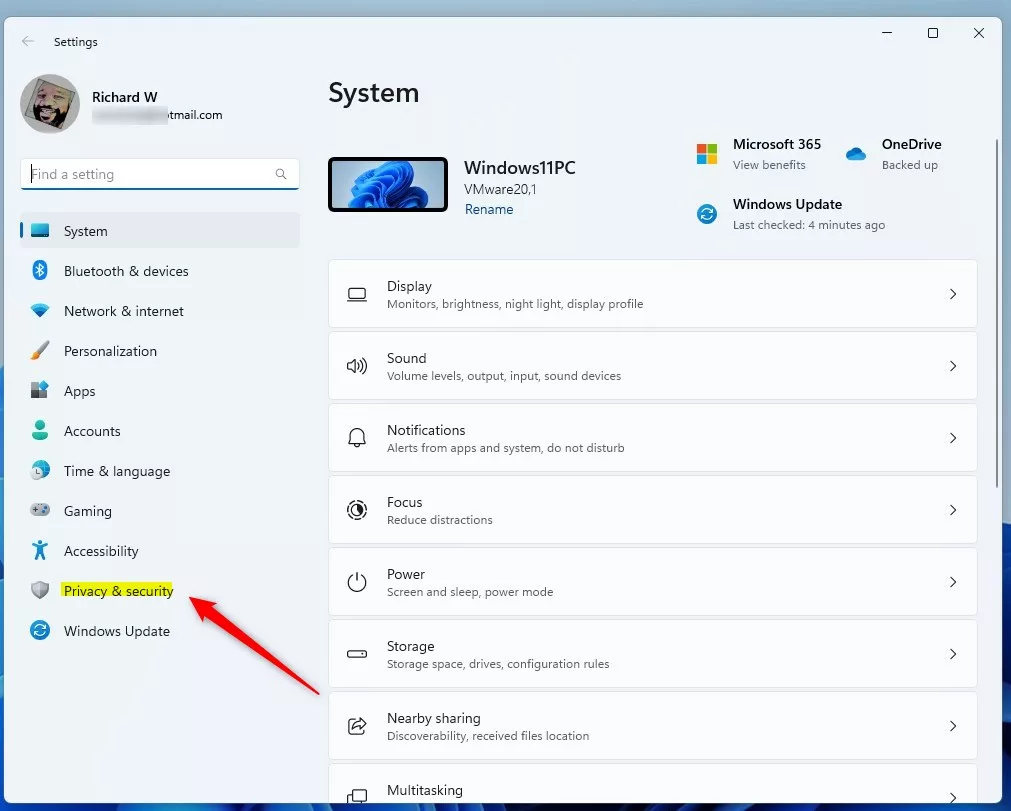
- Open the Settings app. You can do this by clicking the Start menu or by pressing the Win+I on your keyboard to launch the Windows Settings app.
- Click on System in the left-hand menu.
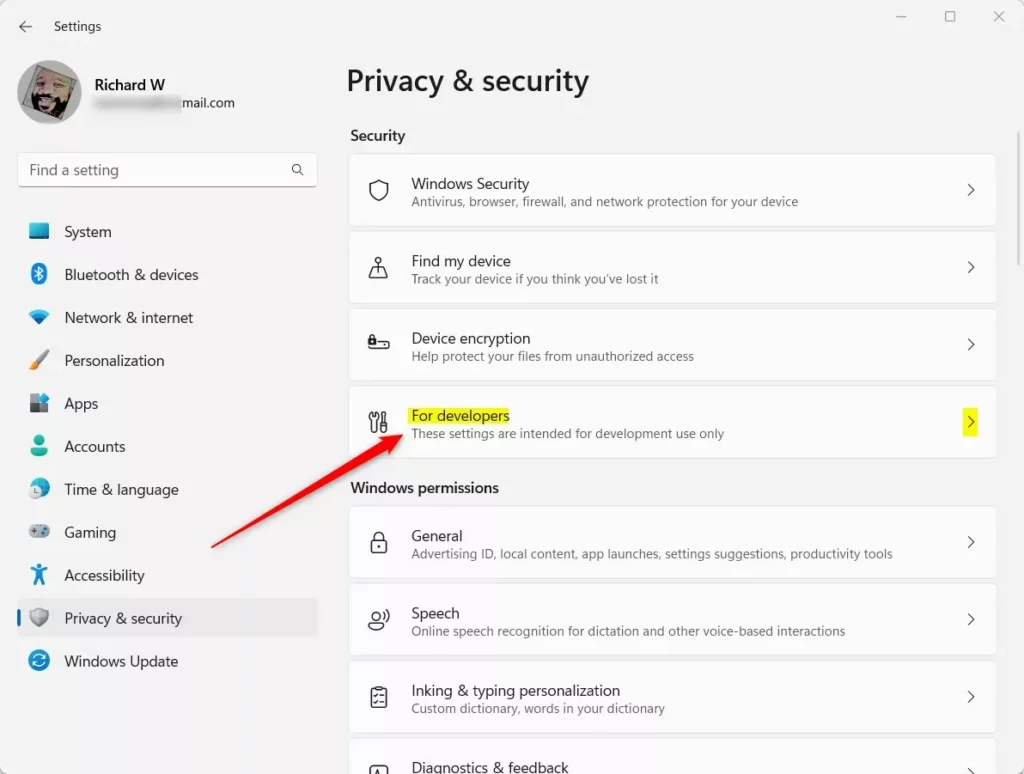
- Find and select the For developers tile on the right side of the screen.
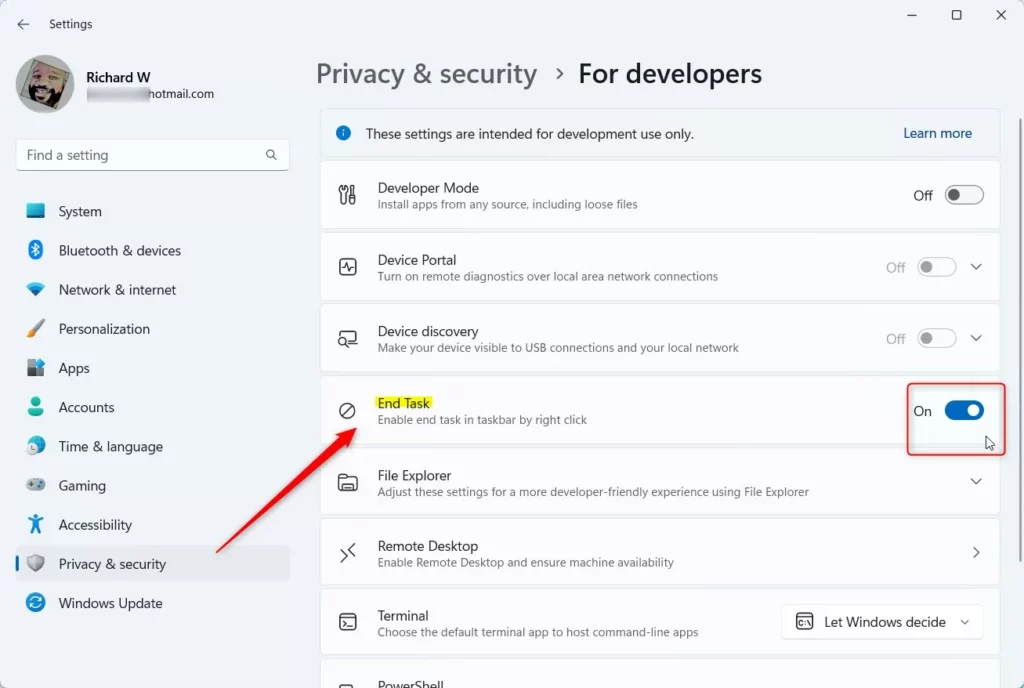
- Look for the End Task option. Toggle the switch to On to enable it.
Close the Settings app once you make your choice. You will see the change right away.
Troubleshooting and Limitations
If you do not see the option, ensure your Windows 11 build is up to date with the latest version installed. You can check for updates in Settings Windows Update . Keep in mind, this feature is only for Windows 11; it is not in Windows 10.
Summary
Turning on the “End Task” option in Windows 11 lets you close frozen apps right from the taskbar , making it more efficient to keep your computer running smoothly.
Was this guide helpful?

About the Author
Richard
Tech Writer, IT Professional
Richard is a writer at Geek Rewind who turns complex IT tasks into clear, step-by-step guides. He draws on years of hands-on experience in system administration and enterprise IT operations, focusing on Windows, Linux and WordPress: the problems people actually run into, and the fixes that work. His server and WordPress guides come from systems he runs himself. Richard builds and maintains the platform behind Geek Rewind, from its Ubuntu servers and Nginx configuration to its custom WordPress plugins. Many new tutorials start with readers' questions, and he's always glad to answer them in the comments.



No comments yet — be the first to share your thoughts!