Why Use Windows 11 Calculator Always on Top?


Always on top mode in the Windows 11 Calculator keeps the app pinned above your other open windows. It never gets buried behind a spreadsheet or a web browser. Pressing Alt+↑ Arrow inside the built-in Calculator app turns it on instantly.
The pinned view saves time and cuts out the clicking back and forth. It helps most when you copy figures from one window and check them against another, such as invoices, a budget sheet or a web page with prices. The feature needs no admin rights, no restart and no extra download. It works on both Windows 11 Home and Pro.
Press Alt+↑ Arrow inside the Windows 11 Calculator app to turn on always on top mode, or click the Keep on top button (two overlapping squares icon) in the calculator’s title bar. The calculator then stays pinned above all other windows while you work.
How to keep the Calculator on top
To use Calculator always on top, open the Calculator app from the Start menu and click the Keep on top button in the app’s title area, next to the mode name. The calculator then stays above every other window, so you can check numbers while you work in another program.
The steps below start from the Start menu . If Calculator is already open, skip ahead to the keyboard shortcut and the button.
- Open the Start menu. The Start menu appears with the search box at the top.
- Search for Calculator and click to open it. The Calculator window opens, usually in the mode you used last.
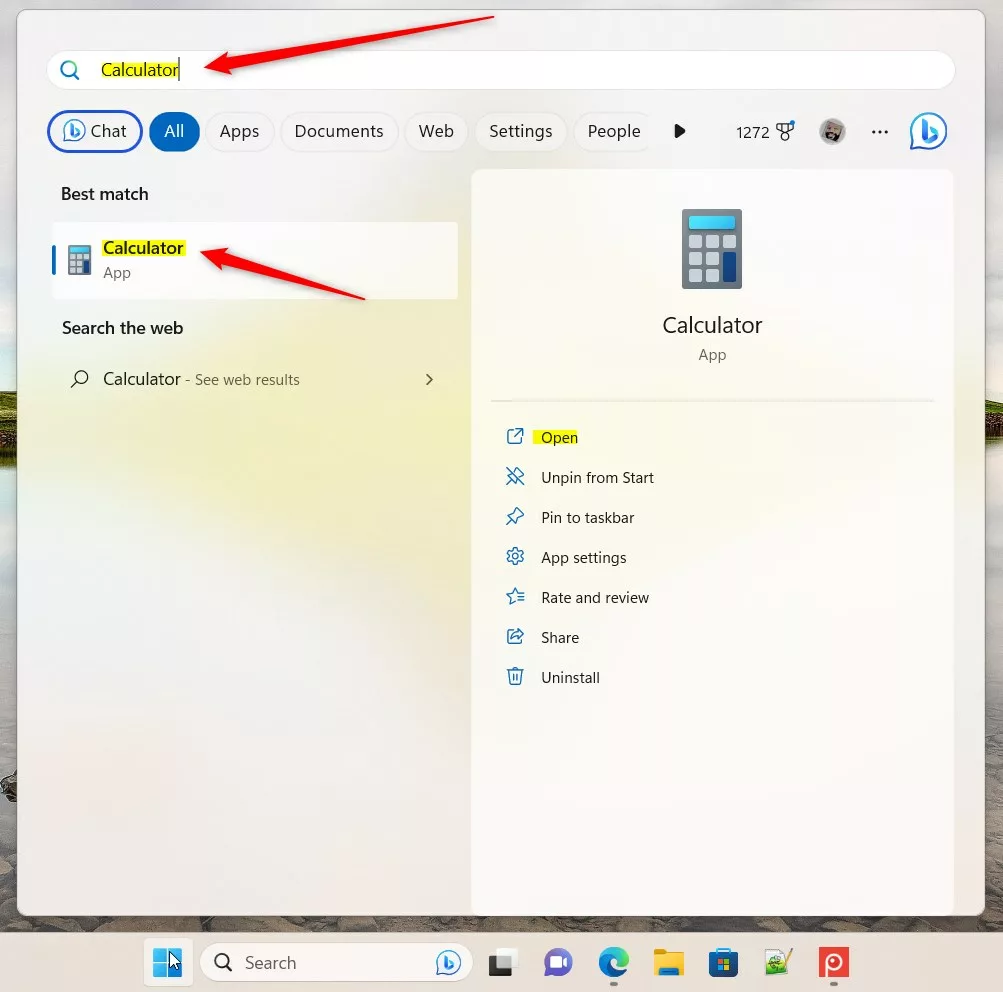
You can also press the Win, type Calculator and hit Enter to launch the app without the mouse. Once it is open, there are two ways to pin it:
- Click the Keep on top button, which shows an icon of two overlapping squares. It sits in the header, next to the mode name.
- Press Alt+↑ Arrow on your keyboard. This activates the pin instantly, even if you can’t spot the button.
Click anywhere on it first if another window has focus.
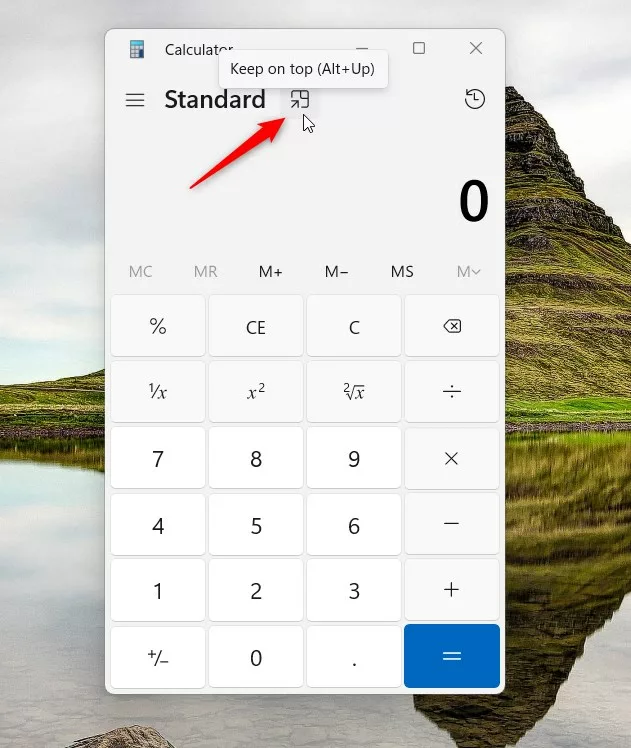
The calculator will now stay visible over any other window open on the screen. Click into your spreadsheet or browser and it stays in front. Drag it by its title bar to a free corner so it doesn't cover the data you need. Only the Calculator is pinned. Your other apps behave as normal.
Calculator modes and UI behavior
If you switch modes and the pin doesn't seem to apply, switch back to Standard and press Alt + Up Arrow there.
Troubleshooting missing features
Outdated app versions lack the Keep on top button. That is the usual reason the button is missing. To update Calculator:
- Open the Microsoft Store from the Start menu.
- Search for Windows Calculator.
- Install any available updates. If you see an Update button, click it and wait for it to finish.
- Close Calculator and open it again. The button should now appear.
The official Microsoft Support page offers additional help if problems persist.
How to return to normal mode
To return the calculator to a regular window, use either of these:
- Click the Keep on top button one more time.
- Press Alt + Down Arrow on the keyboard, which achieves the same result.
After that, the calculator drops back behind other windows whenever you click on them.
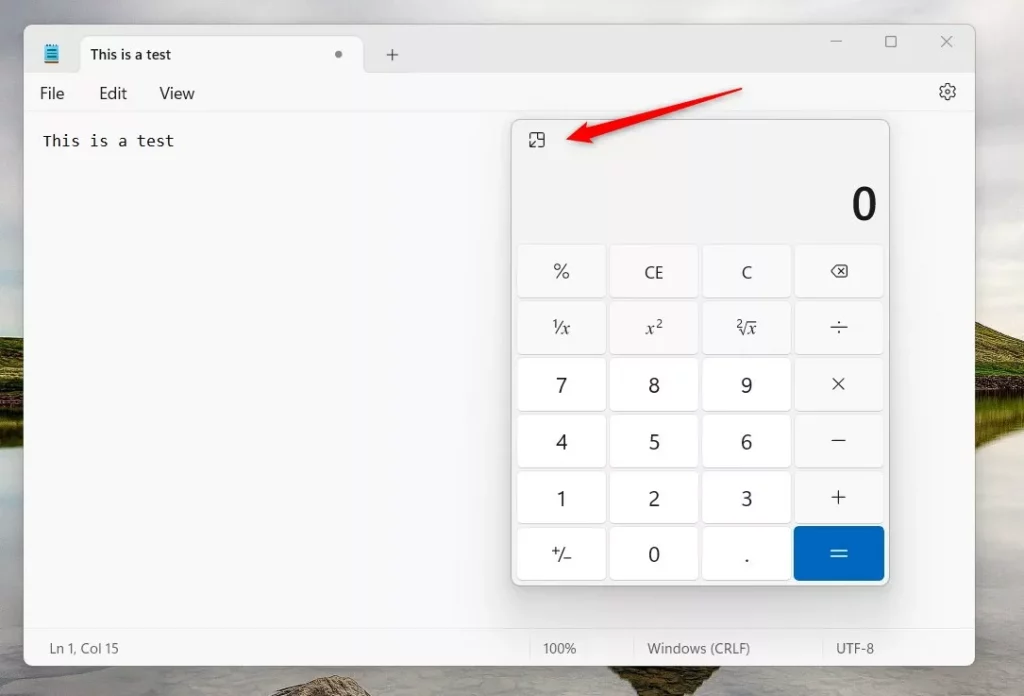
This setting toggles on and off whenever necessary. Pin the calculator while you work through a batch of figures, then release it when you are done so it stops covering your screen. Nothing is installed or changed system-wide, so there is nothing to undo afterwards.
Summary
The Windows 11 Calculator always on top feature is a practical way to keep calculations visible while you work on other tasks. Remember the two shortcuts: Alt + Up Arrow to pin and Alt + Down Arrow to release. If the button is missing, update the app from the Microsoft Store.
Was this guide helpful?

About the Author
Richard
Tech Writer, IT Professional
Richard is a writer at Geek Rewind who turns complex IT tasks into clear, step-by-step guides. He draws on years of hands-on experience in system administration and enterprise IT operations, focusing on Windows, Linux and WordPress: the problems people actually run into, and the fixes that work. His server and WordPress guides come from systems he runs himself. Richard builds and maintains the platform behind Geek Rewind, from its Ubuntu servers and Nginx configuration to its custom WordPress plugins. Many new tutorials start with readers' questions, and he's always glad to answer them in the comments.




No comments yet — be the first to share your thoughts!