How to Turn On Camera Notifications on Your Screen in Windows 11

Camera notifications in Windows 11 flash a visual alert on your screen the moment any app starts or stops using your webcam. This privacy feature shows a notification banner on your desktop whenever your camera becomes active, so you can keep track of background app activity. The original guide covers Windows 11 version 22H2 and later builds. Check your version with winver if you are not sure which one you run.
Open Registry Editor with Win+R, type regedit, then navigate to 🗝️HKEY_LOCAL_MACHINE\
Latest Update
You turn this on in Registry Editor, a tool for changing advanced system settings. The change is small: one new key and one new value. Mistakes in the registry can break Windows, so take a minute to prepare before you start:
- Create a restore point, or in Registry Editor use File Export to save a copy of the branch you are about to edit.
- Sign in with an administrator account. Windows will ask you to approve Registry Editor with a User Account Control prompt.
- Note that Registry Editor is included in both Windows 11 Home and Pro, so these steps work on either edition.
Once it is set up, you will always know when an app is using your webcam.
Why is this useful?
Most laptops have a small status LED next to the lens. If you cover the lens with opaque tape or a privacy sticker, that light is hidden too, so you cannot tell when the camera is active. Some software can also start a video stream without giving you any clear hardware signal.
An on-screen notification does not depend on the LED, so it still reaches you when the light is covered or out of sight.
Latest Update
Adhesive covers block external viewfinders successfully, though hardware indicators remain hidden during active sessions. On-screen notifications provide an extra layer of awareness.
When you enable on-screen notifications, Windows shows a pop-up alert whenever the camera turns on or off. It does this whether or not you can see the hardware light.
How to Turn On or Off Camera Notifications in 🪟 Windows 11
You configure this feature in the Registry Editor, which is a database that stores low-level system settings. There is no switch for it in the Settings app, which is why the registry is needed here.
Latest Update
Power users utilize this utility to modify parameters unavailable within the standard control panel. Manual configuration requires precision and caution.
Step 1Open the Registry Editor
- Press Windows key + R on your keyboard. The Run box opens in the lower-left corner of the screen.
- Type
regeditand press Enter. - Click Yes if the User Account Control prompt appears. Registry Editor opens with a folder tree on the left and values on the right.
If the Run box does not work for you, there are other ways to open Registry Editor. Consult the following tutorial for comprehensive instructions: How to open the Registry in Windows 11.
What Changed
Registry structures shift across OS versions. Always verify parameter names match your specific release.
Registry Editor Steps
Windows 11 camera notifications are turned on by creating a new key and a new value in the Registry Editor. You open the registry and create a folder named CameraApp inside HKEY_LOCAL_MACHINE\SOFTWARE\Microsoft\OEM\Device\Capture. Then you add a DWORD value called EnableCameraNotification and set it to 1. After that, Windows shows screen alerts whenever your webcam turns on.
Here is the whole process in short form. The sections below walk through each part with more detail.
- Open Registry Editor.
- Navigate to
HKEY_LOCAL_MACHINE\SOFTWARE\Microsoft\OEM\Device\Capture. - Right-click on the
OEMfolder. - Select
New > Key. - Name the new key
Capture. - Right-click on the new
Capturekey. - Select
New > DWORD (32-bit) Value. - Name the new value
NoPhysicalCameraLED. - Double-click
NoPhysicalCameraLED. - Set the
Value datato1. - Click
OK.
Step 2Go to the right folder
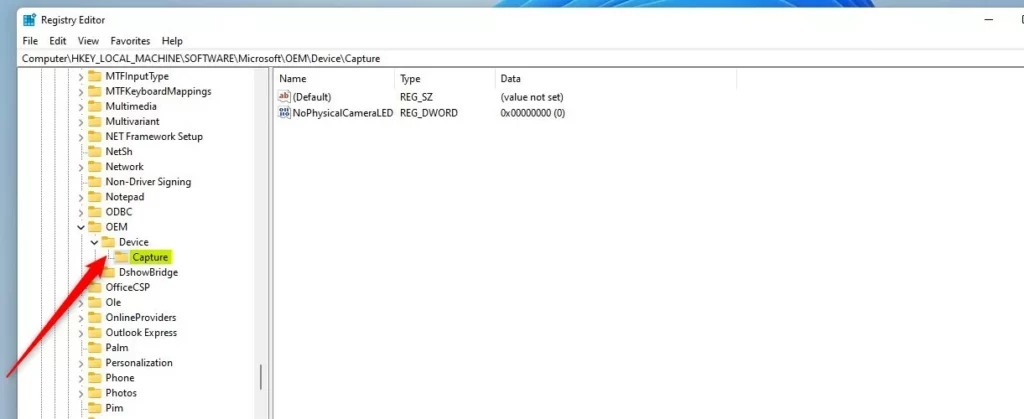
Go to this path in the left sidebar. Click the small arrow next to each folder to expand it, or paste the path into the address bar at the top of the Registry Editor window and press Enter:
HKEY_LOCAL_MACHINE\SOFTWARE\Microsoft\OEM\Device\Capture
You should now see the Notifications folder selected. If the Capture folder is missing, create it like this:
- Right-click on the
Devicefolder in the left sidebar. - Select New Key. A new folder appears under it with its name highlighted for editing.
- Name the new folder
Captureand press Enter. Type the name exactly, because the registry treats a misspelled name as a different key.
Step 3Create a new setting
- Select the
Capturefolder in the left sidebar. - Right-click blank space in the right pane.
- Hover over New, then click DWORD (32-bit) Value. A new entry appears in the right pane with its name ready to edit.
Name this new value NoPhysicalCameraLED and press Enter. Use the exact spelling. If you right-clicked the wrong spot and the value is in the wrong key, delete it and repeat the step.
Step 4Change the value
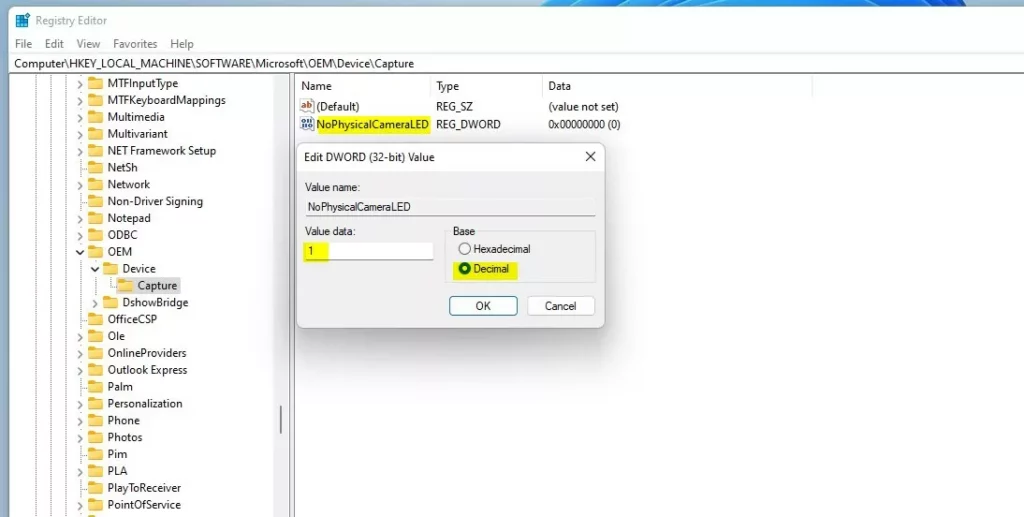
Double-click the NoPhysicalCameraLED entry to open its property sheet. The window that opens has a "Value name" box and a "Value data" box. Choose the data like this:
- To turn on the camera notifications, type
1in the "Value data" box. - To turn off the camera notifications, type
0instead. You can come back and change this at any time, which also makes it your way to undo the change.
Click OK to save. The window closes, and the new number shows in the "Data" column next to your value.
Step 5Close Registry Editor
Close the Registry Editor, then restart the computer. Save any open work first. Rebooting makes sure Windows reads the new setting. Registry changes in this area often do not take effect until the next start.
What happens next?
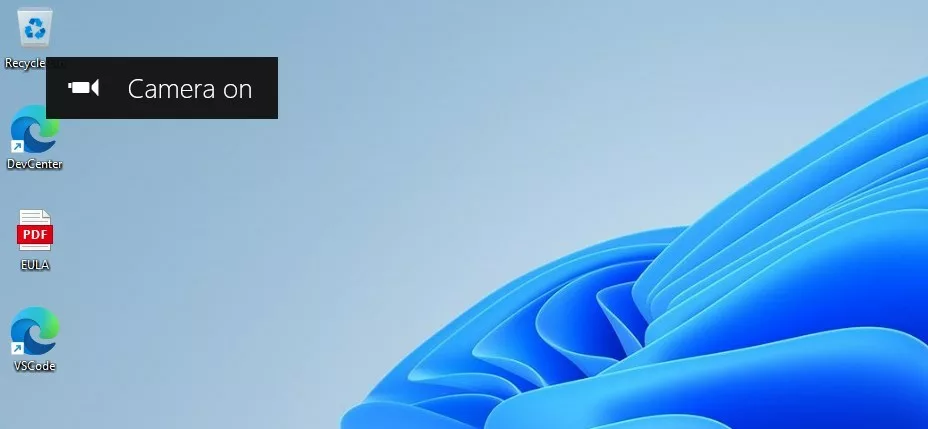
To test it, open any app that uses the camera, such as the Camera app. From now on, webcam activations trigger an on-screen alert like this one:
Summary
- Turning on these notifications helps you know exactly when your camera is being used.
- If you cover your camera lens, the alert is a helpful reminder that your camera might still be active.
- You can easily turn this feature on or off in the Registry Editor by changing the value data and restarting.
Windows 11 camera notifications give you instant on-screen alerts whenever an app accesses your webcam, which adds a layer of privacy. These alerts work alongside physical lens covers to keep you aware of when your camera is active. You can change the setting at any time using the registry.
Latest Update
Revoke unnecessary application permissions via Privacy & security controls. Auditing the Camera access history log reveals timestamps of recent hardware usage.
What is the Camera On Notification?
Windows 11 displays banner notifications that tell you when the camera is in use. This gives you better awareness of background video capture. Because the alert does not rely on the indicator light, it still works when the light is covered or hidden, and it makes unauthorized recording easier to spot.
Was this guide helpful?




No comments yet — be the first to share your thoughts!