

BitLocker helps protect your computer data. It makes sure only people you allow can see your files. Any new files you create on a BitLocker-protected drive are also protected automatically.
You can protect external, external drives, and operating system drives using BitLocker. When you turn on BitLocker for your main drive (the one with Windows on it), it automatically unlocks the drive at startup using a TPM chip.
You can turn BitLocker protection off for a short time and turn it back on whenever you want. This is called suspending and resuming.
Why Suspend BitLocker?
Sometimes you need to temporarily turn off BitLocker protection. This might be necessary when you’re making hardware changes or upgrading Windows. But remember: this is only temporary. Turn BitLocker back on as soon as you’re done. Your data needs that protection.
What Happens When You Suspend BitLocker?
When you suspend BitLocker, your drive stays unprotected until you turn the protection back on. For your main Windows drive, some actions will automatically turn protection back on. For other drives, protection stays off until you manually resume it—even after restarting your computer.
How to Suspend or Resume BitLocker in Windows
Method 1: Using Control Panel
- Open open the Control Panel and go to System and Security → BitLocker Drive Encryption.
- Look for the drive you want to suspend under “Operating system drive.”
- Click the “Suspend protection” link next to that drive.
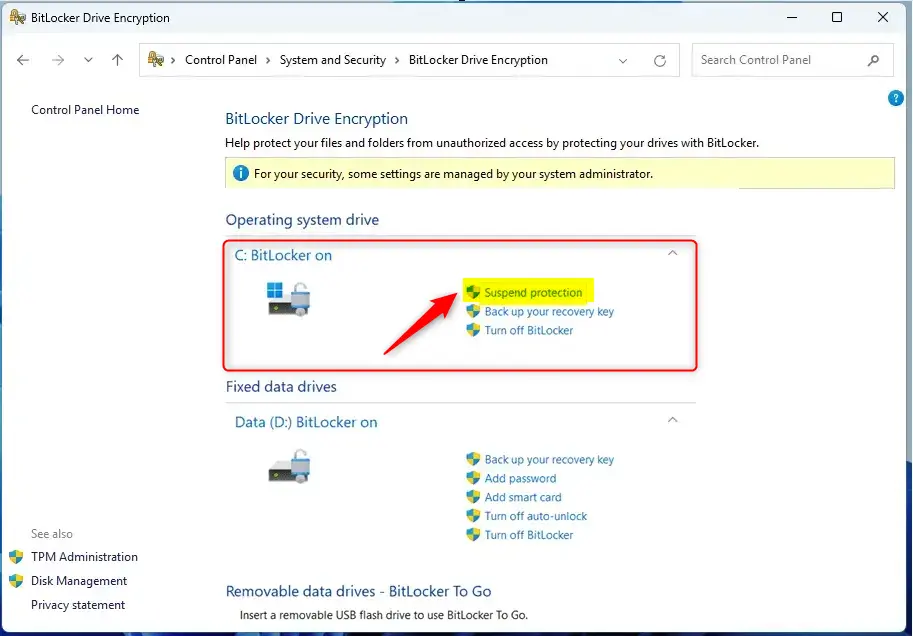
- A pop-up window will appear. Click Yes to confirm.
For your main Windows drive, BitLocker will stay suspended until you turn it back on or restart your computer.
For other drives, BitLocker stays suspended even after you restart. You must manually turn it back on.
How to Resume BitLocker Using Control Panel
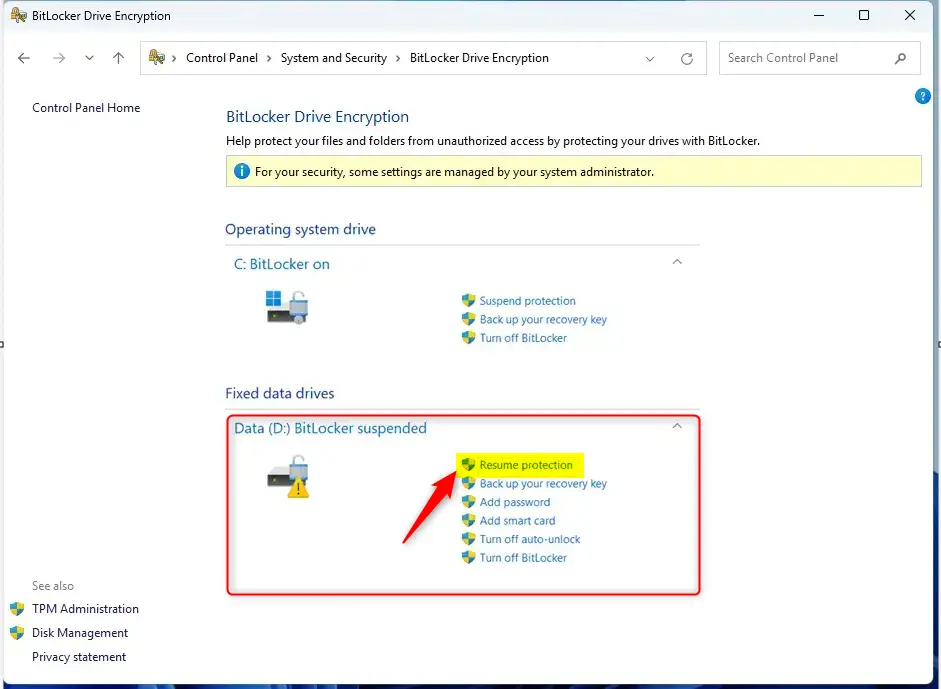
- Follow the same steps: Control Panel → System and Security → BitLocker Drive Encryption.
- Click “Resume protection” for the drive you want to protect again.
Method 2: Using File Explorer
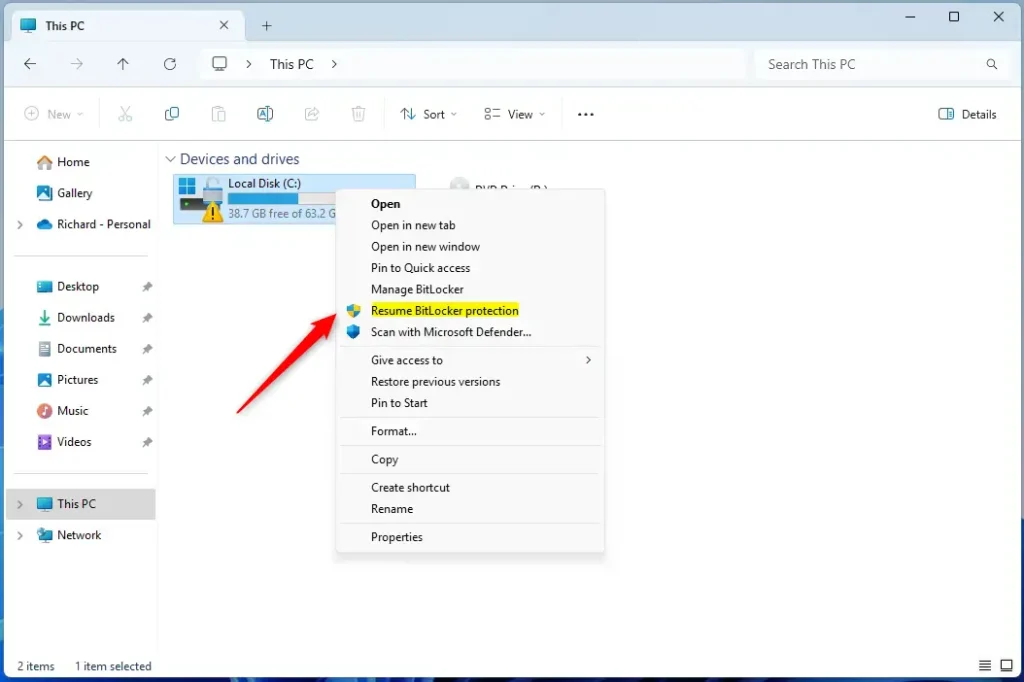
- Open File Explorer.
- Right-click on the drive you want to resume.
- Select “Show more options.”
- Click “Resume BitLocker protection” from the menu.
How to Suspend or Resume BitLocker Using PowerShell
You can also use Windows PowerShell to control BitLocker. ⚠️ This requires administrator privileges.
- Open Windows Terminal as administrator and select the PowerShell tab.
Suspend BitLocker for One Drive
Type this command and replace the drive letter with your drive:
manage-bde -protectors -disable <drive letter>:Example:
manage-bde -protectors -disable C:Resume BitLocker for One Drive
Type this command:
manage-bde -protectors -enable C:Suspend BitLocker for All Drives
Type this command:
Get-BitLockerVolume | Suspend-BitLockerResume BitLocker for All Drives
Type this command:
Get-BitLockerVolume | Resume-BitLockerSuspend BitLocker for Your Main Drive with Restart Limits
By default, BitLocker automatically turns back on for your main Windows drive when you restart. If you want to keep BitLocker off for a specific number of restarts, use this command:
Suspend-BitLocker -MountPoint "C:" -RebootCount <restarts #>Replace <restarts #> with a number between 0 and 15. This tells your computer how many times to restart before BitLocker automatically turns back on.
Example:
Suspend-BitLocker -MountPoint "C:" -RebootCount 0Using 0 means BitLocker stays off until you manually turn it back on.
Summary
What is BitLocker? It’s Windows security software that encrypts your drives. Only authorized users can access your data. New files are automatically protected too.
Why suspend it? You need to temporarily turn it off when making hardware changes or upgrading Windows.
What happens when suspended? Your drive has no protection until you turn BitLocker back on. For your main drive, some actions turn it back on automatically. For other drives, you must manually resume it.
How to control it: You have three ways: Control Panel, File Explorer, or PowerShell commands. PowerShell requires administrator access.
Important reminder: Always resume BitLocker protection as soon as you’re done with whatever required you to suspend it. This keeps your data secure.
How do I suspend BitLocker protection on my Windows 11 drive?
Can I resume BitLocker protection after suspending it?
What happens when I suspend BitLocker protection?
Is there a way to manage BitLocker protection using PowerShell?
Can I suspend BitLocker protection for multiple drives at once?



Leave a Reply