How to Stream or Mirror Google Drive Files in Windows 11


Streaming or mirroring Google Drive files in Windows 11 lets you choose how your cloud storage interacts with your local hard drive.
Google Drive offers two main modes for your PC: streaming (which keeps files online and downloads them only when opened to save space) and mirroring (which stores a complete offline copy of every file directly on your computer).
Open the Google Drive icon in your taskbar , click the Settings gear icon, select Preferences, then Folders from Drive. Choose either Stream files or Mirror files to manage how your Google Drive content syncs to your Windows 11 PC.
Why should you change how Google Drive works?
Adjusting these sync settings to conserve local drive space or ensure your files remain available offline. Finding the right balance keeps your local hard drive from filling up while maintaining easy access to the cloud.
What happens when you are done?
This choice determines whether your computer streams files from the internet as you open them or saves a full copy locally. This choice directly impacts your bandwidth usage and how your computer handles offline access.
Stream files
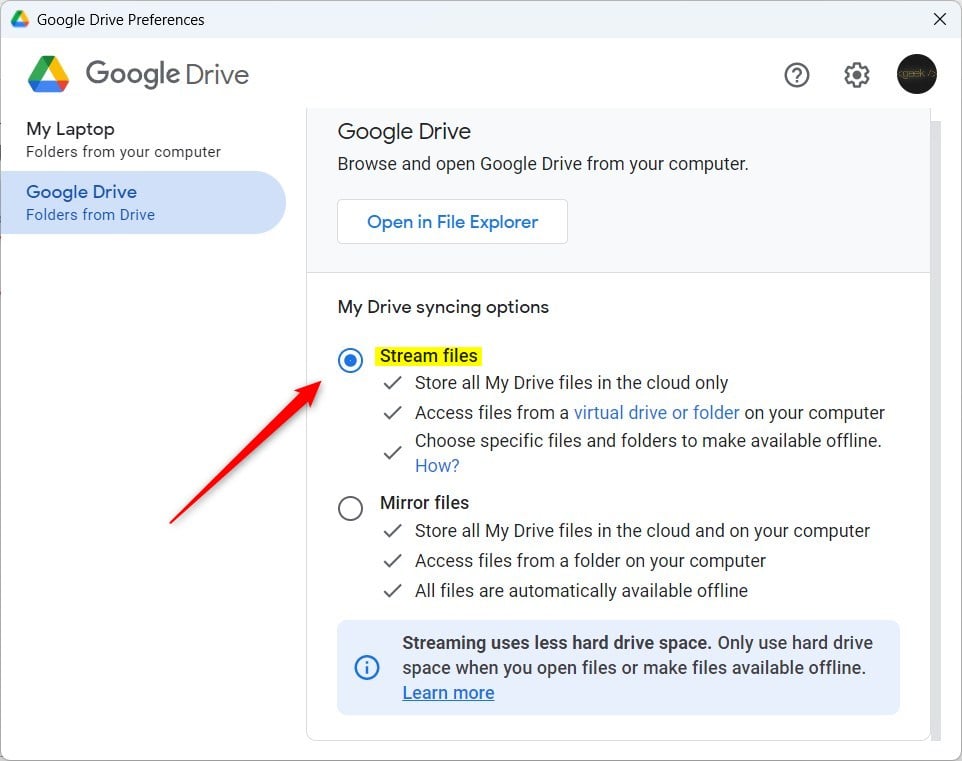
Cloud storage conserves space on your hard drive. Accessing these files happens through a virtual folder on your computer. Selecting this method works best for those with limited storage or a fast, reliable internet connection.
Mirror files
Mirroring downloads a complete copy of your cloud storage to a local folder, making every file available offline immediately.

Access files from a folder on your computer.
All files are automatically available offline.
How to switch between Stream and Mirror
You can stream or mirror Google Drive files by changing your sync settings inside the desktop app. Streaming keeps all your files in the cloud to save space on your hard drive, while mirroring downloads everything to your computer so you can open them offline. You can switch between these two modes whenever your storage needs change.
- Open the Google Drive icon in your taskbar. You may need to click the Taskbar overflow arrow first.

- Click the Settings (gear icon) and select Preferences.

- Click Folders from Drive on the left side of the window.
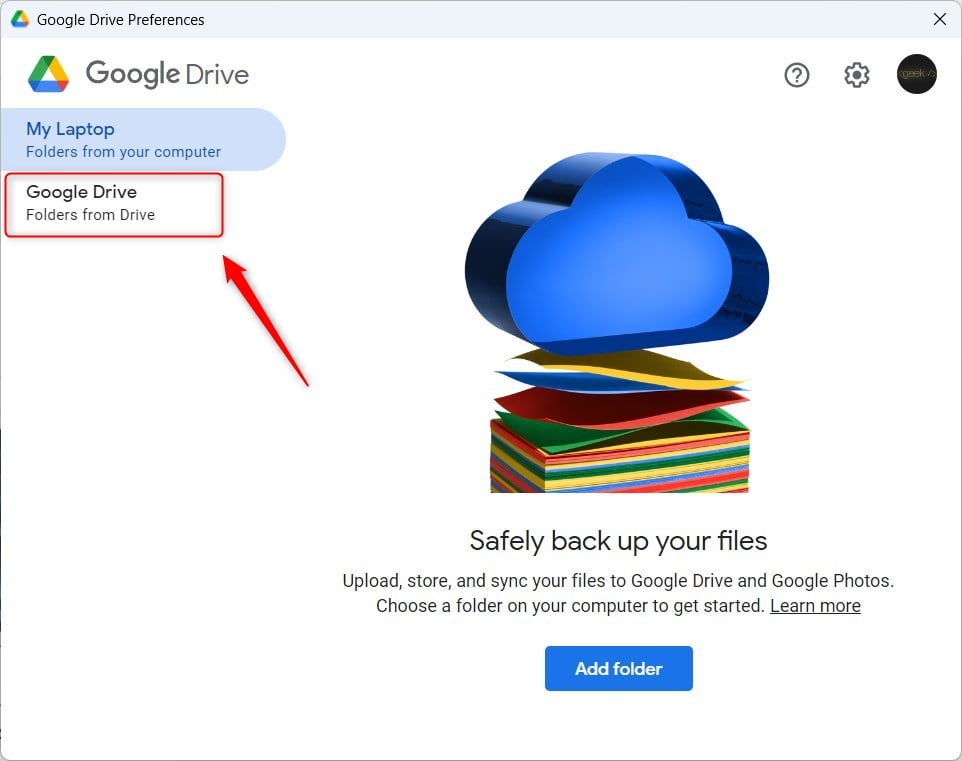
- Choose either Stream files or Mirror files.
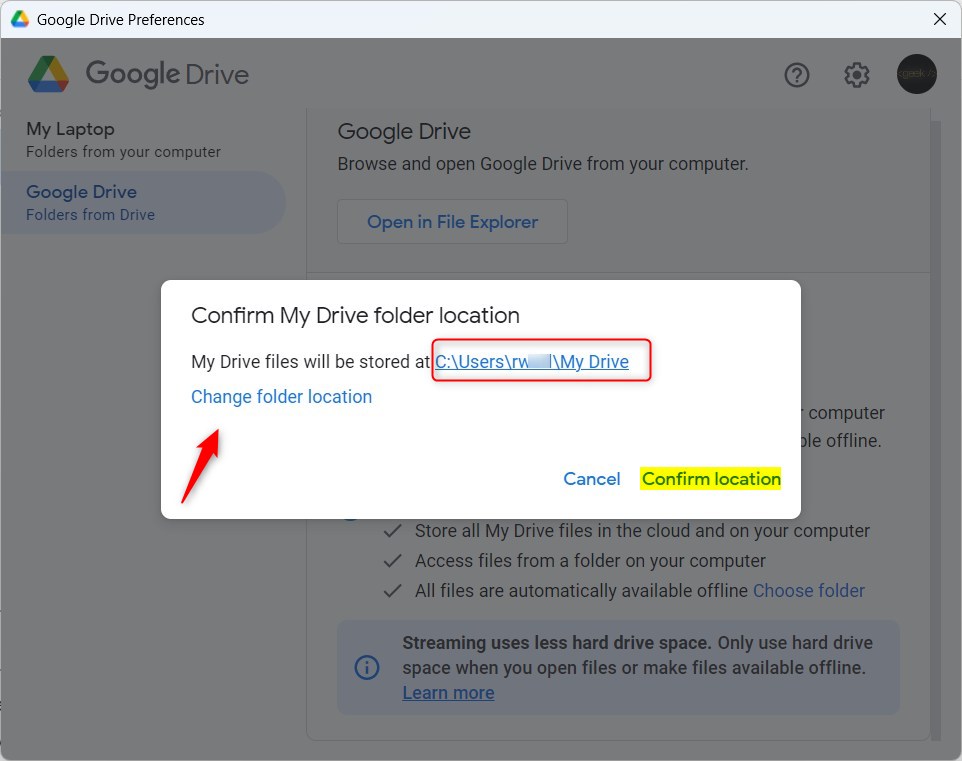
- If you choose to mirror, you must pick a folder on your computer. By default, it creates a folder at
C:\Users\genericuser\My Drive.
You can also change the Google Drive download location to any folder you prefer. Clicking "Confirm location" in Google Drive for Desktop version 64.0.4.0 locks in the new download location for your streamed files.
Storage Impact and Local Disk Management
Disk space usage depends entirely on which sync method you pick.
Troubleshooting and Common Errors
Troubleshooting Google Drive streaming or mirroring on Windows 11 involves checking for common issues like files not syncing or showing up.
Use-Case Decision Matrix
Deciding whether to stream or mirror your Google Drive files depends on your internet speed and how much storage space you have on your computer.
Summary
Google Drive offers two main ways to access your files on Windows 11: streaming saves space by keeping files online, while mirroring keeps a full copy on your PC for offline access.
Does mirroring take up space on my computer?
Yes, mirroring creates a full copy of your files on your local hard drive. This means your computer will use as much storage space as the total size of your files in Google Drive. Running low on disk space makes streaming a better option.
Which mode is better for slow internet connections?
Mirroring works better for slow or unstable internet connections. Because the files are stored locally on your computer, waiting for them to download every time you open them is unnecessary. Working on your files offline happens seamlessly, and they will sync once your connection is restored.
Was this guide helpful?

About the Author
Richard
Tech Writer, IT Professional
Richard, a writer for Geek Rewind, is a tech enthusiast who loves breaking down complex IT topics into simple, easy-to-understand ideas. With years of hands-on experience in system administration and enterprise IT operations, he’s developed a knack for offering practical tips and solutions. Richard aims to make technology more accessible and actionable. He's deeply committed to the Geek Rewind community, always ready to answer questions and engage in discussions.



[…] Turning on chat backup will prompt you to select a folder to store the backups into or create a new folder. If you want your backup synced to the cloud, save it into a backup folder like OneDrive, Dropbox, or Google Drive. […]
[…] to a folder or driver letter, pause syncing, add files and photos to sync with Google Drive, stream or mirror files on Google Drive, and […]
[…] Drive to a folder or driver letter, pause syncing, add files and photos to sync with Google Drive, stream or mirror their files on Google Drive, and […]