How to Set an Alarm in Windows 11

Setting an alarm in Windows 11 uses the built-in Clock app, which stores any number of alarms and rings them even when the app is closed. The fastest route is Start Clock Alarm > the add button, then set a time and save.
The Clock app is the Windows 11 name for what Windows 10 called Alarms & Clock. It also holds a timer, stopwatch, world clock and Focus sessions (timed work periods with short breaks). This article covers only the alarm side: creating one, editing or deleting it, and making sure it sounds when your PC is locked or idle.
No administrator rights are needed for any step here.
Open Start , type Clock, and press Enter, then select Alarm in the left pane and select the + button to add one. Set the hour and minute, give it a name, choose repeat days if needed, then select Save. The alarm rings with a sound and a notification, provided the PC is on and not in shutdown or hibernation.
What You Need Before You Set an Alarm
The Clock app ships with Windows 11, so there is nothing to install on most PCs. If it is missing, the troubleshooting section below shows how to get it back.
Three things decide whether an alarm sounds on time, and it helps to check them now:
- The PC must be on. An alarm cannot ring on a PC that is shut down or hibernating (a power-saving state that saves your open work to disk). Sleep is less clear-cut, and a later section covers it.
- The volume must be up. The alarm plays through your default speakers or headphones. If the system volume is muted, you get a silent pop-up.
- Notifications must be allowed. The alarm appears as a Windows notification with Snooze and Dismiss buttons. If you have blocked Clock notifications, you may miss it.
How to Set an Alarm in 🪟 Windows 11
These steps set an alarm in Windows 11 from a blank Clock app to a saved, active alarm. Steps 9 to 11 are optional: step 9 names the alarm, step 10 sets the repeat days, and step 11 changes the alarm sound and snooze time. The sound and snooze choices are worth a look.
- Select Start on the taskbar. The Start menu opens with a search box at the top.

- Type Clock into the search box. The Clock app appears as the top result.
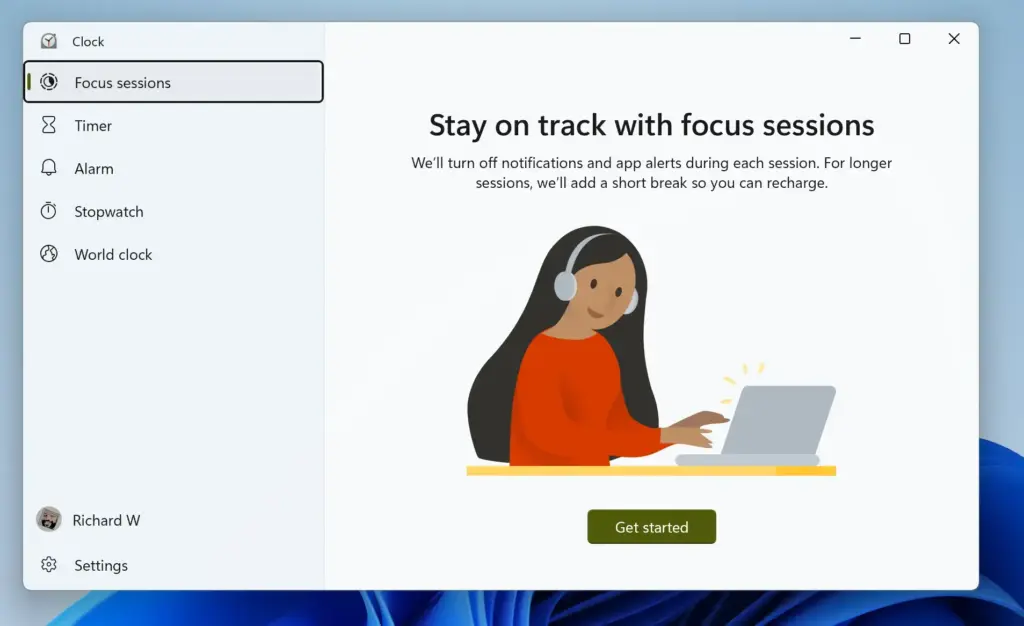
- Press Enter to open the Clock app. The window opens on the last page you used, often Focus sessions.
- Select Alarm in the left-hand pane. If the window is narrow, the pane shrinks to icons, and you pick the alarm icon instead. The page lists your alarms. A new install often shows a 7:00 AM alarm that is switched off.
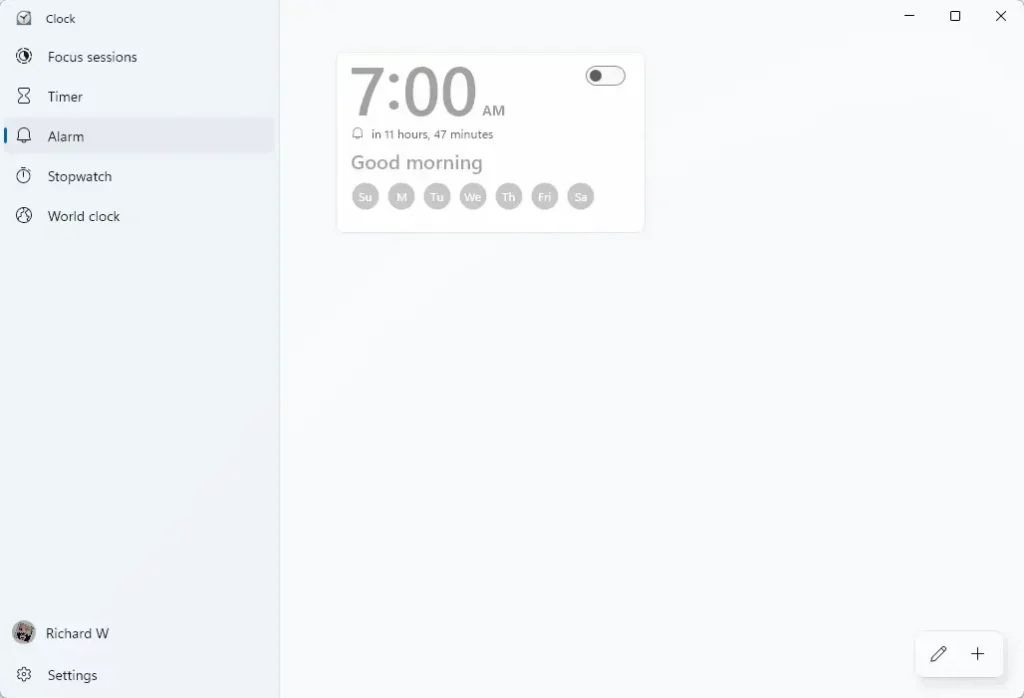
- Select the + button at the bottom right of the window. The Add new alarm dialog opens.
- Scroll the hour column to the hour you want. Use your mouse wheel, or select the arrows above and below the number.
- Scroll the minute column to the minute you want. Alarms can be set to any single minute, not only to the quarter hour.
- Choose AM or PM if the time picker shows that column. PCs set to a 24-hour clock show no AM or PM choice, so skip this step on those.
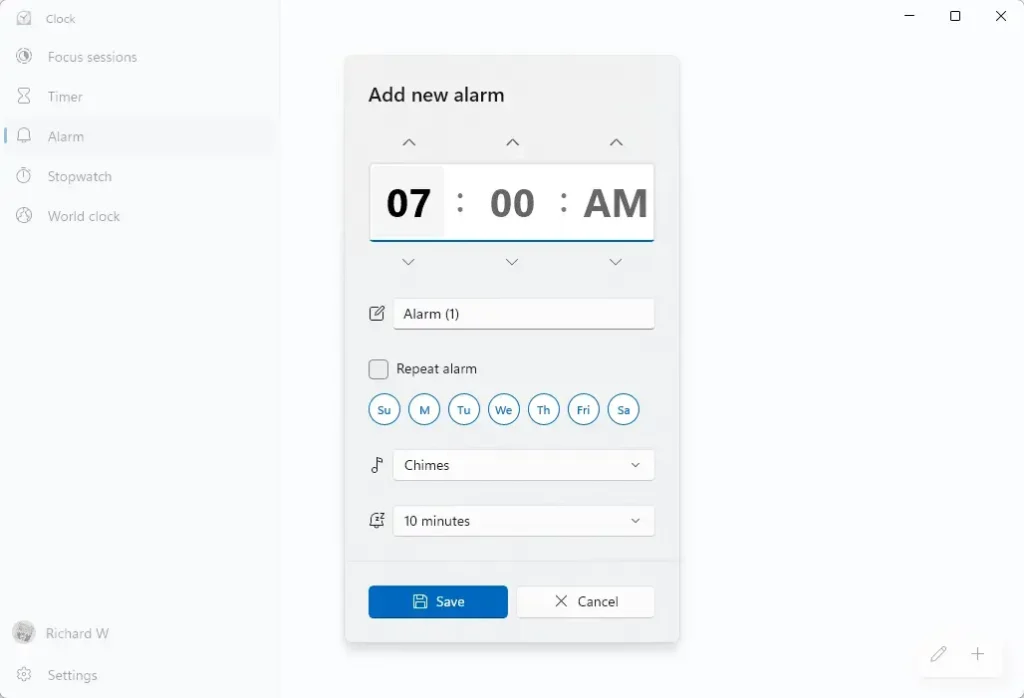
- Click the Alarm name box and type a label such as "Stand-up call". The name appears in the notification when the alarm rings, which helps if you set several.
- Tick the repeat option and select the days you want. Leave it unticked for a one-time alarm. A repeating alarm stays active and rings on every day you select.
- Open the Sound list and pick a tone. Then open the Snooze time list and choose how long the alarm waits after you press Snooze.
- Select Save at the bottom of the dialog. The dialog closes and the alarm appears in your list with its time, name and days.
- Check that the toggle switch beside the new alarm is on. An alarm with the toggle off never rings. Windows may also show a short message saying how long remains until it sounds.
Test the alarm before you rely on it. Create one for two minutes from now, lock your PC, and wait. If you hear it and see the notification, the setup works.
What You See When the Alarm Rings
At the set time, a notification appears at the bottom right of the screen, and the alarm sound plays. The notification shows the alarm name and two buttons: Snooze and Dismiss.
Select Snooze to silence it until the snooze time passes. Select Dismiss to stop it. A one-time alarm turns itself off after it rings. A repeating alarm stays on and rings again on the next chosen day.
Edit, Turn Off or Delete an Alarm
You manage every alarm from the same Alarm page in the Clock app. Turning an alarm off keeps it for later. Deleting it removes it for good.
Turn an Alarm Off Without Deleting It
Use this for an alarm you only need on some weeks, such as a holiday or a different shift.
- Open the Clock app and select Alarm.
- Find the alarm in the list.
- Select the toggle switch beside it so it shows as off. The alarm stays in the list and keeps its settings.
- Select the toggle again to turn it back on later.
Change the Time, Name or Days of an Alarm
Editing reopens the same dialog you used to create the alarm, with the current values filled in.
- Open the Clock app and select Alarm.
- Select the alarm you want to change. The edit dialog opens.
- Change the time, name, repeat days, sound or snooze time.
- Select Save. The list updates with the new details.
Delete an Alarm Permanently
If you might need the alarm again, turn it off instead.
- Open the Clock app and select Alarm.
- Select the alarm you want to remove. The edit dialog opens.
- Select the trash can (delete) icon in the dialog. The alarm disappears from the list.
If your version of Clock has no trash can icon, look for an edit button beside the add button. It lets you tick several alarms and delete them together. The Clock layout changes between Windows 11 updates, so your screen may look a little different.
Make Sure the Alarm Sounds When You Need It
Most failed alarms come from the PC state, not from the alarm itself. Check these areas in order.
Sleep, Hibernate and Shut Down
The Clock app can ring while the screen is locked. A shut-down or hibernating PC cannot ring at all. Do not count on an alarm if you sign out of Windows either.
Whether a PC can ring an alarm during sleep depends on its hardware. Some PCs, especially newer laptops that use Modern Standby (a low-power state that keeps parts of Windows running), can sound an alarm from sleep. Others stay silent until you wake them. The app gives no setting that forces a wake-up, so test it on your own PC before you trust it overnight.
To keep the PC awake until the alarm rings, adjust the sleep timers. Open Settings System Power & battery and expand the screen and sleep timeout section. Set Sleep to a long period, or to Never, while plugged in. This uses more power, so you may want to switch it back afterwards.
Volume and Output Device
The alarm plays through whichever device Windows uses for sound. If your headphones are connected, or a Bluetooth speaker is paired but out of range, you may hear nothing. Select the speaker icon at the right of the taskbar and confirm both the output device and the volume level. Windows also keeps a separate volume for each app, so open the volume mixer (a list of volume sliders, one for each app) from the same panel and check that Clock is not turned down.
Clock Notifications and Do Not Disturb
Clock needs permission to show notifications. Open Settings System Notifications, scroll down the app list to Clock, and make sure its toggle is on.
Also check the top of that page for Do not disturb. When it is on, Windows hides pop-up notifications, which can hide the alarm banner. Turn it off while you test.
On older Windows 11 builds, the equivalent feature is called Focus assist. Whether an alarm still gets through Do not disturb depends on your settings, so test it with the feature on if you use it often.
Why You Cannot Find or Use the Alarm Feature
If something in the Clock app is missing or misbehaving, the cause is usually the app and not Windows itself.
The Clock App Is Missing
If the Windows search box finds no Clock app, the app may have been removed. Reinstall it from the Microsoft Store.
- Open Microsoft Store from the Start menu.
- Type Windows Clock in the search box at the top and press Enter.
- Select the result published by Microsoft Corporation.
- Select Install (or Get). When it finishes, open Clock from Start as before.
If the Store shows Open instead of Install, the app is already on your PC. In that case, try the repair steps below.
The Clock App Crashes or Will Not Save Alarms
It fixes the app and leaves your saved data alone. Resetting the app clears everything, including all saved alarms. Note down your alarm times before you reset.
- Open Settings Apps Installed apps
- Find Clock in the list. Use the search box above the list if you need to.
- Select the three-dot menu beside it, then select Advanced options.
- Scroll to the Reset section and select Repair. Test the app again.
- If the problem remains, select Reset in the same section and confirm. Open Clock and create your alarms again.
Home and Pro Editions
The Clock app works the same on Windows 11 Home and Pro, so you need no particular edition to set an alarm. Work PCs managed by an organization can block Store apps or notifications through Group Policy (settings an IT team applies to many PCs at once). If you cannot change those settings on a work PC, ask your IT team.
If This Didn't Work
If an alarm is saved but stays silent, test it again with the PC awake, unlocked and the volume raised. That tells you whether the fault is the alarm or the sleep state. A reset of the Clock app, or a profile that loses its app data, removes your saved alarms, so keep a note of important times. For a countdown rather than a fixed time, open the Timer page in the same Clock app.
Have a question about this guide?
Answered by AI from this guide. Good questions may be added to this page — please don't include personal details.
Did this guide fix your problem?

About the Author
Richard
Tech Writer, IT Professional
Richard is a writer at Geek Rewind who turns complex IT tasks into clear, step-by-step guides. He draws on years of hands-on experience in system administration and enterprise IT operations, focusing on Windows, Linux and WordPress: the problems people actually run into, and the fixes that work. His server and WordPress guides come from systems he runs himself. Richard builds and maintains the platform behind Geek Rewind, from its Ubuntu servers and Nginx configuration to its custom WordPress plugins. Many new tutorials start with readers' questions, and he's always glad to answer them in the comments.
No comments yet — be the first to share your thoughts!