How to Ruby on Rails 7 on Ubuntu 24.04

Ruby on Rails 7 is a web framework for building web applications in the Ruby programming language. Setting it up on Ubuntu 24.04 means installing Ruby 3.2.1 or newer, a few build dependencies, and the Rails package. You also need a database for the app to use. This guide uses MariaDB.
Run every command in a terminal as a user with sudo rights. Use a fresh or test server if you can, so existing Ruby installs don’t interfere.
Install Rails 7 on Ubuntu 24.04 by running sudo apt update and sudo apt install ruby3.2 to get Ruby 3.2 from the Ubuntu repositories, then sudo gem install rails -N –version=’~> 7.0, < 8.0' to install Rails 7. Check the result with rails -v, which should show a 7.x version number.
Install Ruby
Ubuntu 24.04 ships Ruby 3.2 in its own repositories as the ruby3.2 package. That meets the Rails 7 requirement, so you don’t need a third-party source. You refresh the package list, install the package, and check the version number.
- Open a terminal and run the command below to install Ruby. If apt reports that it can’t find the package, refresh your package list and run the command again. Apt shows the packages it will add and asks you to confirm. Press Y and then Enter. Wait until you are back at the shell prompt.
sudo apt update
sudo apt install ruby3.2
- Check the installed version with the command below. You should see a version number starting with 3.2. If the command isn’t found, the install didn’t finish, so go back to step 1 and read the last lines of apt’s output for errors.
First you install those supporting packages with apt. Then the gem command, Ruby’s own package manager, downloads Rails.
- Run the command below to install the packages Rails depends on. Expect a fairly long list of packages, so confirm the prompt and let it finish.
sudo apt install ruby-dev libmysqlclient-dev gcc make yarnpkg libxml2 libxml2-dev libxslt-dev libyaml-dev nodejs git
- Run the command below to install Rails with the gem command. This step can take several minutes, because gem downloads Rails and its libraries and may compile some of them. The command ends with a summary of the gems installed.
sudo gem install bundler
sudo gem install nokogiri -- --use-system-libraries
sudo gem install rails -N --version='~> 7.0, < 8.0'
- Run the command below to check the active Rails version. This guide targets Rails 7, so look for a 7.x number. If the command isn’t found, close the terminal and open a new one so your shell picks up the updated path, then try again.
rails -v
Configure Rails app
This section installs MariaDB from the terminal. Then you create a dedicated database and a user for the project, so the app doesn’t need the database root account.
Application data needs a database management system, so install one before you create the app.
- Run the command below to install MariaDB, a popular open-source database system. Confirm the prompt if apt asks. On Ubuntu the service normally starts on its own once the install finishes.
sudo apt install mariadb-server
Once MariaDB is installed, create a blank database for the app. This takes four short steps inside the MariaDB client.
- Run the command below to connect to the database server. The prompt changes to the MariaDB prompt, which means you are now typing database commands rather than shell commands.
sudo mariadb
- Create a blank database named myapp with the command below. You can pick another name, but then use the same name everywhere later in this guide. The client replies that the query was OK.
CREATE DATABASE myapp CHARACTER SET utf8mb4 COLLATE utf8mb4_general_ci;
- Create a new database user and set its password with the command below. The example uses the user myuser with the password mypassword. Those are placeholders, so choose your own username and a strong password, and note them down. You need both in the Rails configuration later.
CREATE USER myuser@localhost IDENTIFIED BY 'type_your_password_here';
- Run the command below to give this user full access to the database. The user can now create tables and read and write data in it, and nowhere else.
GRANT ALL ON myapp.* TO myuser@localhost WITH GRANT OPTION;
- Run the command below to save the changes and leave the MariaDB client. You are back at the normal shell prompt.
With MariaDB running, you can create the Rails application and point its database adapter at the database you just made. That configuration lets the app store and retrieve records reliably.
- Run the command below to connect the database client and generate a new application named simpleapp. Rails creates a simpleapp folder in your current directory and installs the gems it needs. This can take a few minutes, and the output scrolls past quickly.
sudo gem install mysql2 -- --with-mysql-config=/usr/bin/mysql_config
rails new simpleapp -d mysql
- Change into the simpleapp folder and create the database configuration file with the command below. The command opens the file in a text editor.
cd simpleapp
nano config/database.yml
- Fill the file with the configuration below. Replace the username and password with the ones you created in MariaDB, and make sure the database name matches. The file is YAML, so indent with spaces, never tabs, and keep the indentation exactly as shown.
#
default: &default
  adapter: mysql2
  encoding: utf8mb4
  pool: <%= ENV.fetch("RAILS_MAX_THREADS") { 5 } %>
  username: myuser
  password: type_password_here
  socket: /var/run/mysqld/mysqld.sock

development:
  <<: *default
  database: myapp
- Save the file and close the editor. In nano, press Ctrl+O, then Enter, then Ctrl+X.
- Open the application configuration file with the command below.
nano config/application.rb
- Paste the content below into the file, then save and close it. The highlighted line sets a custom domain name. Rails blocks requests whose hostname it doesn't recognise, so without that line you can only reach the app through the names it allows by default. Use your own hostname or domain here, and add it so that you can also open the app by IP address or hostname from another machine.
require "rails/all"

# Require the gems listed in Gemfile, including any gems
# you've limited to :test, :development, or :production.
Bundler.require(*Rails.groups)

module Simpleapp
  class Application < Rails::Application
    # Initialize configuration defaults for originally generated Rails versio>
    config.load_defaults 7.2

    # add domain name if you want user accessing via domain otherwise, only localhost or IP address be used.
    config.hosts << ".example.com"

    #
.......
  end
end
- Run the command below to build the application artifacts. It uses the database settings you just entered, so a wrong username, password or database name shows up here as a connection error. If that happens, go back and check the configuration file and the MariaDB user.
rails generate scaffold testapp name:string title:string body:text
rails db:migrate
- Start the application server with the command below. The terminal stays busy and prints a log while the server runs, which is normal. Leave it open. To stop the server later, press Ctrl+C in that terminal.
rails server --binding=0.0.0.0
- Open a web browser and go to the server's IP address or hostname followed by port 3000, for example http://your-server:3000. If the page doesn't load from another machine, check that a firewall such as ufw isn't blocking port 3000. If you get a "Blocked host" error, the hostname you typed doesn't match the domain in the configuration file.
http://srv1.example.com:3000
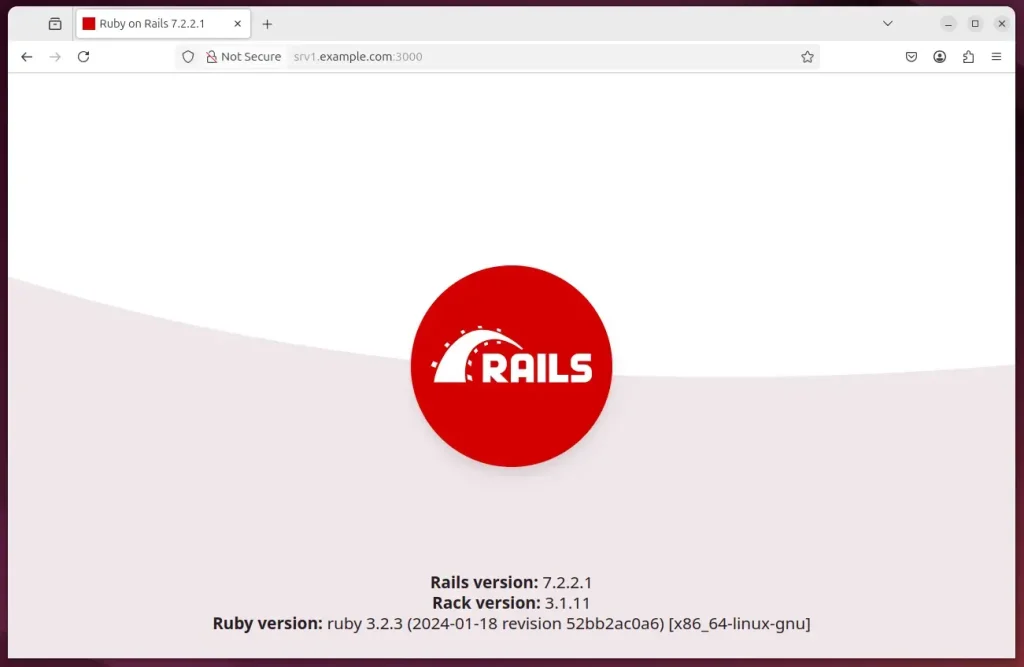
Now test the running application. The default Rails welcome page means the framework, the web server and your configuration are all working.
http://srv1.example.com:3000/testapps/
The configuration is complete. Keep in mind that this server is meant for development and testing. Production deployments normally use a dedicated application server and a reverse proxy.
Conclusion:
Deploying Ruby on Rails 7 on Ubuntu 24.04 requires these core steps:
- Installation of Ruby: Ensure you have Ruby version 3.2 installed as it's essential for Rails.
- Rails Installation: Use the Gem package manager to install Rails version 7.
- Database Setup: Install MariaDB, create a database, and set up a user for your Rails application.
- Application Configuration: Create a new Rails application, configure the database connections, and specify additional settings like domain name if needed.
- Run Your Application: Start the Rails server and access your application via a web browser.
After these steps you have a working Ruby on Rails 7 environment. You can now develop and test web applications locally on Ubuntu 24.04.
Have a question about this guide?
Answered by AI from this guide. Good questions may be added to this page — please don't include personal details.
Did this guide fix your problem?

About the Author
Richard
Tech Writer, IT Professional
Richard is a writer at Geek Rewind who turns complex IT tasks into clear, step-by-step guides. He draws on years of hands-on experience in system administration and enterprise IT operations, focusing on Windows, Linux and WordPress: the problems people actually run into, and the fixes that work. His server and WordPress guides come from systems he runs himself. Richard builds and maintains the platform behind Geek Rewind, from its Ubuntu servers and Nginx configuration to its custom WordPress plugins. Many new tutorials start with readers' questions, and he's always glad to answer them in the comments.
No comments yet — be the first to share your thoughts!