
This guide will help you easily reinstall the Dev Home app on your Windows 11 PC.
Dev Home is an app made for developers to test and manage their projects on Windows. It offers tools and settings that you won’t find in the usual Windows settings.
What can you do with Dev Home?
- Install apps that aren’t from the Microsoft Store (called sideloading)
- Turn on Developer Mode
- Manage device settings like portals
- Keep track of your coding tasks, GitHub issues, and project progress
- See how your computer’s CPU, GPU, Memory, and Network are performing
The app can also help you create a special Dev Drive to store your code and files safely.
Why reinstall Dev Home? If you already have Dev Home installed but it’s not working right, reinstalling it can fix many common problems.
How to Uninstall and Reinstall Dev Home
If Dev Home is acting up or you want to start fresh, follow these simple steps to uninstall and then reinstall the app.
Step 1: Open Windows Terminal with PowerShell
First, you need to open Windows Terminal and make sure you are using the PowerShell tab.
If you’re not sure how, here is a quick way:
- Click the Start button or press the Windows key.
- Type Windows Terminal and select it from the list.
- Make sure the tab says PowerShell. If not, click the down arrow (˅) next to the plus (+) sign and choose PowerShell.
Read more about how to open Windows Terminal with PowerShell.
Step 2: Uninstall Dev Home for Your User Account
Type or copy-paste this command into the PowerShell window, then press Enter:
Get-AppxPackage *Windows.DevHome* | Remove-AppxPackageStep 3 (Optional): Uninstall Dev Home for All Users
If you want to remove Dev Home from all user accounts on your PC, you need to open Windows Terminal as an administrator:
- Click the Start button.
- Type Windows Terminal.
- ⚠️ Admin Required: Right-click on Windows Terminal and select Run as administrator.
- Again, make sure you are in the PowerShell tab, then paste this command and press Enter:
Get-AppxPackage -AllUsers -PackageTypeFilter Bundle -Name "*Windows.DevHome*" | Remove-AppxPackage -AllUsersLearn more about running Windows Terminal as admin.
Step 4: Reinstall Dev Home from Microsoft Store
Now that Dev Home is removed, reinstall it by following these steps:
- Open the Microsoft Store app on your PC.
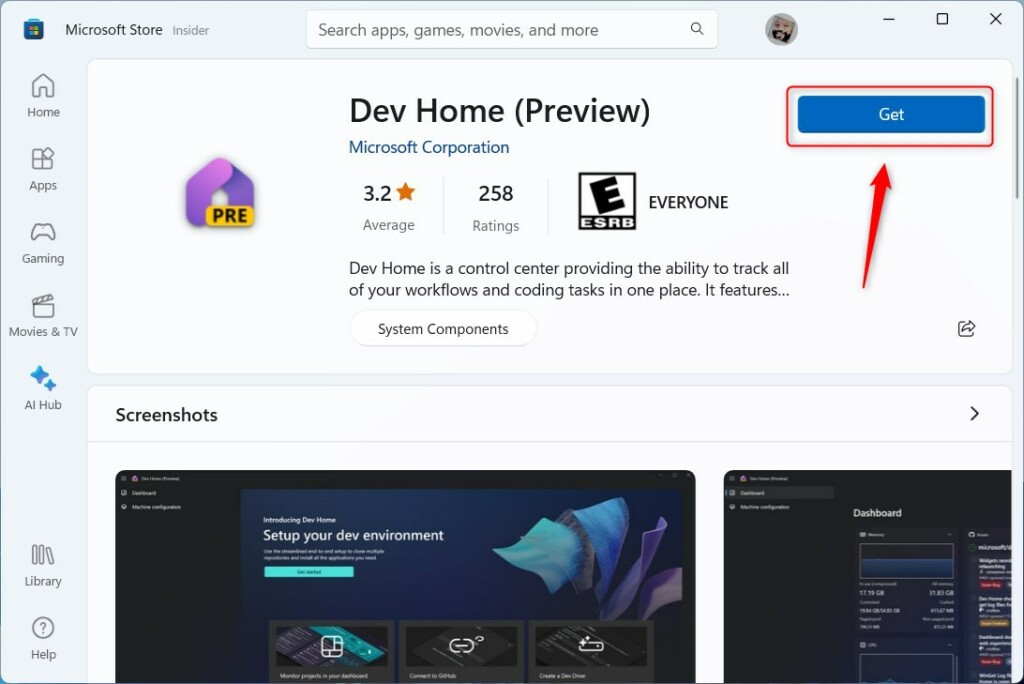
- Search for Dev Home or click this link: Get Dev Home app
- Click the Get button to download and install the app.
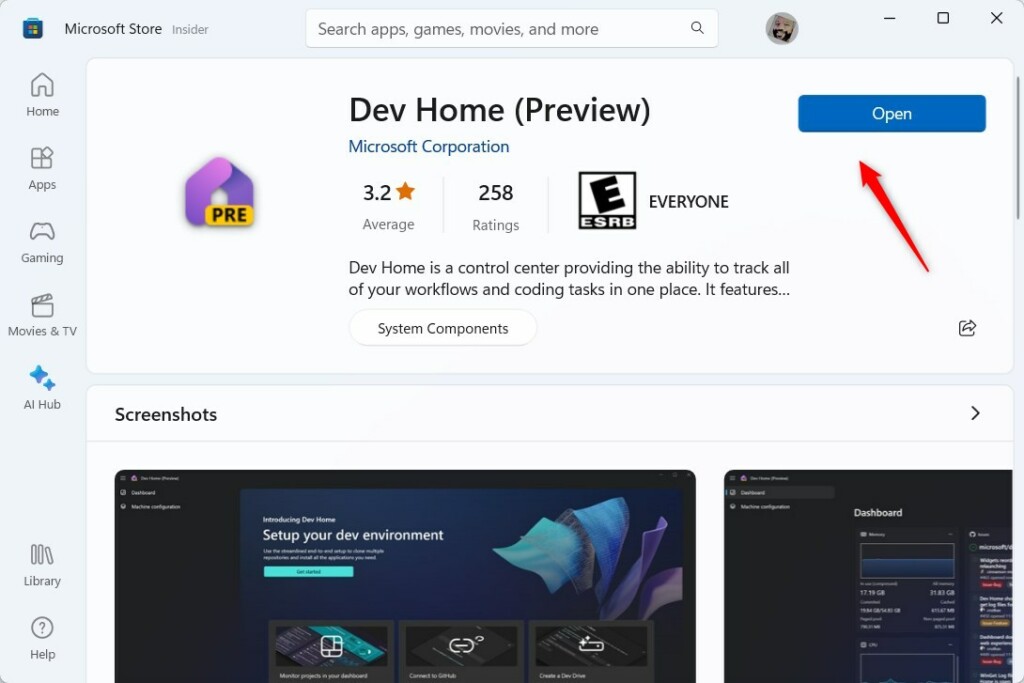
Once installed, open the app from the Start menu or directly from the Store.
Note: If you uninstalled Dev Home for all users, each user will need to reinstall it themselves.
You’re all set!
Summary
- Reinstalling Dev Home helps fix common app problems on Windows 11.
- You can uninstall and reinstall for just your user account or all users.
- After reinstalling, you get access to special developer tools and settings.
- The app helps with sideloading apps, tracking projects, and checking system performance.
- This guide makes reinstalling easy so you can get back to work fast.


Leave a Reply