How to Re-enable TLS 1.0 and 1.1 on Windows 11


TLS 1.0 and 1.1 are older security protocols that Microsoft turned off by default in Windows 11 version 22H2 to protect your PC from online threats.
Re-enabling these protocols lets you connect to older websites and legacy apps that still rely on outdated technology. However, this action lowers your computer’s security and leaves your data open to hackers, so you should only do it if you have no other choice.
Re-enable TLS 1.0 and 1.1 by opening Registry Editor (regedit) and navigating to 🗝️HKEY_LOCAL_MACHINESYSTEMCurrentControlSetControlSecurityProvidersSCHANNELProtocols. Create new keys for TLS 1.0 and TLS 1.1, then add Client and Server subkeys with DWORD values for Enabled and DisabledByDefault.
How to Check Enabled TLS Versions
Review the active configuration before touching the registry. PowerShell reveals which protocols remain active on the machine. Launch an administrative PowerShell instance and run this command: Get-ItemProperty -Path 'HKLM:\SYSTEM\CurrentControlSet\Control\SecurityProviders\SCHANNEL\Protocols\*'. This verification step confirms whether the keys already exist.
Re-enabling TLS 1.0 and 1.1 via Registry Editor
Re-enabling TLS 1.0 and 1.1 on Windows 11 involves editing system keys to allow older security protocols that some older apps and websites still need to connect properly. You can safely re-enable TLS Windows 11 by adding specific disabled-by-default values inside the Registry Editor, which gives your computer permission to use these legacy encryption methods again without needing extra software.
Apply these modifications to the Schannel settings in the Windows Registry.
Step 1: Press Win+R, type regedit, and hit Enter to launch the Registry Editor.
Step 2: Navigate to: HKEY_LOCAL_MACHINE\SYSTEM\CurrentControlSet\Control\SecurityProviders\SCHANNEL\Protocols
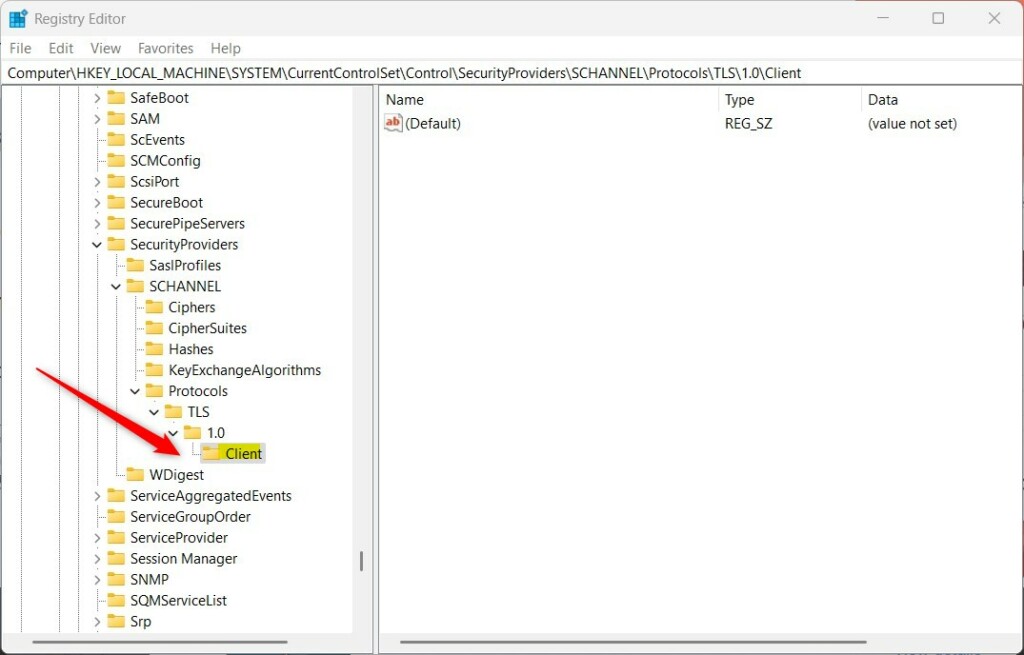
Step 3: Right-click the Protocols folder, select New Key, and name it TLS 1.0. Inside that new key, create two subkeys named Client and Server.
Step 4: Right-click the empty space inside both the Client and Server folders. Select New DWORD (32-bit) Value, name the entry Enabled, and assign a value of 1. Create a second DWORD named DisabledByDefault with a value of 0.
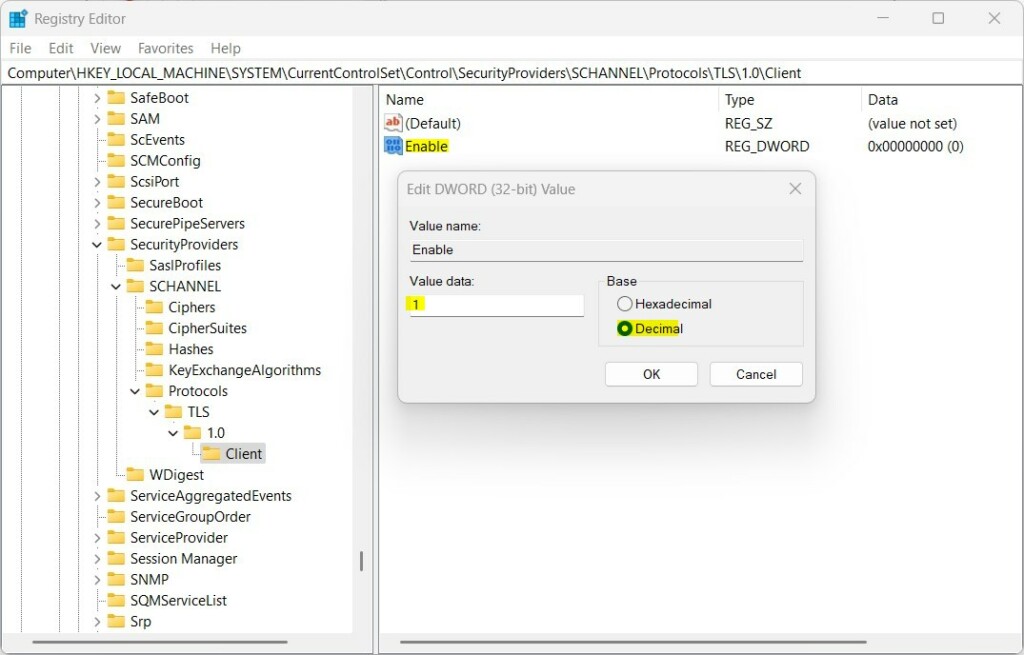
Step 5: Repeat the key creation process for TLS 1.1 if necessary. Reboot the machine to apply the modifications.
Troubleshooting SSL Handshake Failures
An SSL handshake error means your PC and the server failed to negotiate a secure connection. Turning on TLS 1.0 might resolve the issue, but persistent connection failures require checking Group Policy settings, which frequently override registry configurations.
Summary
Restoring TLS 1.0 and 1.1 serves as a temporary workaround for legacy software dependencies. Because these protocols lack adequate security, running them leaves the Windows 11 environment exposed. Upgrading software to support modern standards like TLS 1.2 or 1.3 remains the safest long-term approach.
Is it safe to re-enable TLS 1.0 and 1.1 on 🪟 Windows 11?
Is it safe to re-enable TLS 1.0 and 1.1 on Windows 11? Turning these protocols back on introduces known security vulnerabilities to the system. Administrators should only reactivate them temporarily for legacy application compatibility, restoring default security postures immediately afterward.
Was this guide helpful?

About the Author
Richard
Tech Writer, IT Professional
Richard, a writer for Geek Rewind, is a tech enthusiast who loves breaking down complex IT topics into simple, easy-to-understand ideas. With years of hands-on experience in system administration and enterprise IT operations, he’s developed a knack for offering practical tips and solutions. Richard aims to make technology more accessible and actionable. He's deeply committed to the Geek Rewind community, always ready to answer questions and engage in discussions.



No comments yet — be the first to share your thoughts!